
Imagine everything was working fine until last night – you watched YouTube videos, handled office work, and attended online classes. But when you opened your laptop this morning, the Wi-Fi icon was missing. There is no network indicator on the taskbar, no Wi-Fi option in Settings, and the network adapter has vanished from Device Manager – the entire section is either empty or shows only entries like “WAN Miniport.” Many users report that the Wi-Fi network adapter disappears after a Windows 11 update, leaving them unable to connect to wireless networks or locate Wi-Fi options in Settings or Device Manager. In India, this issue is particularly common in budget laptops – such as the HP 15s, Lenovo IdeaPad, and Acer Aspire series – that use Realtek or MediaTek Wi-Fi chips, as their drivers often break following a Windows update. If your network device has also disappeared and your internet access is completely down, this step-by-step guide will help you resolve the issue.
Why does the network adapter disappear? The real reason
Before we move on to the fixes, it is important to understand why this issue of the network device disappearing actually occurs.
The network adapter is a crucial device for proper network connectivity in the Windows operating system. It is also known as a computer network interface because it sends and receives data over wired and wireless connections. When it disappears, your PC becomes completely disconnected from the internet.
Common reasons:
- Outdated or Corrupted Drivers: This is the most common cause; outdated or corrupted drivers are frequently the culprits.
- After Windows Update or Fresh Installation: This issue often occurs after a fresh Windows installation, a major Windows update, or an unexpected driver conflict.
- Disabled in BIOS/UEFI: Disabling at the BIOS/UEFI or hardware level can also be the cause.
- Power Management Settings: On laptops, Windows may automatically turn off the network adapter to save battery, sometimes preventing it from turning back on.
- WLAN AutoConfig Service Stopped: The WLAN AutoConfig Service (which detects and manages Wi-Fi) may be stopped or incorrectly configured.
- Disabled in Device Manager: The Wi-Fi adapter might be disabled – intentionally or accidentally – within Device Manager settings. When disabled, the system does not recognize it.
- Hardware Issue: In some cases, the Wi-Fi adapter itself may be faulty or physically damaged. This is less common but remains a possibility if all software-based troubleshooting fails.
- Laptop’s Physical Wi-Fi Switch Turned Off: Some laptop models feature dedicated switches or key combinations (such as Fn + F2 or a small slider on the side of the laptop) that can disable the adapter at the hardware level.
Network Adapter Missing – Ways to Fix It (Step-by-Step)
Now, let’s talk about solutions. We will start with simple fixes and move on to more advanced methods.
Method 1: Completely restart the PC (Shut down, don’t just restart)
It sounds very simple, but it works. A complete reboot (not just a standard restart) sometimes restores missing hardware entries because it forces Windows to reload device drivers and hardware tables.
What to do:
- Select Start Menu > Power > Shut down (not Restart).
- Wait for 30 seconds.
- Turn the PC back on and check if the adapter has reappeared.
If you are connected via an Ethernet cable, unplugging and reconnecting the cable often resolves the issue.
Method 2: Check the physical Wi-Fi switch and Airplane Mode
This step is very basic, yet many people overlook it.
Laptops often feature physical switches or function key combinations (such as Fn + F2) designed to disable the Wi-Fi adapter.
Check the following:
- Check if the physical Wi-Fi switch on the side of the laptop is turned off.
- Try pressing Fn + F2 (or your laptop’s wireless function key).
- Check Settings > Network & Internet > Airplane Mode – if it is on, turn it off.
Many budget laptops from HP and Lenovo in India feature a switch that can easily get pressed accidentally.
Method 3: Show Hidden Devices in Device Manager
Sometimes, Windows hides your network adapters in Device Manager, which can be a reason for them appearing to be missing.
Steps:
Right-click the Start button and select Device Manager. Click on View and select the “Show hidden devices” option. Wait a few seconds and check again.
If the adapter appears: Look for grayed-out adapters, right-click on them, and select “Enable device” (if available).
If you see entries with a yellow warning icon, right-click on the device, select Properties, and review the Device Status. This may reveal error codes or messages indicating missing or corrupted drivers.
Method 4: Scan for hardware changes
There is another quick fix in Device Manager.
In Device Manager, click on “Action” in the menu bar and then click on “Scan for hardware changes.” Windows will scan for connected devices that are missing and reinstall the necessary drivers.
Method 5: Uninstall and Reinstall the Network Adapter Driver
In most cases, a corrupted or improperly installed network driver is the cause of this error. A simple uninstall or rollback can fix it.
Steps to uninstall:
If the adapter appears in Device Manager, right-click on it and select “Uninstall device.” Reboot your computer after uninstalling. Windows will attempt to automatically reinstall the driver, which often resolves driver corruption issues.
After uninstalling, click on “Action” in the Device Manager toolbar and select “Scan for hardware changes.”
Steps to roll back the driver:
Right-click on the network adapter. Click on “Properties” and select the “Driver” tab at the top. Then, click on “Roll Back Driver” and follow all on-screen instructions.
Method 6: Manually Install the Driver (via USB Drive)
If the adapter does not reappear or Windows cannot find a suitable driver, you will need to manually install the correct network driver. Using another device with internet access, visit the support page of your PC or motherboard manufacturer (e.g., Dell, HP, ASUS, MSI, or Intel) and download the latest network drivers for your specific model and Windows 11 version.
Transfer the driver files to the affected PC using a USB drive and run the installer. Restart the system after installation and check Device Manager again.
Advanced Driver Identification:
If you see an “Unknown device” or a device with a warning icon, right-click it, select Properties, go to the Details tab, and choose Hardware Ids from the dropdown menu. Copy the displayed IDs and search for them online to identify and locate the correct driver.
You can fix a missing Wi-Fi adapter even without an Ethernet connection. You can download drivers on another device and transfer them via a USB drive, or use a USB Wi-Fi dongle to establish connectivity. In India, TP-Link or D-Link USB Wi-Fi adapters are available on Amazon.in for ₹400–₹850 ($5–$10).
Method 7: Add Legacy Hardware (If the adapter is not visible at all)
If nothing appears under the “Network adapters” section in Device Manager, try this method.
Press the Windows logo key and X simultaneously on your keyboard and select Device Manager. In Device Manager, select the top entry (your computer’s name), click on “Action” in the menu bar, and select “Add legacy hardware.”
Select “Install the hardware that I manually select from a list (Advanced)” and click Next. Select “Network adapters” and click Next. Select the correct manufacturer for your wireless network adapter from the left-hand panel, then select your specific network adapter from the right-hand panel.
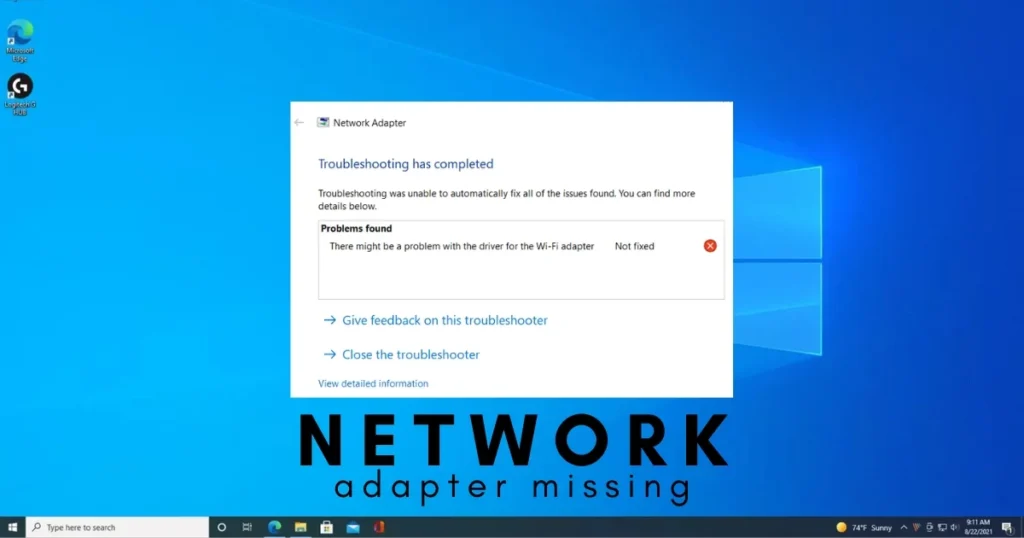
Method 8: Run the Network Troubleshooter
Windows 11 includes a built-in troubleshooter that automatically detects and fixes common network problems, including missing or disabled adapters.
Steps:
Open Settings by pressing Windows + I. Go to System > Troubleshoot > Other troubleshooters. Find “Network Adapter” and click “Run.” Follow the on-screen instructions.
Method 9: Check and start the WLAN AutoConfig Service
The WLAN AutoConfig Service is a core Windows component essential for discovering networks and managing wireless connections. If it is not running, the Wi-Fi UI will not appear or will not function correctly.
Steps:
- Press Win + R, type
services.msc, and click OK. - Scroll to WLAN AutoConfig, right-click it, and select Properties. Under “Startup type,” select Automatic. If the service is not running, click Start.
- Repeat these steps for Remote Procedure Call (RPC) and DCOM Server Process Launcher as well. Both should be set to Automatic and Running.
If the service is not in the list, it might be disabled. Open Command Prompt as an administrator. Type sc config WlanSvc start= auto and press Enter.
Method 10: Perform a Winsock Reset and Network Cleanup
Run these commands in Command Prompt (Admin):
netsh winsock resetnetsh int ip resetipconfig /flushdnsipconfig /releaseipconfig /renew
Restart the computer to save the changes. After rebooting, check whether the lost network adapter appears on your computer again.
Method 11: Change Power Management Settings
By default, Windows may turn off the network adapter to save power when entering Sleep Mode. However, this setting can cause Wi-Fi connectivity issues. You can quickly resolve this by adjusting the power management settings for your network adapter.
Steps:
Open Device Manager and expand the “Network adapters” section. Right-click on your Wi-Fi adapter and select “Properties.” In the Properties dialog box, go to the “Power Management” tab. Uncheck the option “Allow the computer to turn off this device to save power.” Click “OK” to save the changes and restart your computer.
Method 12: Enable the Network Adapter in BIOS/UEFI
In some cases, the network adapter is disabled in the BIOS or UEFI firmware. To check this, reboot your PC and enter the BIOS/UEFI by repeatedly pressing the appropriate key (often Del, F2, or Esc). Look for settings related to “Integrated Peripherals” or “Onboard Devices” and ensure that the Onboard LAN or Network Controller is enabled.
The BIOS interface varies by manufacturer (HP, Dell, Lenovo, Asus), so search for “BIOS enter key” along with your laptop’s model number.
Method 13: Run SFC and DISM Scans
Corrupted system files can also cause issues like the network adapter going missing.
In Command Prompt (Admin):
sfc /scannowDISM /Online /Cleanup-Image /CheckHealthDISM /Online /Cleanup-Image /ScanHealthDISM /Online /Cleanup-Image /RestoreHealth
Restart the PC after both scans are complete.
Method 14: Perform a Network Reset
Many users have confirmed that this method fixes the “Windows Network Adapter Missing” error.
Steps:
Go to Settings > Network & Internet > Advanced network settings > Network reset and click on “Reset now.”
This will reinstall network adapters and reset networking components to their default settings.
Resetting network settings only affects network configurations – such as saved Wi-Fi networks, VPNs, and adapters. Your personal files remain completely safe.
Method 15: Perform a System Restore (Final Software Fix)
If you have recently installed new software or drivers, they might be causing conflicts with the Wi-Fi adapter. You can perform a System Restore to revert your laptop to a previous state when the Wi-Fi was working. Don’t forget to back up important files before performing a System Restore.
Method 16: External USB Wi-Fi Adapter (in case of hardware failure)
If the built-in adapter is faulty and out of warranty, a USB Wi-Fi adapter serves as an affordable and reliable alternative.
If nothing appears in Device Manager even after selecting the “Show hidden devices” option, a defective chip is suspected.
In India, USB Wi-Fi adapters like the TP-Link TL-WN725N are available for ₹400–₹650 ($5–$8) and offer plug-and-play functionality.
Some additional important points
- Try one fix at a time and test after each change.
- Visit the motherboard’s official website, download and install the chipset driver, and check if the issue is resolved.
- If the problem started immediately after a Windows update, try uninstalling that update: Settings > Windows Update > Update History > Uninstall Updates.
- If the network adapter is missing and an “Unknown Device” appears in the “Other Devices” section of Device Manager, check under “Other Devices” to see if the Ethernet or Wi-Fi option is listed there.
Some free tools that can help
- Snappy Driver Installer (SDI) – A free, open-source driver installation and update tool that works even without an internet connection (provided you have downloaded the driver packs beforehand). ($0 – sdi-tool.org)
- Intel Driver & Support Assistant – An official tool for Intel Wi-Fi adapters that automatically detects and installs the correct drivers. ($0 – intel.com)
- Windows Built-in Tools – Device Manager, services.msc, Command Prompt (sfc, DISM, netsh) – These are all pre-installed in Windows. ($0)
- msinfo32 – Press Win + R and type
msinfo32.exeto open the System Information window. It displays a complete list of your hardware components. ($0)
Visit fixtech.in for more Windows 11 troubleshooting guides and tips.
FAQs– About Missing Network Adapter
Q1: What does it mean when the network adapter goes missing?
Sometimes, you may find that the network adapter is missing from your Windows 11/10 computer. The primary consequence is the inability to access the internet, and clicking the connectivity icon on the taskbar will show no available devices.
Q2: The network adapter disappeared after a Windows update – what should I do?
Windows updates can sometimes cause issues with hardware drivers. Ensure your laptop is fully up-to-date with the latest Windows updates, as they may contain fixes for known Wi-Fi adapter issues. If the problem started after a specific update, try uninstalling it.
Q3: Network adapters aren’t showing up in Device Manager at all – is the hardware faulty?
If the Wi-Fi adapter does not appear in Device Manager at all, it usually indicates that it is disabled at the BIOS level, the driver is corrupted, or there is a hardware failure. Check your BIOS settings, reinstall the drivers, or consider replacing the hardware.
Q4: Will performing a network reset delete my files?
No, it only resets network configurations such as saved Wi-Fi networks, VPNs, and adapters. Your personal files remain completely safe.
Q5: What is the WLAN AutoConfig service, and why is it important?
The WLAN AutoConfig service is a core Windows component essential for discovering networks and managing wireless connections. If it isn’t running, the Wi-Fi interface may not appear or function correctly.
Q6: Is an external USB Wi-Fi adapter a good solution?
If the built-in adapter is faulty and out of warranty, a USB Wi-Fi adapter is an affordable and reliable alternative. In India, USB adapters from brands like TP-Link, D-Link, and Tenda are easily available for around ₹400–₹800 ($5–$10).
Conclusion
A missing network adapter is one of the most frustrating issues in Windows 11, but in most cases, the solution lies at the software level. Fixing a missing network adapter in Windows 11 typically involves a combination of driver installation, hardware checks, and system setting adjustments. Following these steps restores reliable network connectivity and helps prevent similar issues after future updates or installations. Whether it is checking for hidden devices, reinstalling drivers, starting the WLAN AutoConfig service, or enabling the adapter in the BIOS – one of these methods is bound to work. Simply try them one by one, test after each step, and do not panic if a network device appears to be missing. And if the missing network adapter issue persists, be sure to bookmark this guide.