
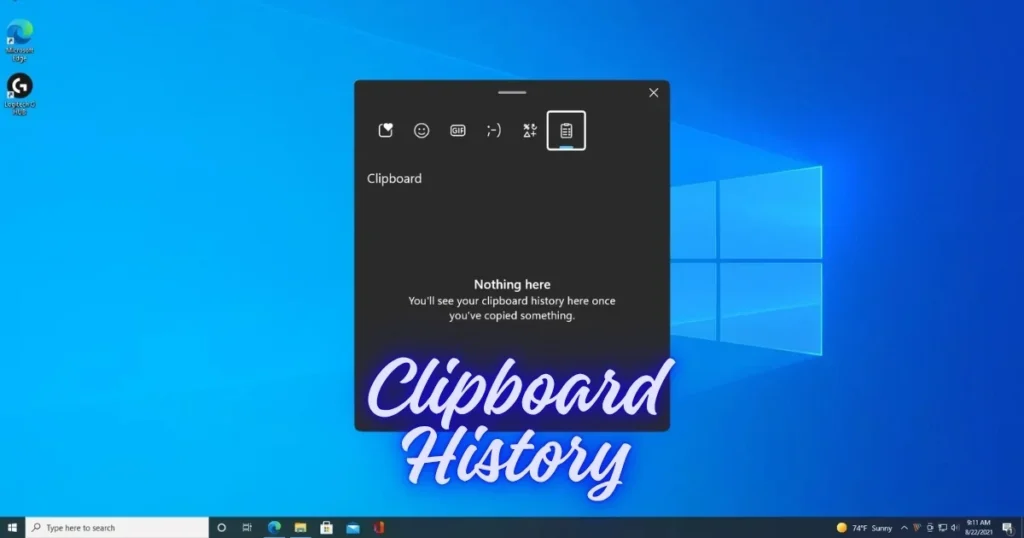
This is a really annoying issue. You’re deep in work, copying things one after another – code snippets, email addresses, important links – but when you press Win+V to paste something you copied earlier, the screen says “Nothing here,” or the panel simply doesn’t open. The Windows clipboard history isn’t working – a complaint that has become very common among Windows 11 users, especially after the 24H2 update. Freelancers, content writers, CA offices, and coders across India are all grappling with this. If you’re facing this problem too, this guide will help – offering detailed fixes without any fluff.
What is Clipboard History, and why is it so important?
This feature allows users to view the history of copied items, whether they are text or images. You can easily access the content stored in the clipboard by pressing Windows + V.
Previously, Windows allowed only one item to be copied at a time – copying something new would cause the old item to disappear. Clipboard History changed this. The feature saves up to 25 copied data clips. It enables users to copy multiple items using the Ctrl + C hotkey, which can then be selected from the Clipboard History and pasted.
Windows 11 Clipboard History supports text, HTML content, and bitmap images. Each item is limited to a size of 4 MB. Unsupported formats or files exceeding this limit will not be saved in Clipboard History, although they can still be pasted from the temporary clipboard immediately after being copied.
Clipboard History is limited to 25 copied entries. Older items – unless pinned – are automatically removed to make room for new entries.
Why Windows Clipboard History Isn’t Working – Key Reasons
Clipboard history usually fails to work due to the feature being disabled, a service crash, or third-party interference. Let’s look at each reason in detail:
1. The feature is off by default
The most important point is that Windows 11 keeps this feature off by default, so it is necessary to enable it manually before attempting any troubleshooting.
2. Bug after Windows update
After updating to Windows 11 24H2, the clipboard history feature stops working for many users. It simply keeps displaying the message “You’ll see clipboard history here once you’ve copied something,” even if the user has already copied something.
3. Interference from third-party software
Clean-booting Windows can prevent third-party programs or services from running at startup that might be conflicting with the clipboard history. For example, a third-party app’s use of the Windows + V keyboard shortcut could conflict with the clipboard history hotkey.
4. The Clipboard User Service has crashed
Windows runs a separate service to manage clipboard history. If this service crashes or stops, the Win + V shortcut will stop working.
5. Blocked via Group Policy or Registry
Clipboard history is often blocked by Group Policy or Registry settings, especially on managed PCs. On work or school devices, IT policies may disable clipboard history and syncing by design.
6. Privacy Cleaner Tools
Sync issues (account/sign-in) and third-party “privacy cleaners” are common reasons why history fails to persist. Some privacy tools and “system optimizers” automatically clear clipboard history. If clipboard history works immediately after booting but is empty later, an automated cleaner is the prime suspect.
7. Corrupt System Files
Damaged system files can prevent the clipboard history from functioning correctly.
How to fix clipboard history – a step-by-step fix
Now, let’s talk about solutions. We’ll start with the easiest fix.
Fix #1: Enable Clipboard History (Check this first)
It sounds basic, but many people overlook it.
Steps:
- Open Settings by pressing Win + I, then go to System > Clipboard. Check if the Clipboard history toggle is turned on; if it is off, enable it.
- Test the basic functionality – copy some text (Ctrl + C), then press Win + V. If the Clipboard history panel opens and the copied item appears, the feature is working.
Fix #2: Toggle off “Suggested Actions” (24H2 bug fix)
The most frustrating part is that Windows Insiders reported this issue about three months ago, back when Windows 11 24H2 was still in testing. For some reason, Microsoft did not deem it necessary to fix it.
However, there is a workaround that has worked for many users:
- Open Settings. Under System, scroll down and select Clipboard. Toggle “Clipboard history” off and then back on. Also, toggle “Clipboard history across your devices” off and on. Disable “Suggested actions,” then open Clipboard History using the Windows key + V shortcut; you can re-enable “Suggested actions” afterwards if you wish.
Disabling “Suggested Actions” and then toggling Clipboard History off and on resolved the issue for many users.
Fix #3: Restart the Clipboard User Service
This is the background service that powers the clipboard history. Restarting it is one of the most effective fixes when Windows clipboard history isn’t working.
Steps:
- Press Win + R, type
services.msc, and press Enter. In the Services window, scroll down to find “Clipboard User Service.” Right-click on it and select “Restart.” Wait for about 10 seconds for the service to restart completely.
Fix #4: Restart Windows Explorer
Windows Explorer manages various system functions, including clipboard operations. Restarting it can resolve clipboard history issues.
Steps:
- Open Task Manager by pressing Ctrl + Shift + Esc. Click on the Details tab, then locate explorer.exe in the list. Right-click on it and select Restart. Your taskbar will disappear momentarily and then reappear with a refreshed connection to the clipboard services.
Clearing clipboard data and restarting Explorer can quickly fix many issues where “Win+V” isn’t working.
Fix #5: Clear the clipboard cache
Use Win + V to clear the clipboard cache and select “Clear all,” as the 25-item limit often causes failures.
How to clear it via Settings:
- Try clearing the clipboard data. To do this, open the Settings app using the Windows + I hotkey, go to System > Clipboard, and then click the Clear button in the “Clear clipboard data” section.
How to manually clear it from the AppData folder:
- Open the Run dialog box by pressing the Windows key + R. Type “%appdata%” (without quotes) and press Enter. Navigate to the “Local” folder. Open the “Microsoft” folder. Access the “Clipboard” folder and delete its contents. After clearing the Clipboard folder, restart your computer and check if the clipboard history is working correctly.
By clearing the cache, you are simply removing stored information that might be causing conflicts or errors with the clipboard functionality. This process is safe and does not affect any critical system files or settings.
Fix #6: Enable via Group Policy Editor
If you are using the Windows Pro or Enterprise edition, Group Policy might have blocked clipboard history. This is very common in offices where IT admins set the policies.
Steps:
- Press Win + R to open the Run dialog box. Type “gpedit.msc” and click OK. In the Group Policy Editor, navigate to this path: Computer Configuration > Administrative Templates > System > OS Policies. Click on “Allow Clipboard History” on the right side.
- Select the “Enabled” radio button, then click Apply and OK.
- Restart your PC or run
gpupdate /forcein an Admin Command Prompt.
Fix #7: Enable via Registry Editor (For Home Edition users)
If this issue is not resolved or you cannot access the Group Policy Editor (as is the case for those running Windows Home Edition), the next fix might help.
Steps:
- Open Registry Editor and navigate to this path: HKEY_LOCAL_MACHINE\SOFTWARE\Policies\Microsoft\Windows\System. Right-click a space, choose New, and select DWORD (32-bit) Value. Name it AllowClipboardHistory. Double-click on it and set the value to 1. Press OK and restart the computer.
Note: Always create a System Restore Point before editing the Registry.
Fix #8: Test in Safe Mode (Check for third-party conflicts)
Hold down the Shift key and click the Restart button in the Start menu. Once Windows restarts, select Troubleshoot > Advanced options > Startup Settings, then click Restart. When the startup menu appears, press 4 to boot into Safe Mode. Wait for Windows to load with minimal drivers and background services fully.
Copy several items while in Safe Mode and press Win + V. If the clipboard history works correctly in Safe Mode, then a third-party application running on your system is causing the conflict.
If it works in Safe Mode, disable third-party apps one by one to identify the problematic app. Check apps like CCleaner, IObit, or any “system optimizer” first.
Fix #9: Run SFC and DISM scans
Run the SFC /scannow command from an Administrator Command Prompt; this helps detect and repair system file corruption. This proactive scan takes 15–30 minutes but prevents clipboard failures caused by silent file corruption. It is one of the most effective preventive system maintenance tasks for Windows 11.
Steps:
- Right-click on Start > Open Terminal (Admin) or Command Prompt (Admin)
- Run DISM first: DISM /Online /Cleanup-Image /RestoreHealth
- After DISM completes, run SFC: SFC /scannow
- Once both are finished, restart the PC and test Win + V
Fix #10: Uninstall the Problematic Windows Update
If the Windows clipboard history isn’t working and the issue started after a specific update, rolling back that update is the best option.
Version 24H2 has introduced clipboard issues for some users. If you can identify the problematic update, roll it back by going to Settings > Windows Update > Update history > Uninstall updates.
Steps:
- Locate the update that was installed around the time clipboard history stopped working (specifically, KB updates for the 24H2 release). Select the update and click Uninstall. Restart your computer after uninstalling the update. Test clipboard history to see if the functionality has been restored.
Fix #11: Check Clipboard Sync
If you are using clipboard history synced across multiple devices, check the sync settings as well.
- Scroll to the right and click on Clipboard. Turn on the toggle next to “Sync across your devices.” After doing this, check the circle for “Automatically sync text that I copy.”
Clipboard sync works best when you use the same Microsoft account on every device and have a stable internet connection.
Fix #12: Reinstall Shell Components (Last Resort)
If all of the above fails, try these advanced fixes:
Open Admin Command Prompt and run these commands:
DISM /Online /Add-Capability /CapabilityName:Windows.Client.ShellComponents~~~~0.0.1.0This reinstalls Windows Shell components, including the Clipboard, Emoji Panel, and Snipping Tool. Restart your PC and test it.
If nothing works, try creating a new user account to see if the problem persists there as well. This helps determine whether the issue is user-specific or system-wide.
Tips for maintaining clipboard history effectively in the future
- Avoid copying unsupported formats or files larger than 4 MB, as they will not be stored in the clipboard history.
- Check third-party clipboard managers and security software for conflicts; disable or uninstall them if they interfere with the native Windows clipboard.
- Create regular System Restore points before major Windows updates so you can quickly roll back if clipboard functionality breaks.
- Clipboard history is cleared every time you restart your PC, except for items you have pinned. Therefore, always pin important items.
Free Tools – Use these alternatives if Windows Clipboard History isn’t working properly.
If none of the fixes work, you can use third-party clipboard managers. Most of them are free and offer far more features than the Windows clipboard, so switching to one of them can be beneficial.
- Ditto Clipboard Manager (Free) – Ditto is the most popular free clipboard manager for Windows. It has been around since 2004 and is highly popular among developers and power users. Ditto supports text, images, HTML snippets, code snippets, and files.
- CopyQ (Free, Open-source) – CopyQ is an advanced, scriptable clipboard manager available for Windows, Linux, and macOS.
- ClipClip (Free) – ClipClip is free clipboard management software for Windows. It allows you to copy multiple items – such as text, images, or files – to the clipboard.
- ClipboardFusion (Free Basic, Pro $15) – ClipboardFusion makes it easy to strip or replace clipboard text formatting and run powerful macros. You can also sync your clipboard across other computers and mobile devices. Basic functionality is free for personal use.
Be sure to visit fixtech.in for more detailed Windows troubleshooting guides.
FAQs – About
Q1: Pressing Win + V does nothing – what should I do?
Clipboard history is enabled, but Win+V isn’t working: recheck policies and restart Explorer. Also, check whether a third-party app is overriding the Win+V shortcut. Confirm that the Windows key is functioning correctly; test this by pressing Win+L to see if the PC locks.
Q2: Why does clipboard history get cleared when I restart my PC?
Clipboard history clears every time the PC restarts, except for items you have pinned. This is by design in Windows, not a bug. Make sure to pin important items.
Q3: Windows Home edition doesn’t have the Group Policy Editor – what should I do?
For some users, clipboard history needs to be enabled via the Windows Registry. The reason for this isn’t clear, but it may be related to Windows locale settings. Follow Registry Editor fix #7 mentioned above.
Q4: How many items does clipboard history save?
There is a size limit of 4 MB per item. Supported formats include text, HTML, and bitmap. Clipboard history is limited to 25 copied entries.
Q5: Is a third-party clipboard manager better than the built-in Windows one?
Win+V is fine for basic multi-copy needs, but it doesn’t strip formatting or transform content. If you copy from PDFs, websites, or emails and want clean results, a dedicated clipboard manager can save you hours of manual cleanup.
Q6: Clipboard history won’t enable on my office/school PC – why?
Clipboard history might be disabled via Group Policy, especially on work or school PCs. In this case, you will need to speak with your IT administrator. If that isn’t allowed, use free alternatives like Ditto or CopyQ.
Q7: The “Suggested Actions” option isn’t appearing in my Settings – what should I do?
“Suggested Actions” is not available in all markets. One user managed to make it appear by changing the region and language to “US” in the Settings menu. After changing the region, try Fix #2.
Final Thoughts
The Windows Clipboard History issue can certainly be frustrating, but in most cases, it can be resolved within minutes using a simple Settings toggle, restarting the Clipboard User Service, or applying the Suggested Actions workaround. The problem is usually fixed in under an hour, with most users resolving it via the first or second solution. In India, Group Policy and Registry fixes are particularly effective for office PCs. Try the solutions listed above one by one, explore free alternative tools, and be sure to visit fixtech.in for further Windows troubleshooting assistance – you will find detailed solutions there for issues like Windows Clipboard History not working.