
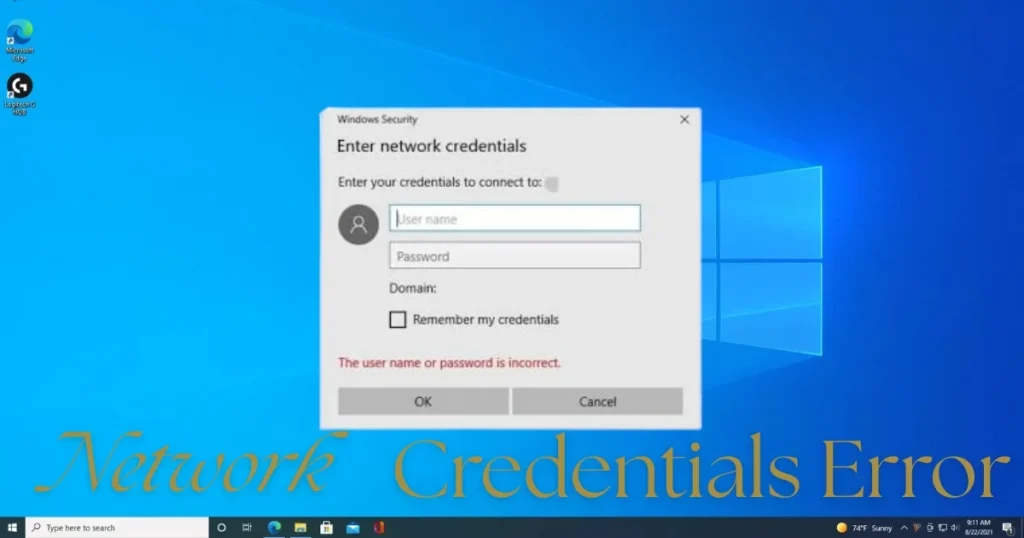
Let’s get straight to the point: you have two or three computers on the same network in your office or home, and a crucial folder shared on one of them; yet, when you try to open it from another computer, a prompt suddenly pops up on the screen asking you to “Enter Network Credentials.” You enter your username and password, but Windows keeps insisting that “The user name or password is incorrect.” This network credential error frustrates thousands of people daily across offices of all sizes, CA firms, shops, and home networks in India. Whether it involves sharing Tally data, accessing Excel sheets, or sharing a printer, this error brings work to a complete halt. In this guide, we will explain every cause and solution in simple, step-by-step language.
What exactly is the network credential error?
When you attempt to access a shared folder on one Windows computer from another, Windows displays a dialog box asking for a username and password. Network credential consist simply of a user ID and password – created by the end-user for a home network or by an IT administrator in a domain environment – that must be entered for the computer you are trying to connect to. These credential can be associated with a Microsoft Account or a local account ID.
The problem arises when, despite entering the correct username and password, Windows refuses to accept them and repeatedly displays the prompt.
Why does this error occur? – Main reasons
There can be several reasons behind the network credential error. Let’s understand each one:
1. Incorrect Advanced Sharing Settings
Incorrectly configured Advanced Sharing settings are one of the most common causes of this error. If “Password Protected Sharing” is enabled and there is no matching account on the other computer, this error will occur.
2. Old or incorrect credential are saved in Credential Manager
The system uses old or incorrect credential when outdated credential associated with the server are saved in Windows Credentials. This is the most common yet least obvious cause.
3. Windows Hello PIN or Biometric Login
When you log in using a Windows Hello PIN, it authenticates you on the local machine, but these credential are not necessarily passed on to network resources. Only passwords can be used to secure shared folders. This is why network shares cannot be accessed when logging in with a PIN.
4. Settings Reset After Windows Update
A recent update to Windows 11 may cause issues with network credential. Sometimes, updates reset policies that affect network access.
5. SMB Protocol Disabled or Incompatible
Certain settings related to SMB (the file-sharing protocol) may get reset in Windows 11. If SMB is not properly enabled, you will face issues accessing shared folders.
6. Incorrect username format
According to users, to resolve the network credential issue, you must enter the name of the computer you wish to access, followed by the username. Windows rejects the credential if the correct format is not used.
7. Network Discovery or File Sharing is turned off
You need to enable Network Discovery and File and Printer Sharing in the Advanced Sharing Settings of the Network and Sharing Center. If these are turned off, other computers on the network will not appear at all.
How to fix network credential errors – step-by-step
Now, let’s talk about solutions. We will start with the easiest fix and move on to advanced ones.
Fix #1: Use the correct username format
This is the most basic yet most frequently overlooked step. Most people simply enter their name or email, whereas Windows requires a specific format.
The correct method:
If the computer you want to access is named “Computer1” and has a user named “Mike,” you must enter both the computer name and the username together in the username field. In our example, the entry for the username field would be “Computer1Mike”.
- Local account: ComputerName\Username (e.g., OFFICE-PC\Admin)
- Microsoft account: Use your Microsoft email and password.
- Make sure not to put a slash before the computer name.
You will need to enter the credential that exist on that other (sister) PC, not the ones for the PC you are currently using.
Fix #2: Turn off Password Protected Sharing
If you are on a home network or in a small office where security is not a major concern, turning off Password Protected Sharing is the quickest fix for the network credential error.
Steps (perform these on the computer sharing the folder):
- Go to Control Panel > Network and Sharing Center > Advanced Sharing Settings.
- Under “All Networks,” locate “Password protected sharing” and turn it off.
- Click on “Save changes.”
- Restart the computer.
After transferring the files, re-enable Password Protected Sharing so that others do not have easy access to your PC.
Fix #3: Remove old credential from Credential Manager
This is a crucial step. Windows continues to use old saved credential even if they are no longer valid.
Steps:
- Open Control Panel > User Accounts > Credential Manager > Windows Credentials. Click ‘Remove’ for the saved Windows credential associated with the shared folder (identify them by the IP address or server name).
- Now, click on ‘Add a Windows credential’.
- Enter the correct computer name, username, and password for the computer you wish to access.
- Check if you are now able to share files with the other device.
Fix #4: Disable Windows Hello (PIN/Biometric)
This fix has been a lifesaver for many people. It involves a bug that has existed since Windows 10 and persists in Windows 11. Microsoft still hasn’t fixed it; to get SMB logins working, you must stop using Windows Hello for sign-in – whether it’s PIN or Biometric – as these methods break SMB access logins.
Fix:
- Go to Settings > Accounts > Sign-in options.
- Remove the Windows Hello PIN from Sign-in options and try logging in using your password.
- Log in using your password at least once on the computer where the folder is shared.
- It appears that the file sharing feature does not query the actual account directly but instead relies on credential saved on the machine. It also seems that the only way to save those credential is to log in using the password at least once.
Fix #5: Enable Network Discovery and File Sharing
This is a very basic setting, but it sometimes turns off automatically after a Windows update.
Do this on both computers:
- Open the Control Panel. Go to Network and Internet > Network and Sharing Center > Advanced sharing settings. Select “Turn on network discovery.” Under “Private,” select “Turn on file and printer sharing.” Click “Save changes.”
- All machines must be on the “Private” network profile. If your network is set to “Public,” go to Settings > Network & Internet > Wi-Fi (or Ethernet) > Properties and select “Private.”
Fix #6: Access directly via IP address (Hostname Bypass)
Instead of using the folder name, access the shared folder using the IP address of the computer hosting it.
Steps:
- Step 1 – Physically go to the PC that is not accepting credential and find its IP address.
- To find the IP address, open Command Prompt on that PC and type
ipconfig. Note down the IPv4 Address (e.g., 192.168.1.105). - Now, open File Explorer on your computer.
- Type
\\192.168.1.105in the address bar and press Enter. - This essentially bypasses Windows hostname resolution and requests the SMB share directly associated with that IP address.
This fix has helped many users in India and has received the most “Thank You”s on Microsoft Q&A.
Fix #7: Adjust Local Security Policy
If the computer hosting the shared folder does not have a password set (blank password), Windows blocks network access by default.
Fix:
- Type
secpol.mscin the Run dialog and press Enter. In the Local Security Policy console, click on Local Policies > Security Options in the left pane. Double-click the policy named “Accounts: Limit local account use of blank passwords to console logon only” in the right pane. Select Disabled on the Properties page. Click Apply and then OK. Restart the PC. - Under Local Policies > Security Options, locate the policy “Network access: Sharing and security model for local accounts” and set it to “Classic – local users authenticate as themselves“.
Fix #8: Restart SMB Services
Sometimes, Windows file sharing services do not function correctly. Restarting them can resolve issues with accessing shared folders.
Run these commands in Command Prompt (Admin):
Open Command Prompt (Admin) and run the following: net stop lanmanserver, then net start lanmanserver, then net stop lanmanworkstation, and finally net start lanmanworkstation – then try accessing the folder.
Fix #9: Enable Insecure Guest Logons (Group Policy)
Windows 10/11 blocks insecure guest logons by default, which prevents access to shares without a password.
From Group Policy Editor:
- Press Win + R and type
gpedit.msc. Navigate to Computer Configuration > Administrative Templates > Network > Lanman Workstation. Check that “Enable insecure guest logons” is set to Enabled.
Or from the Registry Editor:
- In Registry Editor, navigate to
HKEY_LOCAL_MACHINE\SOFTWARE\Policies\Microsoft\Windows\LanmanWorkstation. If this key does not exist, you will need to create it. Right-click onWindows, select New > Key, and name itLanmanWorkstation. Right-click onLanmanWorkstation, create a New > DWORD (32-bit) Value, and name itAllowInsecureGuestAuth. Double-click on it, set the Value data to1, and press Enter.
Fix #10: Connect using the net use command
If the GUI isn’t working, connect directly via the Command Prompt.
Steps:
- Open the Administrator Command Prompt.
- First, remove existing connections:
net use * /delete(this will remove all mapped drives). - Then, use this command:
net use \\server\sharedfolder /user:Username Password– replace ‘Username’ and ‘Password’ with the actual server credential.
This method completely bypasses Windows’ GUI-based authentication.
Fix #11: Create identical user accounts on both computers
To resolve this issue, try switching to a different user account on your computer. If that doesn’t work, create a new user account with the same username and password on both devices. Ensure that both accounts have administrative privileges.
This is the most effective method for small offices in India – simply set the username to “Office” and the password to “Office@123” on both PCs, and sharing will work without any issues.
Fix #12: Disable the Credential Manager Service
If the network credential error persists after trying everything else, try temporarily disabling the Credential Manager Service.
- Press the Windows key + R, type
services.msc, and press Enter. Locate the Credential Manager service in the Services window. Double-click on it. Click the ‘Startup type’ dropdown menu and select ‘Disabled’. Click Apply > OK. Close the Services console. Restart your PC.
Some additional important points
- Users have reported that if you do not use a username and password to log in, you cannot connect to other computers on the network. This limitation particularly affects users who log in to Windows 10 using a PIN.
- Temporarily disable your antivirus program as well, since it can sometimes block network access.
- According to users, having the IP address set to automatic can sometimes cause issues with network credential; therefore, it is recommended to set a static IP for your network devices.
- Both computers must be in the same Workgroup (default: WORKGROUP).
- File and Printer Sharing must be allowed in the Windows Firewall.
Free tools that will help fix shared folder access issues.
- Advanced IP Scanner – If you are looking for a quick, simple, and free scanner for Windows, Advanced IP Scanner is the tool for you. It displays all devices on your network along with their shared folders.
- ManageEngine Free Network Share Browser – This tool allows you to browse shares, folders, and active sessions on any remote Windows computer. It is agentless, instant, and 100% free. Audit share permissions, troubleshoot access issues, and identify shares within your domain.
- NetResView (NirSoft) – NetResView is a lightweight network inventory utility that lists all network resources (computers, disk shares, and printer shares) on your LAN. (nirsoft.net)
- Windows Built-in: Computer Management – No download required. Search for “Computer Management” in the Start menu or type
compmgmt.mscin the Run dialog. Navigate to System Tools → Shared Folders → Shares to view a list of all shared folders on the PC.
Visit fixtech.in for more detailed network troubleshooting guides.
FAQs – About Network Credential Error
Q1: Which password should I enter at the “Enter Network Credentials” prompt?
You need to enter the credentials associated with the other PC, not the one you are currently using. Windows verifies whether the incoming connection links to a valid local account on the destination machine.
Q2: Shared folder access stopped working after a Windows 11 update – what should I do?
First, remove old credentials from Credential Manager, then check Advanced Sharing Settings, and enable “insecure guest logons” in Group Policy. Try fixes #3, #5, and #9 mentioned above.
Q3: I am using a Microsoft Account on two computers, yet I’m getting a network credential error – why?
Windows 10 and 11 rely heavily on your Microsoft Account; since you can sign in to Windows using it, you can also use it to access other devices on your local network. Users have reported that the network credentials issue can be resolved by entering the Microsoft Account username and password instead of the local account credentials.
Q4: Is it safe to turn off Password Protected Sharing?
It is fine for home networks or trusted office networks. However, it is not safe to turn it off on public networks or in places where strangers might have access. Remember to turn it back on once you are done.
Q5: I cannot access shared folders from Windows 10 on Windows 11 – what should I do?
Enable SMB 1.0: Go to Control Panel > Programs > Turn Windows features on or off. Check the box for “SMB 1.0/CIFS File Sharing Support.” Click OK, restart your computer, and try accessing the server. However, for security reasons, SMB 2.0 or 3.0 is preferable to SMB 1.0 – so consider updating Windows on the other PC as well.
Q6: Encountering an error while accessing a Windows shared folder from Mac or Android – what should I do?
On Mac, go to Finder > Go > Connect to Server and enter smb://192.168.x.x. On Android, use apps like Solid Explorer or CX File Explorer. In both cases, you must enable password-based login instead of using the Windows Hello PIN.
Q7: I’ve tried everything, but I’m still getting a “network credential error” – what now?
Reset the network settings on both computers (Settings > Network & Internet > Advanced network settings > Network reset). Then, reconfigure the settings from scratch. If the issue persists, check the detailed troubleshooting guide at fixtech.in or contact Microsoft Support.
Final Thoughts
The “Network Credential error” might sound intimidating, but in most cases, it stems from a minor setting issue. Common causes include an incorrect username format, interference from the Windows Hello PIN, outdated credential saved in the Credential Manager, or having “Password Protected Sharing” enabled. For small offices and home networks in India, the easiest solution is to create a local account with the same username and password on both computers and keep “Password Protected Sharing” turned off. Try the fixes mentioned above one by one, use free tools to diagnose your network shares, and visit fixtech.in for further assistance. Adjusting just one small setting will resolve this network credential error for good.