
The dns_probe_finished_bad_config error typically appears when a website fails to load; however, the issue may lie not just with the website itself but also with your DNS, router, browser settings, VPN, or network configuration. This tutorial provides both simple and advanced solutions that work across Chrome, Edge, Firefox, Brave, Opera, and other browsers.
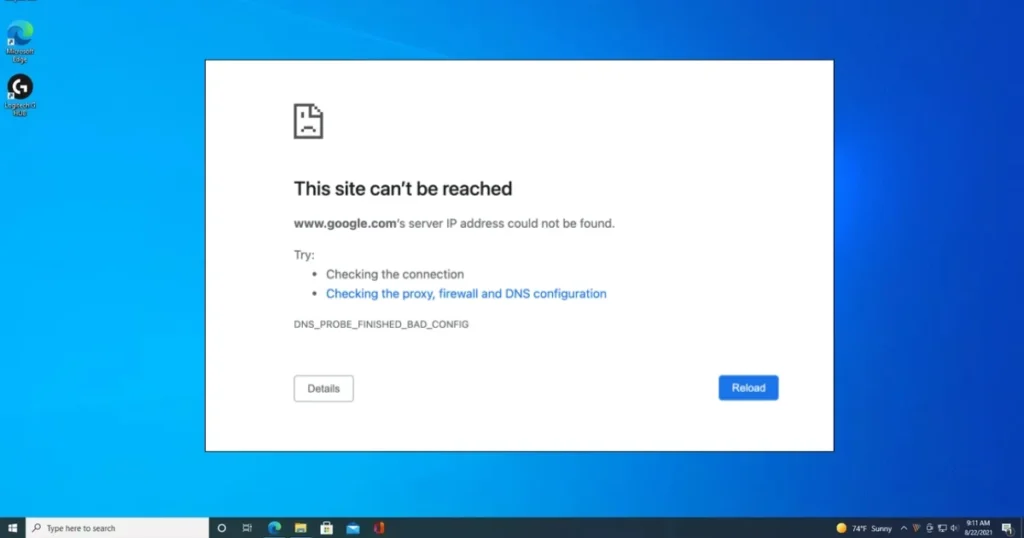
What should you consider first if you see the dns_probe_finished_bad_config error?
When the dns_probe_finished_bad_config error appears, the immediate concerns are usually: “Is the internet down?”, “Is the website offline?”, or “Does my laptop have a virus?” The good news is that, in most cases, the issue isn’t that serious. This error often arises due to misconfigured DNS settings, a router glitch, a browser Secure DNS conflict, or an outdated network cache.
In India, this problem is particularly common when:
- The DNS of JioFiber, Airtel Xstream Fiber, BSNL, ACT, or a local ISP is not responding correctly
- The router failed to reconnect properly after a power outage
- A VPN or ad-blocker app has altered the network settings
- DNS settings on Windows or Android have been configured manually with incorrect values
Bottom line: If a website isn’t loading and the same error appears across every browser, the issue might not be limited to the browser itself—it could be at the network level.
What does the dns_probe_finished_bad_config error mean?
The full form of DNS is Domain Name System. This system converts website names into IP addresses. For instance, when you type google.com into your browser, DNS directs it to the correct server.
When this translation process fails, the browser cannot open the website and displays an error like dns_probe_finished_bad_config.
This usually means:
- The DNS server is incorrect
- The DNS cache is corrupt
- The network configuration is broken
- The router or ISP is unable to handle the DNS request
- The browser’s secure DNS setting is causing a conflict
Which browsers does this error occur in?
This error is most commonly seen in Chrome-family browsers, but since the issue actually stems from DNS, it can affect various browsers.
This problem may appear in the following:
- Google Chrome
- Microsoft Edge
- Brave
- Opera
- Mozilla Firefox
- Vivaldi
If a website isn’t opening in Chrome, the same applies to Firefox, and you’re facing the same issue on mobile while connected to the same Wi-Fi, then there is likely a problem at the router or DNS level.
Most common causes of the dns_probe_finished_bad_config error
1. DNS server is not working correctly
The local ISP’s DNS server could be slow, down, or misconfigured.
2. DNS cache has become corrupted
The old cache retains an incorrect address, preventing the correct website from opening.
3. Router has hung
Often, the router indicates an internet connection, but actual DNS queries do not go through.
4. Static IP or DNS is manually set incorrectly
If you manually configured the DNS or IP, an incorrect value could be causing the problem.
5. VPN, Proxy, or Antivirus conflict
Some VPN apps and security suites intercept browser traffic.
6. Browser’s Secure DNS
Sometimes, the browser’s built-in Secure DNS and the system DNS conflict with each other.
7. Malware or adware
It is less common, but some adware changes DNS settings.
Quick checks you can do in 5 minutes
Perform these basic checks before moving on to the more involved steps:
- Open another website to see if only that specific site is down
- Check in a different browser
- Try opening the website on your mobile using the same Wi-Fi
- Test by connecting your laptop to a mobile hotspot
- Restart the router
- Turn off the VPN
- Check if the date and time settings are correct
If the website opens on a hotspot but not on your home Wi-Fi, the problem lies with your broadband DNS or router.
Easy ways to fix dns_probe_finished_bad_config
1) Restart your router and modem
It seems basic, but often this is the fix.
How to do it:
- Turn off the router’s power button.
- Unplug the power cable.
- Wait for 30–60 seconds.
- Then turn it back on.
- Wait for the internet connection to stabilize.
Why does it work?
The router resets stuck DNS sessions and temporary routing errors.
Tip: If power outages are frequent in India, the router’s firmware can get stuck. A proper reboot is often enough to fix this.
2) Clear browser cache and cookies
If the error appears in only one browser, perform browser-side cleaning first.
In Chrome / Edge / Brave:
- Open Settings
- Privacy and Security
- Clear browsing data
- Select Cached images and files and Cookies
- Clear
In Firefox:
- Settings
- Privacy & Security
- Cookies and Site Data
- Clear Data
This isn’t a direct fix for the DNS problem, but it removes old website information stored in the browser.
3) Turn off or switch the Secure DNS setting.
This step is often overlooked, yet many users find the fix right here.
Chrome / Edge / Brave:
- Settings
- Privacy and Security
- Security
- Use Secure DNS
- Turn this off or change the provider
Firefox:
- Settings
- Privacy & Security
- DNS over HTTPS (below)
- Disable this or change the provider.
If the browser’s Secure DNS and the system DNS do not match, the dns_probe_finished_bad_config error may occur repeatedly.
4) Flush the DNS cache in Windows
If you are using a Windows laptop or PC, this is one of the most useful commands.
Steps:
- Click on Start
- Search for Command Prompt
- Open it as administrator
- Enter this command:
ipconfig /flushdnsThen press Enter.
You will receive a message stating that the DNS Resolver Cache has been successfully flushed.
After that, close the browser and reopen it.
5) Renew the IP and refresh the network stack
If flushing didn’t work, renew the entire network.
Run these commands one by one:
ipconfig /release
ipconfig /renew
Then there’s this too:
netsh winsock reset
netsh int ip reset
After this, restart the PC.
What do these commands do?
- /release – Releases the old IP
- /renew – Obtains a new IP
- winsock reset – Resets network socket configuration
- int ip reset – Resets TCP/IP settings to default
This method is very effective for Windows users.
6) Change the DNS server – the most reliable fix
If your ISP’s DNS is causing issues, use a public DNS.
The most reliable free options:
- Google Public DNS – https://developers.google.com/speed/public-dns
- Cloudflare 1.1.1.1 – https://developers.cloudflare.com/1.1.1.1/
Steps to change DNS in Windows:
- Open Control Panel
- Network and Sharing Center
- Change adapter settings
- Right-click on your Wi-Fi or Ethernet
- Properties
- Select Internet Protocol Version 4 (TCP/IPv4)
- Select “Use the following DNS server addresses.”
Google DNS:
- Preferred: 8.8.8.8
- Alternate: 8.8.4.4
Or Cloudflare DNS:
- Preferred: 1.1.1.1
- Alternate: 1.0.0.1
Then press OK.
Why does it work?
Sometimes, your ISP’s DNS provides slow or incorrect responses. Public DNS services are stable and fast.
7) Disable Proxy and VPN
If you have enabled a VPN app, corporate VPN, browser VPN extension, or a manual proxy, try disabling it.
Check Proxy settings in Windows:
- Settings
- Network & Internet
- Proxy
- If “Use a proxy server” is On, turn it Off.
Check the VPN:
- Close the installed VPN app.
- Disable the browser VPN extension.
Often, even after the VPN disconnects, the DNS route remains stuck on it.
8) Disable the network adapter and then enable it.
This is a small step, but it often provides instant relief.
- Control Panel
- Network and Sharing Center
- Change adapter settings
- Right-click on the Wi-Fi adapter
- disabled
- Enable again after 10 seconds
This causes the adapter to reconnect in a fresh state.
9) Update the driver
If the Wi-Fi connection keeps dropping or DNS errors recur, the network driver might be outdated.
Steps:
- right click on start
- Device Manager
- network adapters
- Select your Wi-Fi adapter
- right click
- update drivers
If you don’t find an update, install the latest driver from the laptop brand’s website.
For HP, Dell, Lenovo, and Asus users in India, this step often proves to be very useful.
10) How to fix ‘dns_probe_finished_bad_config’ on an Android phone
If this error appears in your mobile browser, do the following:
- Turn Wi-Fi off and then on
- Turn on Airplane mode for 20 seconds
- Try a different browser
- Check the Private DNS setting
Private DNS check in Android:
- Settings
- Network & Internet
- Private DNS
- If a custom hostname is set, try testing by switching it to Automatic or Off.
Some people configure custom DNS settings for ad-blocking, and that ends up causing issues later on.
11) Quick fix for Mac
If you are using a MacBook:
- Reconnect Wi-Fi
- System Settings > Network
- Enter public DNS in the DNS section
- Run this command in the Terminal:
sudo dscacheutil -flushcache; sudo killall -HUP mDNSResponderAfter this, restart the browser.
12) Check the hosts file
If only one or two websites are not opening, the hosts file might have been edited.
Windows path:
C:\Windows\System32\drivers\etc\hosts
Open Notepad in administrator mode and check this file.
If there is a manual IP mapping listed for a website that you did not add yourself, that could be the source of the problem.
How do you know if the problem lies with the ISP rather than the browser?
Pay attention to these signs:
- The same error is occurring on all devices in your home.
- It works fine for a few minutes after restarting the router, but then the same issue returns.
- The website opens on mobile data but not on broadband.
- Certain specific websites do not open, while others work fine.
In such cases, call your ISP. DNS issues are not uncommon with JioFiber, Airtel, BSNL, ACT, and local fiber providers.
Useful free tools
| Tool | What does it do | Price |
|---|---|---|
| Google Public DNS | Fast and reliable public DNS | $0 |
| Cloudflare 1.1.1.1 | fast DNS and privacy-friendly option | $0 |
| DNS Jumper | Tool to quickly change DNS | $0 |
| Windows Network Troubleshooter | It detects basic network problems. | $0 |
| Wireshark | advanced network debugging | $0 |
If you are looking for more easy guides on Windows and browser troubleshooting, you can check out fixtech.in. You will find practical troubleshooting articles there.
useful source links
For more reliable information, these official resources are useful:
- Google Public DNS – https://developers.google.com/speed/public-dns
- Cloudflare 1.1.1.1 – https://developers.cloudflare.com/1.1.1.1/
- Microsoft networking help – https://support.microsoft.com/
- Mozilla Firefox DNS settings help – https://support.mozilla.org/
- Chrome help – https://support.google.com/chrome/
How can we reduce this error in the future?
These habits will reduce difficulties:
- Avoid using random VPN extensions.
- Steer clear of free “internet booster” apps.
- Keep your router firmware updated.
- If configuring DNS manually, ensure you enter the correct values.
- Do not run too many privacy extensions simultaneously in your browser.
- If you encounter a secure DNS conflict on public Wi-Fi, try using a hotspot to test the connection.
FAQs – About DNS_PROBE_FINISHED_BAD_CONFIG error
1. Is the dns_probe_finished_bad_config error caused by a virus?
Not always. In most cases, the issue stems from DNS, router, or network configuration. However, if your DNS settings keep changing on their own, you should run a malware scan.
2. Is it safe to change DNS settings?
Yes, trusted providers like Google DNS and Cloudflare DNS are considered safe. It is a common troubleshooting step.
3. Should I change the DNS if the error occurs only in Chrome?
First, clear your browser cache and adjust the Secure DNS settings. If the issue is specific to Chrome, try fixing the browser before changing your system’s DNS settings.
4. Does the website load on mobile data but not on Wi-Fi?
Then the problem almost certainly lies with the Wi-Fi router, the ISP’s DNS, or your home network settings.
5. Are resetting and rebooting a router the same thing?
No. Rebooting means restarting the device, whereas resetting means reverting it to factory settings. Try rebooting first; keep the factory reset as a last resort.
What if nothing works?
- Test on another device
- Use public DNS
- Contact your ISP
- Reinstall the network adapter
- And if necessary, check a model-specific guide on a troubleshooting site such as FixTech.in
Final Thoughts
If the website isn’t loading and you keep seeing the same error message in your browser, there is no need to panic. In most cases, the issue can be resolved by following steps like restarting the router, flushing the DNS, and configuring public DNS, Secure DNS, or network reset settings. Whether you use Chrome, Edge, Firefox, or Brave, the methods outlined in this guide work across all major browsers. Follow the steps provided above one by one, and there is a very good chance your dns_probe_finished_bad_config error will be fixed within minutes.