
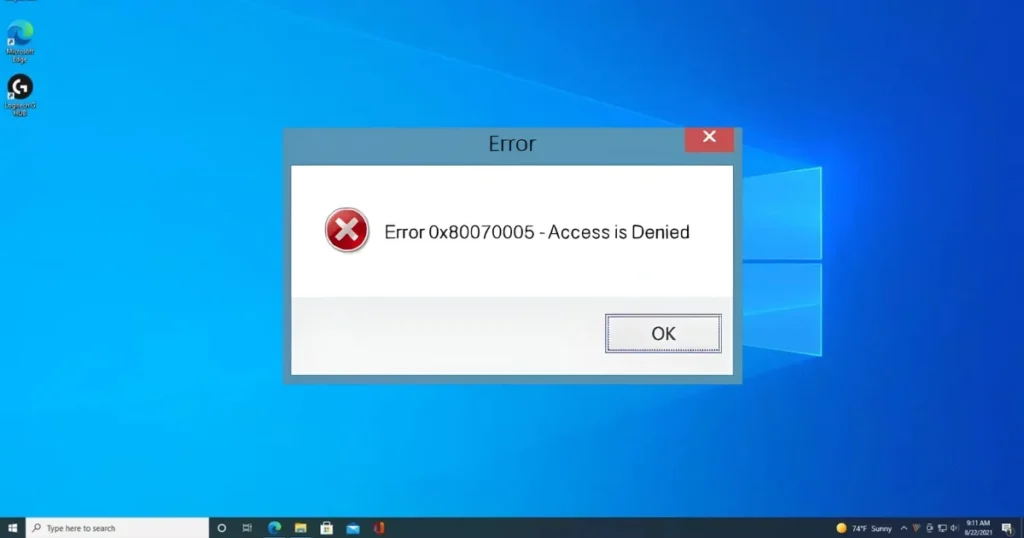
When using Windows, if an error popup suddenly appears stating “0x80070005 access denied,” your first reaction is usually, “Did I do something?” Most of the time, the answer is no—you didn’t do anything. This error stems from an issue within the permissions system and can be related to Windows Update, file access, software installation, or app permissions. It is quite common on Windows PCs used in homes and small offices across India—especially when multiple users share the same machine or when a Windows Update gets stuck.
In this tutorial, we will examine the “0x80070005 access denied” error from every angle: why it occurs, the situations in which it appears, and how to fix it step-by-step.
What does error 0x80070005 actually indicate?
0x80070005 is a Windows error code that literally means “Access is Denied.” In other words, Windows attempted to access a file, folder, registry entry, or system resource but was denied permission.
This error occurs when:
- A process attempts to access a file for which it does not have permission
- The user account lacks the necessary administrator permissions
- File or folder ownership belongs to the wrong user
- Antivirus or security software is blocking a process
- Windows Update does not have permission to access system files
In which situations does the “0x80070005 access denied” error occur?
This error can appear in various places, not just one:
- Windows Update – While downloading or installing updates
- Microsoft Store – While installing or updating apps
- File or Folder access – When opening a protected folder
- Software installation – While installing or uninstalling a program
- Registry editing – When changing a key in Regedit
- Backup or Restore – While using the Windows Backup tool
- Shared network folders – When accessing a shared drive on an office network
The fix may be slightly different for every situation, but the root cause remains the same – lack of permission.
Ways to fix error 0x80070005 (Access Denied)
The fixes listed below are in a specific order. Try the simple ones first.
Fix 1 – Run as Administrator
This is the first and easiest step. If a piece of software or a process is unable to obtain the necessary permissions in regular user mode, try running it in admin mode.
For software:
- Right-click on the application icon.
- Select “Run as administrator”.
- Click “Yes” if the UAC popup appears.
For Command Prompt or PowerShell:
- Search in the Start menu.
- Right click > Run as administrator
Permanent fix:
- Right click on App icon > Properties
- Compatibility tab
- Tick ”Run this program as an administrator”
- Apply > OK
If this simple step works, there won’t be any need for the other fixes.
Fix 2 – Windows Update Error 0x80070005 – Check Background Intelligent Transfer Service
If you are encountering this error in Windows Update, a problem with the BITS service could be the cause.
Restart the BITS service:
- Press Win + R
- Type
services.mscand press Enter - Find “Background Intelligent Transfer Service” in the list
- Right-click > Restart
- Then, restart the “Windows Update” service as well
After this, reset Windows Update:
Run these commands in an Admin Command Prompt:
net stop wuauserv
net stop cryptSvc
net stop bits
net stop msiserver
Then:
ren C:\Windows\SoftwareDistribution SoftwareDistribution.old
ren C:\Windows\System32\catroot2 catroot2.old
Then restart the services:
net start wuauserv
net start cryptSvc
net start bits
net start msiserver
Restart your PC and try Windows Update again.
Official Microsoft reference:
Windows Update Troubleshooter – Microsoft Support
Fix 3 – Take ownership of the file or folder
If you are encountering the “0x80070005 access denied” error for a specific file or folder, you need to change its ownership.
Steps:
- Right-click on the file or folder > Properties
- Go to the Security tab
- Click the Advanced button
- Click Change in the Owner section at the top
- Type your username in the “Enter the object name to select” field
- Click Check Names > OK
- Check the box for “Replace owner on subcontainers and objects”
- Apply > OK
Now, grant the permissions as well:
- Go back to the Security tab
- Click Edit
- Select your username
- Check ‘Full Control’
- Apply > OK
Alternative – Via Command Prompt (in a single line):
takeown /f "C:\Path\To\File" /r /d y
icacls "C:\Path\To\File" /grant Administrators:F /t
This method is very useful when a large number of files are affected simultaneously.
Fix 4 – Check User Account Control (UAC) settings
UAC (User Account Control) is the system that determines the level of access granted to a program. If UAC settings are overly strict, even legitimate programs can get blocked.
Check the UAC level:
- Search for “Change User Account Control settings” in the Start menu.
- Open it.
- Set the slider to “Notify me only when apps try to make changes” (default).
Do not lower it too much – this increases the security risk.
Fix 5 – Temporarily disable antivirus or security software
Sometimes, third-party antivirus software (Quick Heal, Kaspersky, Avast, Norton) blocks Windows Update or file operations.
What to do:
- Temporarily disable the antivirus (for 5–10 minutes).
- Retry the task that was failing.
- Once the task is complete, turn the antivirus back on.
If the problem is caused by the antivirus:
- Add that folder or program to the exclusion list in the antivirus settings.
- Or, add the program to the trusted list.
Windows Defender ($0, built-in) is sufficient in most situations.
Fix 6 – Repair System Files using SFC and DISM
Corrupt system files can also cause the “0x80070005 access denied” error.
In the Administrator Command Prompt:
sfc /scannowIt will take 15–20 minutes. Upon completion:
DISM /Online /Cleanup-Image /RestoreHealthThis will take 20–30 minutes and an internet connection.
Restart your PC after both are complete.
Official guide:
System File Checker – Microsoft Support
Fix 7 – Fix Registry Permissions
If the error occurs during registry editing:
Steps:
- Win + R > regedit > Enter
- Locate the registry key causing the error
- Right-click on that key > Permissions
- Click Add and enter your username
- Grant Full Control
- Apply > OK
It is essential to take a registry backup first:
- Open Regedit
- File > Export
- Save it to a safe location
Incorrect changes to the Registry can cause serious problems, so edit only the necessary keys.
Fix 8 – Run WSReset for Windows Store App Errors
If you are encountering the “0x80070005 access denied” error in the Microsoft Store:
Quick fix:
- Win + R
- Type wsreset.exe
- Press Enter
- A blank window will open, and after a short while, the Store will reset.
If the problem persists even after this:
- Settings > Apps > Microsoft Store
- advanced options
- Click on Reset
Fix 9 – Check Permission Settings in Local Group Policy
This step applies to machines connected to a domain or office network.
- Win + R > gpedit.msc (in Windows Pro/Enterprise)
- Computer Configuration > Windows Settings > Security Settings > Local Policies > User Rights Assignment
- Check here whether the necessary policies are assigned to your account.
If you are using a personal laptop running Windows Home, you won’t find gpedit.msc—skip this step.
Fix 10 – Create a new Administrator account and test it
If the current user account itself is corrupt, a new account will provide a cleaner experience.
Steps:
- Settings > Accounts > Family & other users
- Add account
- “I don’t have this person’s sign-in information”
- “Add a user without a Microsoft account”
- Set username and password
- Change Account type > Administrator
Try logging in with a new account – if no error occurs, then the old account was partially corrupt.
Fix 11 – Clear Temp Files and Reset Permissions Simultaneously
This combined fix works for many users.
In the Admin Command Prompt:
rd /s /q %temp%
md %temp%
This clears the temp folder.
After:
icacls %userprofile% /reset /t /c /qThis resets the user profile permissions.
Restart the PC.
Which free tools are useful?
| Tool | Work | Price |
|---|---|---|
| SFC (System File Checker) | Corrupt system files repair | $0 |
| DISM | Windows image restore | $0 |
| Windows Update Troubleshooter | Update errors auto-detect and fix | $0 |
| Autoruns (Sysinternals) | Manage startup programs and services | $0 |
| Process Monitor (Sysinternals) | Check which process is being denied access. | $0 |
Sysinternals tools are Microsoft’s official free tools:
https://learn.microsoft.com/sysinternals
For more detailed Windows troubleshooting, visit fixtech.in – you will find practical guides there for permission errors and Windows Update fixes.
FAQs
1. What is the difference between 0x80070005 and “Access Denied”?
There is no difference. 0x80070005 is the error code that represents “Access Denied”; Windows uses this hex code internally.
2. What if this error keeps appearing during Windows Update?
Reset the SoftwareDistribution folder (see Fix 2), run the Windows Update Troubleshooter, and if the issue persists, repair the Windows image using DISM.
3. Can this error be caused by a virus?
Yes. Some malware alters file permissions. Scan your system using Malwarebytes Free ($0).
4. Is it safe to take ownership of files?
Yes, for your personal files. However, do not change ownership of Windows system files, as this can make the system unstable.
5. What if this error occurs in the Microsoft Store and WSReset doesn’t work?
Reset the Store via Settings. If that fails, reinstall the Store using PowerShell:
Get-AppxPackage -allusers Microsoft.WindowsStore | Foreach {Add-AppxPackage -DisableDevelopmentMode -Register “$($_.InstallLocation)\AppXManifest.xml”}
6. What if an error occurs while installing Office or Tally?
Install the software using the “Run as administrator” option. Temporarily disable your antivirus. Clear temporary files (see Fix 11).
7. Will formatting the laptop fix this problem?
That is a very extreme step. Try the fixes mentioned above first. Formatting should be the last resort.
Final Thoughts
The “0x80070005 access denied” error is a permission-level issue that may seem intimidating, but it is certainly manageable. Whether it occurs during Windows Update, file access, or software installation, one of the 11 fixes mentioned above is bound to work. Start by running processes in administrator mode, check ownership and permissions, repair system files, and—if necessary—investigate potential antivirus conflicts. By following these steps, you can quickly resolve the “0x80070005 access denied” error.