
You connected two office computers to the same network and tried to access a shared folder – only for Windows to throw the error: “Error 0x80070035 – The network path was not found.” This message makes it appear as though the PCs cannot detect each other, even though they are connected to the same router. In India, Error 0x80070035 is a common headache in settings that rely on file sharing or shared printers – such as small offices, CA firms, printing shops, and homes. This issue occurs on both Windows 10 and Windows 11, and the underlying cause can vary from case to case.
In this technical guide, we will fully explore Error 0x80070035 and walk through every possible fix, step-by-step.
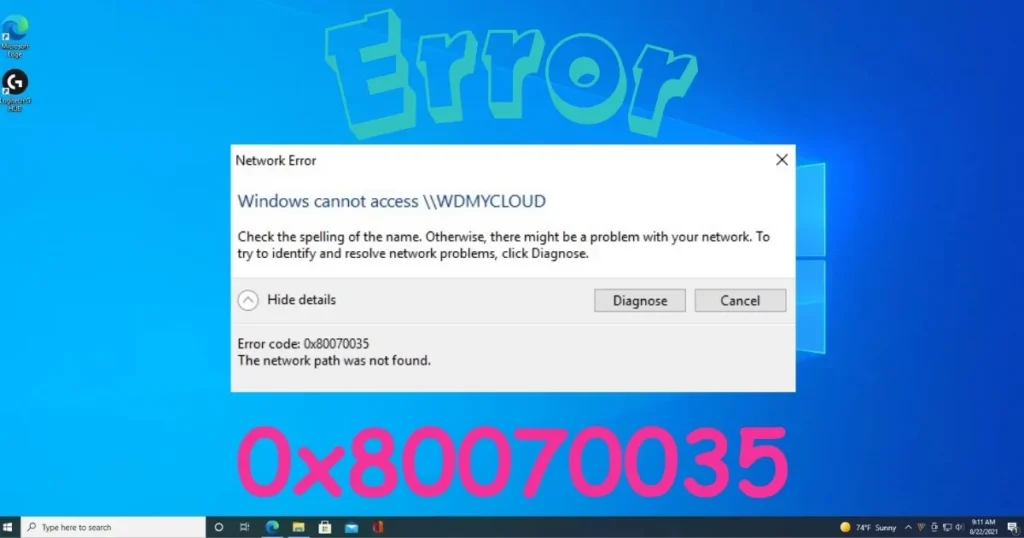
Error 0x80070035 – What does it actually mean?
“The network path was not found” – This is a Windows error that occurs when you try to access a shared folder, shared printer, or network drive on another computer, but Windows is unable to reach that path.
This does not necessarily mean the network is down. The internet might be working and the router connected, yet the connection gets blocked somewhere within the Windows file-sharing protocol (SMB).
This error occurs in the following situations:
- On typing \ComputerName\SharedFolder in File Explorer
- When accessing mapped network drive
- When connecting shared printer
- On accessing NAS (Network Attached Storage)
- When sharing files in HomeGroup or Workgroup
Main causes of Error 0x80070035
1. Network Discovery is turned off.
If Network Discovery is turned off in Windows, other computers on the network do not appear at all.
2. File and Printer Sharing is turned off.
Sharing features must be explicitly enabled – they may be turned off by default.
3. The SMB protocol is disabled, or there is a version mismatch.
SMB v1 is disabled by default in Windows 10/11. If an older machine shares files using SMB v1, the new machine will not be able to connect.
4. Windows Firewall is blocking it.
The firewall can block SMB traffic (port 445).
5. The computer name is incorrect.
This happens if the target computer’s name has changed and you are trying to access it using the old name.
6. Workgroup mismatch
The two computers are in different workgroups.
7. Guest account or credentials issue
Password-protected sharing is enabled, and the credentials are incorrect.
8. NetBIOS over TCP/IP is disabled.
NetBIOS is required for computer name resolution in network sharing.
9. A third-party antivirus or firewall is blocking it.
Apart from Windows Firewall, security software can also block SMB.
Ways to fix error 0x80070035
Fix 1 – Enable Network Discovery and File Sharing
This is the first and most important step.
Do this on both computers:
- Control Panel > Network and Sharing Center
- Click “Change advanced sharing settings” on the left
- Expand “Private (current profile)”:
- Select “Turn on network discovery”
- Select “Turn on file and printer sharing”
- Expand “All Networks”:
- Select “Turn off password-protected sharing” (for home/small office use; if you prefer to keep it on for security reasons, have your credentials ready)
- Click “Save changes”
Restart both PCs.
Now, try typing \[ComputerName] in File Explorer.
Fix 2 – Enable the SMB 1.0 Protocol
In Windows 10 and 11, SMB v1 is disabled by default for security reasons. However, if you are trying to connect to an older Windows XP/7 machine or an older NAS, you will need to enable SMB v1.
Steps:
- Control Panel > Programs > Turn Windows features on or off
- Expand “SMB 1.0/CIFS File Sharing Support”
- Check these options:
- SMB 1.0/CIFS Client
- SMB 1.0/CIFS Server
- Click OK
- restart pc
Security note: SMB v1 has known security vulnerabilities (for instance, the WannaCry ransomware exploited it). Enable it only when necessary and within an isolated network.
Official Microsoft reference:
SMB Security Enhancements – Microsoft
Fix 3 – Allow file sharing in Windows Firewall
Steps:
- Control Panel > Windows Defender Firewall
- On the left, select “Allow an app or feature through Windows Defender Firewall”
- Find “File and Printer Sharing” in the list
- Check both the Private and Public boxes
- Click OK
Check this out too:
- “Network Discovery” should also be allowed.
Or test by temporarily disabling the firewall:
- “Turn Windows Defender Firewall on or off”
- Turn it off for the private network
- Try sharing
- Adjust firewall rules once it works
- Turn it back on
Fix 4 – Enable NetBIOS over TCP/IP.
This fix is very effective – especially when accessing by Computer Name.
Steps (on both computers):
- Win + R > ncpa.cpl > Enter
- Right-click on active network adapter (Wi-Fi or Ethernet) > Properties
- Internet Protocol Version 4 (TCP/IPv4) select > Properties
- Click Advanced button
- Go to WINS tab
- Select “Enable NetBIOS over TCP/IP”
- OK > OK > Close
Restart both PCs.
Fix 5 – Access by IP Address, not by Computer Name
If Computer Name is not resolving, then try directly from IP address.
How to know the IP address of the target computer:
Open Command Prompt on the target computer:
ipconfigNote down the IPv4 address (e.g., 192.168.1.105).
Now, on your PC:
Type the following in the File Explorer address bar:
\\192.168.1.105\SharedFolderNamePress Enter.
If access is successful using the IP address:
This indicates a problem with computer name resolution. Add an entry to the hosts file:
- Open Notepad in admin mode.
- File: C:\Windows\System32\drivers\etc\hosts
- Add the following:
192.168.1.105 ComputerNameSave it.
Fix 6 – Set the same workgroup on both computers.
Both computers must have the same workgroup.
Steps to check and change the workgroup:
- Win + X > System
- Click “Rename this PC (advanced)”
- Click the “Change” button in the System Properties window
- Enter the same name in the Workgroup field on both PCs (default: WORKGROUP)
- OK > Apply
- Restart the PC
Fix 7 – Fix Shared Folder Permissions
If the folder is shared but you cannot access it:
On the target computer:
- Right-click on the shared folder > Properties
- Sharing tab > Advanced Sharing
- Confirm whether “Share this folder” is checked
- Click Permissions
- Add “Everyone” and grant Full Control or Read access
- OK > Apply
Check the Security tab as well:
- Security tab > Edit
- Add “Everyone” (or specific user)
- Give appropriate permissions
- Apply > OK
Fix 8 – Add credentials to Credential Manager
If password-protected sharing is turned on:
Steps:
- Control Panel > Credential Manager
- “Windows Credentials” tab
- “Add a Windows credential”
- Fill:
- Internet or network address: Target computer name or IP
- Username: Username of the target computer
- Password: Password of target computer
- ok
Now try to access the share.
Fix 9 – Check Services – Function Discovery and Server Service
Error 0x80070035 occurs when certain essential Windows services are disabled.
Check the services:
- Win + R > services.msc > Enter
- These services should be in the “Running” status:
- Function Discovery Resource Publication
- SSDP Discovery
- UPnP Device Host
- Server
- Workstation
- Computer Browser (if available)
If a service is stopped:
- Double-click on that service
- Set Startup type to Automatic
- Click the Start button
- Apply > OK
Fix 10 – Check third-party antivirus/firewall software.
Quick Heal, Kaspersky, Norton, and Avast can all block SMB traffic.
What to do:
- Temporarily disable the antivirus.
- Try to access the shared resource.
- Once successful, allow SMB/file sharing in the antivirus settings.
In Kaspersky:
- Settings > Additional > Network > Manage exclusions
- Add local network to trusted zone
In Quick Heal:
- Allow the local network in the network settings.
Fix 11 – Reset TCP/IP and Winsock
Network stack corruption can also cause this error.
In the Admin Command Prompt:
netsh winsock reset
netsh int ip reset
ipconfig /flushdns
ipconfig /release
ipconfig /renew
Restart the PC.
Fix 12 – Check LanmanWorkstation Parameters in the Registry
This is an advanced fix.
Steps:
- Win + R > regedit > Enter
- Go to this path:
HKEY_LOCAL_MACHINE\SYSTEM\CurrentControlSet\Services\LanmanWorkstation\Parameters- Check the AllowInsecureGuestAuth value
- If it does not exist, create it: DWORD (32-bit) Value
- Value name: AllowInsecureGuestAuth
- Value data: 1
- OK
Restart the PC.
Why:
This enables guest authentication, which is required for network sharing.
Fix 13 – Create a Mapped Drive using the IP Address.
If you need to access it frequently, create a mapped drive.
Steps:
- File Explorer > This PC > Map Network Drive
- Select a drive letter (e.g., Z:)
- Type the following in the ‘Folder’ field: \192.168.1.105\SharedFolder
- Check “Reconnect at sign-in”
- Check “Connect using different credentials” (if using a different user account)
- Finish
This drive will now be automatically available.
Useful Free Tools
| Tool | Feature | Price |
|---|---|---|
| Windows Network Troubleshooter | Automatic diagnosis | $0 |
| Angry IP Scanner | Scanning devices and IPs on the network | $0 |
| Advanced IP Scanner | Finding network devices and viewing shares | $0 |
| Wireshark | Analyzing SMB traffic | $0 |
| SFC / DISM | System files repair | $0 |
Visit fixtech.in for more network sharing and Windows troubleshooting guides.
FAQs – About Error 0x80070035
1. What is the difference between error 0x80070035 and 0x80004005?
0x80070035 indicates “network path not found” – the path cannot be reached. 0x80004005 indicates “access denied” or an “unspecified error” – the path is found, but access is denied.
2. Do both computers need to be on the same WiFi?
Yes. Both must be on the same local network – connected to the same router.
3. Is it safe to enable SMB v1?
There is limited risk on a home network, but it poses a security risk on public or office networks. Enable it only when necessary and disable it once the task is complete.
4. Are all features available in Windows Home edition?
Windows Home does not include Group Policy, but features like Network Discovery, SMB, and basic sharing are all available.
5. What if the mapped drive shows an error but the manual path works?
Use the IP address instead of the computer name for the mapped drive.
6. Does this error occur when accessing a Windows share from macOS or Linux as well?
This is a Windows-specific error code, but similar SMB issues can occur on macOS and Linux too.
Final Thoughts
Error 0x80070035 is a tricky yet solvable network sharing issue. Enabling Network Discovery and File Sharing (Fix 1), turning on NetBIOS over TCP/IP (Fix 4), and accessing the resource directly via its IP address (Fix 5) – these three fixes combined resolve Error 0x80070035 for the majority of small office and home network users. If the problem persists, check your SMB settings and Workgroup configuration. A step-by-step approach will certainly fix this error.