
There is a particular kind of frustration associated with Windows Update: a download completes, installation begins, and then it suddenly halts with error 0x800f081f. There is no clear explanation or guidance on the next steps – just an error code and the update remaining in a pending state. This error typically occurs when attempting to install the .NET Framework or a Windows feature update that requires a specific Windows component that is currently unavailable. Developers, students, and small business owners in India who use Visual Studio, Tally, or . NET-based software are all too familiar with this error.
In this step-by-step guide, we will cover every cause of error 0x800f081f and every possible fix.
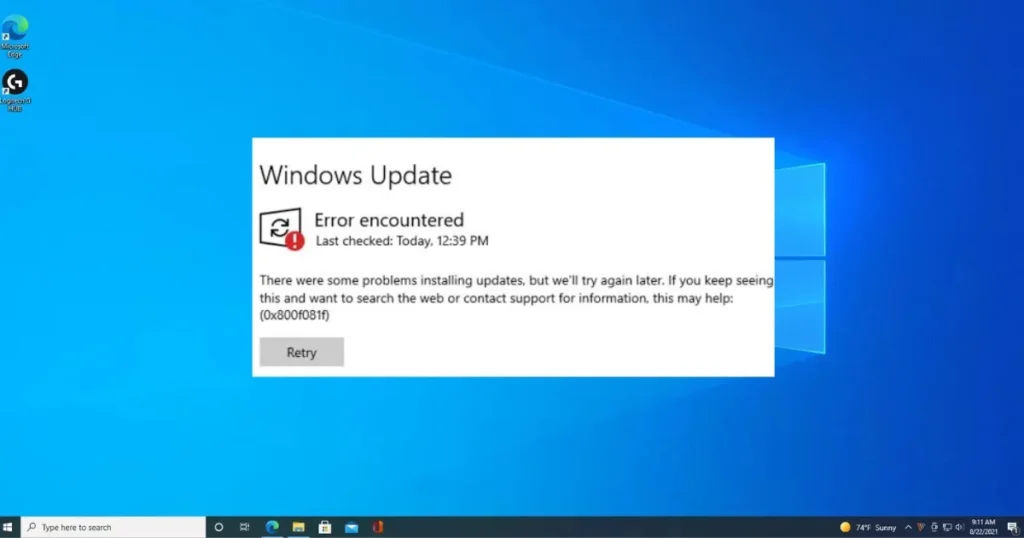
Error 0x800f081f – What does it actually mean?
The technical meaning of 0x800f081f is:
“CBS_E_SOURCE_MISSING – Package source not found”
This means Windows cannot find the source files required to install a specific feature or component.
This error most commonly occurs in the following situations:
- While installing .NET Framework 3.5 (most common)
- While enabling Windows optional features
- While installing a cumulative update via Windows Update
- While installing features using the DISM command
- While installing Visual Studio, SQL Server, or developer tools
Sub-codes that can accompany this:
- 0x800f081f – 0x20003 – .NET Framework source missing
- 0x800f0906 – Download failed (similar issue)
- 0x800f0907 – DISM source issue
Main causes of error 0x800f081f
1. .NET Framework 3.5 Source Files Missing
.NET 3.5 is not fully installed by default in Windows 10/11. Installation requires files from the internet or Windows installation media. If the source is inaccessible, an error occurs.
2. Windows Update Service Issue
Windows Update is not working correctly and is unable to download source files.
3. Group Policy is blocking it.
On some systems, Group Policy blocks Windows Update, preventing optional features from being installed.
4. Corrupt Windows Image
If the Windows installation files themselves are corrupt, the components will not install.
5. Offline Environment
There is no internet connection, or it is a restricted network where Windows Update servers are blocked.
6. The DISM command was used with an incorrect source.
An incorrect path was specified while installing features using DISM.
All Ways to Fix Error 0x800f081f
Fix 1 – Enable .NET Framework 3.5 from Windows Update
This is the simplest and first fix to try.
Steps:
- Control Panel > Programs > Programs and Features
- Click “Turn Windows features on or off” on the left side
- Check “.NET Framework 3.5 (includes .NET 2.0 and 3.0)”
- Click OK
- If prompted with “Let Windows Update download the files for you,” select it
- Keep your internet connection active and wait
If this fails on the internet:
Files are downloaded via Windows Update. If the Update service is not functioning correctly, this process may fail. Try Fix 2.
Fix 2 – Install .NET Framework 3.5 using the DISM command (from the Internet)
In the Admin Command Prompt:
dism /online /enable-feature /featurename:NetFx3 /All /LimitAccess /Source:"%systemroot%\WinSxS"If this fails:
dism /online /enable-feature /featurename:NetFx3 /AllThis command will download files from the internet.
Restart your PC and check.
Why does it work?
DISM installs directly from the Windows component store, bypassing Windows Update.
Fix 3 – Specify the source using Windows installation media
This is the most reliable fix – especially for offline environments.
Requirements:
- Windows 10/11 ISO file (must match your current Windows version)
- Or Windows Installation USB/DVD
How to create/download an ISO:
- From Microsoft Media Creation Tool (free, $0):
microsoft.com/software-download/windows11
Steps:
Option A – Mount the ISO:
- Double-click the ISO file – the virtual drive will mount.
- Note the drive letter (e.g., D: or E:).
In the Administrator Command Prompt:
dism /online /enable-feature /featurename:NetFx3 /All /LimitAccess /Source:D:\sources\sxs(Replace D: with your actual drive letter)
Option B – Via USB/DVD:
dism /online /enable-feature /featurename:NetFx3 /All /LimitAccess /Source:E:\sources\sxsPress Enter and let the process complete.
Note: The source Windows version and your current Windows version must be the same. A Windows 11 source will not work on Windows 10 21H2.
Fix 4 – Modify Group Policy (Allow Windows Update files)
If Group Policy is blocking Windows Update:
Steps (for Windows Pro/Enterprise):
- Win + R > gpedit.msc > Enter
- Go to this path:
Computer Configuration > Administrative Templates > System- Double-click “Specify settings for optional component installation and component repair”
- Select “Enabled”
- Check “Download repair content and optional features directly from Windows Update instead of Windows Server Update Services (WSUS)”
- Apply > OK
Restart your PC.
Windows Home users:
gpedit.msc will not be available. Use Fix 3, which is the most effective.
Make the same change via the Registry (for Home users):
- Win + R > regedit
- Go to this path:
HKEY_LOCAL_MACHINE\SOFTWARE\Microsoft\Windows\CurrentVersion\Policies\Servicing- If the “Servicing” key does not exist, create it: Right-click > New > Key
- On the right side: New > DWORD (32-bit) Value
- Name: RepairContentServerSource
- Value: 2
- OK
Restart the PC.
Fix 5 – Run the Windows Update Troubleshooter
Windows 11:
- Settings > System > Troubleshoot > Other troubleshooters
- Windows Update > Run
Windows 10:
- Settings > Update & Security > Troubleshoot > Windows Update > Run
Restart after the troubleshooter completes, and try installing the .NET Framework.
Fix 6 – Reset the Windows Update Cache
A corrupt update cache can cause error 0x800f081f.
In the Admin Command Prompt:
net stop wuauserv
net stop cryptSvc
net stop bits
net stop msiserver
Then:
ren C:\Windows\SoftwareDistribution SoftwareDistribution.old
ren C:\Windows\System32\catroot2 catroot2.old
Restart the services:
net start wuauserv
net start cryptSvc
net start bits
net start msiserver
Restart your PC.
Now, try installing the .NET Framework.
Fix 7 – Repair the Windows Image using SFC and DISM
A corrupt Windows image causes component installation failures.
First, in the Admin Command Prompt:
sfc /scannowUpon completion:
DISM /Online /Cleanup-Image /CheckHealthDISM /Online /Cleanup-Image /RestoreHealthNote: If DISM RestoreHealth fails:
Use the ISO as the source:
DISM /Online /Cleanup-Image /RestoreHealth /Source:D:\sources\install.wim /LimitAccess(D: = mounted ISO drive letter)
Restart the PC.
Official guide:
DISM – Microsoft Documentation
Fix 8 – Install .NET Framework 3.5 from the Microsoft Update Catalog
If the methods above fail:
Steps:
- Go to catalog.update.microsoft.com
- Search: “.NET Framework 3.5”
- Find the package for your Windows version and architecture (x64 or x86)
- Download it (.cab file or .msu file)
- Install it via the Admin Command Prompt:
For .msu files:
wusa.exe /path/to/file.msu /quiet /norestartFor the .cab file:
dism /online /add-package /packagepath:C:\path\to\file.cabRestart.
Fix 9 – Reset Windows Features (via PowerShell)
In Admin PowerShell:
Enable-WindowsOptionalFeature -Online -FeatureName "NetFx3" -AllIf this fails with the source:
Enable-WindowsOptionalFeature -Online -FeatureName "NetFx3" -All -Source "D:\sources\sxs" -LimitAccessRestart.
Fix 10 – Verify Windows Update Services
These services should be running:
- Win + R > services.msc
- Check:
- Windows Update – Running, Automatic
- Background Intelligent Transfer Service (BITS) – Running
- Cryptographic Services – Running, Automatic
- Windows Installer – Running
If someone is stopped:
- Right click > Properties > Startup type: Automatic
- Click Start button
- Apply > OK
Fix 11 – Install .NET 3.5 for an offline computer
If the internet is not available:
Method A – PowerShell (Admin):
Add-WindowsFeature Net-Framework-CoreIt will install from a local source.
Method B – DISM with WIM file:
The Windows ISO contains install.wim or install.esd.
dism /online /enable-feature /featurename:NetFx3 /All /Source:D:\sources\sxs /LimitAccessMethod C – .NET Framework 3.5 Offline Installer:
Download the offline installer from Microsoft’s official page (using another internet-connected PC):
Microsoft .NET Framework 3.5 Download
Copy it to a USB drive and install it.
Fix 12 – Repair Install (In-place Upgrade)
If everything fails and the Windows image itself is corrupt:
Steps:
- Mount the Windows ISO
- Run Setup.exe
- Select “Keep personal files and apps”
- Allow the upgrade process to complete
This performs a fresh install of Windows without deleting your data. Try installing .NET 3.5 afterwards.
Useful Free Tools
| Tool | Feature | Price |
|---|---|---|
| DISM (Built-in) | Installing Windows features | $0 |
| SFC (Built-in) | System file repair | $0 |
| Windows Update Troubleshooter | Update issues fix | $0 |
| Media Creation Tool | Creating an ISO and providing the source. | $0 |
| NTLite | Customizing Windows Image Offline | $0 (basic) |
Visit fixtech.in for more Windows Update and .NET Framework troubleshooting.
FAQs – About Windows Error 0x800f081f
1. Why is .NET Framework 3.5 necessary?
Many legacy applications – such as gaming software, older business tools, and developer utilities – are built on .NET 3.5. Without it, these apps will not install or run.
2. Does installing .NET Framework 4.8 eliminate the need for .NET 3.5?
No. .NET 4.x and .NET 3.5 are separate frameworks. Some apps specifically require version 3.5.
3. Where can I get the ISO source?
You can download it for free using the Microsoft Media Creation Tool. It is important to match the Windows version and edition.
4. What should I enter instead of “D:” in the DISM command?
Enter the drive letter where the ISO is mounted. Check File Explorer to see which letter is assigned to the Virtual DVD Drive.
5. What is the difference between errors 0x800f081f and 0x800f0906?
Both indicate a .NET Framework installation failure. Error 0x800f081f means the source is missing, while 0x800f0906 indicates a download failure. The fixes for both are largely the same.
6. Can this error be resolved without an internet connection?
Yes – Fix 3 and Fix 11 are offline methods. Installation using the ISO source works even without an internet connection.
Final Thoughts
In most cases, error 0x800f081f is related to the availability of .NET Framework source files. Enabling it via the Control Panel (Fix 1) is the easiest method; however, if that fails, using the DISM command with an ISO source (Fix 3) is the most reliable and fastest solution. Users in India are advised to download the ISO for their Windows version in advance – it proves useful not only for resolving error 0x800f081f but also for addressing various other Windows component issues.