
You plug in a USB pen drive, but nothing happens. Upon opening Device Manager, you see a yellow triangle accompanied by the message: “Windows has stopped this device because it has reported problems. (Code 43).” This Error Code 43 can be confusing because the same pen drive might work on another PC at times but fail at others. Sometimes a connected phone isn’t recognized, or an external hard drive doesn’t show up at all. This error is quite common in India – especially when using cheap USB hubs, with older pen drives, or when drivers malfunction following a Windows Update.
In this technical guide, we will systematically cover every cause of Error Code 43 and every possible fix.
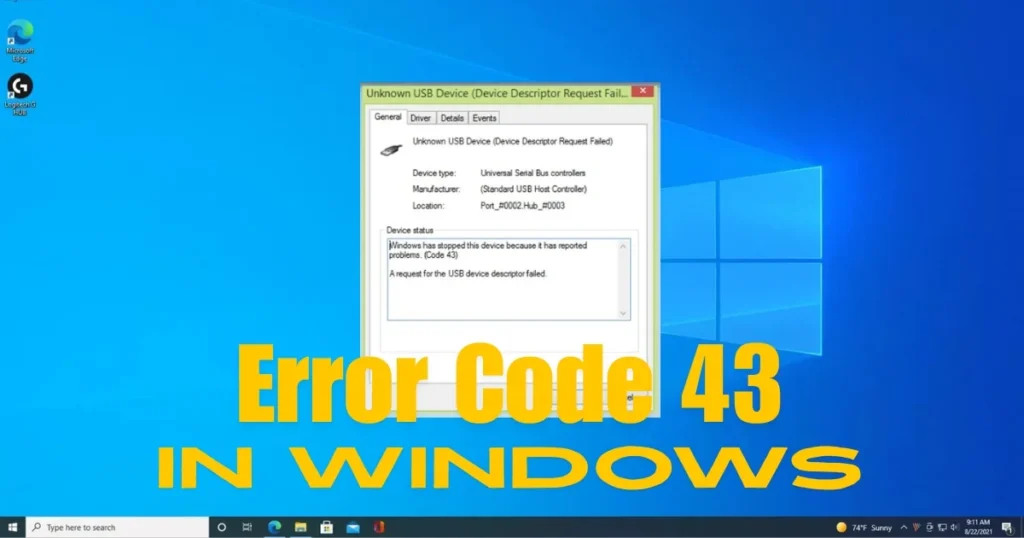
Error Code 43 – What is it telling Windows?
Error Code 43 is a generic error in Windows Device Manager. It means:
“The device reported a problem to its driver and the driver has shut down the device.”
In simple terms: The USB device told the Windows driver that something was wrong – and Windows disabled the device.
On which devices does this error occur?
- USB Flash Drive (pendrive)
- External Hard Drive / SSD
- Android Phone (MTP connection)
- USB Hub
- USB Webcam
- USB Mouse/Keyboard
- External GPU (eGPU)
- USB-C devices
Where it appears in Device Manager:
- Win + X > Device Manager
- Right-click on the device with the yellow exclamation mark (!) > Properties
- “Code 43” appears under “Device status”
Main causes of Error Code 43
1. The USB driver is corrupt or outdated.
This is the most common reason. The driver failed to handle the device correctly.
2. The USB device itself is faulty or partially failing.
The device’s hardware is failing – especially with older pen drives.
3. There is a problem with the USB port.
The port is physically damaged or is not supplying enough power.
4. There is an issue with the USB controller driver.
The Generic USB Hub or USB controller driver has failed.
5. The power supply is insufficient.
The USB hub or port is unable to provide enough current to the device.
6. Driver Conflict After Windows Update
The new Windows Update is not compatible with the old USB driver.
7. Malware has corrupted the driver files.
Some malware can affect USB driver files.
8. Device Firmware Issue
The device’s firmware is outdated or corrupt.
All methods to fix Error Code 43
Fix 1 – Unplug the device and plug it into a different port
The simplest and first step.
What to do:
- Remove the USB device.
- Wait for 30 seconds.
- Plug it into a different USB port.
- If using a laptop, try the port on the other side.
Why:
Sometimes there is an issue with a specific port, or a port does not provide enough power.
Try both the USB 3.0 (blue port) and USB 2.0 (black port).
If this works – great. If not, try the next steps.
Fix 2 – Restart your PC
A temporary driver glitch can be fixed by restarting.
- Unplug the device
- Restart the PC
- Plug in the device after restarting
- If Code 43 does not reappear – problem solved
If it persists even after restarting:
Try Fix 3.
Fix 3 – Uninstall and reinstall the USB device driver.
This is the most effective software fix.
Steps:
- Connect the device (even if there is Error Code 43)
- Win + X > Device Manager
- Locate the device with the error (marked with a yellow ‘!’)
- Right-click > Uninstall device
- Check the box for “Delete the driver software for this device” (if the option is available)
- Click Uninstall
- Unplug the device
- Restart the PC
- Reconnect the device after restarting
- Windows will automatically reinstall the driver
If Windows does not automatically install the driver:
- Win + X > Device Manager
- Action > Scan for hardware changes
Fix 4 – Update the USB Root Hub driver.
Error Code 43 can also occur due to an issue with the USB controller driver.
Steps:
- Open Device Manager
- Expand “Universal Serial Bus controllers”
- You will see “USB Root Hub” entries (there may be more than one)
- Right-click on each one > Update driver
- Select “Search automatically for drivers”
If the update is not received:
- Right-click> Uninstall device
- Restart PC – Windows will reinstall automatically
For Intel USB 3.0 eXtensible Host Controller:
- Download the driver from Intel’s official site
- Or from the laptop brand’s website
Fix 5 – Change the USB controller’s power management settings.
Windows puts the USB hub into suspend mode to save power. This could be the hidden reason behind Error Code 43.
Steps:
- Device Manager > Universal Serial Bus controllers
- Right-click on “USB Root Hub” > Properties
- Power Management tab
- “Allow the computer to turn off this device to save power” – uncheck
- ok
Do this for all USB Root Hub entries.
Restart the PC.
Fix 6 – Run the Windows USB Troubleshooter
Microsoft’s Hardware and Devices troubleshooter can automatically detect USB issues.
In Windows 11/10:
- Settings > System > Troubleshoot > Other troubleshooters
- Find “USB”, click Run
If the USB troubleshooter does not appear:
In the Admin Command Prompt:
msdt.exe -id DeviceDiagnosticPress Enter – the Hardware and Devices troubleshooter will open.
Fix 7 – Test the device on another PC.
This is the most important step in identifying a hardware problem.
What to do:
- Plug the same USB device into another PC or laptop.
- If it works, the problem lies with your PC (software or port issue).
- If it doesn’t work, the problem lies with the device (hardware failure).
If the device does not work on another PC:
It is time to replace the device.
If the device works on another PC:
There is a USB driver or port issue with your PC. Try Fixes 3, 4, and 5.
Fix 8 – Physically check the USB port.
In India, USB ports degrade quickly due to dust and moisture.
Check for:
- Check the port for dust, debris, or bent pins.
- Clean it using compressed air (canned air, $2–$5).
- Try a different USB cable (for the phone connection).
- Connect the device directly to the PC port – bypass the USB hub.
Use a powered USB hub:
If you are using a USB hub, try a powered USB hub ($10–$20). External power sometimes resolves this error.
Fix 9 – Repair system files using SFC and DISM
Corrupted Windows system files can affect USB driver behavior.
In an Administrator Command Prompt:
sfc /scannowUpon completion:
DISM /Online /Cleanup-Image /RestoreHealthRestart the PC.
Official guide:
Microsoft System File Checker
Fix 10 – Roll back the driver
If Error Code 43 started after a Windows Update:
Steps:
- Open Device Manager
- Right-click on the device showing an error > Properties
- Driver tab
- Click the “Roll Back Driver” button (if available)
- Select a reason > Yes
- Restart the PC
If “Roll Back” is greyed out:
The previous driver is no longer available. Try Fix 11.
Fix 11 – Check the USB storage policy in the Registry.
An incorrect registry setting can block USB devices.
Steps:
- Win + R > regedit > Enter
- Create a backup via File > Export
- Go to this path:
HKEY_LOCAL_MACHINE\SYSTEM\CurrentControlSet\Services\USBSTOR- Check the “Start” value on the right side.
- The value should be 3 (Enabled).
- If it is 4 (Disabled), double-click it and change it to 3.
- Click OK.
Restart your PC.
Why this happens:
In some offices or IT environments, USB storage is disabled via Group Policy – this registry setting controls that specific configuration.
Fix 12 – Specific Fix for Android Phones (MTP Error Code 43)
If you encounter Error Code 43 when connecting your Android phone:
What to do:
- When the USB notification appears on the phone, select “File Transfer (MTP).”
- Go to Developer Options > USB Configuration and set it to MTP.
- Go to Developer Options and select “Revoke USB debugging authorizations.”
- Try a different USB cable – it must be a data cable (not a charging-only cable).
On PC:
- Find “Android ADB Interface” or “MTP USB Device” in Device Manager
- Uninstall it
- Reconnect the phone
Download the Android USB driver:
- Samsung: samsung.com/global/galaxy/galaxy-nexus/index.html > Support > USB Driver
- Universal: Google USB Driver – developer.android.com/studio/run/win-usb
Fix 13 – Hardware Level Check – Disable USB Selective Suspend
In Power Options:
- Control Panel > Power Options
- “Change plan settings” in front of current plan
- “Change advanced power settings”
- Expand “USB settings”
- Set “USB selective suspend setting” > “Disabled”
- Apply > OK
Restart the PC.
Useful Free Tools
| Tool | Feature | Price |
|---|---|---|
| Device Manager (Built-in) | Driver management | $0 |
| USBDeview (NirSoft) | View history of all USB devices | $0 |
| USB Device Tree Viewer | Viewing USB topology and errors | $0 |
| SFC / DISM | System files repair | $0 |
| CrystalDiskInfo | External HDD/SSD health check | $0 |
NirSoft USBDeview: nirsoft.net/utils/usb_devices_view.html
Visit fixtech.in for more USB troubleshooting and Windows hardware guides.
FAQs – About Error Code 43
1. Does Error Code 43 always indicate a hardware failure?
No. In most cases, it is a software or driver issue. It is often resolved by “Fix 3” (reinstalling the driver).
2. The device isn’t working on another PC – what should I do?
The device hardware is failing. Try data recovery first (if it’s a pen drive or HDD), then replace the device.
3. Can data be recovered despite Error Code 43?
If the device is detected but shows Error Code 43, data recovery is sometimes possible. Try using Recuva (free) or a professional recovery service.
4. Error Code 43 with a USB hub – what should I do?
Connect the device directly to the PC port. Try using a powered USB hub. Update the hub’s driver.
5. Does this error occur with GPUs (graphics cards) as well?
Yes, Code 43 can appear on eGPUs or PCIe devices too – especially NVIDIA GPUs. Perform a clean install of the driver using DDU (Display Driver Uninstaller).
6. Error Code 43 after a Windows Update – what should I do?
Try rolling back the driver (Fix 10), or manually install the USB controller driver from the manufacturer’s website.
Final Thoughts
Error Code 43 is a frustrating but mostly fixable problem. Plugging the device into a different port, reinstalling the driver, and adjusting the USB Root Hub’s power management settings – these three fixes combined resolve Error Code 43 for the majority of users. If the device fails to work on another PC as well, it indicates a hardware issue; however, if the problem is specific to your PC, software fixes will certainly work.