
You open the phone’s Settings, and a pop-up immediately appears: “Settings has stopped” or “Unfortunately, Settings has stopped working.” You close it and try again, but the same thing happens. This situation is particularly frustrating for those who need to change essential settings – such as the Wi-Fi password, storage management, or app permissions. And if Settings itself won’t open, how can you fix other issues? In India, this error is observed across brands like Samsung, Redmi, Realme, Vivo, and Oppo – especially after an Android update or when the phone is running low on both storage and RAM.
In this repair guide, we will explain how to resolve the “Settings has stopped” error from every possible angle.
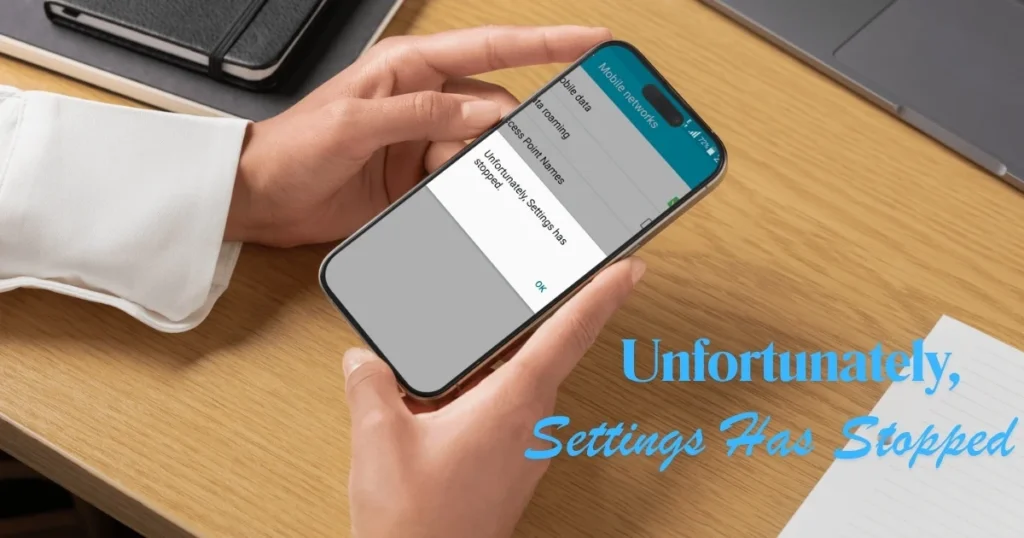
“Settings Has Stopped” – Why does this error occur?
On Android, Settings is a system app. Unlike standard apps, it is not lightweight; it communicates directly with the system’s core components. When something goes wrong with it, the entire app crashes.
Main reasons:
1. The Settings app’s cache has become corrupted.
This is the most common reason. If the temporary data stored in the cache gets corrupted, the app crashes as soon as it is launched.
2. Bugs after Android update
Sometimes, compatibility issues arise with system apps following an OTA update.
3. RAM is very low.
Too many apps are running in the background, and there isn’t enough memory available to launch Settings.
4. Storage is nearly full.
When internal storage is more than 95% full, system processes do not run properly.
5. Third-party app conflict
A recently installed app or launcher is conflicting with System Settings.
6. Google Play Services or System WebView is outdated.
The Settings app depends on them; if they are outdated, it may crash.
7. System files are corrupt.
System files can get damaged due to malware, sudden shutdowns, or storage failure.
All ways to fix “Settings has stopped”
Fix 1 – Restart the phone
This is very basic, but it works in 30–40% of cases for temporary crashes like “Settings has stopped.”
What to do:
- Press the Power button
- Select Restart or Reboot
- If the screen is not responding:
- Samsung: Power + Volume Down (10 seconds)
- Xiaomi/Realme: Power button (10 seconds)
- OnePlus: Power button (10 seconds)
Open Settings after restarting.
Why does it work?
Restarting frees up RAM, allows background processes to start fresh, and clears temporary system glitches.
Fix 2 – Clear the Settings app’s cache and data
This is the most important and effective fix.
However, there is a challenge here – if the Settings app itself won’t open, how do you clear its cache?
Method A – If the Settings app opens briefly:
- Settings > Apps > See all apps
- Three dots > Show system apps
- Find “Settings”
- Storage > Clear Cache
- Then Clear Data
- Restart
Method B – From Notification Shade:
- Long-press the Settings gear icon in the notification bar.
- This will open the ‘About Settings’ page directly.
- From there, go to Storage and select ‘Clear Cache’.
Method C – Via ADB (if Settings won’t open at all):
Using a computer and USB cable:
adb shell pm clear com.android.settingsThis will reset all data and cache for the Settings app.
Note: Clearing data may reset some personalized settings, but photos, contacts, and messages remain safe.
Fix 3 – Update Google Play Services
A less obvious but real reason for the “Settings has stopped” error is outdated Google Play Services.
Steps:
- Open the Google Play Store
- Profile icon > Manage apps & device
- Look for Google Play Services under ‘Updates available’
- Update it
Or directly:
- Type “Google Play Services” in the Play Store search.
- If you see the Update button, tap it.
After this, restart your phone.
Why is this necessary?
Android Settings uses several Google Play Services APIs. Outdated versions can cause crashes.
Fix 4 – Update Android System WebView
This is a system component that displays web content within apps. Certain pages in Settings use WebView.
Steps:
- Open the Play Store
- Search for “Android System WebView”
- Update it if an update is available
If WebView is in a crash loop:
- Settings > Apps > Show system apps
- Android System WebView > Uninstall updates (This removes updates, not the app itself)
- Restart
- Then update from the Play Store
Fix 5 – Test in Safe Mode
If a third-party app is causing Settings to crash, the problem will not occur in Safe Mode.
Enter Safe Mode:
- Long press the power button
- Long press Power Off
- “Reboot to Safe Mode” – OK
Open Settings in Safe Mode.
If Settings works correctly in Safe Mode:
- A recently installed app is causing issues
- Exit Safe Mode
- Uninstall recently installed apps one by one
- Check the settings after uninstalling each app
Pay particular attention to these as suspects:
- Custom launchers (Nova, Action Launcher)
- System optimizer or cleaner apps
- Custom theme apps
- keyboard apps
Fix 6 – Close background apps and free up RAM
If RAM is very low:
Quick fix:
- Press the Recents button
- Select “Close all” or “Clear all”
- Now try opening Settings
Deeper fix:
- Clear junk with Files by Google (free, $0)
- Free up storage – at least 2-3 GB
In MIUI/Poco:
- Use the Cleaner in the Security app.
- Run the RAM Booster as well.
Fix 7 – Check for System Updates
If the “Settings has stopped” error started after an Android update:
Check the following:
- Play Store > Profile > Manage apps > Updates
- Update system apps
If an OTA update is available:
- Check for updates via the notification instead of going into Settings.
- Update when you receive the “Software Update” notification.
Check brand forums as well:
- Xiaomi/MIUI: en.miui.com
- Samsung: samsung.com/in/community
- Realme: c.realme.com
Fix 8 – Reset App Preferences
This option resets app defaults and permissions – personal data remains safe.
Steps:
- If Settings opens: Settings > Apps > Three dots > Reset App Preferences
- Confirm
- Restart
If Settings does not open:
Via ADB:
adb shell pm reset-permissionsFix 9 – Free up storage
If internal storage is more than 90% full:
Quick ways to free up space:
- Clean up WhatsApp media (Settings > Storage – WhatsApp consumes the most space)
- Check the Downloads folder
- Remove duplicate and junk files using Files by Google (free, $0)
- Back up photos to Google Photos and delete local copies
- Uninstall unused apps
Keep at least 3-4 GB free.
Fix 10 – Fix the phone by wiping the cache partition
This clears the system cache from Recovery Mode – personal data remains safe.
Steps:
Turn off the phone, then:
Samsung:
- Press Power + Volume Up + Home (or Bixby)
- Android Recovery will open
- Select “Wipe cache partition” using the Volume buttons
- Confirm using the Power button
Xiaomi/Redmi/Poco:
- Press Power + Volume Up
- Mi Recovery > Wipe > Wipe Cache
Realme/Oppo:
- Press Power + Volume Down
- Recovery mode > Wipe cache
After wiping the cache, select “Reboot system now”.
Fix 11 – Remove and re-add your Google account
Sometimes, a Google account sync issue can also cause the Settings app to crash.
Steps:
- Settings > Accounts > Google (access via another method if Settings crashes)
- Remove the account
- Restart
- Add the account back
Alternative:
Remove account from ADB:
adb shell am account remove com.google ACCOUNT_EMAILFix 12 – Reinstall the Settings App via ADB
This is an advanced fix.
In Admin PowerShell:
adb shell pm uninstall --user 0 com.android.settingsNote: This removes the Settings app for the current user. After restarting:
adb shell pm install-existing com.android.settingsOr restore without a factory reset:
adb shell cmd package install-existing com.android.settingsOfficial ADB tool: developer.android.com/tools/adb
Fix 13 – Factory Reset (Last Resort)
If everything else fails:
Back up your data first:
- Photos – Google Photos
- Contacts – Google Contacts sync
- WhatsApp – in-app Google Drive backup
- Important files – on cloud or PC
Factory Reset:
- Settings > General Management > Reset > Factory Data Reset
- Or from Recovery Mode: Wipe data/factory reset
Note: A factory reset deletes all data. Do not proceed without a backup.
Useful Free Tools
| Tool | Feature | Price |
|---|---|---|
| Files by Google | Storage and junk cleanup | $0 |
| ADB (Android Debug Bridge) | Advanced fixes from computer | $0 |
| Google Photos | Photo backup | $0 |
| Malwarebytes Android | Malware scan | $0 |
| CPU-Z | System info and health check | $0 |
Visit fixtech.in for more detailed Android repair guides.
Which brands might involve extra steps?
Samsung (One UI):
- Run diagnostics in the Samsung Members app.
- Try Software Repair via Smart Switch (free PC software).
Xiaomi/MIUI:
- If a system app crashes in MIUI, ‘Wipe Cache’ in MIUI Recovery is more effective.
- Use Mi Account backup.
Realme/Oppo:
- System Repair mode is available on some ColorOS models.
FAQs – About Settings Has Stopped Error
1. Does the “Settings has stopped” error cause personal data to be deleted?
No – not unless you perform a factory reset. Clearing the cache, clearing data, or wiping the cache partition leaves photos, contacts, and messages safe.
2. If Settings won’t open at all, how can I manage Wi-Fi and Bluetooth?
Use the Quick Settings tiles in the notification shade, or change settings via ADB.
3. What should I do if Settings works fine in Safe Mode but crashes in normal mode?
Uninstall recently installed apps one by one. Also, remove any custom launchers and revert to the default launcher
4. Is it still crashing even after updating Google Play Services?
Update WebView (Fix 4), then clear the Settings cache and data (Fix 2).
5. Does wiping the cache from Recovery Mode delete apps?
No. Wiping the cache partition only clears the system cache; apps, photos, and contacts remain safe.
6. Could this error be caused by a hardware failure?
It is very rare. If software fixes don’t resolve the issue and it persists even after a factory reset, visit a service center.
Final Thoughts
The “Settings has stopped” error may seem irritating, but it isn’t overly complicated to fix. Clearing the cache, updating Google Play Services, and testing in Safe Mode – these three steps combined resolve the issue in most cases. If that doesn’t work, try deeper fixes like wiping the cache partition and resetting app preferences. Follow each step carefully, and there is a very good chance your “Settings has stopped” error will be resolved without needing a factory reset.