
You start your workday in the morning, turn on your laptop, and open Chrome – and just like that, your PC starts to struggle. No sooner has one tab opened than the next one begins to load. Video calls experience lag, and saving documents in MS Word takes forever. And when you finally open the Task Manager, you see the readout: “Memory: 87% used.”
This is the problem of excessive RAM usage – an issue that millions of Windows users across India grapple with every single day.
Whether you have 4GB, 8GB, or 16GB of RAM, if Windows isn’t managing it efficiently, your system’s performance will inevitably suffer. Most importantly, while the majority of people assume they need to upgrade their RAM, in 80% of cases, simple software fixes are all that is required.
In this guide, we will walk you through, step-by-step, exactly why excessive RAM usage occurs, how to identify it, and – most importantly – how to fix it without spending a single penny.
What is RAM, and what happens when it is heavily utilized?
RAM – or Random Access Memory – is your computer’s “working memory.” When you open a program, it first loads into RAM. The more programs running simultaneously, the more RAM is required.
How much RAM should there be?
| Type of Work | Recommended RAM |
|---|---|
| Basic browsing, Office work | 4GB–8GB |
| Multitasking, Video streaming | 8GB–16GB |
| Video Editing, Gaming, Programming | 16GB–32GB |
| Professional workstation | 32GB+ |
When RAM usage exceeds its capacity, Windows employs a clever trick: it begins utilizing a portion of the hard disk as virtual memory. However, a hard disk is many times slower than RAM, which is why the PC freezes, apps crash, and everything starts to feel sluggish.
Symptoms of High RAM Usage
- PC taking more than 3–5 minutes to start up
- Lagging when opening multiple tabs simultaneously in the browser
- FPS drops in games
- Memory usage consistently stays above 80% in Task Manager – even when idle
- Displaying the error message “Your computer is low on memory.”
- Programs shutting down unexpectedly
Main Reasons for High RAM Usage
Before fixing the problem, it is essential to understand why it occurs. Listed below are the most common causes:
- Programs Running in the Background
Windows hosts numerous programs that continue to run in the background without your knowledge – such as Spotify Web Helper, Adobe Updater, OneDrive Sync, etc. - Clutter of Startup Programs
As soon as you turn on your PC, several programs launch automatically and occupy RAM – even though you haven’t opened them yourself. - Excessive Browser Usage
Chrome, Edge, and Firefox are all major consumers of RAM. On average, a single Chrome tab consumes 100–300MB of RAM. If you have 20 tabs open, you can do the math yourself. - Memory Leaks
Some programs utilize RAM but fail to release it even after being closed. This is a software bug known as a “memory leak.” - Malware and Viruses
Certain types of malware silently consume your RAM; this includes cryptominers, spyware, and backdoors. - Outdated Drivers
Outdated graphics or system drivers can lead to memory leaks. - Excessive Use of Visual Effects
Windows animations and visual effects consume RAM – particularly on older systems or those with limited RAM capacity. - Insufficient Physical RAM
If you have less than 4GB of RAM and are running Windows 11, this constitutes a fundamental underlying issue.
Step 1 – First, Identify the Problem: Open Task Manager
Before applying any fix, it is essential to determine which program is consuming the most RAM.
How to open Task Manager:
- Press Ctrl + Shift + Esc – Task Manager will open directly.
- Alternatively, press Ctrl + Alt + Del and select “Task Manager.”
- Or, right-click on the Taskbar and select “Task Manager.”
What to Look for in Task Manager:
Once Task Manager opens, go to the “Processes” tab. There, click on the “Memory” column – this will sort all programs by their RAM usage.
- If the Memory column displays 70%, 80%, 90%, or 99%, you must take action.
- Go to the “Performance” tab and check the Memory section – a real-time graph shows how much RAM is currently in use.
What Is Normal, and What Isn’t?
| RAM Usage | State |
|---|---|
| 30–50% (Idle) | Normal |
| 50–70% (Idle) | A Little Extra – Keep an Eye Out |
| 70–85% (Idle) | ProbleThe problem is starting. |
| 85%+ (Idle) | TheFix Immediately |
Step 2 – Disable Startup Programs
This is the easiest and most effective fix. Most of the programs that launch automatically when you turn on your PC are not needed.
Method:
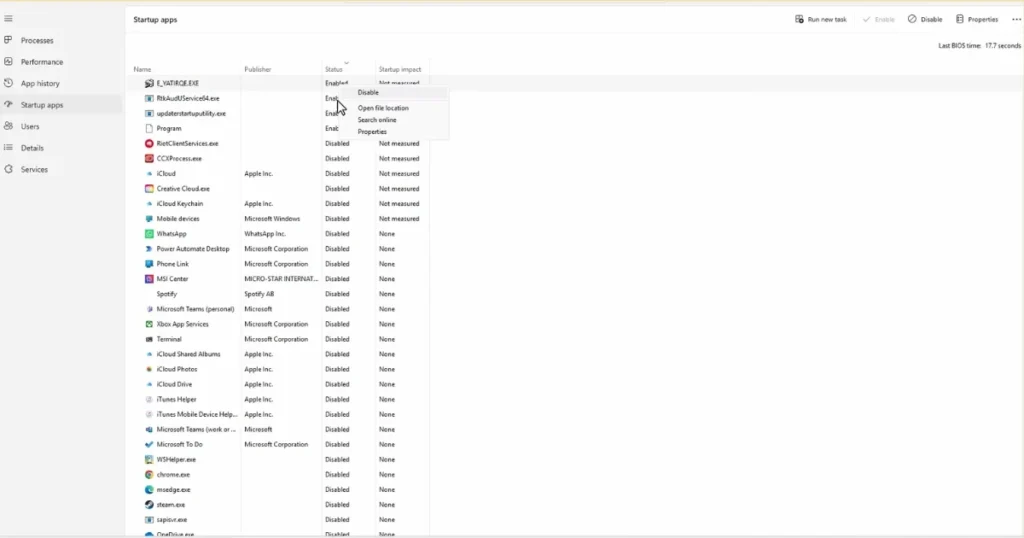
- Open Task Manager (Ctrl + Shift + Esc)
- Click on the “Startup” tab
- Right-click on the programs you don’t want to start automatically – such as Spotify, Discord, Steam, or Adobe Updater
- Select “Disable”
- Restart your PC
Which ones to disable, and which ones not to?
You can disable:
- Spotify, Discord, Steam
- Adobe Updater, CCleaner
- Skype, WhatsApp Desktop
- OneDrive (if not needed)
- Slack, Zoom (if not used constantly)
Do not disable:
- Windows Security / Defender
- Realtek Audio Manager (If related to sound)
- Antivirus Software (Active Security)
Impact: Many users have reported that disabling startup programs can reduce boot time by up to 50%, and idle RAM usage also decreases.
Step 3 – Limit Background App Permissions
In Windows 10 and 11, many apps constantly refresh themselves in the background. This is a major reason for high RAM usage.
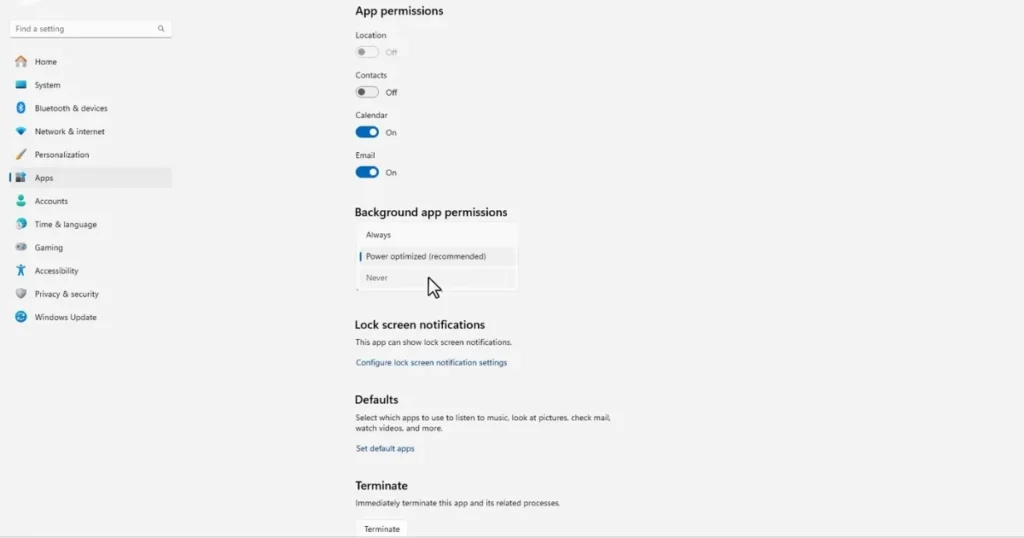
How to Disable Background Apps in Windows 11:
- Open Settings (Windows + I)
- Go to “Apps”
- Go to “Installed Apps” and click on an app
- Go to “Advanced Options”
- Set “Background App Permissions” to “Never”
In Windows 10:
- Settings → Privacy → Background Apps
- Turn off “Let apps run in the background.”
- Or turn off individual apps manually
Step 4 – Disable Unnecessary Services (MSConfig)
Windows includes many services that run continuously – whether you use them or not. Many of these can be disabled.
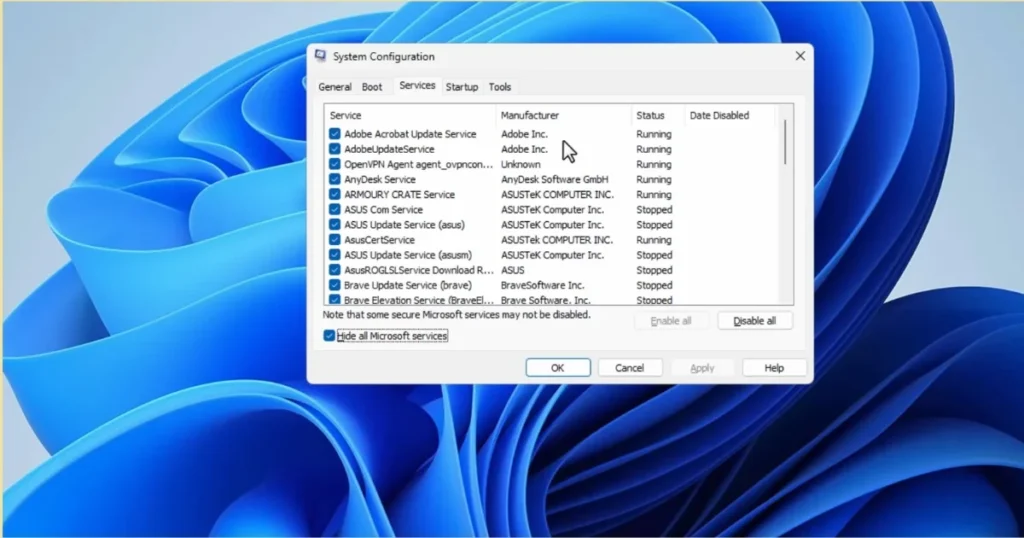
Method:
- Press Windows + R.
- Type “msconfig” and press Enter.
- Go to the “Services” tab.
- Check the box labeled “Hide all Microsoft services” at the bottom – this is a very important step; otherwise, you might disable critical services by mistake.
- From the remaining services that are visible, uncheck the ones you do not use – such as Print Spooler (if you don’t have a printer), Fax, Remote Desktop, etc.
- Click “Apply” and then “OK”.
- Restart your PC.
⚠️ Warning: It is essential to hide Microsoft Services – never disable them.
Step 5 – Reduce Visual Effects
Windows animations and special effects look attractive, but they consume both RAM and CPU resources. Changing this setting is highly beneficial on systems with limited RAM.
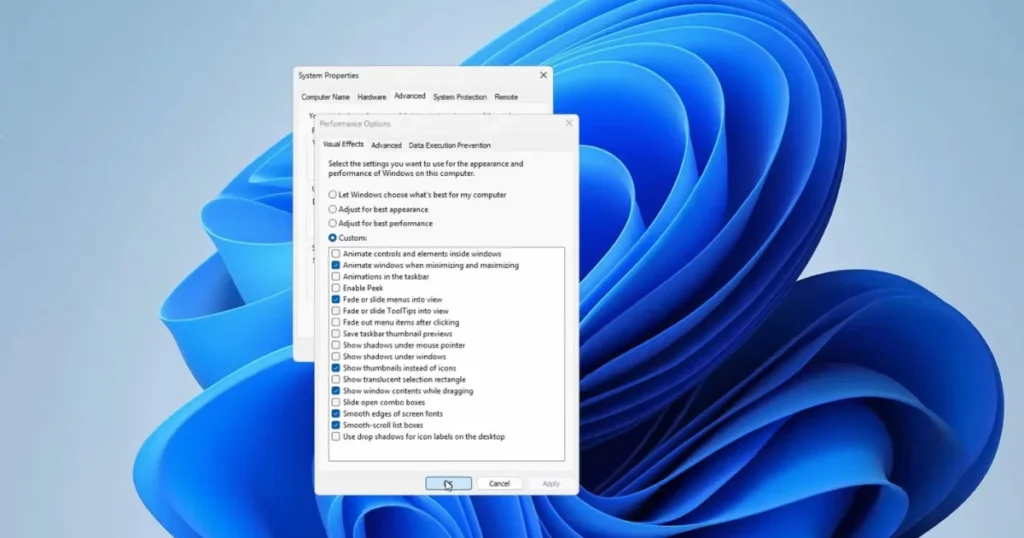
Method:
- Press Windows + R
- Type “sysdm.cpl” and press Enter
- Go to the “Advanced” tab
- Click on “Settings” under “Performance”
- There are three options here:
- “Adjust for best appearance” – All effects On (Higher RAM usage)
- “Adjust for best performance” – All effects Off (Lower RAM usage; may look slightly dated)
- “Custom” – Choose according to your preference
- Select “Adjust for best performance,” or, if using “Custom,” keep these options enabled:
- Show thumbnails instead of icons
- Smooth edges of screen fonts
- Click “Apply”
Difference: Making this change on older laptops can result in a 5–15% reduction in RAM usage.
Step 6 – Properly Set Virtual Memory (Page File)
When the RAM becomes full, Windows uses a portion of the hard disk – known as the Page File – as additional memory. If this is not set to the correct size, the system may crash.
How to Check and Set Page File Size:
- Open “sysdm.cpl” (Windows + R)
- “Advanced” Tab → “Performance Settings.”
- “Advanced” Tab → Click “Change” under “Virtual Memory.”
- Uncheck “Automatically manage paging file size.”
- Select “Custom Size”
- Use this formula:
- Initial Size: 1.5 times the RAM (in MB) – e.g., 8GB RAM = 12,288 MB
- Maximum Size: 3 times the RAM (in MB) – e.g., 8GB RAM = 24,576 MB
- Click “Set” and then “OK.”
Recommended Page File Size for 4GB, 8GB, 16GB RAM:
| RAM | Initial Size | Maximum Size |
|---|---|---|
| 4GB | 6,144 MB | 12,288 MB |
| 8GB | 12,288 MB | 24,576 MB |
| 16GB | 24,576 MB | 49,152 MB |
Step 7 – Scan for Malware and Viruses
Many people are unaware that malware programs – such as cryptominers and spyware – quietly consume both RAM and CPU resources in the background. If you notice an unknown process in the Task Manager consuming an excessive amount of memory, it could be malware.
Scan with Free Tools:
Windows Defender (Built-in – Completely Free):
- Settings → Windows Security → Virus & Threat Protection → Quick Scan
- Website: microsoft.com/windows/security
2. Malwarebytes Free:
- Excellent for Deep Scans
- Website: malwarebytes.com – Download Free Version
- Price: Free (Basic) / $39.99/year (Premium)
3. AdwCleaner (Malwarebytes’ tool):
- To remove Adware and PUPs
- Website: malwarebytes.com/adwcleaner – Completely Free
What to do after the scan?
Remove the detected threats and restart your PC. Afterward, check the RAM usage again in the Task Manager.
Step 8 – Optimize Your Browser
The browser is one of the biggest RAM-consuming programs. Whether it’s Chrome, Edge, or Firefox, all of them consume a significant amount of memory.
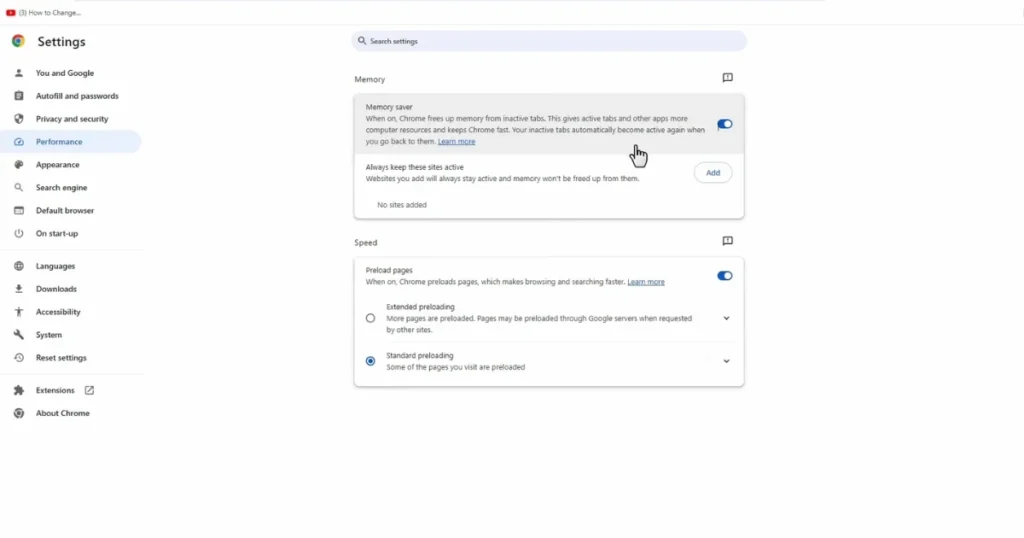
Ways to reduce RAM usage in Chrome:
1. Close Tabs:
- If 15–20 tabs are open and you are using only 5 of them, close the rest.
2. Turn on Chrome’s “Memory Saver” Mode:
- Chrome Settings → Performance → Memory Saver (Turn On)
- This “freezes” inactive tabs, thereby saving RAM.
3. Reduce extensions:
- Chrome Settings → Extensions → Remove extensions that are not used.
4. One Tab Extension (Free):
- Available on the Chrome Web Store – Converts all tabs into a single list.
- RAM usage can be reduced by up to 95%.
Edge vs Chrome vs Firefox – Comparative Analysis of RAM Usage
| Browser | Average RAM (10 Tabs) | RAM Saving Feature |
|---|---|---|
| Google Chrome | ~800MB–1.2GB | Memory Saver |
| Microsoft Edge | ~600MB–900MB | Sleeping Tabs |
| Firefox | ~500MB–800MB | Multi-Process Control |
| Brave | ~400MB–700MB | Built-in Ad Blocker |
Step 9 – Update Drivers
Outdated graphics and system drivers can be a major cause of memory leaks. Both Windows Updates and driver updates are essential.
How to Update Drivers:
Via Windows Update:
- Settings → Windows Update → Check for updates
- Check Drivers in “Advanced Options → Optional Updates.”
Via Device Manager:
- Press Windows + X → Device Manager
- Right-click on “Display Adapters” or “Network Adapters”
- Select “Update Driver”
Free Tools:
- Driver Booster Free (IObit): iobit.com/driver-booster.php
- Price: Free (Basic) / $22.99/year (Pro)
Step 10 – Clear the Page File via the Registry (Advanced Fix)
This method is slightly advanced but highly effective. The Page File (Virtual Memory) will be automatically cleared when the PC shuts down, ensuring that the memory remains fresh the next time the PC starts up.
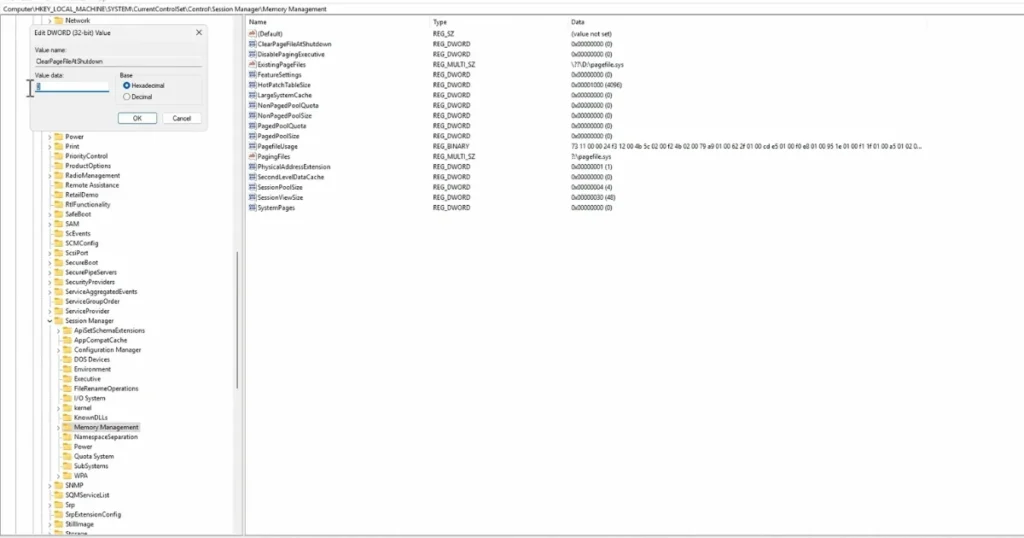
Method:
- Press Windows + R → Type “regedit” → Press Enter
- Navigate to this path: HKEY_LOCAL_MACHINE\SYSTEM\CurrentControlSet\Control\Session Manager\Memory Management
- Right-click on “ClearPageFileAtShutdown” → Modify
- Set the Value to “1” → Click OK
- Restart your PC
Note: This may cause the PC shutdown to take slightly longer – this is normal.
Step 11 – Disable Windows Network Data Usage (NDU)
Windows features a service called NDU (Network Diagnostic Usage) that sometimes consumes excessive RAM. Disabling it is a well-known fix.
Method:
- Open Regedit
- Navigate to the path: HKEY_LOCAL_MACHINE\SYSTEM\ControlSet001\Services\Ndu
- Right-click on the “Start” DWORD → Modify
- Set the Value to “4” (this disables the service) → OK
- Restart your PC
⚠️ Note: If the internet connection is lost, revert the value to “2”.
Step 12 – Perform Disk Defragmentation (For HDDs)
If your PC has an older HDD rather than an SSD, defragmentation can improve the performance of your virtual memory.
Method:
- Type “Disk Defragmenter” in Windows Search.
- Select your drive (e.g., C:).
- Click on “Optimize”.
- Allow the process to complete.
Note: Do not defragment an SSD – this reduces its lifespan.
Step 13 – Check RAM Usage in Safe Mode
If RAM usage remains high even after applying all the fixes mentioned above, boot into Safe Mode to check.
How to Enter Safe Mode:
- Settings → System → Recovery
- Click “Restart Now” under “Advanced Startup”
- Troubleshoot → Advanced Options → Startup Settings → Restart
- Press “4” or “F4” when restarting – Safe Mode will load
What to Check in Safe Mode:
In Safe Mode, only basic Windows services are running. If RAM usage is normal here (30–40%), the problem lies with third-party software. If RAM usage remains high even in Safe Mode, the issue lies with Windows or the hardware.
Step 14 – Uninstall Unused Programs
Programs that you have installed but never use do not consume RAM (normally); however, some programs run background services that do consume RAM.
Method:
- Settings → Apps → Installed Apps
- Sort by size
- Uninstall the apps you do not use.
Example: If you have installed an older version of Adobe Acrobat Reader and it is running an update service in the background, it is also consuming RAM.
Step 15 – Switch Antivirus Software
Some heavy antivirus programs consume a significant amount of RAM themselves. If you have installed a heavy suite like McAfee, Norton, or Kaspersky, consider switching.
RAM Usage Comparison – Antivirus Programs
| Antivirus | Idle RAM Usage (Average) | Price |
|---|---|---|
| Windows Defender (Built-in) | ~50–80MB | Free |
| Malwarebytes Free | ~60–100MB | Free |
| Bitdefender Free | ~80–120MB | Free |
| Kaspersky Standard | ~150–250MB | ~$29.99/year |
| Norton 360 | ~200–350MB | ~$39.99/year |
| McAfee Total Protection | ~250–400MB | ~$34.99/year |
Step 16 – Check the RAM Hardware
Occasionally, a physical issue with the RAM can be the cause of high RAM usage. If the RAM module is not properly seated in its slot, or if the RAM itself is faulty, the system may detect less RAM than is actually installed.
Windows Memory Diagnostic Tool:
- Type “Windows Memory Diagnostic” in Windows Search.
- Select “Restart now and check for problems.”
- The PC will restart and test the RAM.
- It will display the results once complete.
Check Installed vs. Used RAM in Task Manager:
- Task Manager → Performance → Memory
- Check under “Installed” – if you have installed 8GB of RAM but only 6GB or less is displayed, the RAM is either not properly seated or is faulty.
Step 17 – Check for Windows Updates (and Uninstall Buggy Updates)
Sometimes, a faulty Windows Update alone can cause increased RAM usage. Reports of this nature frequently appear on Microsoft Forums.
Identify Buggy Updates:
- Settings → Windows Update → Update History
- Note down the KB Number.
- Search for “KB[number] high RAM usage” on Google – if others are also reporting the same problem, then this is the issue.
Uninstall Update:
- Settings → Windows Update → Update History → Uninstall Updates
- Find the latest update → Uninstall it
- Wait for a new update from Microsoft.
Free Tools That Help with RAM Management
Below are some excellent free tools that help identify and fix issues related to high RAM usage:
1. Process Explorer (Sysinternals – Microsoft)
- Advanced Version of Task Manager
- Download: learn.microsoft.com/sysinternals
- Price: Free
- Why Use It: Displays full details for any process – DLLs, handles, memory usage – everything.
2. RAMMap (Sysinternals)
- Detailed breakdown of RAM Usage
- Download: learn.microsoft.com/sysinternals/ramap
- Price: Free
- Why Use It: See where RAM is being used – Processes, Driver Locked, Standby, etc.
3. Autoruns (Sysinternals)
- All Startup Programs and Services in One Place
- Download: learn.microsoft.com/sysinternals/autoruns
- Price: Free
- Why Use It: Better than Task Manager for removing more programs from startup.
4. CCleaner Free
- Cleans junk files and registry issues.
- Website: ccleaner.com
- Price: Free (Basic) / $29.95/year (Pro)
5. Wise Memory Optimizer
- To Manually Free Up RAM
- Website: wisecleaner.com
- Price: Free
- Why Use It: Recovers Standby and Free Memory with a single click.
Should You Upgrade Your RAM? – An Honest Comparison
Many people immediately think of buying RAM. However, this isn’t always the right move.
Software Fix vs Hardware Upgrade
| Factor | Software Fix | RAM Upgrade |
|---|---|---|
| Cost | Free | $20–$80+ |
| Time | 30–60 Minutes | 10–30 Minutes (Installation) |
| Effectiveness | 80% Cases It works in 80% of cases. | 100% Effective |
| Permanent Solution | Partially | Yes |
| Technical Skill | Medium | Low (Desktop) / High (Laptop) |
| Laptop Compatibility | Always Works | Some laptops come with soldered RAM. |
FAQs – On High RAM Usage
Q1. My PC has 8GB of RAM; why does the RAM usage consistently stay at 80%?
Answer: There could be several reasons for this – too many startup programs, excessive browser tabs, a program with a memory leak, or malware. Follow the steps outlined above. In most cases, software-based fixes alone are sufficient to bring RAM usage down to the 40–50% range.
Q2. Does restarting the PC reduce RAM usage?
Answer: Yes, restarting clears temporary files and resolves memory leaks. It serves as a quick fix, though not a permanent one. To resolve the root cause of the problem, follow the steps provided above.
Q3. Can high RAM usage damage a PC?
Answer: It doesn’t cause direct physical damage; however, sustained high RAM usage can lead to overheating, reduce the lifespan of hardware components, and increase the risk of data loss due to frequent system crashes.
Q4. Why does Chrome consume so much RAM?
Answer: Chrome utilizes a multi-process architecture, meaning each tab runs as a separate process. While this enhances stability, it results in significantly higher RAM consumption. Try enabling Chrome’s “Memory Saver” mode and reducing the number of installed extensions.
Q5. Are RAM cleaner apps beneficial?
Answer: To a limited extent, but not significantly. Windows manages RAM allocation automatically, and forcefully “clearing” RAM can sometimes actually degrade system performance. Tools like Wise Memory Optimizer should only be used as a last resort, after you have exhausted all other troubleshooting options.
Q6. Does antivirus software consume a lot of RAM?
Answer: Yes, certain resource-intensive antivirus programs – such as Norton and McAfee – can consume between 200MB and 400MB of RAM. Windows Defender is a free alternative that consumes significantly less RAM. Pairing it with Malwarebytes makes for an excellent security solution.
Q7. Does Windows 11 require more RAM than previous versions?
Answer: Yes, Windows 11 consumes slightly more RAM at a baseline level compared to Windows 10 (approximately 500MB to 800MB more). Consequently, Windows 10 will generally run more smoothly on laptops equipped with only 4GB of RAM.
Q8. Is it possible to increase the RAM in my PC?
Answer: This depends on your specific Laptop/Desktop model. In some modern, thin laptops, the RAM is soldered onto the motherboard – meaning it cannot be replaced. First, Google your laptop model to check whether the RAM is upgradeable.
Q9. RAM usage remains high even in Safe Mode – what should I do now?
Answer: If RAM usage remains high even while in Safe Mode, it could indicate Windows system corruption or a hardware issue. Run the Windows Memory Diagnostic Tool. If any errors are detected, you may need to replace the RAM.
Q10. Is resetting Windows an option?
Answer: Yes, but it should be considered a last resort. Go to Settings → System → Recovery → Reset this PC. Select the “Keep my files” option if you wish to preserve your data. This process removes all third-party software and performs a clean installation of Windows.
Conclusion – High RAM Usage is a Fixable Problem
High RAM usage is a common, yet fixable, issue. Whether your PC is old or new – running Windows 10 or 11 – the steps outlined in this guide will help you optimize your RAM.
Keep one final point in mind: every PC is unique, so not every fix will work the same way for everyone. First, use the Task Manager to identify the root cause of the problem, and then apply the appropriate fix accordingly.
If the issue of persistently high RAM usage persists even after applying software-based fixes – and you regularly engage in heavy computing tasks – then upgrading your RAM remains the most permanent solution.
For more articles related to Windows performance, be sure to visit fixtech.in; there, you will find step-by-step guides in easy way designed to help you resolve virtually any common PC issue.