
Millions of people today are grappling with the dreaded laptop black screen issue – and believe me, when you sit down to work in the morning, open your laptop, and are met with nothing but a black screen, your heart just sinks. Whether you own a Dell, HP, Lenovo, or Asus, this problem can occur with any brand. But there is no need to panic. In this comprehensive guide, we will explain why the laptop black screen issue occurs, how to fix it yourself, and when it is time to consult a technician.

What is a Laptop Black Screen?
Simply put, the laptop turns on, the fan spins, and the power light illuminates, but nothing appears on the screen. Just pure blackness. This is what is known as the “Laptop Black Screen of Death.”
This issue can manifest in several ways:
- Before Boot – The laptop won’t turn on at all; the screen remains black.
- After log in – the Windows logo appears, and the password is entered, but then the screen goes black.
- After Sleep/Hibernate – The lid is opened, and the screen remains black.
- After Update – Windows has updated, and now the screen is not displaying.
- With Cursor – The screen is black, but the mouse cursor is visible.
Main Causes of a Laptop Black Screen
Before fixing the problem, it is essential to understand why a laptop screen goes black. The most common causes are listed below:
1. Graphics Driver Issue
This is one of the most common causes. When Windows updates or new software is installed, the graphics driver may become corrupted. As a result, the display stops working.
2. Loose Display Cable (Loose LVDS/eDP Cable)
Inside every laptop, there is a thin cable that connects the motherboard to the screen. This is known as the LVDS or eDP cable. Every time the laptop is opened or closed, this cable flexes slightly. Over time, it may become loose or break.
3. RAM Issue
If the RAM becomes loose or faulty, the laptop will not boot, and the screen will remain black.
4. Backlight Failure
If faint images appear on the screen (when illuminated with a flashlight), the backlight has failed. This is a hardware issue.
5. Windows Explorer Crashing
Sometimes, Windows Explorer (which runs the desktop and taskbar) crashes. The screen appears black, but the system is still running.
6. Overheating
When a laptop becomes excessively hot, the GPU shuts itself down to protect itself. This causes the screen to go black.
7. BIOS Issues
The laptop screen may remain black if the BIOS becomes corrupted or if the settings are incorrect.
8. Malware or Virus
Some viruses block Windows Explorer or the display service, causing the screen to appear black.
9. Fast Startup Issue
Windows 10/11 features a “Fast Startup” feature that sometimes causes a black screen, particularly after hibernation.
10. Hardware Failure
If the GPU, motherboard, or LCD panel itself malfunctions, this is a serious situation that requires a visit to a service center.
Check First: Is It a Black Screen?
Perform a basic diagnosis before proceeding with the solutions:
Checklist – Do these steps first:
- Press Windows + Ctrl + Shift + B: This keyboard shortcut resets the display driver. The screen may come back on within 3–4 seconds.
- Check the brightness: Sometimes the brightness drops to an absolute minimum, making the screen appear black. Press Fn + F5 or Fn + F6 (the brightness keys) on your keyboard.
- Check Caps Lock / Num Lock: Press the Caps Lock key – if the LED lights up, the laptop is running, and the issue lies solely with the display. If the LED does not light up, there may be a problem with the RAM or the motherboard.
- Perform the flashlight test: In a dark environment, bring your phone’s flashlight close to the screen. If you can faintly discern an image, the backlight has failed.
- Listen for sound: Can you hear the Windows startup sound? Is the fan running? If yes, the system is booting up, and the issue is limited to the display.
Ways to Fix a Laptop Black Screen – Step by Step
Now, we will explore each method in detail. Try them in order, from the easiest to the most difficult.
Method 1: Power Drain Reset (Do this first)
This is the easiest and most effective method. Approximately 40% of black screen issues are resolved by this.
Steps:
- Turn off the laptop by pressing the Power Button (hold for 10 seconds).
- Disconnect the charger.
- If the battery is removable, remove it.
- Press and hold the Power Button for 30–60 seconds (without the charger or battery connected).
- Reconnect the battery and charger.
- Turn on the laptop.
Why this works: It discharges the residual electrical charge accumulated in the laptop’s circuits. The Embedded Controller (EC) – which manages power and the display – is reset.
Method 2: Test Using an External Monitor
This method will determine whether the problem lies in the software or the hardware (LCD).
Steps:
- Connect an external monitor or TV to the laptop using an HDMI cable.
- Turn on the laptop.
- Press Windows + P → Select “PC Screen Only” or “Duplicate”.
- If the display appears on the external monitor:
- The problem lies with your LCD screen or backlight.
- The software is fine.
- If the external monitor also has a black screen:
- It is a GPU or driver issue.
For HP laptops: Press F4 to switch the display.
For Lenovo/Dell: Try Fn + F7 or Fn + F10.
Method 3: Boot into Safe Mode and Update Drivers
In Safe Mode, Windows runs with a minimum set of drivers. If the screen displays correctly in Safe Mode, the issue lies with the drivers.
How to enter Safe Mode:
Method A (Via Windows Recovery):
- Turn off the laptop using the Power Button.
- Then turn it on – as soon as the Windows logo appears, turn it off again using the Power Button.
- Repeat this process 3 times.
- On the fourth attempt, Windows will automatically enter the Windows Recovery Environment (WinRE).
- Navigate to: Troubleshoot → Advanced Options → Startup Settings → Restart.
- After restarting, press F5 – select “Safe Mode with Networking.”
Update Drivers in Safe Mode:
- Press Windows + X → Open Device Manager
- Expand Display Adapters
- Right-click on your GPU
- Select Update Driver → “Search automatically.”
- If the issue occurred after an update – Select Roll Back Driver
Uninstall and Reinstall the Display Driver:
- Right-click on the GPU in Device Manager → Uninstall Device
- Check the “Delete the driver software” box
- Restart your computer – Windows will automatically install a basic driver
- Then, download the latest driver from the manufacturer’s website:
- NVIDIA: nvidia.com/Download
- AMD: amd.com/support
- Intel: intel.com/content/www/us/en/support
Method 4: Restart Windows Explorer (If the Cursor is Visible)
If the screen is black but the mouse cursor is visible, this indicates a Windows Explorer crash.
Steps:
- Press Ctrl + Shift + Esc → Task Manager will open
- If Task Manager does not open: Press Ctrl + Alt + Delete → Select Task Manager
- Find Windows Explorer in Task Manager
- Right-click on it → Select Restart
- If Windows Explorer is not in the list:
- File → Run new task in Task Manager
- Type: explorer.exe → Enter
It takes 10–15 seconds, and the desktop returns.
Method 5: Disable Fast Startup
The Fast Startup feature in Windows 10/11 sometimes results in a Black Screen after hibernation.
If the laptop is turned on:
- Control Panel → Power Options → Choose what the power buttons do
- Uncheck “Turn on fast startup.”
- Save changes → Restart
If the laptop is not turning on:
- Enter Safe Mode (see Method 3)
- From there, disable Fast Startup.
Method 6: Disable Startup Apps
Sometimes, a third-party app runs at startup and causes the Black Screen.
Steps:
- Ctrl + Alt + Delete → Task Manager
- Go to the Startup tab
- Right-click on each item → Disable
- Restart
- If the issue is resolved, enable the apps one by one to identify the culprit.
Method 7: Perform a System Restore
If a Windows update or any software was recently installed, System Restore will revert your system to that specific point in time.
Steps:
- Enter WinRE (see steps 1-4 of Method 3)
- Troubleshoot → Advanced Options → System Restore
- Select a restore point created before the Black Screen occurred
- Perform the restore – this may take 20–30 minutes
Please note: System Restore does not delete your personal data, but programs installed after that date will be removed.
Method 8: Uninstall Windows Updates
If the Black Screen appeared after a Windows Update:
- Go to WinRE
- Troubleshoot → Advanced Options → Uninstall Updates
- Select “Uninstall latest quality update.”
- Restart
Method 9: Reset BIOS/UEFI
A black screen can also occur if the BIOS settings are corrupted.
Steps:
- Press the BIOS key immediately after turning on the laptop.
- Dell:F2
- HP: F10 or Esc
- Lenovo: F1 or F2
- Asus: F2 or Del
- Go into the BIOS and look for the “Load Setup Defaults” or “Reset to Default” option.
- Save → Exit
Method 10: Reseat the RAM
This is slightly technical, but very effective. Loose RAM is a major cause of the Black Screen issue.
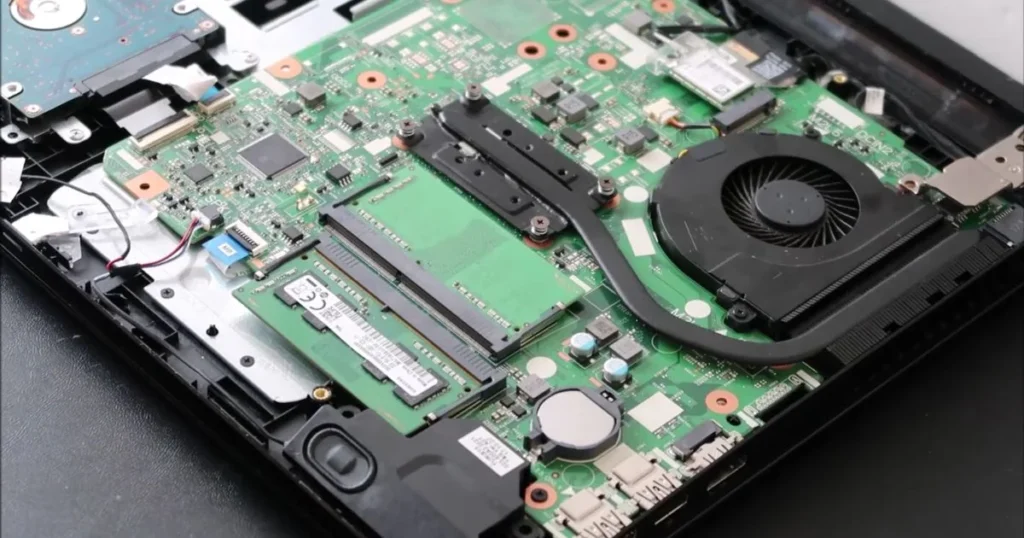
Steps (Proceed with caution):
- Shut down the laptop and unplug the charger.
- Open the bottom panel (a screwdriver will be required).
- Carefully remove the RAM sticks.
- Gently clean the gold contacts using an eraser.
- Firmly push the RAM back into place (you should hear a click).
- Close it up → Test it.
HP Suggestion: If there are two RAM slots, test them by inserting RAM into one slot at a time. This helps identify a faulty slot.
Method 11: Reset the Display Driver (Quick Shortcut)
This is the fastest shortcut if your laptop is running, but the screen is black:
Press Windows + Ctrl + Shift + B.
This immediately resets the GPU driver. The screen will flicker and come back on within 1–3 seconds.
Method 12: Perform a Virus/Malware Scan
Boot into Safe Mode and run an antivirus scan:
Free tools you can use:
- Malwarebytes Free – malwarebytes.com – Highly effective
- Windows Defender – Built-in by default
- HitmanPro (30 days free) – Good for a second opinion
Scan in Safe Mode because malware is not active there.
Method 13: Check for Overheating
If the laptop runs for a while and then the screen goes black, it is overheating.
What to do:
- HWMonitor (Free) – cpuid.com/softwares/hwmonitor.html – Check temperatures. It is dangerous for the GPU to exceed 90°C.
- Clean the laptop’s vents (using a can of compressed air).
- Use a cooling pad ($15–$30).
- Replace the thermal paste – if the laptop is 4–5 years old (paste costs $2–$5; service charges are extra).
Method 14: Refresh/Reset Windows
If none of the methods worked:
- Go to WinRE
- Troubleshoot → Reset this PC
- Select the “Keep my files” option – your personal data will be preserved
- Windows will be reinstalled
This process may take 1–2 hours.
Brand-wise Black Screen Fix – Specific Tips for Dell, HP, Lenovo, and Asus
Dell Laptop Black Screen Fix
Dell laptops feature a built-in diagnostic tool.
Dell ePSA Diagnostic:
- Press F12 immediately after turning on the laptop.
- Select ‘Diagnostics’ from the Boot menu.
- This tool will automatically perform a hardware check.
- If a display issue is detected, visit dell.com/support.
Dell SupportAssist OS Recovery:
- This option is available in the Boot menu.
- Windows repair is performed automatically.
HP Laptop Black Screen Fix
HP PC Hardware Diagnostics:
- Press Esc at startup → F2 (System Diagnostics)
- Select Component Tests → Display
- This test will indicate whether the hardware is functioning correctly.
HP Support Assistant (Free):
- It comes pre-installed on HP laptops.
- It updates drivers automatically.
- Download: hp.com/us-en/shop/pdp/hp-support-assistant
Lenovo Laptop Black Screen Fix
Lenovo Vantage (Free App):
- Performs a system health check.
- Updates drivers.
- Download: support.lenovo.com
Novo Button: Some Lenovo laptops feature a small Novo button located on the side. Pressing it opens the Recovery menu without booting into Windows.
ASUS Laptop Black Screen Fix
MyASUS App (Free):
- Performs hardware diagnostics.
- Tests are conducted for the fan, battery, and screen.
- Download: asus.com/support
Asus Recovery: Press F9 at startup – Windows can be restored from the Asus recovery partition.
Different Types of Black Screens and Their Solutions
Type 1: Black Screen Before Login
Causes: Hardware issue, BIOS problem, RAM
Solution:
- Power Drain Reset (Method 1)
- External Monitor Test (Method 2)
- RAM Reseat (Method 10)
- BIOS Reset (Method 9)
Type 2: Black Screen After Login (With Cursor)
Causes: Windows Explorer crash, Driver issue, Startup apps
Solution:
- Restart Windows Explorer (Method 4)
- Disable Startup Apps (Method 6)
- Update/Rollback Drivers (Method 3)
Type 3: Black Screen After Windows Update
Causes: Incompatible driver, Corrupted update
Solution:
- Uninstall Update (Method 8)
- System Restore (Method 7)
- Driver Rollback (Method 3)
Type 4: Black Screen After Sleep/Hibernate
Causes: Fast Startup, Driver Issue
Solution:
- Windows + Ctrl + Shift + B (Method 11)
- Disable Fast Startup (Method 5)
- Power Drain Reset (Method 1)
Type 5: Black screen after some time (after running for a while)
Causes: Overheating, Hardware failure
Solution:
- Monitor the Temperature (Method 13)
- Replace the Thermal Paste
- Visit a Service Center
Preventive Tips to Avoid the Black Screen
What’s done is done – but for the future:
Do’s:
- Keep drivers updated regularly – check your GPU drivers every 2–3 months.
- Allow Windows Updates to run automatically – perform manual updates only after they have proven to be stable.
- Use an antivirus – Windows Defender is sufficient.
- Perform regular backups – use Google Drive, OneDrive, or an external HDD.
- Keep your laptop clean – prevent dust accumulation in the vents, and perform a thorough cleaning every 6 months.
- Use a cooling pad – especially during gaming or heavy usage.
- Perform a proper shutdown – do not leave the device in Sleep mode for extended periods.
Don’ts:
- Do not install random PC cleaner apps – they usually cause more harm than good.
- Do not force-shut down Windows – repeated forceful shutdowns can lead to data corruption.
- Do not install unverified drivers – always download them from the official website.
- Do not place your laptop on soft surfaces – doing so blocks the ventilation vents.
- Do not let the battery drain down to 0% – the 20–80% range is best for battery health.
FAQs – About Laptop Black Screen
Q1: Why does the laptop turn on, but the screen remains black?
A: There could be several reasons for this – graphics driver corruption, a Windows Explorer crash, a Fast Startup issue, a RAM problem, or an LCD backlight failure. First, perform a Power Drain Reset. Then, test it using an external monitor. In 70% of cases, the issue can be resolved right at home.
Q2: How long does it take to fix a laptop’s black screen?
A: Quick fixes (Power Drain, Win+Ctrl+Shift+B) take 5 minutes. Driver fixes or System Restores, take 30–60 minutes. A Windows Reset takes 1–2 hours. Hardware repairs take 1–3 days (at a service center).
Q3: Can data be lost due to a black screen?
A: If it is merely a display issue – no. However, if you need to reset Windows, there is a risk of data loss. Therefore, back up your data using a bootable USB first.
Q4: Which of Dell, HP, or Lenovo is more prone to the “Black Screen” issue?
A: This depends not on the brand, but rather on usage and maintenance. However, Black Screen issues are more frequently reported in HP due to “Fast Startup” issues, in Dell due to driver conflicts, and in Lenovo following BIOS updates.
Q5: Black Screen After Dropping Laptop – What Should You Do?
A: First, test it using an external monitor. If a display appears there, the LCD or display cable is damaged. Visit a service center. The fall may have caused the LVDS cable to come loose or the LCD panel to crack.
Q6: What does Windows + Ctrl + Shift + B do?
A: This shortcut resets the Windows Display Driver. It forces the GPU to refresh the display. This is very useful in cases of a black screen after Sleep or Hibernate.
Q7: Can a warranty claim be filed for a laptop screen that has gone black?
A: If it is a hardware defect and falls within the warranty period, yes, the claim will be honored. If it is a software issue, the warranty does not cover it. If there is physical damage, the warranty becomes void.
Q8: How do I enter Safe Mode if F8 isn’t working?
A: In Windows 10/11, the F8 key does not work directly. Perform a forceful shutdown three times using the Power button – on the fourth attempt, the system will enter Windows Recovery. From there, press F5 to access Startup Settings.
Q9: What kind of data can be recovered when a laptop screen goes black?
A: Almost everything – documents, photos, and videos. Data can be safely recovered by creating a bootable USB drive using tools like EaseUS Data Recovery or Recuva.
Q10: The black screen issue keeps recurring – what should I do?
A: If this is happening repeatedly: Disable Fast Startup, update your drivers, check for overheating, and reseat the RAM. If the issue persists, it indicates a hardware failure; please visit a service center.
Conclusion
The “laptop black screen” issue may certainly seem daunting, but it does not always spell the end for your device. As we have seen throughout this comprehensive guide – ranging from a Power Drain Reset to Driver Updates, and from Safe Mode to System Restore – a solution exists for almost every problem right at home.
Simply adopt a systematic approach: try the simple fixes first, then address the software, and only turn to the hardware as a last resort. And yes – make it a habit going forward to perform regular backups, keep your drivers updated, and ensure your laptop stays cool.
If your laptop is currently plagued by the black screen issue and you encounter any difficulties with the methods in this guide, please contact us – we are here to help. Be sure to share this guide with any friends who might be struggling with this problem! And for more guides, visit fixtech.in.