
Is your Windows update stuck at 0%, 35%, or 99%, refusing to budge for hours on end? You are not alone. Millions of Windows users encounter this issue every day – especially when urgent work needs to be done, and their laptop is completely stalled. While the problem of a stuck Windows update is certainly frustrating, in most cases, it does not indicate a major system failure. With a little know-how and the right steps, you can fix it yourself right at home.
In this guide, we will walk you through everything a professional technician would do if they were sitting right beside you – without any technical jargon or unnecessary fluff. Just straightforward, practical solutions.
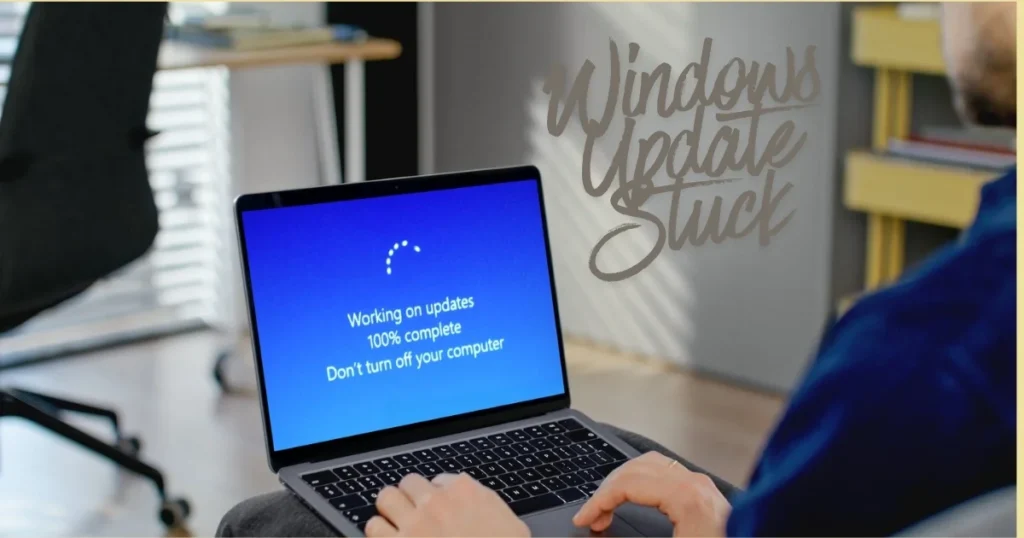
1. Windows Update Stuck. Why? – The Real Reasons
First, let’s understand why this happens. A Windows update is not a simple file download. A lot goes on behind the scenes:
- System compatibility check
- Verifying digital signatures
- Modifications to system files
- Creating recovery points
- Driver updates
When even a single one of these parts malfunctions, the entire process comes to a halt.
Main Reasons:
| Reason | Description |
|---|---|
| Corrupted Files | If the downloaded update files become corrupted, the installation halts. |
| Slow/Unstable Internet | A stable connection is essential for major updates – a weak Wi-Fi signal is a primary cause. |
| Low Disk Space | At least 10–20 GB of free space is required for the update. |
| Software Conflicts | Third-party antivirus or VPNs can interfere with updates. |
| Issues with Old Updates | A failed update can block the next update. |
| Update Dependencies | Some updates are interdependent – if installed in the wrong sequence, they get stuck. |
| Outdated BIOS/Firmware | In some cases, an outdated BIOS can also cause the update to freeze. |
| Corrupted System Files | This issue also occurs if Windows’ own system files are corrupted. |
Note: According to Microsoft’s research, most stuck update issues are software-related – meaning they can be resolved without reinstalling Windows.
2. Is the update truly stuck, or just slow? – How to tell
This is the very first question you should ask yourself.
Wait – sometimes patience is the only solution.
- If you have an HDD (and not an SSD), major updates may take 1–2 hours.
- An older laptop (more than 4–5 years old) will naturally be slow.
- Large Feature Updates (such as Windows 11 25H2) take time to install.
When to realize that it is truly stuck:
- The progress bar hasn’t moved at all for 40–60 minutes.
- There is no animation on the screen, and the cursor is frozen.
- The update percentage has been stuck at the same spot for over an hour.
If all of this is happening, then it is time to take action. Let’s get started.
Fix #1 – Run the Windows Update Troubleshooter.
This is Microsoft’s own built-in tool. It automatically detects common problems and attempts to fix them. It does not always work 100% of the time, but you should start here, as it is the easiest and safest step.
For Windows 11:
- Open Start → Settings
- Go to System → Troubleshoot
- Click on Other troubleshooters
- Find Windows Update and click Run
- Follow the on-screen instructions
For Windows 10:
- Open Settings → Update & Security → Troubleshoot
- Click Additional Troubleshooters
- Windows Update → Run the troubleshooter
What does this tool do? It restarts update services, clears a corrupted update state, and automatically fixes some common errors.
Fix #2 – Restart Your PC (The Right Way)
“Just restart it” – you might chuckle at hearing this, but the truth is that restarting it incorrectly can actually make matters worse.
The Correct Way:
- Press and hold the Power button for 10 seconds – the PC will shut down.
- Then, press the Power button to turn it back ON.
- Windows will automatically continue or roll back the update – let it proceed.
- If you see “Attempting repairs” or “Undoing changes” on the screen, do not panic; this is normal.
⚠️ Keep in mind: Use a force shutdown only as a last resort. Repeatedly shutting down forcefully can further corrupt update files.
What will happen after the restart?
- Either Windows Update will continue,
- or it will revert to its previous state.
- In either case, your data will remain safe.
Fix #3 – Check Your Internet Connection and Firewall
One of the most common reasons for Windows updates getting stuck is an unstable internet connection. Even if the progress bar has advanced by a few percent, Windows still requires an internet connection during the process.
Check the Internet:
- Turn off Wi-Fi and reconnect.
- Restart the router (power it off for 10 seconds).
- If possible, connect directly via an Ethernet cable; it is more stable than Wi-Fi.
- Disable any VPN or Proxy – these can interfere with access to Microsoft’s servers.
- Stop any active downloads or video streaming.
For the Firewall:
Sometimes, Windows Firewall blocks the update connection.
- Open Control Panel → System and Security → Windows Firewall.
- Go to “Turn Windows Firewall on or off.”
- Turn it off temporarily.
- Try the update.
- Once finished, turn the Firewall back on.
Fix #4 – Restart Windows Update Services
Several background services operate behind Windows Update. If these services hang for any reason, the entire update process comes to a halt.
Steps:
- Press Windows Key + R → Type services.msc → Press Enter
- Locate the Background Intelligent Transfer Service (BITS) → Right-click → Restart
- Locate the Windows Update service → Right-click → Restart
- Also, restart Cryptographic Services
- Close the Services window and try Windows Update again
What does the BITS service do? It downloads update files while smartly managing internet bandwidth. If it hangs, the download comes to a complete halt.
Fix #5 – Clear the Software Distribution Cache
This is one of the most effective fixes. When Windows downloads updates, it stores them in the C:\Windows\SoftwareDistribution folder. If these files become corrupted, the installation gets stuck.
Solution: Clearing this folder prompts Windows to download the updates afresh.
Steps via Command Prompt (Admin):
Open Command Prompt as an Administrator (Search for “cmd” in Start → Right-click → Run as administrator)
Then, enter these commands one by one:
net stop wuauserv
net stop bits
net stop cryptsvc
Now open the C:\Windows\SoftwareDistribution folder and delete all files (but not the folder itself).
Then restart the services:
net start wuauserv
net start bits
net start cryptsvc
Now go to Settings → Windows Update → Check for Updates.
Example: Suppose Ravi’s laptop had been stuck at 0% on the Windows 11 update for two hours. After clearing the SoftwareDistribution folder, a fresh download began, and the update was completed within 45 minutes.
Fix #6 – Run SFC and DISM Commands
If the methods above do not work, it may indicate that Windows system files have become corrupted. There are two powerful tools available for this:
SFC (System File Checker):
This tool scans all protected Windows system files and automatically repairs any corrupt files.
Type in Command Prompt (Admin):
sfc /scannow
Let this complete – it may take 15–30 minutes. Restart once the scan is complete.
DISM (Deployment Image Servicing and Management):
Run this tool after SFC. It repairs the Windows image, which is the root cause of update failures.
DISM /Online /Cleanup-Image /CheckHealth
DISM /Online /Cleanup-Image /ScanHealth
DISM /Online /Cleanup-Image /RestoreHealth
The RestoreHealth command downloads files from the internet, so please ensure you remain connected to the internet. It may take 20–40 minutes to complete.
Comparison: SFC vs. DISM – SFC repairs local system files, whereas DISM repairs the entire Windows image using online sources. Together, they are more effective.
Fix #7 – Update in Safe Mode
In Safe Mode, Windows starts with only essential drivers and services. This means that third-party antivirus software, VPNs, or conflicting programs are not active, allowing the update to run smoothly.
How to enter Safe Mode:
- Go to Start → Power icon
- Hold down the Shift key and click Restart
- A blue screen will appear: Troubleshoot → Advanced Options → Startup Settings → Restart
- After restarting, a list will appear – press F4 (Safe Mode) or F5 (Safe Mode with Networking)
After entering Safe Mode:
- Settings → Windows Update → Check for Updates
- Check if the update runs correctly now.
Fix #8 – Free Up Disk Space
Space is required for the update. If your C: drive is full, the update will download but will not install, and it will appear stuck on the screen.
How much space is needed:
| Update Type | Minimum Space | Recommended Space |
|---|---|---|
| Regular Quality Update | 5 GB | 10 GB |
| Feature Update | 10 GB | 20 GB |
| Major Version Upgrade | 15 GB | 30 GB |
Ways to Quickly Free Up Space:
- Run Disk Cleanup: Search for “Disk Cleanup” in the Start menu → Select the C: drive → Click on “Clean up system files.”
- Empty the Recycle Bin
- Check the Downloads folder – Delete old files
- Settings → Apps → Uninstall apps that you no longer use
Free Tool: TreeSize Free – This tool tells you which folder is taking up the most space. It is completely free.
Fix #9 – In-Place Repair Upgrade
If none of the above methods work, this is a highly effective solution. In this process, you reinstall Windows – but all your files, apps, and settings remain intact.
Steps:
- Download the Media Creation Tool from Microsoft’s official website (it is free).
- Run the tool → Select “Upgrade this PC now.”
- Choose the “Keep personal files and apps” option.
- Allow the installation to complete.
How effective is this? This repair install fixes broken Windows update components without any data loss. Most stubborn update problems are resolved here.
Learn More: For more information related to Windows repair, visit fixtech.in – detailed guides on Windows troubleshooting are available here in Hindi.
Fix #10 – The Last Resort: Reset This PC
Do this only when everything else fails. This involves reinstalling Windows.
Two Options:
Option A – Keep my files: Your personal files (Documents, Photos, Videos) will be preserved, but apps will be uninstalled.
Option B – Remove everything: Everything will be wiped clean – a fresh start.
Steps:
- Open Settings → System → Recovery.
- Click on “Reset this PC”.
- Select your option.
- Run Windows Update again after the reset.
⚠️ Important: Be sure to back up your important data before resetting – to a USB drive or Google Drive.
🛠️ Free Tools That Will Come in Handy
These free tools are very helpful for resolving Windows update issues:
| Tool | काम | Link |
|---|---|---|
| Windows Update Troubleshooter | Basic auto-fix | Built-in (in Settings) |
| TreeSize Free | Disk space analysis | jam-software.com |
| CCleaner Free | Cleaning Temporary Files | ccleaner.com |
| WUMgr (Windows Update Manager) | Update control | GitHub (free) |
| Malwarebytes Free | Malware check | malwarebytes.com |
Note: The basic version of CCleaner Free is sufficient – the paid version ($24.95/year) is not required for this task. Malwarebytes Free also works without a subscription.
Windows 10 vs. Windows 11: The Differences – In Terms of Update Issues
| aspect | Windows 10 | Windows 11 |
|---|---|---|
| Troubleshooter location | Settings → Update & Security → Troubleshoot | Settings → System → Troubleshoot |
| Safe Mode access | Same (Shift + Restart) | Same |
| Update frequency | Every month | Every month |
| Space requirement | A little less | A Little Extra (TPM 2.0 Requirement) |
| Common errors | 0x80070057, 0x8007000E | 0xC1900101, 0x800f0922 |
Windows 11 Highlight: A TPM 2.0 chip is required for Windows 11. If your hardware is not compatible, certain major updates will not install – in this case, perform a hardware compatibility check first.
🛡️ How to Avoid Windows Update Getting Stuck – Preventive Tips
Once the issue is resolved, to prevent it from recurring in the future:
- ✅ Keep Storage Free – Always maintain at least 15 GB of free space on the C: drive.
- ✅ Install Updates Regularly – Do not let a large backlog accumulate.
- ✅ Ensure a Stable Internet Connection During Updates – Schedule large updates for the night or during off-peak network hours.
- ✅ Temporarily Disable Third-Party Antivirus During Updates.
- ✅ Disable VPNs and Proxies Before Updating.
- ✅ Restart Regularly – Avoid leaving your PC in sleep mode for days on end.
- ✅ Perform a Malware Scan Every Month.
- ✅ Keep Drivers Up to Date – Check via Device Manager.
Learn More: Read our detailed guides on fixtech.in for Windows maintenance and PC speed tips.
❓ FAQs – Frequently Asked Questions
Q1. How long can Windows Update remain stuck at 0%?
Generally, if there is no activity within 45–60 minutes, it is considered to be truly stuck. On older computers equipped with HDDs, this timeframe may be slightly longer.
Q2. Does a force restart result in data loss?
The chances are very slim; however, if the update process is actively writing files at that moment, some system files could become corrupted. For this reason, you should always attempt to run the troubleshooter or restart relevant services first.
Q3. What does the “Undoing changes” message mean?
This indicates that the Windows update has failed, and the system is reverting to its previous state. This is a built-in safety mechanism within Windows – there is no need to panic. Simply allow the process to complete.
Q4. Why does the update get stuck at 99%?
Getting stuck at 99% is a very common occurrence. At this stage, Windows applies the final configurations, which is a time-consuming process. If no progress is observed within 30–40 minutes, try clearing the Software Distribution cache.
Q5. What does Windows Update error code 0x80070057 signify?
This error typically occurs due to insufficient disk space or corrupted update files. To resolve this, free up some disk space and clear the contents of the SoftwareDistribution folder.
Q6. Can I disable Windows Update?
Yes, but it is not recommended. Updates provide security patches that protect your PC from hackers. If a specific update is causing issues, hide it rather than disabling all updates.
Q7. What should I do differently if a Windows 11 update gets stuck?
The process remains the same; however, Windows 11 features a built-in advanced troubleshooter within the “Get Help” app that is more powerful than the one found in Windows 10. Try using that first.
Q8. Do third-party antivirus programs interfere with updates?
Yes, occasionally. Antivirus programs such as Avast, AVG, and others may block Windows Update files by misidentifying them as “false positives.” Try temporarily disabling your antivirus during the update process to see if that resolves the issue.
Q9. What happens during an In-Place Repair?
Your personal files and settings remain intact. Some third-party applications may be uninstalled, but Microsoft will display a list of these applications beforehand.
Q10. Can I download Windows Updates manually?
Yes! You can manually download and install any specific update directly from the Microsoft Update Catalog. You will need to know the update’s KB number, which can be found in your Windows Update history.
📌 Quick Reference: Which Fix for Which Problem?
| Problem | Do this first. |
|---|---|
| Stuck at 0% | Internet check + Cache clear |
| Stalled at 35% | Services restart + SFC/DISM |
| Stuck at 99% | 30 min wait → then Clear Cache |
| “Undoing changes” loop | Safe Mode + In-Place Repair |
| Error code 0x80070057 | Free up disk space. |
| Failing repeatedly | In-Place Repair Upgrade |
🔚 Conclusion
The issue of Windows updates getting stuck is certainly frustrating, but it is not an incurable ailment. In most cases – whether the update is stuck at 0%, 35%, or 99% – one of the steps outlined above is bound to work. Start with the Troubleshooter, restart Services, clear the Cache, and run SFC/DISM; and if all else fails, an In-Place Repair is your best friend.
Remember: Always back up your data before updating, ensure you have sufficient free disk space, and maintain a stable internet connection during the update process. If you keep these three points in mind, the problem of Windows updates getting stuck is unlikely to recur.
If you still encounter a specific issue that hasn’t been covered here, visit fixtech.in – we have solutions for every Windows-related problem.