
Is your software installation failing, and you’re not sure what to do? You’re not alone. This is a frustration that millions of people face every day – whether they are installing a new game, setting up office software, or updating Windows. A message like “Installation Failed” or “Error 1603” appears on the screen, and everything comes to a halt.
But don’t panic. In this guide, we will cover all the reasons why software installations fail, along with their precise solutions. Every step is explained in simple language – free of any technical jargon.
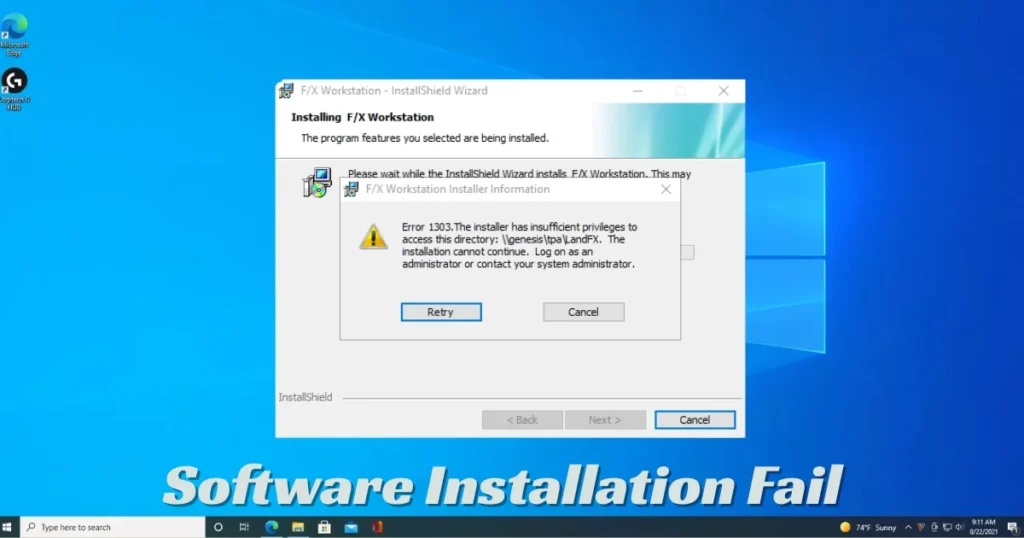
Why Do Software Installations Fail? – The Real Reasons
First, let’s understand why this happens. Many people keep retrying without knowing the root cause of the problem. Here are the most common reasons:
1. Insufficient Disk Space (Lack of Storage)
This is the primary reason. If your C: Drive lacks sufficient space, no software will be able to install.
Example: Suppose you are installing Adobe Photoshop ($239.88/year), which requires a minimum of 4GB of space, but you only have 1.5GB remaining – the installation will halt midway.
- Windows 32-bit requires at least 16GB of free space.
- Windows 64-bit requires at least 20GB of free space.
- For any large software, always reserve at least twice its size in storage space.
2. Corrupted Installation Files
Sometimes, the file you downloaded becomes corrupted midway – due to a slow internet connection, a power outage, or downloading from an unreliable source. Such files cannot be installed.
Identification: If the installation suddenly stops after a few minutes without providing any explanation, you can assume that the file is corrupted.
Solution:
- Always download from the official website.
- Software obtained from a third-party site poses a risk of both viruses and corruption.
- Download it again and verify the MD5 checksum.
3. Interference from Antivirus or Firewall
While your antivirus may be your ally, it can sometimes turn into an adversary during the installation process. It occasionally blocks files belonging to legitimate software, deeming them suspicious.
Examples: Norton Antivirus ($49.99/year), Kaspersky ($29.99/year) – both of these sometimes block registry entries associated with new software.
Comparison:
| Antivirus | Interference with the installation | Is it easy to disable? |
|---|---|---|
| Windows Defender | Less | More |
| Norton | medium | A little difficult |
| Kaspersky | More | It definitely has to be done. |
| Avast (Free) | medium | Easy |
4. Lack of Administrator Permissions
Admin rights are required to install any software on Windows. If you are logged in using a limited account, the software installation will fail.
5. Conflicting Software
Sometimes, remnants of old software or another currently running program can block new software. This occurs particularly when you are installing an update for a software application.
6. Outdated or Incompatible Drivers
This occurs most frequently when updating Windows. Outdated graphics card, Wi-Fi, or printer drivers are incompatible with the new version of Windows, and the installation halts midway.
7. Windows Registry Errors
The Windows Registry is a type of database that stores information about all programs. If a corrupt or incorrect entry appears within it, the installation of new software may fail.
Ways to Fix Software Installation Failure Errors – Step-by-Step
Now, let’s get down to business. Try the methods listed below one by one – typically, the issue gets resolved within the first 3 or 4 steps.
✅ Method 1: Restart Your Computer
Yes, this seems basic – but it works.
Why? Restarting clears out temporary files, background processes, and the memory cache. Often, an installation fails simply because a stuck process is running in the system.
Steps:
- Start Menu → Power → Restart
- Allow the system to shut down completely and then restart.
- Run the installer again.
✅ Method 2: Run as Administrator
This is the most important and effective method.
Steps:
- Locate the installer file (.exe or .msi).
- Right-click on it.
- Click on “Run as administrator”.
- If a UAC (User Account Control) prompt appears, click “Yes”.
💡 Note: If you are using an office computer and do not have the admin password, please contact your IT department.
✅ Method 3: Check and Clear Disk Space
To check disk space:
- Open “This PC” or “My Computer”
- Right-click on the C: Drive → Properties
- Check the available space
If you are low on space, do this:
Free Tool: Windows Disk Cleanup (Completely Free)
- Type “Disk Cleanup” in the search bar.
- Select the C: Drive.
- Check the boxes for Temporary files, Recycle Bin, etc.
- Click on “Clean up system files” as well.
- OK → Delete Files
Second Free Tool: TreeSize Free
- Website: https://www.jam-software.com/treesize_free
- It shows which files are taking up the most space.
✅ Method 4: Temporarily Disable Antivirus
Steps to Disable Windows Defender:
- Settings → Update & Security → Windows Security
- Virus & threat protection → Manage settings
- Turn off Real-time protection
- Install the software
- ✅ Don’t forget to turn Defender back ON after installation
Third-party Antivirus (like Norton, Kaspersky, Avast):
- Right-click on the antivirus icon in the system tray on the taskbar.
- Select “Disable temporarily” or “Pause protection.”
- Re-enable it after the installation is complete.
⚠️ Warning: Remain disconnected from the internet while disabling the antivirus.
✅ Method 5: Re-download the Installation File
If the file is corrupt, delete it and download it again from the official website.
Tips:
- Search for the software name + “official download” on Google.
- Never download .exe files from an unknown website.
- Use IDM (Internet Download Manager) for large files – it costs $24.99 and can resume downloads.
- Free Alternative: Free Download Manager – https://www.freedownloadmanager.org – Completely free and very good.
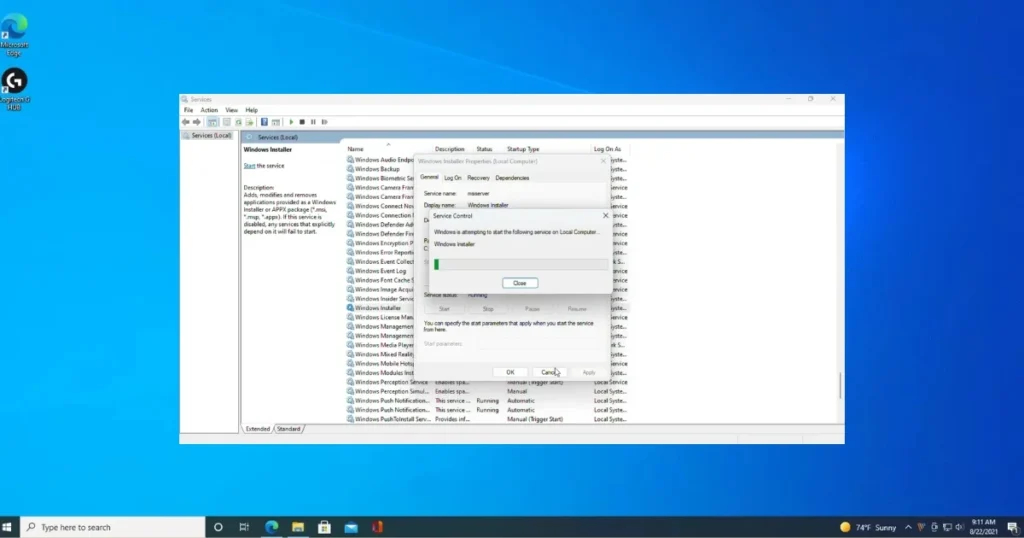
✅ Method 6: Fix the Windows Installer Service
Windows Installer is a built-in service that handles all .msi files. If it is stopped, software installation will fail.
Steps:
- Press Windows + R.
- Type “services.msc” and press Enter.
- Find “Windows Installer” in the list.
- Right-click → Restart (or Start, if it is stopped).
- Set the Service type to “Manual”.
✅ Method 7: Run in Compatibility Mode
If you are installing older software on a newer version of Windows, Compatibility Mode comes in handy.
Steps:
- Right-click on the installer file.
- “Properties” → “Compatibility” tab
- Check the box labeled “Run this program in compatibility mode for:”
- Select an older Windows version from the dropdown (e.g., Windows 7, 8).
- Apply → OK
- Now, run the installer.
✅ Method 8: Perform a Clean Boot
In a Clean Boot, Windows starts with only basic services – no third-party programs. This helps identify which program is interfering with the installation.
Steps:
- Windows + R → Type “msconfig.”
- General tab → Select “Selective startup.”
- Uncheck “Load startup items.”
- Go to the Services tab → Check “Hide all Microsoft services.”
- Click “Disable all”
- Apply → OK → Restart
- Install the software after restarting
- ✅ Once finished, revert to Normal startup: msconfig → General → Normal startup
✅ Method 9: Run Windows Update
Sometimes, new software cannot be installed due to an outdated version of Windows.
Steps:
- Settings → Update & Security → Windows Update
- Click on “Check for updates.”
- Install all available updates
- Restart, and then install the software
✅ Method 10: Delete Temporary Files
Software installation can also fail due to temporary files.
Steps:
- Press Windows + R
- Type “%temp%” and press Enter
- Select all files (Ctrl + A)
- Delete them (some files will be skipped – that’s fine)
- Empty the Recycle Bin as well
✅ Method 11: Run System File Checker (SFC)
This is a built-in free tool that automatically repairs corrupted Windows system files.
Steps:
- Type “cmd” in the search bar.
- Right-click on Command Prompt → “Run as administrator”.
- Type this command: sfc /scannow
- Press Enter and wait (this may take 10–15 minutes).
- Restart after the scan is complete.
✅ Method 12: Run the DISM Tool
If the problem is not resolved after running SFC, the DISM tool performs a deeper repair.
Type the following in Command Prompt (Admin):
DISM /Online /Cleanup-Image /RestoreHealth
This takes a little longer – sometimes even 20–30 minutes. But it is very effective.
✅ Method 13: Remove Peripheral Devices
USB drives, external hard disks, printers, scanners – all of these can sometimes interfere with the installation process.
Steps:
- Remove all unnecessary USB devices.
- Keep only the keyboard and mouse.
- Disconnect the internet cable/Wi-Fi as well (if necessary).
- Run the installation.
✅ Method 14: Remove Leftovers from a Previous Installation
If you have previously installed or uninstalled any software, its remnants may block the new installation.
Free Tool: Revo Uninstaller
- Website: https://www.revouninstaller.com
- It cleans up all traces of the software – registry entries, leftover files.
- The free version is sufficient.
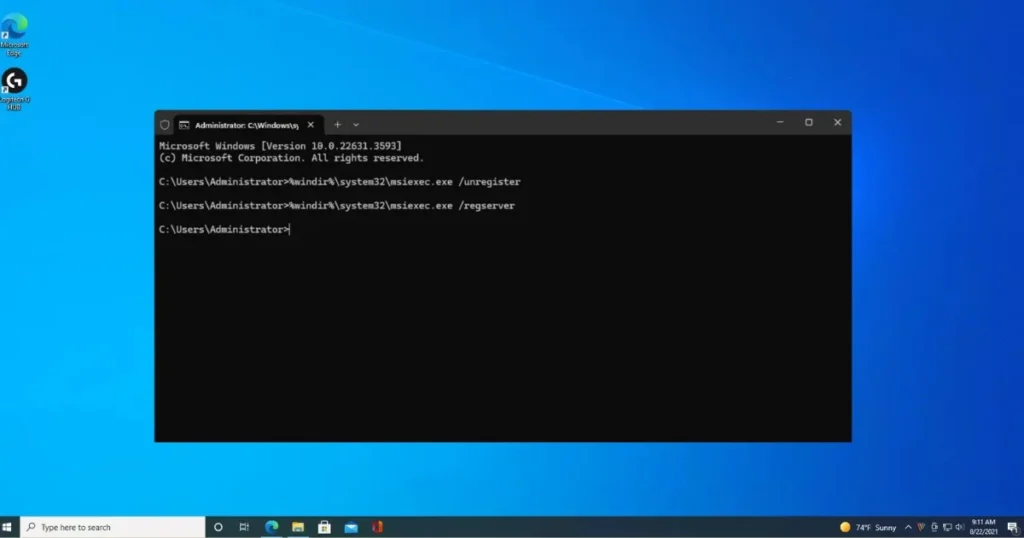
✅ Method 15: Re-register Windows Installer
Run these commands one by one in Command Prompt (Admin):
msiexec /unregister
msiexec /regserver
Restart and try again.
Common Error Codes and Their Meanings
| Error Code | Meaning | Solution |
|---|---|---|
| Error 1603 | Fatal error during installation | Admin rights + clear temp files |
| Error 1935 | .NET Framework issue | .NET Framework repaRepair/reinstall the .NET Framework. |
| Error 2503/2502 | Installer access denied | Restart the Installer service. |
| 0xC1900101 | Driver problem (Windows upgrade) | Update drivers. |
| 0x80070005 | Access denied | Use the Administrator account. |
| 0x80070570 | File corruption | Download again |
| Error 1706 | Installer source missing | .NET Framework Repair/reinstall the .NET Framework. |
Comparison of Free and Paid Tools
There are various tools available to fix software installation failures – both free and paid.
Free Tools (Without Spending Money)
| Tool | What does it do | Download |
|---|---|---|
| Windows Disk Cleanup | Cleans up storage. | Built-in |
| SFC (sfc /scannow) | SysRepairs system files. | Built-in |
| DISM Tool | WiWindows Image Repair | Built-in |
| Revo Uninstaller (Free) | Removes leftover files. | revouninstaller.com |
| Free Download Manager | Safe downloads | freedownloadmanager.org |
| TreeSize Free | Storage analysis | jam-software.com |
| CCleaner (Free) | Junk files + registry cleaner | ccleaner.com |
Paid Tools
| Tool | Price | Specialty |
|---|---|---|
| CCleaner Professional | $29.95/Year | Auto-scheduling, priority support |
| Advanced SystemCare Pro | $19.99/Year | All-in-one PC optimizer |
| Malwarebytes Premium | $44.99/Year | Deep malware removal |
| IDM (Internet Download Manager) | $24.99 (one-time) | Fast, reliable downloads |
Our Opinion: In most cases, free tools are sufficient. Opt for paid tools only if you require regular maintenance or for professional use.
Windows 10 vs Windows 11 – Differences in Installation Issues
| Problem | Windows 10 | Windows 11 |
|---|---|---|
| TPM 2.0 Requirement | No | Yes |
| Secure Boot | Optional | Necessary |
| Minimum RAM | 1GB (32-bit), 2GB (64-bit) | 4GB |
| Storage | 16GB/20GB | 64GB |
| Driver Compatibility | Good | Sometimes, an issue arises. |
| Language Pack Issues | Less | More |
Before upgrading to Windows 11: If your PC is older, first check for compatibility using Microsoft’s PC Health Check Tool.
Installation Issues in Laptop vs Desktop
Laptop
- Avoid installing on battery power – keep the charger connected.
- Remove the docking station.
- Installation may fail due to overheating – ensure proper ventilation.
Desktop
- Remove all unnecessary USB and PCI devices.
- Ensure RAM modules are properly seated.
- Keep the BIOS up to date.
If Nothing Else Works – Last Resort Options
Option A: System Restore
If you made a change after which problems began, System Restore comes in handy.
Steps:
- Type “Create a restore point” in the search bar.
- Click on System Restore.
- Select an old restore point.
- Finish → Restart
Option B: Windows Reset
This is the very last option.
- Settings → Update & Security → Recovery
- “Reset this PC” → “Keep my files” (your files remain safe)
- The system gets a fresh start.
💾 Be sure to create a backup before resetting!
Pre-Installation Checklist – Prevent Mistakes
Follow this checklist before starting the installation:
- [ ] At least 10GB of free space is available on the C: Drive
- [ ] Antivirus has been temporarily disabled
- [ ] Logged in using an Admin account
- [ ] All unnecessary programs are closed
- [ ] The file has been downloaded from the official website
- [ ] The internet connection is stable (for the online installer)
- [ ] The laptop is plugged in (not running on battery)
- [ ] The system is up-to-date (latest Windows updates)
FAQs – About Software Installation Failure
Q1. What is the most common reason for software installation failure?
A. The most common reasons are: insufficient disk space, lack of administrative permissions, and a corrupted installation file. Check these three factors first.
Q2. Can antivirus software actually block an installation?
A. Yes, absolutely. Antivirus programs sometimes flag registry entries or system changes made by legitimate software as suspicious and block them. It is safe to temporarily disable your antivirus during installation, provided you have downloaded the software from an official source.
Q3. Why does Error 1603 occur, and how can it be fixed?
A. This is a “Fatal Error During Installation.” Its primary causes include: an accumulation of temporary files, a lack of administrative rights, or conflicting software. Delete temporary files, run the installer with administrative rights, and restart the Windows Installer service.
Q4. Do I need to purchase paid software to fix this issue?
A. No. In most cases, Windows’ built-in tools (SFC, DISM, Disk Cleanup) and free utilities (Revo Uninstaller, CCleaner Free) are sufficient to resolve the problem.
Q5. I am unable to install older software on Windows 11; what should I do?
A. Use Compatibility Mode. Right-click on the installer → select Properties → go to the Compatibility tab → and select Windows 7 or Windows 8 mode. If the installation still fails, download the latest version of the software from the official website.
Q6. The installation stops midway, and the progress bar does not move – what should I do?
A. In some cases, the installer continues to run in the background – please wait for 10–15 minutes. If there is still no change after that time, open the Task Manager (Ctrl+Shift+Esc), end the installer process, and try again using the Clean Boot method.
Q7. The installation is failing due to the .NET Framework – what should I do?
A. Go to Control Panel → Programs → Turn Windows features on or off. Enable both .NET Framework 3.5 and .NET Framework 4.8. If they are already enabled, disable them, restart your computer, and then enable them again.
Q8. I am encountering an error while installing software from a USB drive – what should I do?
A. Format the USB drive and recreate the bootable media or installer. Additionally, try using a USB 2.0 port (instead of a USB 3.0 port) – some older files may experience compatibility issues.
Q9. Is System Restore safe?
A. Yes, it is absolutely safe. System Restore does not delete your personal files (such as documents or photos); it merely reverts Windows settings and installed programs to a previous state.
Q10. What should I do if I am unable to fix the issue myself?
A. Visit fixtech.in, where technical experts will analyze your specific error and provide a tailored solution. This is a more effective approach than attempting to apply solutions found on random forums.
Conclusion – Software Installation Failures Won’t Stop You Anymore
So, that was a complete guide covering all the reasons behind software installation failures – along with their corresponding solutions. Whether it’s Error 1603, insufficient disk space, antivirus interference, or a driver issue, a solution exists for every problem.
Remember: Panicking and repeatedly restarting your system won’t solve anything. First, identify the root cause, and then apply the correct troubleshooting method. And if you are unable to resolve it on your own, there is no harm in seeking assistance from a trusted platform like fixtech.in. Both your time and your data are precious – and the right solution can save you from hours of frustration.