
You open a website, type the URL into Chrome, the tab spins for a few seconds, and then – “This site can’t be reached. The connection was reset.” That’s it: just a blank page displaying “ERR_CONNECTION_RESET.” There is no further information or hint as to what went wrong. If you are encountering this error, rest assured you aren’t alone – millions of Chrome users in India face this issue daily. Whether you are making an online payment, filling out a form, or simply trying to open YouTube, knowing how to fix ERR_CONNECTION_RESET is crucial, as this error can strike at any time.
So, let’s get straight to the point: we’ll explore why this error occurs and then walk you through each possible fix, step by step.
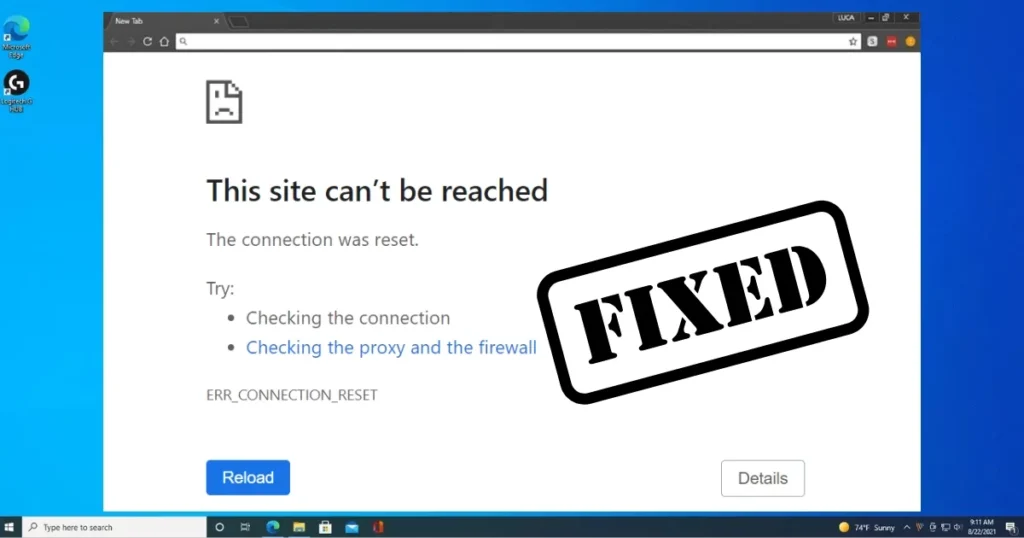
What does ERR_CONNECTION_RESET mean?
This ERR_CONNECTION_RESET error means that the TCP connection between your browser and the remote server was forcibly closed before any data could be transferred. Simply put – your browser tried to talk to the server, the conversation started, and someone interrupted the call.
The ERR_CONNECTION_RESET error code is specific to Google Chrome, although similar messages may appear in other browsers too – such as “The connection was reset” in Firefox.
This is almost always a client-side problem – something caused by your machine, your network, or some middlebox between you and the server. In very rare cases, the website itself is broken.
Real causes of the ERR_CONNECTION_RESET error
This error can occur for several reasons. First, understand the causes; then, applying a fix will be easier:
1. Unstable Internet Connection
A poor Wi-Fi connection, a faulty Ethernet cable, or an ISP outage can all cause this error. This issue becomes even more pronounced in India during the evening hours when the network load is high.
2. Corrupt browser cache
Outdated or corrupt cached data can cause connection errors. Chrome accumulates a lot of cached data over time, which sometimes becomes corrupted.
3. Proxy Server Issues
Misconfigured or unresponsive proxies can disrupt the connection. When a proxy fails to function, your browser cannot reach the intended destination, resulting in an ERR_CONNECTION_RESET error because the proxy dropped or rejected the request before it could reach the destination server.
4. VPN Interference
Sometimes, restrictions or misconfigurations in VPN settings can cause your connection to certain websites to reset, triggering the ERR_CONNECTION_RESET error. Free VPN apps are widely used in India, and they are often the cause of this error.
5. Antivirus or Firewall Blocking
Security software can sometimes become overly aggressive and block even legitimate connections, treating them as potential threats.
6. Corrupt TCP/IP Settings
TCP/IP settings determine how your computer communicates with other systems (including servers) on the internet. Misconfiguration in TCP/IP settings can prevent your computer from transferring data, leading to errors like ERR_CONNECTION_RESET.
7. DNS Cache Issues
Stale or corrupt DNS records can prevent connections from completing. An ISP’s default DNS servers are sometimes slow or misconfigured.
8. Browser Extension Conflict
Open the extensions page and disable them one by one, testing after each step. Network-aware extensions – such as VPN helpers, ad blockers, or privacy filters – are common culprits.
Fixing ERR_CONNECTION_RESET – 10 Easy Ways
Now, let’s get down to business. Most fixes begin with checking the device and network, move on to browser and security settings, and finally address the server you are trying to connect to.
Fix 1: Check your internet connection and restart the router
The first thing you should do is check whether your internet connection is working properly. Try opening a few other websites to see if they load correctly.
What to do:
- Users can resolve various network connection issues by rebooting their network devices, including the router. Unplug the router’s power cable for 20–30 seconds and then plug it back in.
- Switch from Wi-Fi to mobile data (or vice versa).
- If using a LAN cable, check the cable – a loose or faulty cable could be the cause.
- Check your internet speed on Speedtest.net.
Fix 2: Clear Chrome Cache and Cookies
In some cases, outdated cache files can cause errors – such as ERR_CONNECTION_RESET – when loading websites. If this is the case, the issue can be resolved by clearing the browser cache.
Step-by-step:
- Open the browser and click on the three dots (kebab menu). Select “Clear Browsing Data.” In the next window, select the options to clear cookies and cached images and files. Choose the time range for which you want to delete the browser data. Click the “Clear Data” button. Restart the browser and open the site again.
⚠️ Note – This process will delete all cached files, including saved passwords and autofill information.
Fix 3: Turn off the VPN
Sometimes, restrictions or misconfigurations in VPN settings can cause connection resets for certain websites. Disable the VPN service to see if the issue is resolved. This will help determine whether the VPN service is interfering with your connection.
What to do:
- Close the VPN app (on both mobile and computer).
- After turning off the VPN, open the same website that was causing the error.
- If turning off the VPN resolves the issue, contact the VPN service’s support team or switch to an alternative service.
Fix 4: Disable the Proxy Server
Sometimes, proxy settings in Windows can trigger the ‘ERR_CONNECTION_RESET’ error if they are misconfigured or if Chrome is having trouble using the WPAD (Web Proxy Auto-Discovery) protocol.
How to disable it:
- Open Windows Settings and go to Network & internet → Proxy. Here, turn off the “Automatically detect settings” toggle. If a manual proxy server is set up, turn that off as well.
Or the old way:
- Open the Control Panel in Windows and access Internet Options. Select the Connections tab and click on LAN Settings. Uncheck the box next to “Use a proxy server for your LAN”.
If disabling the proxy resolves the error, then the proxy needs to be looked into.
Fix 5: Change DNS Server (Google DNS or Cloudflare)
If you’re still seeing the ERR_CONNECTION_RESET error, especially on certain websites, switching to a more reliable DNS service may help. Your ISP’s default DNS may be slow or misconfigured, forcing your browser to give up too quickly.
How to change:
- Press Windows + R, type ncpa.cpl, and press Enter. Right-click on your active internet connection (WiFi or Ethernet) and select Properties.
- Double-click on Internet Protocol Version 4 (TCP/IPv4).
- Select “Use the following DNS server addresses”.
DNS Options:
| DNS Service | Preferred | Alternate | Price |
|---|---|---|---|
| Google DNS | 8.8.8.8 | 8.8.4.4 | $0 (Free) |
| Cloudflare DNS | 1.1.1.1 | 1.0.0.1 | $0 (Free) |
| OpenDNS | 208.67.222.222 | 208.67.220.220 | $0 (Free) |
Click OK and restart your browser. The default DNS servers of many ISPs in India are slow; switching to Google or Cloudflare DNS can also improve browsing speeds.
Fix 6: Reset TCP/IP settings
Misconfiguration in TCP/IP settings can prevent your computer from transferring data, leading to errors like ERR_CONNECTION_RESET. Resetting these settings restores your system’s network configuration to default, which can resolve the issue.
Commands (Command Prompt – Administrator):
Open Command Prompt in administrator mode and type the following commands, pressing Enter after each one:
netsh winsock reset
netsh int ip reset
ipconfig /release
ipconfig /renew
ipconfig /flushdns
This operation resets your network settings and fixes any configuration errors.
⚠️ Before doing this, make a note of any custom DNS settings or static IP configurations you have set up.
Restart the PC and reopen the website.
Fix 7: Temporarily disable antivirus and firewall
Even if you do not use Kaspersky, check whether your antivirus has this feature and disable it.
What to do:
- Temporarily disable the antivirus (for 5 minutes).
- Windows Firewall: Settings > Privacy & Security > Windows Security > Firewall & Network Protection – turn it off temporarily.
- Open the website to check.
- Do not keep them disabled for long. Turn them back on as soon as it is confirmed that they are the cause of the error. If the antivirus was blocking the site, add it to the Whitelist or Exception List.
Fix 8: Disable Chrome extensions
In some cases, browser extensions can also trigger errors like ERR_CONNECTION_RESET.
How to check:
- Type
chrome://extensionsin Chrome. - Disable all extensions and reopen the website.
- If disabling all extensions resolves the issue, enable them one by one to identify the one causing the error, and then uninstall it.
Check these extensions in particular:
- Ad Blockers (uBlock Origin, AdBlock)
- VPN Extensions (Hola, Windscribe)
- Privacy/Security Extensions (HTTPS Everywhere, Privacy Badger)
Fix 9: Update Chrome and reset settings
Update Chrome:
- Chrome > Menu (⋮) > Help > About Google Chrome – The update will download and install automatically.
- Windows Update or macOS Software Update often includes network stack and TLS fixes.
Reset Chrome settings:
- Type chrome://settings/reset in Chrome
- Click on “Restore settings to their original defaults”
- Confirm
This will restore Chrome to its default state – extensions will be disabled and cookies cleared, but bookmarks and passwords will remain safe.
Fix 10: Network Troubleshooter and Network Reset (Windows)
If none of the above methods resolve the ERR_CONNECTION_RESET error, here are the final steps:
Network Troubleshooter:
- For Windows 10 users, the network troubleshooter can be found under Update & Security > Troubleshoot > Internet Connections.
- In Windows 11: Settings > System > Troubleshoot > Other Troubleshooters > Internet Connections > Run.
Network Reset (Last resort):
- Select Network Reset → Reset now. The computer will restart and rebuild the adapters.
- Go to Settings > Network & Internet > Advanced Network Settings > Network Reset.
- Click on Reset Now.
⚠️ Network Reset will reinstall all network adapters and revert settings to default. You will need to re-enter Wi-Fi passwords.
Bonus Tip: Check if the website is down.
Before you start trying to fix the ERR_CONNECTION_RESET error, confirm whether the problem lies with you or the website. The ERR_CONNECTION_RESET error is typically a client-side issue, meaning it stems from your device, network, or configuration. However, in rare cases, it could originate from the website you are trying to access. To rule this out, use a tool like Website Planet to verify if the website is operational.
Free tools: DownDetector.com, IsItDownRightNow.com, or Website Planet – all available for free.
Useful free tools
| Tool | Feature | Price |
|---|---|---|
| Speedtest by Ookla | Internet Speed Test | $0 (Free) |
| DownDetector | Check Website Down Status | $0 (Free) |
| Google DNS (8.8.8.8) | Fast and reliable DNS | $0 (Free) |
| Cloudflare DNS (1.1.1.1) | Privacy-focused DNS | $0 (Free) |
Visit fixtech.in for more Chrome and Windows troubleshooting guides – you will find detailed, step-by-step instructions in simple terms there.
What points should be given special attention?
- Always keep Chrome updated – older versions have more network bugs
- Avoid free VPNs – these often cause connection problems
- Change DNS – Switch to Google DNS (8.8.8.8) or Cloudflare (1.1.1.1), for better performance than ISP’s default DNS
- Check HTTPS scanning in the antivirus – it sometimes blocks the correct connection.
- Try opening the website in Incognito Mode – if it opens there, then some extension or cache is causing the problem.
FAQs – About ERR_CONNECTION_RESET
Q1: How should I start fixing ERR_CONNECTION_RESET?
Start with simple solutions: refresh the page, check your connection, and verify that the website is actually online. Then, restart your router, clear your browser cache, and disable any VPN or proxy. In most cases, these three steps are enough to resolve the ERR_CONNECTION_RESET error.
Q2: ERR_CONNECTION_RESET appears only on certain websites while others work fine – why?
If the error appears only on specific websites, switching to a more reliable DNS service might help. Your ISP’s default DNS could be slow or misconfigured. Try switching to Google DNS (8.8.8.8) and adding the website to your whitelist. It is also possible that the website is blocked in your region.
Q3: Will resetting TCP/IP delete any data?
No, resetting TCP/IP does not keep your personal data safe. If other methods fail, it could be because your system’s network stack is corrupted in a way that individual settings cannot fix. Resetting TCP/IP restores the Winsock catalog, flushes the DNS resolver cache, releases and renews your IP address, and reverts everything to factory defaults. Just make sure to note down any custom DNS settings beforehand.
Q4: Can this error occur on mobile devices too?
Yes, this error can appear in Chrome on both Android and iOS. On mobile: switch between Wi-Fi and mobile data, clear the Chrome cache (Settings > Apps > Chrome > Clear Cache), and turn off any VPN.
Q5: The website opens in Incognito mode but not in normal mode – why?
This indicates that an extension or corrupted cache is causing the issue. Try disabling all extensions to check. If turning off all extensions resolves the issue, enable them one by one to identify the culprit, then uninstall it.
Q6: What is the difference between ERR_CONNECTION_RESET and ERR_CONNECTION_REFUSED?
ERR_CONNECTION_RESET means the connection was initiated but was reset midway – this is caused by network, proxy, or firewall issues. ERR_CONNECTION_REFUSED means the server rejected the connection entirely – this is typically a server-side problem.
Final Thoughts
Fixing ERR_CONNECTION_RESET might sound like a highly technical issue, but in most cases, simple steps like restarting your router, clearing the cache, disabling VPNs/proxies, or changing DNS settings do the trick. If those don’t work, there are advanced measures available, such as resetting TCP/IP or performing a network reset. Just remember: keep Chrome updated, avoid free VPNs, and set your DNS to Google or Cloudflare. If anyone else is encountering this error in Chrome, please share this guide. And for more helpful guides like this, keep visiting fixtech.in – where you’ll find solutions for ERR_CONNECTION_RESET and much more, explained in simple Hindi!