
Let’s face it – the frustration of needing to find an important file immediately, deliver a presentation in minutes, or open an old document, only to be held back by sluggish Windows search indexing, is indescribable. Often, after clicking the search bar, it takes 10–15 seconds for anything to appear. You might type something into the Start Menu, but nothing shows up – or it loads so slowly that you’d rather open the folder and find the file yourself. In India, where so many people rely on Windows 10 and Windows 11 for office work, freelancing, and studies, this issue can completely kill productivity. If your Windows search indexing is slow or has stalled entirely, this guide is for you.
Let’s start by understanding what indexing actually is and why Windows search indexing slows down, and then we’ll go through each fix step by step.
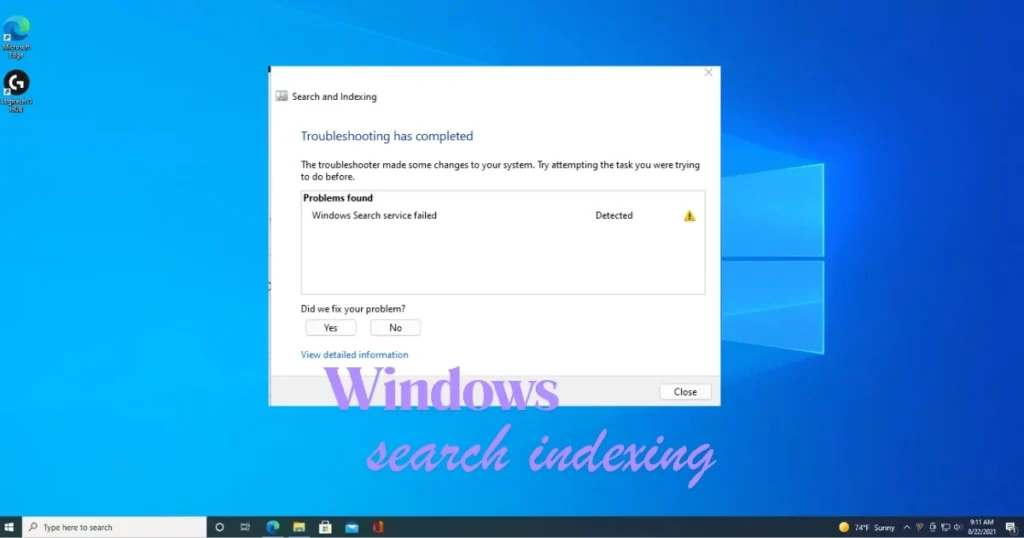
What is Windows search indexing, and why does it slow down?
How Search Indexing Works
Windows 10 and Windows 11 run a background service called SearchIndexer.exe. It indexes files, emails, and other content so that search results appear quickly when you search using the Start Menu, Cortana, or File Explorer.
Windows offers two search indexing modes under “Find my files”: Classic and Enhanced. By default, Classic mode indexes your Desktop along with your Documents, Pictures, and Music folders. This mode strikes a balance between search performance and system resource usage. Enhanced mode indexes your entire PC, including all user folders and files; this is designed for users who store files in various locations.
Main reasons for slow Windows search indexing
1. Corrupt Index Database
A corrupt index database is a common cause of high CPU usage. Over time, the search index can become corrupt or inefficient, leading to incomplete or incorrect search results. This is the most frequently encountered cause.
2. Too many folders are being indexed
The more files Windows scans, the greater the load on the CPU. Limit the folders being indexed to only the essentials. If you have included external drives, media collections, or network locations in the index, the indexer will constantly be under a heavy workload.
3. After Windows updates or major file changes
High CPU or disk usage is most commonly triggered immediately after Windows updates, following the creation or modification of a large number of files, or when the index database is being rebuilt. The indexer may remain busy for some time after copying large numbers of files, reinstalling apps, or performing major Windows updates. Give it some time.
4. Indexing Outlook or Large PST Files
Large or corrupt files (such as Outlook PSTs or media libraries) often trigger re-indexing. In many cases, the search indexer continues to index Public Folders in Outlook, which can cause indexing speeds to drop to as low as 1–10 items per minute.
5. Using an HDD (Hard Disk Drive)
On older or low-spec machines with limited RAM and slow HDDs, disabling search indexing reduces background CPU and disk usage, leading to a noticeable improvement in performance. On modern PCs equipped with SSDs and sufficient RAM, this difference is negligible. HDDs remain common in budget laptops in India, and these devices are hit hardest by the impact of indexing.
6. Certain file types are causing the indexer to get stuck in a loop
Some file types (such as video archives or large emails) can cause SearchIndexer.exe to get stuck in a loop. Go to Indexing Options > Advanced > File Types and uncheck the formats that do not need to be indexed.
Windows Search Indexing is Slow – 10 Ways to Fix It
Now, let’s talk about the actual fixes. We’ll start with the easiest ones.
Fix 1: Restart your PC and wait for a while
Indexing jobs can get stuck in a loop, and restarting often resolves this. Spikes in CPU or disk usage are normal immediately after booting, following numerous file changes, or after Windows updates.
What to do:
- Restart the PC.
- Leave the PC idle for 15–30 minutes after restarting.
- Check the CPU usage of
SearchIndexer.exein Task Manager (Ctrl + Shift + Esc). - Normal idle usage should be less than ~5% CPU. Minor spikes are expected when adding new files, but they should settle quickly.
Fix 2: Temporarily pause indexing
If the indexer is currently consuming too many resources and you need to work, pause it first.
How to do it:
- Go to Settings > Search > Searching Windows and click on “Pause indexing for 15 minutes.”
- If the CPU usage drops, you have confirmed that indexing is the cause.
This is a temporary solution – the real fix lies in the steps given below.
Fix 3: Rebuild the Search Index
This is the most effective fix and works in the majority of cases.
A corrupted index database is a common cause of high CPU usage. Open Control Panel > Indexing Options, click on Advanced, and select Rebuild under Troubleshooting. This deletes the old index and creates a new one. You might see a CPU spike initially, but it will stabilize later.
Step-by-step:
- Press Windows Key + R, type
control.exe srchadmin.dll, and click OK. - Click the Advanced button.
- Click Rebuild in the Index Settings tab.
- A warning stating “Rebuilding the index might take a long time…” will appear – click OK.
- Rebuilding the index will take some time (depending on the number of files – ranging from 30 minutes to a few hours).
⚠️ Rebuilding the index takes time, and CPU and HDD/SSD usage increases during the process. Perform this at night or when there is no active work.
Fix 4: Reduce Index Locations (Most Important Optimization)
This is the step most people ignore, but it resolves the primary cause of slow Windows search indexing.
What to do:
- Open Indexing Options and click Modify. Uncheck large or unnecessary folders (such as Downloads, external drives, or network drives). Keep only the essential locations selected – the Start Menu, User profile folders, and Outlook data (if necessary).
What to remove:
- Backup drives and external drives that are frequently swapped out; network locations that are slow or unstable.
- Large media collections (D:\Movies, D:\Music, etc.)
- WhatsApp backup or Telegram downloads folders.
What to keep:
- Your main user profile is located at C:\Users\ (or at least Documents, Desktop, and Pictures). The Start Menu and system locations are pre-selected by default.
Fix 5: Tweak Windows Search settings
Go to Settings (right-click the Windows Start button). Select “Privacy & security” from the left sidebar. Click on “Searching Windows” on the right. Turn off the “Respect power settings when indexing” toggle. Change the “Find my files” setting from Classic to Enhanced (or from Enhanced to Classic if you prioritize performance).
Tip for budget laptop users in India:
- If your laptop has an HDD and 4GB of RAM, keep it in Classic mode.
- If it has an SSD and 8GB+ of RAM, you can try Enhanced mode.
Fix 6: Restart the Windows Search Service
Restarting Windows Search is the first step you should take. This can resolve minor technical issues causing high CPU usage by SearchIndexer.exe. Right-click the Start button, select Run (or press Windows + R), type services.msc, and click OK. Right-click the Windows Search service and select Restart. Additionally, double-click Windows Search and ensure the Startup type is set to Automatic (Delayed Start).
Fix 7: Run Search and Indexing Troubleshooter
Windows has a built-in troubleshooter specifically designed for searching and indexing problems.
How to run:
- Right-click the Start button and select Settings. Go to System > Troubleshoot. Select “Other troubleshooters” or “Additional troubleshooters.” Click “Run” next to “Search and Indexing.” Follow the on-screen instructions.
- Check the box for “Search or indexing is slow,” and if there are any other issues, check those boxes as well.
Fix 8: Filter file types
This is an advanced but highly effective tweak.
What to do:
- Go to Control Panel > Indexing Options > Advanced > File Types tab
- The File Types tab shows the file types that Windows Search indexes, and whether only file properties or both file properties and content are being indexed.
- Uncheck large video files (.avi, .mkv, .mp4), large archive files (.zip, .rar)
- Make sure that the “index encrypted files” and “treat similar words with diacritics as different words” options are not selected.
Fix 9: Delete the index database and perform a fresh rebuild (Advanced)
If the ‘Rebuild’ button didn’t work, manually delete the index database.
This can also be done using a command-line or batch file. Copy these commands into Notepad and save the file as reset_rebuild_search.bat:
sc config wsearch start= disabled
net stop wsearch
REG ADD "HKLM\SOFTWARE\Microsoft\Windows Search" /v SetupCompletedSuccessfully /t REG_DWORD /d 0 /f
del "%ProgramData%\Microsoft\Search\Data\Applications\Windows\Windows.edb"
sc config wsearch start= delayed-auto
net start wsearch- Right-click on this .bat file > Run as Administrator
- Resetting and rebuilding the search index does not modify or affect your files in any way.
⚠️ Incorrectly editing the registry can cause system issues. Create a backup before proceeding.
Fix 10: Disable Windows Search completely (Last resort)
If your PC is old, uses an HDD, has 4GB of RAM, and you rarely use Windows Search, then disable it.
How to disable it:
- Press Windows Key + R, type
services.msc, and click OK. Locate the Windows Search service. Double-click it, click Stop, then select Disabled from the Startup type dropdown menu. Click Apply.
Disabling Windows Search will improve your overall performance. You can completely disable the Windows Search service via the Services panel (services.msc). The Start Menu search bar will still be able to find installed apps and Settings pages.
Disabled Windows Search? Use these free alternatives
If you have disabled Windows Search, these free tools are excellent for searching files:
| Tool | Feature | Price |
|---|---|---|
| Everything | Instant file search – extremely fast | $0 (Free) |
| Listary | Smart File Search + Launcher | $0 (Free Basic) / $19.95 (Pro) |
| Windows Troubleshooter | Built-in search problem fixer | $0 (Built-in) |
| Process Explorer (Microsoft) | Advanced Task Manager | $0 (Free) |
“Everything” is a search replacement that makes finding all your files incredibly easy; it uses far fewer resources than Windows Search and is significantly faster.
Visit fixtech.in for more Windows troubleshooting guides and optimization tips – you’ll find detailed, step-by-step instructions there in a simple guide.
Pro Tips – Always keep Windows search indexing fast
- Store the index location on an SSD: The default index location is
C:\ProgramData\Microsoft. Performance will automatically be faster if you use an SSD; if you are currently using an HDD, move the index to an SSD. - Perform regular Windows updates: Fixes for the search indexer are often included in cumulative updates. Go to Settings > Update & Security / Windows Update and install the latest updates.
- Leave the PC idle after copying a large number of files so the indexer can complete its task.
- Exclude large Outlook PST files from indexing.
- Disable indexing for encrypted files unless necessary.
FAQs – About Windows search indexing is slow
Q1: Windows search indexing is slow; what should I do first?
First, restart your PC and leave it idle for 15–30 minutes. Then, check the CPU usage of SearchIndexer.exe in Task Manager. Normal idle usage should be less than ~5% CPU. If it is higher, pause indexing and then rebuild the index. In most cases, the issue of slow Windows search indexing is resolved by rebuilding the index and reducing the number of indexed locations.
Q2: How long does it take to rebuild the index?
It depends on the number of files and the type of drive. It can take anywhere from 30 minutes to 2 hours on an SSD, and 2–6 hours (or even longer) on an HDD. CPU and HDD/SSD usage will remain high during the rebuild process, so it is best to do this at night or during your free time.
Q3: Is it safe to turn off Windows Search?
Turning off Windows Search can improve overall performance, and you can disable it completely via the Services panel. The Start Menu search bar will still be able to find installed apps and Settings pages; however, searching within File Explorer will take slightly longer.
Q4: What is the difference between Classic and Enhanced modes?
Classic mode indexes the Desktop along with the Documents, Pictures, and Music folders by default. It strikes a balance between search performance and system resource usage. Enhanced mode indexes the entire PC, including all user folders and files. Choose Classic if you have an older machine, and try Enhanced if you have a modern PC.
Q5: SearchIndexer.exe is consuming too much CPU; what should I do?
Go to Settings > Search > Searching Windows and click on “Pause indexing for 15 minutes.” Then, go to Indexing Options, reduce the number of indexed locations, and rebuild the index. If usage remains consistently high, revisit the steps to rebuild the index and limit the indexed locations.
Q6: Which free tool can be used instead of Windows Search?
Everything (voidtools) is the best alternative – it uses far fewer resources and is much faster than Windows Search. It is available for free and works instantly without any setup.
Final Thoughts
Slow Windows search indexing is an issue that plagues millions of Windows users, especially those with older or budget PCs. However, the 10 methods outlined above can resolve this problem. The most effective fixes include rebuilding the index, narrowing down the indexing location, and filtering file types. If your PC is very old, consider disabling Windows Search entirely and using a free tool like ‘Everything’ instead. Keep visiting fixtech.in for more detailed guides like this one. And if a friend is also struggling with slow Windows search indexing, be sure to share this article with them!