
The issue of a phone restarting automatically has become quite common these days. You might be engrossed in an important task, attending an online meeting, or simply watching something – when suddenly, the screen goes black, and the boot logo appears. It is just as frustrating as a power outage occurring right in the middle of critical work.
If you, too, find yourself wondering, “Why does my phone keep restarting?” – you are not alone. Millions of Android and iPhone users encounter this problem. The good news is that, in most cases, it can be fixed right at home.
In this guide, we will walk you through, step-by-step, the common causes behind a phone restarting on its own, and the various troubleshooting methods you can try – all without needing to visit a technician.
Why does the phone restart automatically?
First, it is important to understand that a phone restarting on its own is not caused by a single factor. There could be several reasons behind this – software, apps, the battery, or hardware. The main causes are listed below:
Software Problems
- OS Bugs: When your Android or iOS updates, the new version sometimes introduces bugs that render the system unstable.
- Corrupted System Files: If an update does not complete successfully, or if system files become corrupted for any reason, the phone may crash and restart.
- Cache Overload: Accumulated and outdated cache data can cause the system to become slow and unstable.
- Near-Full Storage: When less than 10% of your phone’s storage remains, the OS lacks the space to save temporary files, causing the phone to start crashing.
App-related issues
- Buggy Third-Party Apps: Any app that is poorly coded or contains a memory leak can consume system resources to such an extent that it causes the phone to restart.
- Incompatible Apps: Some apps are not compatible with the latest operating system and can cause the system to crash.
- Malware or Viruses: This is more common on Android. There are certain malicious apps designed to intentionally crash the system.
Hardware Problems
- Old or Faulty Battery: When a battery reaches the end of its lifespan, it causes sudden power drops that trigger the phone to restart.
- Overheating: When the phone becomes excessively hot, it restarts automatically to protect itself.
- Internal Component Damage: If the phone has been dropped or exposed to water, internal damage can also lead to random restarts.
Perform These Basic Checks First
Before taking major steps, be sure to check a few basic things. Often, these alone resolve the issue:
Disable the Auto Restart Feature (for Samsung)
Samsung Galaxy phones feature an Auto Restart function that can automatically restart the device. Many people are completely unaware of this feature.
Steps:
- Open Settings
- Go to Device Care
- Tap on Auto Optimization
- Tap on Auto Restart
- Turn off both “Restart when needed” and “Restart on schedule.”
Note: This feature works only when the screen is off, the phone is not in use, the battery level is above 30%, and the SIM card lock is disabled.
Remove Accessories from the Phone
Sometimes, accessories such as a phone case, battery pack, or selfie stick exert pressure on the power button or cause overheating. Remove all accessories, use the phone for a while, and observe whether it restarts or not.
Clean the Charging Port
Dust, dirt, or lint can accumulate in the phone’s charging port. This can also be a cause of unexpected restarts.
How to Clean:
- Turn off the phone.
- Gently clean the port using a small, pointed (but soft) object.
- Do not use metal clips or pins – this could damage the port.
Software-Related Issues and Their Solutions
Step 1: Update Your Phone
A software update is the first and most important step. OS updates include bug fixes that resolve issues such as random restarts.
For Android:
- Open Settings
- Go to System
- Tap on System Update
- If an update is available, install it
For iPhone:
- Open Settings
- Go to General
- Tap on Software Update
- Install the available update
Tip: Keeping automatic updates turned on is a good habit. It ensures your phone always stays on the latest and most stable version.
Step 2: Free Up Storage
When storage exceeds 90% capacity, the phone’s performance begins to deteriorate, and it may start restarting.
How to check storage:
- Android: Settings → Storage
- iPhone: Settings → General → iPhone Storage
Ways to Free Up Storage:
- Back up photos and videos to Google Photos or iCloud, then delete them.
- Clean up WhatsApp media (this takes up the most space).
- Uninstall unused apps.
- Clear out the Downloads folder.
Free Tool: Download the Google Files app – it automatically finds junk files and duplicates, and deletes them with a single click.
Step 3: Clear Cache
How to Wipe the System Cache on Android:
On some Android phones, you can find the “Wipe Cache Partition” option by entering Recovery Mode.
- Turn off the phone.
- Press the Power + Volume Down buttons simultaneously (this may vary depending on the device).
- Enter Recovery Mode.
- Select “Wipe Cache Partition”.
- Confirm and restart.
Note: This step does not delete data – it only clears the cache.
How to Clear the Cache for an Individual App:
- Go to Settings → Apps.
- Select the app that is causing the problem.
- Tap on Storage.
- Tap on Clear Cache.
Step 4: Check for Malware
If you have downloaded an APK from an unknown source, it may contain malware.
Free Tools:
- Malwarebytes for Android (Free version available) – malwarebytes.com
- Avast Mobile Security – Available on the Play Store
- AVG Antivirus – avg.com
Best Practice: Always download apps exclusively from the Google Play Store or the Apple App Store. Installing APKs from third-party sources is risky.
Restarts Caused by an App – Check in Safe Mode
The best way to determine if an app is causing your phone to restart is to run the phone in Safe Mode.
In Safe Mode, all third-party apps are temporarily disabled. If the phone does not restart while in Safe Mode, you can conclude that an app is responsible.
How to enter Safe Mode?
For Android:
- Press the Power button to open the Power menu.
- Long-press the “Power Off” option.
- The “Reboot to Safe Mode” option will appear – confirm it.
For iPhone:
Safe Mode on the iPhone is available only on jailbroken devices. This option is not available on regular iPhones.
How to Find the Culprit App?
If it did not restart in Safe Mode:
- Exit Safe Mode (restart the phone normally).
- Uninstall the apps you installed recently, one by one.
- Use the phone for a while after each uninstallation.
- When the restarts stop, that specific app is the culprit.
How to Update Apps
- Open the Google Play Store.
- Tap on the profile icon in the top right corner.
- Go to “Manage apps & device.”
- Go to the “Updates available” section.
- Tap on “Update all.”
Battery and Overheating Issues
Check the Battery
When a phone’s battery ages or begins to deteriorate, it experiences sudden power drops that cause the phone to restart. This occurs even more frequently when:
- The phone is fast charging.
- The phone gets excessively hot.
- The phone shuts down or restarts when the battery level reaches 20–30%.
How to Check Battery Health?
iPhone: Settings → Battery → Battery Health – If it is below 80%, the battery needs to be replaced.
Android: Most Android phones do not have a built-in battery health checker, but you can try these free apps:
- AccuBattery (Free on Play Store) – Displays battery wear and health details.
- CPU-Z (Free) – Displays battery status along with hardware information.
🌡️ Protection Against Overheating
If your phone restarts when it heats up, this is a thermal protection mechanism – the phone restarts automatically to protect itself from damage.
Measures to Reduce Overheating:
- Give your phone a break during gaming or heavy tasks.
- Do not expose your phone to direct sunlight.
- If you are using a thick case, remove it during hot weather.
- Close apps running in the background.
- Avoid using cheap or counterfeit chargers – they can damage both the battery and the processor.
Hardware Failure
If the problem remains unresolved even after following all the steps above, it is likely a hardware issue.
Signs of Hardware Problems:
- The phone starts restarting after being dropped or exposed to water.
- The screen suddenly flickers, and then the device restarts.
- The phone is not charging and is also restarting simultaneously.
- The battery appears physically swollen (bulging against the phone’s back cover).
⚠️ Warning: If the battery appears swollen, stop using the phone immediately. This is a safety hazard.
Software vs. Hardware – How to Identify?
| Situation | Possible Causes |
|---|---|
| Restart stopped working in Safe Mode. | Third-party App |
| Restarting even after a factory reset | Hardware Problem |
| Restarts while performing specific tasks (e.g., using the camera). | App or Hardware |
| Restart only when hot. | Overheating / Battery |
| Random restarts – no pattern. | Software Bug or Battery |
Special Tips for Samsung Phones
Some extra steps for Samsung Galaxy users:
Use the Device Care feature:
- Open Settings → Device Care.
- Tap on “Optimise Now” – this automatically optimizes memory, storage, and battery.
- Go to the Battery section and set the Power Mode to “Optimised.”
Back Up Using Samsung Smart Switch:
Be sure to create a complete backup using Samsung Smart Switch before performing a factory reset.
- On PC: Visit samsung.com/smartswitch to download.
- This is a free tool that backs up all your data.
Check Auto Restart in Samsung One UI:
As mentioned above — Settings → Device Care → Auto Optimization → Auto Restart – keep this option OFF.
Special Tips for iPhone
Turn ON Automatic Updates:
Settings → General → Software Update → Automatic Updates – Turn ON both toggles.
Reset Network Settings:
Sometimes, issues with the network stack can also cause system instability.
Steps:
- Settings → General
- Transfer or Reset iPhone
- Reset
- Reset Network Settings – This deletes Wi-Fi passwords, but your data remains safe.
DFU Mode Restore (Advanced):
If a normal restore does not work, try DFU (Device Firmware Update) Mode. This is a low-level iOS reinstallation.
This will require Finder on Mac or iTunes on Windows.
For iPhone 8 and newer:
- Press Volume Up → Press Volume Down → Press and hold the Side button until the Apple logo appears.
Factory Reset – When and How to Do It
Use a Factory Reset as a last resort. It resolves approximately 90% of software-related restart issues. However, be sure to create a backup beforehand.
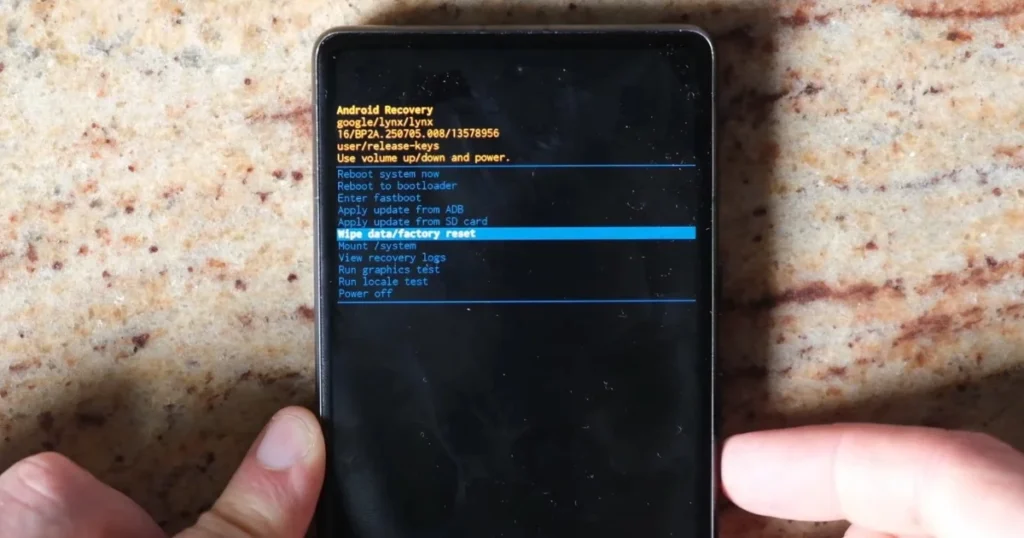
Android Factory Reset:
- Settings → General Management
- Tap on Reset
- Select Factory Data Reset
- Confirm and wait
iPhone Factory Reset:
- Settings → General
- Transfer or Reset iPhone
- Erase All Content and Settings
- Enter and confirm your Apple ID password
Note: If the restarting problem persists even after a factory reset, it is definitely a hardware issue and requires professional assistance.
Free Tools That Can Help
Here are some free and trusted tools that can help improve your phone’s health:
| Tool | Work | Platform | Link |
|---|---|---|---|
| Google Files | Clean junk, free up storage. | Android | files.google.com |
| AccuBattery | Battery health check | Android | Play Store |
| AVG Antivirus | Malware scan | Android | avg.com |
| Malwarebytes | Virus removal | Android/iOS | malwarebytes.com |
| CPU-Z | View System Info | Android | Play Store |
| Samsung Smart Switch | Backup and Restore | Android (Samsung) | samsung.com/smartswitch |
And for further assistance, visit fixtech.in – here you will find even more helpful guides related to phone repair and troubleshooting.
When to Seek Professional Help?
In certain situations, attempting repairs at home can cause more harm than good. Consult a professional technician in the following situations:
- The battery is swollen – this can be dangerous.
- The phone has sustained physical damage (e.g., dropped or exposed to water).
- The device continues to restart even after a factory reset.
- The phone is stuck in a boot loop – meaning it halts at the startup logo and fails to proceed further.
Repair Cost (Estimated):
- Battery replacement: $10–$100 (depends on the phone model)
- Software flash/OS reinstall: $15–$40
- Motherboard repair: $50–$200+
Tip: If your phone is under warranty, visit an authorized service center only. Third-party repairs may void the warranty.
Conclusion
The issue of your phone restarting automatically is certainly frustrating, but it doesn’t mean you need to buy a new phone. In most cases, this is caused by a software bug, overloaded storage, a buggy app, or an aging battery – and these issues can be fixed right at home.
Follow the steps outlined in this guide in the order presented:
- ✅ Check the Auto Restart feature
- ✅ Update the system
- ✅ Free up storage and clear the cache
- ✅ Test in Safe Mode
- ✅ Remove suspicious apps
- ✅ Check battery health
- ✅ Perform a malware scan
- ✅ Factory Reset (last resort)
- ✅ Seek professional help
If the problem is resolved at any one of these steps, the remaining steps are unnecessary. However, if the issue of the phone restarting automatically persists even after trying everything, it is a hardware-related matter, and you should consult a professional technician.
📌 Learn more: Be sure to visit fixtech.in for phone repair, troubleshooting guides, and tech tips.
12. FAQs – About Phone Restarting Automatically
Q1: Why does my Samsung phone restart automatically at night?
Answer: Samsung phones have a scheduled “Auto Restart” feature that may activate during the night. You can disable it by going to Settings → Device Care → Auto Optimization → Auto Restart.
Q2: Why does the phone restart when plugged in for charging?
Answer: There could be two main reasons for this:
* Faulty Charger or Cable: A cheap or counterfeit charger can supply unstable voltage, causing the device to restart.
* Defective Battery: If the battery is worn out, voltage spikes may occur during charging.
Use an original or certified charger. If the issue persists, have the battery checked.
Q3: Can a virus cause a phone to restart?
Answer: Yes, especially on Android. Malware can overload system resources or delete critical files, causing the phone to crash and restart. Scan your device using Malwarebytes or AVG.
Q4: How do I restart in Safe Mode?
Answer: Press the Power button → Long-press “Power Off” → Confirm “Reboot to Safe Mode.” “Safe Mode” will appear at the bottom of the screen.
Q5: It keeps restarting even after a Factory Reset – what should I do?
Answer: If the problem persists even after a Factory Reset, it is a hardware issue. Get the battery replaced or visit an authorized service center. This cannot be fixed via software.
Q6: What is a Boot Loop, and how can it be fixed?
Answer: A Boot Loop occurs when the phone gets stuck at the startup logo and keeps restarting repeatedly, failing to reach the home screen. To fix this:
* Enter Recovery Mode and wipe the cache.
* If that doesn’t work, perform a Factory Reset.
* If it still doesn’t work – consult a professional.
Q7: Why does the iPhone restart automatically?
Answer: The main reasons for random restarts on an iPhone are:
* iOS bug (will be fixed with an update)
* Battery health below 80% (get it replaced)
* App crashing (delete the problematic app)
* Full storage (delete some items)
Q8: How often is restarting considered excessive?
Answer: If your phone restarts once a week, this may be normal (due to a scheduled auto-restart). However, if it is happening 2–3 times a day or more, it is definitely a sign of an underlying problem.
Q9: Do older phones restart more frequently?
Answer: Yes. In phones that are 3–4 years old, battery health deteriorates, and the hardware also begins to show signs of wear. Furthermore, newer apps often lack support for older OS versions, which leads to conflicts.
Q10: Can an SD card also cause the device to restart?
Answer: Yes! If the SD card is corrupted or incompatible with the phone, it can indeed cause the device to restart. Try removing the SD card once to check – if the restarts stop, you should replace the SD card.