
Sometimes, it’s the little things that are the most annoying – like plugging in a USB drive and seeing nothing happen, or constantly dealing with that same old, boring “What do you want to do?” prompt. The experience has changed significantly with the arrival of the new Windows 11 AutoPlay settings. Microsoft has completely redesigned the AutoPlay dialog, introducing a fresh WinUI 3 design, dark mode support, a centered pop-up, and a highly useful option that lets you choose whether to perform an action just once or every time. If you want to know what these changes are and how to configure them to your liking, this guide is exactly what you need.
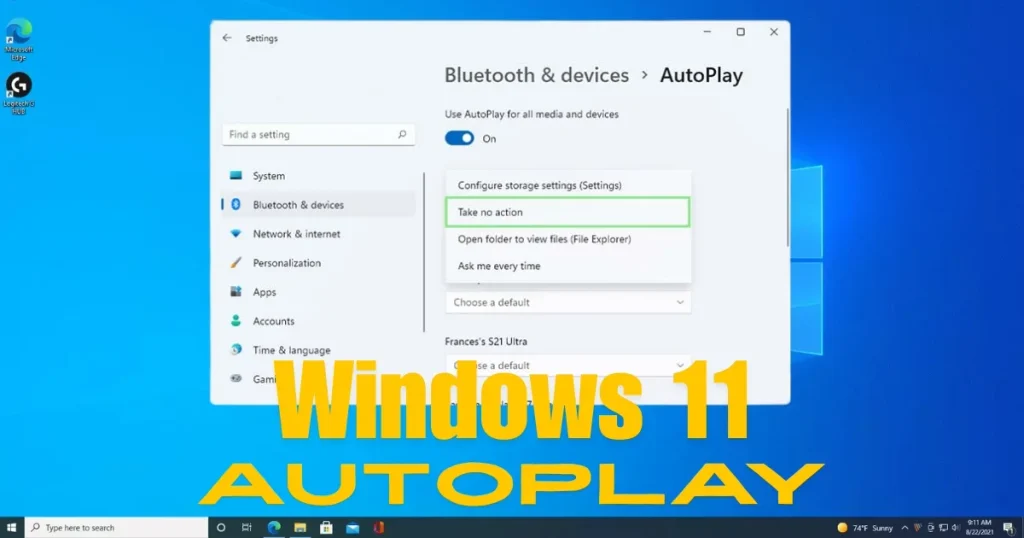
What has changed in Windows 11 AutoPlay?
The previous AutoPlay design dated back to the Windows 8 era; it appeared as a small notification pop-up in the top-right corner of the screen that would vanish quickly, causing many users to miss it.
The new AutoPlay now opens as a full dialog box in the center of the screen – much like it did in Windows 7. This redesigned interface features rounded corners, larger icons, increased spacing between controls, modern WinUI styling, and support for both light and dark modes.
The AutoPlay feature now utilizes WinUI, allowing it to blend in with other Windows apps. It supports dark mode and adjusts effectively when the text size is changed.
The new dialog also asks whether you want to act just once or every time – a highly useful addition.
AutoPlay is yet another legacy dialog in Windows 11 shedding its old Win32 baggage. Following in the footsteps of WinUI-based Widgets, Run, Properties, and Print Management, AutoPlay is also being modernized – making Windows 11 feel less inconsistent than before.
Where can you find the new AutoPlay settings in Windows 11?
In Windows 11, Microsoft has moved the primary controls to Settings > Bluetooth & devices > AutoPlay, while retaining the old Control Panel interface for more granular or legacy options.
This means AutoPlay can now be managed from two locations:
- Settings App – Simple, modern, and sufficient for most users.
- Control Panel – More detailed options; for enterprise and advanced users.
We will explain both of them step-by-step.
Method #1 – Customize AutoPlay via the Settings App
Changing AutoPlay defaults in Windows 11 takes just a minute or two and can save you from repetitive clicks when connecting USB drives, phones, or SD cards.
Step-by-step method:
Step 1 – Open Settings:
- Press the Win + I shortcut, or search for “Settings” in the Start Menu.
Step 2 – Go to Bluetooth & devices:
- Click on “Bluetooth & devices” in the left sidebar of Settings.
Step 3 – Go to AutoPlay:
- Scroll down and find the “AutoPlay” option. Click on it.
Step 4 – Turn AutoPlay on/off:
- At the very top is the “Use AutoPlay for all media and devices” toggle – turn it on or off. Below, under “Choose AutoPlay defaults,” select an option from the drop-down menu for Removable drive: Open folder (File Explorer), Import photos and videos, or Ask me every time.
Step 5 – Set a different action for each device:
Here, you will find these categories:
- Removable drive – Pen drive, USB drive
- Memory card – SD card, microSD
- Camera storage – Digital camera memory card
- DVD / Blu-ray – Action to take when a disc is inserted
- Phone – When an Android or iPhone is connected
- MTP device – Media Transfer Protocol devices
Select your preferred action from the dropdown for each category.
Available actions (these options are available on every device):
- Ask me every time – Will ask every time (most flexible)
- Take no action – Nothing will happen (for privacy-conscious users)
- Open folder to view files (File Explorer) – Folder will open directly
- Import photos and videos (Photos app) – Import via Photos app
- Import photos and videos (OneDrive) – OneDrive backup will start
- Play (Windows Media Player) – Media player will open (for DVDs)
Method #2 – Configure AutoPlay via Control Panel
You get more detailed AutoPlay options in the Control Panel.
Steps:
- Search for “Control Panel” in the Start Menu and open it.
- Switch the view to “Large icons” or “Small icons”.
- Click on the “AutoPlay” icon.
- Here, you will find a list of various device and media types – such as:
- Enhanced Audio CD
- Enhanced DVD Movie
- Software and games
- Pictures
- Video files
- Audio files
- Blank DVD, Blank CD
- Select an action from the dropdown next to each option.
- Click “Save” at the bottom.
Control Panel vs. Settings – When to use which:
| Features | Settings | Control Panel |
|---|---|---|
| Basic USB/phone action | ✅ Best | It works. |
| Disc (CD/DVD) types | limited | ✅ Best |
| Media types (Audio/Video) | No | ✅ Best |
| Quick toggle on/off | ✅ Best | Yes |
The new “Always or Just Once” option – why is it important?
This is the most useful addition to the new AutoPlay dialog. Previously, when you chose an action – such as “Open folder” – that action would become the permanent default. There was no option if you wanted to open it in a specific way just that one time.
Now, the new dialog asks:
- “Always do this” – Make this the default action.
- “Just once” – Perform this action only this time; do not change the default.
This feature is very useful for those who:
- Sometimes you open a pen drive in File Explorer; at other times, you import photos.
- You might need to transfer files from a guest’s connected phone without changing the default settings.
- At the office, you might need to copy a single file from an SD card while keeping the rest of the settings unchanged.
How to Turn Off AutoPlay – Important Security Tips
Windows 11 allows you to completely disable this feature or set custom actions for individual devices. You can manage this directly within the main Windows 11 Settings app without needing any special technical tools or software. This setup prevents Windows from guessing what to do and ensures that the correct app opens whenever you connect a new device.
Turning Off AutoPlay Completely:
Settings → Bluetooth & devices → AutoPlay → Turn OFF the “Use AutoPlay for all media and devices” toggle.
When to do this:
- On shared computers (cyber cafés, offices)
- Where there is a risk of connecting an unknown USB drive
- On PCs containing sensitive data
- When temporarily connecting someone else’s device
Security tip: Keeping AutoPlay disabled also protects against USB-based malware attacks. Given the rising number of cyber fraud cases in India – especially in office environments – it is prudent to set AutoPlay to “Take no action” or turn it off completely.
Customizing AutoPlay via Registry Editor (Advanced Users)
You can customize AutoPlay using the Registry Editor (a graphical method requiring no downloads).
Use this method when:
- Cannot find the option in Settings or Control Panel.
- Need very granular control for a specific device type.
- You are an IT administrator managing multiple PCs.
Steps (Perform carefully):
- Press Win + R → type regedit → Enter.
- Navigate to this path:
HKEY_CURRENT_USER\Software\Microsoft\Windows\CurrentVersion\Explorer\AutoplayHandlers- You will find a list of handlers here – values can be modified for specific device types.
Important: Take a backup before editing the Registry – File → Export → Choose a safe location.
Control AutoPlay via Group Policy (Enterprise / Pro Users)
In Windows 11 Pro or Enterprise versions, you can manage AutoPlay organization-wide using the Group Policy Editor.
Steps:
- Win + R → gpedit.msc → Enter.
- Navigate to:
Computer Configuration → Administrative Templates → Windows Components → AutoPlay Policies- Three important policies are available here:
- “Turn off AutoPlay” – Disable AutoPlay for the entire system.
- “Disallow AutoPlay for non-volume devices” – Disable only for cameras and phones.
- “Set the default behavior for AutoRun” – Block AutoRun commands.
Disabling AutoPlay via Group Policy is a good security practice for small businesses or school networks in India.
AutoPlay not working? Check these
Sometimes, AutoPlay does not work even after configuring the settings. Here are the reasons:
Reason #1 – AutoPlay service is disabled:
- Win + R → services.msc → Find the “Shell Hardware Detection” service → Right-click on it → Start it. Set the Startup type to “Automatic”.
Reason #2 – Group Policy overrode it:
- If the PC is on an office network, the IT admin might have disabled AutoPlay. Contact them.
Reason #3 – USB device not recognized correctly:
- Check Device Manager (Win + X → Device Manager) to see if there are any errors with the device.
- Try using a different USB cable.
- Try a different USB port.
Reason #4 – Windows Update is pending:
- If the new WinUI AutoPlay dialog doesn’t appear, install the latest updates from Windows Update.
- Settings → Windows Update → Check for updates.
Free tools that help with AutoPlay management
1. AutoPlay Repair Wizard – Free (Windows Built-in Troubleshooter)
Settings → System → Troubleshoot → Other troubleshooters → Here, the hardware-related troubleshooter can fix AutoPlay issues.
2. Autoruns by Sysinternals – Free
🔗 learn.microsoft.com/en-us/sysinternals/downloads/autoruns
Microsoft’s official tool that displays all auto-start programs and AutoPlay handlers in detail. It is excellent for power users.
3. ShellExView – Free
🔗 nirsoft.net/utils/shexview.html
A very useful free tool for viewing and disabling shell extensions and AutoPlay handlers.
4. USB Device Tree Viewer – Free
🔗 uwe-sieber.de/usbtreeview_e.html
If AutoPlay is not working with a specific USB device, this tool displays complete information about that device.
5. Windows Registry Editor (Built-in) – Free
Win + R → regedit – for Advanced AutoPlay customization.
If your USB device is still not recognized after adjusting AutoPlay settings, or if you are facing issues installing the latest Windows 11 update, visit fixtech.in – they offer professional services for Windows 11 configuration, device driver issues, and PC troubleshooting.
Windows 11 AutoPlay – The Most Common Settings Useful for Indian Users
India has a diverse range of users – from those viewing photos at home and using pen drives in the office to students utilizing external hard drives. Here are the recommended settings:
For those handling photos (Camera/SD Card users):
- Camera storage → “Import photos and videos (Photos app)”
- Memory card → “Import photos and videos (Photos app)”
Office / Professional users:
- Removable drive → “Open folder to view files (File Explorer)”
- AutoPlay → On (but “Ask me every time” would be safer)
Security-conscious users:
- AutoPlay toggle → Off (safest option)
- Or for all devices → “Take no action”
Students / Gamers:
- Removable drive → “Ask me every time”
- This offers flexibility – sometimes copying files, sometimes doing something else.
FAQs – About Windows 11 AutoPlay Settings
Q1. When did the new WinUI AutoPlay dialog become available?
The Windows Insider blog announced the builds on August 21, 2026. These updates are for the Beta and Experimental channels. The stable release will gradually roll out to all users.
Q2. What is the difference between AutoPlay and AutoRun?
AutoPlay asks you what to do when a device is connected. AutoRun was an older technology that automatically ran a program (such as via an autorun.inf file on a CD). Windows had previously restricted AutoRun for security reasons.
Q3. Can AutoPlay be configured for phones as well?
Yes. When an Android phone is connected via USB and is in MTP/File Transfer mode, AutoPlay detects it too. You can set an action for “Camera storage” or “MTP device” in Settings.
Q4. What does the new AutoPlay dialog look like in dark mode?
In dark mode, the new AutoPlay experience appears as a centered dialog featuring rounded corners, a dark background, and large icons.
Q5. Are AutoPlay settings saved separately in Control Panel and Settings?
No – both modify the same registry keys. A change made in one place is reflected in the other.
Q6. How does the “Just once” option work?
The new dialog allows you to choose whether to act permanently or just once. Selecting “Just once” means the action does not become the default, and you will be prompted again the next time the device is connected.
Q7. Why doesn’t AutoPlay work when an iPhone is connected?
iPhones require Apple’s iTunes driver or the Apple Devices app. Once installed, AutoPlay will recognize the iPhone. You can download the “Apple Devices” app for free from the Microsoft Store.
Q8. How do I reset AutoPlay settings?
Go to Settings → Bluetooth & devices → AutoPlay and select “Ask me every time” from the dropdown for each device. This is practically like a reset.
Final Thoughts
The seemingly minor AutoPlay feature is actually a crucial part of your daily workflow. Tasks like manually opening File Explorer every time you plug in a pen drive or searching for the Photos app to import images can now be handled automatically thanks to Windows 11’s new AutoPlay settings. The redesign – featuring WinUI 3 – is genuinely practical; elements like the centered dialog box, dark mode support, and the “always vs. just once” option all combine to enhance the user experience. Customize the settings to suit your needs, keep security in mind, and seek professional assistance from fixtech.in if you encounter any technical issues. Once you have correctly configured the new AutoPlay settings in Windows 11, the system will automatically understand your preferences every time you connect a device.