
You unlock your screen only to be greeted by a heap of weather information, news headlines, and various other details – when all you really wanted to do was check the time. If this sounds familiar, you aren’t alone. Many people search for ways to remove the weather feature from the Windows 11 lock screen because Microsoft enabled it by default without asking. While some users appreciate the weather widget, others don’t, and the real issue is that Windows didn’t initially give users proper control over it. However, the option is now available in Settings, allowing you to remove or customize it easily. This guide will walk you through the steps to do so.
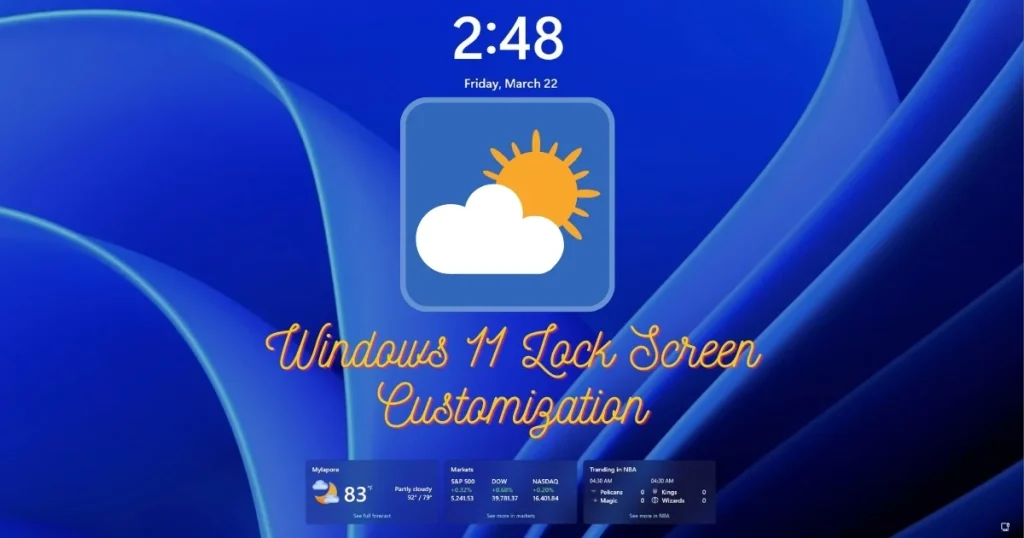
Where did the weather widget on the Windows 11 Lock Screen come from?
First, it is important to understand the source of this weather information so that it can be removed from the correct place.
Starting with Windows 11 version 22H2, Microsoft redesigned the Lock Screen and added a new “Lock Screen Widgets” feature. The weather feature is enabled by default within this.
This weather data comes from MSN Weather and the Microsoft Start service. It detects your approximate location and displays the temperature and weather conditions accordingly.
Apart from the weather, the following may also appear on the Lock Screen at times:
- Bing Daily Wallpaper – A new background every day
- Fun facts, tips, and tricks – Suggestions from Microsoft
- Upcoming calendar events – If the calendar is synced
- Sports scores and news – In select regions
All of this makes the lock screen look quite “busy.” And in India, where people prefer a simple, clean interface, this extra clutter doesn’t look good.
Ways to remove the weather from the Windows 11 lock screen
The good news is that removing it in Windows 11 is now very easy. All the methods are listed below – ranging from basic to advanced.
Method #1 – Remove the Weather Widget from Settings (Easiest)
This is the most direct method, which will suffice for most users.
Steps:
- Press Win + I – Settings will open.
- Click on “Personalization” in the left sidebar.
- Click on “Lock screen”.
- Here, you will see an option like “Lock screen status” or “Get fun facts, tips, tricks, and more on your lock screen”.
- Below this, there will be a dropdown menu with “Weather” selected.
- Click on that dropdown and select “None”.
That’s it – the weather will no longer appear on the lock screen.
If this dropdown is not visible:
- First, check what the lock screen background is set to.
- If the background is set to “Windows Spotlight,” proceed.
Method #2 – Change Windows Spotlight
Windows 11 offers three options for the lock screen background:
- Windows Spotlight – Microsoft automatically sets a new wallpaper daily and displays weather, tips, and facts.
- Picture – A photo of your choice becomes the background.
- Slideshow – Photos from a specific folder rotate automatically.
If Windows Spotlight is turned on, weather and extra information appear automatically, and this cannot be controlled by a single setting.
How to change the spotlight:
- Go to Settings → Personalization → Lock screen.
- Look for the “Personalize your lock screen” dropdown menu.
- Select “Picture” or “Slideshow” instead of “Windows Spotlight.”
- Choose a photo you like.
This will disable the weather and content imposed by Microsoft on the lock screen.
Keep in mind: Turning off Spotlight will also disable the daily Bing wallpaper – but if you want a clean lock screen, this trade-off is worthwhile.
Method #3 – Completely disable “Fun Facts and Tips”
Sometimes, even after removing the weather information, “Did you know?” style tips and Microsoft’s promotional messages continue to appear on the lock screen.
Here is how to turn them off:
- Go to Settings → Personalization → Lock screen.
- Scroll down.
- Find the “Get fun facts, tips, tricks, and more on your lock screen” option.
- Turn this toggle OFF.
This option is available with Windows Spotlight. If the background is set to “Picture,” it automatically becomes inactive.
Method #4 – Turn off lock screen status notifications
In addition to the weather, calendar events, emails, and app notifications can also appear on the lock screen. Here is how to control them:
- Go to Settings → Personalization → Lock screen.
- Look at the “Lock screen status” section.
- Select “None” from the dropdown menu here.
This will prevent any app status information from appearing on the lock screen.
To turn off notifications for specific apps:
- Go to Settings → System → Notifications.
- Scroll down to the “Notifications on the lock screen” section.
- Turn off “Show notifications on the lock screen”.
- Alternatively, disable the lock screen option within the notification settings for specific apps.
Method #5 – Remove Weather via Group Policy (Windows 11 Pro/Enterprise)
For Windows 11 Pro or Enterprise users, this change can be made more permanently using the Group Policy Editor.
Steps:
- Win + R →
gpedit.msc→ Enter। - Navigate:
User Configuration → Administrative Templates → Windows Components → Cloud Content- You will find these policies here:
- “Do not show Windows tips” – Tips and suggestions turned off.
- “Turn off Microsoft consumer experiences” – Turn off Microsoft promotional content.
- “Turn off Spotlight collection on Desktop” – Spotlight off.
- Double-click the policy you want to disable → select “Enabled” → OK.
Note: Here, “Enabled” means “enable this restriction” – meaning the feature will be turned off.
Method #6 – Remove Weather via Registry Editor (Advanced)
If the Group Policy Editor is not available (for Windows 11 Home users), the same result can be achieved using the Registry Editor.
First, back up the Registry:
- Open Regedit → File → Export → Choose a safe location.
Steps:
- Win + R →
regedit→ Enter - Navigate to this path:
HKEY_CURRENT_USER\Software\Microsoft\Windows\CurrentVersion\ContentDeliveryManager- Find these values on the right side and set them to 0:
- SubscribedContent-338389Enabled → 0 (Tips and tricks off)
- SubscribedContent-338388Enabled → 0 (Spotlight suggestions off)
- SoftLandingEnabled → 0 (Software tips off)
- RotatingLockScreenEnabled → 0 (Spotlight wallpaper off)
- Double-click each value → Set the Value data to 0 → OK.
- Restart the PC.
Result: Microsoft’s pushed content on the lock screen will be disabled.
Want to change the weather widget instead of removing it? Here’s how:
Some people don’t want to remove the weather feature entirely – they just want to customize it. For instance, they might want to see the weather for their specific city or display only the temperature, omitting the other details.
How to change the weather location:
If the weather appears on your lock screen but shows the wrong city, then:
- Open the MSN Weather app (search for “Weather” in the Start Menu).
- Search for your city and set it as the default location.
- The lock screen weather will automatically update to that city.
To improve the accuracy of the weather app:
- Go to Settings → Privacy & security → Location.
- Turn ON “Location services”.
- Turn ON “Let apps access your location”.
- Grant location access to the Weather app from the list of apps below.
This will make the lock screen weather more accurate and location-based.
How to make your lock screen completely clean?
If you want a perfectly clean lock screen that displays only the time, date, and background, follow this complete checklist:
Complete Clean Lock Screen Checklist:
- ✅ Settings → Personalization → Lock screen → Background: set “Picture”.
- ✅ “Get fun facts, tips, tricks” toggle: OFF.
- ✅ “Lock screen status”: select “None”.
- ✅ Settings → System → Notifications → “Show notifications on the lock screen”: OFF.
- ✅ Settings → System → Notifications → “Show reminders and incoming VoIP calls on lock screen”: OFF (if not desired).
- ✅ Settings → Personalization → Start → “Show recently opened items”: OFF.
After all these steps, only your chosen wallpaper, the clock, and the date will appear on the lock screen – nothing else.
Windows 11 Lock Screen Wallpaper Options – Complete Details
Apart from weather and widgets, the lock screen wallpaper is also quite important. Here are the details of all the options:
1. Windows Spotlight:
- Microsoft automatically sets a new Bing wallpaper every day.
- It also displays weather updates, tips, and promotional content.
- For whom: Those who enjoy variety and aren’t bothered by Microsoft’s content.
2. Picture:
- You choose a photo yourself – once set, it stays that way.
- It does not display weather or extra content.
- For whom: Those who prefer a clean, minimal lock screen.
3. Slideshow:
- Photos from a folder rotate continuously.
- It also includes slideshow interval and shuffle settings.
- For whom: Those who want variety, but using their own photos.
Additional settings of Slideshow:
Settings → Personalization → Lock screen → Slideshow settings:
- “Include Camera Roll folders” – Include photos synced from the phone.
- “Play a slideshow on the lock screen when running on battery power” – Turn this off to save battery.
- “When my PC is inactive, show lock screen instead of turning off screen” – Show the lock screen before the screen turns off.
Change the Clock Style on the Windows 11 Lock Screen
In addition to the weather, the clock style can also be customized. Windows 11 offers different clock styles for the lock screen.
How to change the clock style:
- Go to Settings → Personalization → Lock screen.
- Navigate to the “Personalize your lock screen” section under “Lock screen status.”
- If the background is set to “Windows Spotlight” or “Picture,” clock style options will appear.
Available Clock Styles:
- Simple digital clock
- analog clock
- Large text clock
- Focus-oriented minimal clock
This feature may not be available in all Windows 11 versions – you need to be on the latest update.
Customize the Lock Screen with Third-Party Tools
If you want more control than Windows’ built-in settings offer, these free tools will come in handy:
1. Winaero Tweaker – Free
🔗 winaero.com/winaero-tweaker
This is a powerful Windows customization tool that brings together various lock screen options – such as disabling Spotlight, removing tips, and controlling notifications – in one place. It manages registry tweaks via a GUI.
2. O&O ShutUp10++ – Free
🔗 oo-software.com/en/shutup10
This tool manages Windows 11 privacy and telemetry settings in one place. Lock screen content and Microsoft data collection can be easily controlled from here.
3. Ultimate Windows Tweaker – Free
🔗 thewindowsclub.com/ultimate-windows-tweaker-4-windows-10
It offers hundreds of tweaks for the lock screen, taskbar, and Start Menu – all in one place.
4. TranslucentTB – Free
🔗 microsoft.com/store/productId/9PF4KZ2VN4W9
This makes the Taskbar transparent – it does not directly customize the lock screen, but improves the overall Windows visual experience. Available for free on Microsoft Store.
If weather or unwanted content continues to appear on the lock screen even after applying these settings, or if the settings reset following a Windows 11 update, please visit fixtech.in. They offer professional services for Windows 11 personalization and configuration.
What if settings reset after a Windows Update?
It is a common complaint that lock screen settings revert to default – such as the weather feature reappearing – after a Windows update is installed.
Ways to prevent this:
Method #1 – Use the Registry method:
Registry changes usually persist even after updates. Setting the ContentDeliveryManager registry values (mentioned earlier) to 0 provides a long-term solution.
Method #2 – Use Group Policy (for Pro users):
Group Policy settings remain in effect after updates and override content pushed by Microsoft.
Method #3 – Check settings after a Windows Update:
Manually verify your settings after major feature updates (e.g., moving from 24H2 to 25H2). It takes just five minutes.
Method #4 – Lock settings using O&O ShutUp10++:
This tool helps maintain your settings through subsequent Windows startups or updates.
Lock Screen Weather and Privacy – Is Data Transmitted?
It is valid to be concerned about privacy in India. Here is what you need to know about the lock screen weather feature:
What happens when the weather feature is enabled:
- Your approximate location is sent to the MSN Weather service.
- Usage data is sent to Microsoft – such as how often the lock screen is viewed and which content is interacted with.
- A device identifier communicates with Microsoft’s servers for Windows Spotlight.
Upon removing the weather:
- Location sharing is disabled for the lock screen.
- Microsoft’s content engagement tracking is also reduced.
For extra privacy:
- Settings → Privacy & security → Location → Restrict Location services for Lock screen apps.
- Settings → Privacy & security → Diagnostics & feedback → Set Diagnostic data to minimum.
Lock Screen on Samsung, Lenovo, and Dell Laptops – Extra Settings
Some laptop brands add their own lock screen customization layer, which can override Windows’ default settings.
Samsung Galaxy Book users:
- Lock screen options in the Samsung Settings app may differ.
- Lock screen behavior is also different in Samsung DeX mode.
Lenovo users:
- The Lenovo Vantage app sometimes displays promotional content on the lock screen.
- Check this under Lenovo Vantage → My Device Settings → Lock Screen.
Dell users:
- Dell SupportAssist sometimes displays notifications on the lock screen.
- Disable this under SupportAssist Settings → Notifications.
HP users:
- HP Sure Start and HP Wolf Security sometimes affect lock screen behavior.
- Check the relevant settings in HP Command Center.
FAQs – About Windows 11 Lock Screen Customization
Q1. What should I do if Windows 11 Home doesn’t have the Group Policy Editor?
Windows 11 Home does not include it gpedit.msc. To achieve the same result, apply the settings using the Registry Editor (regedit) – full details are provided in Method #6 above. Alternatively, you can use Winaero Tweaker, which performs this task via a GUI.
Q2. How can I keep the Bing wallpaper even after removing the lock screen weather?
Disabling Windows Spotlight also turns off the Bing wallpaper. An alternative is to install the Bing Wallpaper app, which changes only the wallpaper without adding any extra content.
🔗 microsoft.com/bing/wallpaper
Q3. Is it possible to show only the temperature on the lock screen, without the full weather card?
In Windows 11, selecting “Weather” for the lock screen status displays only the temperature and a basic icon – not the full weather card. This is already the minimal view.
Q4. Does the lock screen weather feature use my exact location?
No – it uses an approximate location derived from your IP address or Windows location services. It does not use your exact GPS location unless you have manually enabled location services.
Q5. How do I remove calendar events from the lock screen?
Go to Settings → Personalization → Lock screen, and select “None” from the “Lock screen status” dropdown menu. If they still appear, disable lock screen access within the Calendar app’s notification settings.
Q6. The weather reappeared after a Windows 11 update – why?
Microsoft sometimes resets lock screen settings during feature updates. Use the Registry method, which tends to persist even after updates.
Q7. Can custom widgets be added to the lock screen?
Windows 11’s built-in settings offer limited widget options. While third-party tools like Rainmeter allow you to add desktop widgets, there is currently limited official support for adding custom widgets directly to the lock screen.
Q8. Will these settings apply to all user accounts?
No – these settings are user-specific. You must make changes separately in Settings for each user account. To apply settings organization-wide, use Group Policy.
Quick Settings Summary – At a Glance
| Shift | Where should I go? |
|---|---|
| Remove Weather | Personalization → Lock screen → Lock screen status → None |
| Turn off Spotlight | Personalization → Lock screen → Background → Picture |
| Close tips | Personalization → Lock screen → Fun facts toggle OFF |
| Remove notifications | System → Notifications → Lock screen OFF |
| Disable via Registry | ContentDeliveryManager keys → set to 0 |
| Using Group Policy | User Config → Cloud Content policies |
Final Thoughts
The lock screen is the first thing you see every time you open your PC – and it is only natural to feel annoyed by unwanted weather widgets or content pushed by Microsoft. Removing the weather feature from the Windows 11 lock screen takes just a few clicks in Settings; you simply need to know where to look. Whether you use the Settings app, Group Policy, or the Registry, each method works effectively to restore a clean, minimal look to your lock screen. However, if the weather widget keeps reappearing or you encounter configuration issues in Windows 11, visit fixtech.in without delay to seek professional assistance. After all, you should be in control of your PC – not Microsoft – and removing the lock screen weather is the first step toward reclaiming that control.