
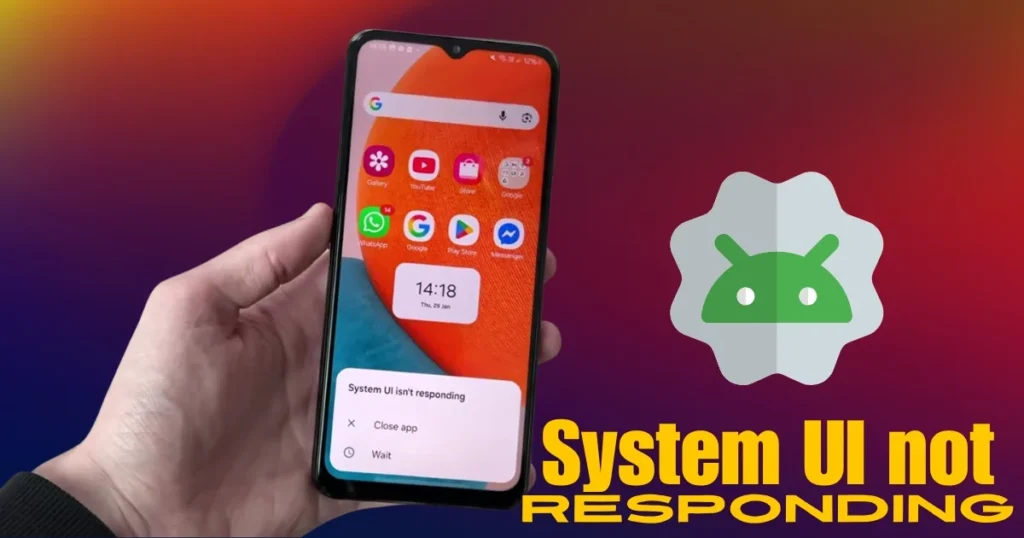
You have the phone in your hand and the screen is lit up, but nothing is working. The notification bar won’t pull down, pressing the home button does nothing, and a popup appears stating, “System UI not responding.” This is a truly frustrating moment, especially when you are expecting an important call or need to get something urgent done. In India, this issue is frequently encountered on budget phones – such as those from Redmi, Realme, the Samsung Galaxy M series, Poco, and Infinix – particularly as the device ages or the storage fills up.
However, there is no need to panic. A System UI crash is not a major hardware problem; it is a software-level issue that, in most cases, can be resolved right at home.
What is System UI? – Let’s understand this first.
System UI is the part of Android that displays your phone’s interface. It includes:
- Status bar – where time, battery, signal are visible at the top
- Notification shade – when you swipe down from top
- Navigation bar – Home, Back, Recents buttons at the bottom
- Quick settings panel – tiles for WiFi, Bluetooth, Torch
- Lock screen UI
When this system crashes, the entire interface freezes. You cannot open apps, there is no response to taps, and sometimes the same pop-up keeps appearing on the screen repeatedly.
System UI Not Responding on Android – What Are the Causes?
It is important to understand where the problem is coming from; only then can the right fix be found quickly.
1. The RAM is overloaded.
Too many apps are open simultaneously, processes are running in the background, and there is no free RAM. The System UI also requires RAM to function; when it doesn’t get enough, it crashes.
2. The System UI cache has become corrupted.
Like any other app, System UI stores a cache. If this cache gets corrupted, the app stops functioning correctly.
3. A recent update turned out to be buggy.
If this problem started after an OTA update, there might be a bug in that update.
4. Third-party launcher or custom theme
If you have installed Nova Launcher, Poco Launcher, or any custom theme that is not fully compatible, it could conflict with the System UI.
5. Internal storage is nearly full.
When storage is more than 95% full, system processes cannot run properly.
6. A core app from Google, MIUI, or Realme UI is crashing.
System UI, Google Play Services, and Phone Settings rely on these components; if one of these apps malfunctions, it triggers a domino effect.
7. Hardware problem – Overheating
If the phone overheats, the system processor throttles, causing the UI to lag or crash.
System UI Not Responding in Android – Ways to Fix It
The fixes listed below are arranged from simple to advanced. Start from the top.
Fix 1 – Restart your phone (the first step)
It may seem basic, but a simple restart resolves 40–50% of System UI crash cases.
What to do:
- Press and hold the Power button for 5–8 seconds.
- If the screen is not responding, press Power + Volume Down simultaneously (force restart).
- The phone will turn off and then restart.
Force restart shortcuts:
- Samsung: Power + Volume Down (10 seconds)
- Xiaomi/Redmi: Power button (10 seconds)
- Realme/Oppo: Power + Volume Down
- OnePlus: Power button (10 seconds)
After a restart, the System UI refreshes, and the problem is often resolved.
Fix 2 – Clear System UI Cache and Data
This is the most effective fix.
Steps:
- Open Settings
- Go to Apps or Applications
- Tap the three dots or the filter icon at the top
- Enable ‘Show system apps’
- Search for and open ‘System UI’
- Tap on Storage
- First, select ‘Clear Cache’
- If the issue persists, select ‘Clear Data’ as well
- Restart the phone
Why does it work?
Corrupt or outdated cache prevents the System UI from loading correctly. Clearing it allows for a fresh start.
Note: Clearing data may reset some personalization settings, but your personal data – such as photos, contacts, and messages – remains safe.
Fix 3 – Free up storage
If internal storage is nearly full, several system processes – including System UI – may crash.
Ways to quickly free up storage:
- Clean up WhatsApp media – it takes up the most space
- Check the Downloads folder – remove old APK files
- Delete duplicate photos
- Use the Files by Google app (free, $0) – it automatically finds and identifies junk files
- Back up photos to Google Photos and delete the local copies
Try to keep at least 2–3 GB free.
Fix 4 – Close background apps and free up RAM
If many apps are running in the background:
- Press the ‘Recents’ button (if it responds).
- Select ‘Close all’.
- Or restart the phone directly – this automatically frees up RAM.
An extra step for Xiaomi/Redmi/Poco:
- Open the Security app.
- Use the cleaner.
- Background apps and junk files will be cleared simultaneously.
Fix 5 – Clear the Google Play Services cache
System UI often communicates with Google Play Services. If there is a bug in Play Services, System UI gets affected.
Steps:
- Settings > Apps > Show system apps
- Find Google Play Services
- Storage > Clear Cache
- Then do the same for the Google Play Store
After this, restart the phone.
Fix 6 – Check for a software update.
If the problem started after an update:
Is a new update available?
- Settings > Software Update or System Update
- If a patch is available, install it.
- Sometimes, companies release bug-fix updates quickly.
If a problem arises after the update:
Rolling it back is usually not possible, but check the official community forums (Xiaomi Community, Realme Community, Samsung Members) – you might find workarounds there.
Fix 7 – Remove Third-Party Launcher or Theme
If you have installed a custom launcher (Nova, Microsoft Launcher, Poco Launcher) or a third-party theme:
- Uninstall that launcher.
- Switch back to the default launcher:
- Go to Settings > Apps > Default Apps > Home App and select the default launcher.
- Also, remove any custom themes applied via MIUI Themes, Samsung Themes, or third-party apps.
After this, restart the System UI or reboot the phone.
Fix 8 – Check in Safe Mode
Only system apps run in Safe Mode. If the System UI works correctly in Safe Mode, then a third-party app is causing the problem.
How to enter Safe Mode:
- Press the Power button.
- Long-press ‘Power Off’.
- The ‘Reboot to Safe Mode’ option will appear – select OK.
If the System UI does not crash in Safe Mode, uninstall recently installed apps one by one.
Fix 9 – Reset App Preferences
This option does not delete your personal files – it only resets app defaults and permissions.
Steps:
- Settings > Apps (or Application Manager)
- Tap the three dots (⋮)
- Select Reset App Preferences
- Confirm
After this, restart the phone.
Fix 10 – Let the phone cool down
If the phone is very hot:
- Remove the cover
- Keep away from direct sunlight
- Let the phone rest for a while
- Then restart it
When the processor overheats, it slows down, and resource-intensive processes like System UI can crash – a phenomenon frequently observed in India during the summer months.
Fix 11 – Factory Reset (Last Resort)
If nothing else works and the problem keeps recurring, a factory reset is an option.
Back up your data first:
- Photos – on Google Photos
- Contacts – Sync Google Contacts
- WhatsApp – take in-app backup (on Google Drive)
- Important files – copy to cloud or PC
Steps for Factory Reset:
- Settings > General Management or Additional Settings
- Reset or Backup & Reset
- Factory Data Reset
- Confirm
Remember: This will delete everything. Do not proceed without a backup.
Free tools that might come in handy
| Tool | Work | Price |
|---|---|---|
| Files by Google | Cleans up junk files and duplicate files. | $0 |
| Google Photos | Helps free up storage by backing up photos. | $0 |
| ADB (Android Debug Bridge) | For advanced users – clearing the system cache and viewing logs. | $0 |
| Phone Master (Xiaomi built-in) | RAM, storage and app management | $0 |
| CPU-Z | View phone temperature and hardware info | $0 |
You can visit fixtech.in for more detailed Android troubleshooting guides – you’ll find brand-specific fixes and practical solutions there.
FAQs – System UI not responding on Android
1. Does a System UI crash cause data loss?
No. System UI is an interface component. Crashing or clearing its cache does not affect photos, contacts, or messages.
2. Is this problem caused by hardware issues?
Rarely. It is usually a software, RAM, or storage issue. Hardware failure occurs if the processor gets permanently damaged due to overheating – which is uncommon.
3. Do third-party launchers aggravate this problem?
Yes, sometimes – especially if the launcher is outdated or not fully compatible with the Android version.
4. If System UI works fine in Safe Mode, what does that mean?
It means a third-party app is interfering with it. Try uninstalling recently installed apps one by one.
5. What is the difference between a System UI crash and the phone hanging?
A phone hang implies the entire system has frozen. In a System UI crash, the interface freezes, but incoming calls may still come through and background apps can continue running.
6. This problem occurs every 2–3 days – what should I do?
It could be due to insufficient RAM or full storage. Establish a regular cleaning routine, or consider upgrading if the phone is more than three years old.
7. How can ADB help?
Advanced users can force stop and restart the System UI and check logs using ADB. Official guide: developer.android.com
Final Thoughts
Seeing the “System UI is not responding” message on Android makes most people panic, but it is a very common issue that can be resolved at home. Start by force-restarting the device, clearing the System UI cache, and freeing up storage space; if a specific app is causing the problem, use Safe Mode to identify it. By following these steps in the correct order, the “System UI is not responding” issue can be fixed on most phones without needing a factory reset.