
You plugged in the LAN cable and tried to access the internet, only for Windows to report: “Ethernet does not have a valid IP configuration.” Seeing this error message, the immediate question is: “The cable is plugged in, so why isn’t the internet working?” That frustration is completely understandable. Having no internet access despite a wired connection can be even more confusing than dealing with Wi-Fi issues. This error is quite common in Indian homes and small offices that rely on LAN cables for connections like BSNL broadband, Airtel, or local fiber services.
In this guide, we will fully understand the “Ethernet does not have a valid IP configuration” error and walk through every possible fix, step by step.
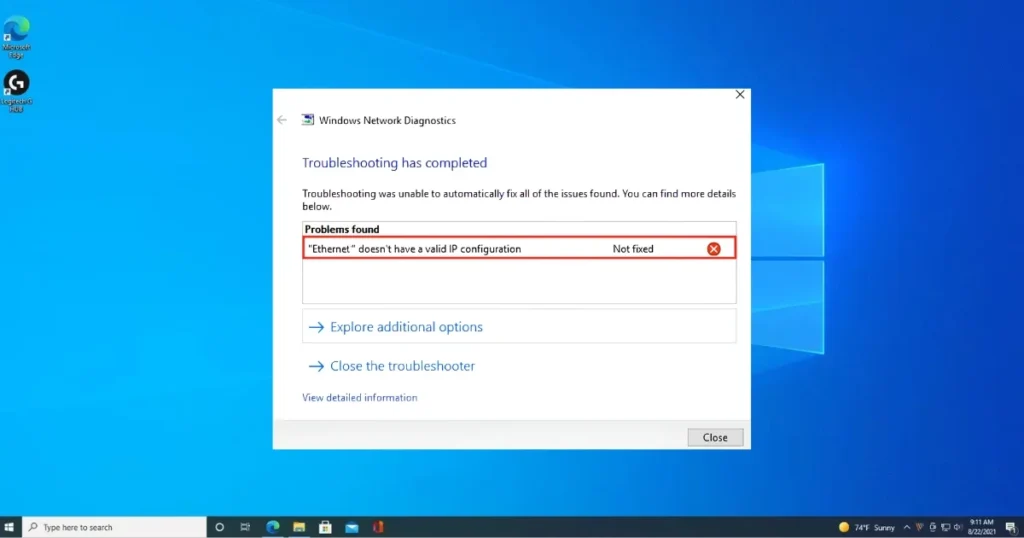
What does this error actually indicate?
When you connect a LAN cable to your PC, the PC requests an IP address from the router. This process takes place via DHCP (Dynamic Host Configuration Protocol). The router assigns a valid IP address – such as 192.168.1.x – enabling internet connectivity.
When this process fails – meaning the PC does not receive a valid IP – a yellow triangle appears over the Ethernet icon in the Windows taskbar, and the error “Ethernet does not have a valid IP configuration” is displayed.
This means:
- The router did not assign an IP address, or
- The PC has a manually set IP address that is incorrect, or
- There is an issue with the network adapter, or
- The TCP/IP stack has become corrupted.
The main causes of this error
1. Router DHCP is not working properly.
The most common reason: the router has hung, or the DHCP service has failed.
2. The static IP is manually set and incorrect.
If the IP was configured manually and does not match the network range, an error will occur.
3. The network adapter driver is corrupt or outdated.
An outdated or broken driver affects the IP assignment process.
4. The TCP/IP stack has become corrupted.
This can happen due to a Windows update, a virus, or a sudden shutdown.
5. There is a physical problem with the Ethernet cable or port.
The cable might be faulty, the port clogged with dust, or the connection loose.
6. The network adapter settings have been disrupted.
There may be a conflict involving power management or adapter-level settings.
7. Two devices have been assigned the same static IP (IP conflict).
This error occurs if two devices on the network share the same IP address.
Ways to fix “Ethernet does not have a valid IP configuration”
Fix 1 – Restart the router and modem.
This is the first and most important step.
What to do:
- Turn off the router’s power switch.
- If there is a separate modem, turn that off as well.
- Wait for 60 seconds – just 10–15 seconds is not enough.
- Turn on the modem first, then turn on the router after 30 seconds.
- Restart the PC.
- Reconnect the Ethernet cable.
Why does it work?
The router’s DHCP service gets stuck. A full restart makes a fresh IP pool available, allowing the PC to obtain a new, valid IP address.
In India, when the connection returns after a power outage, the router often fails to initialize correctly. This is what causes the problem.
Fix 2 – Set up automatic IP address acquisition.
If someone manually sets a static IP address, they will need to switch to DHCP.
Steps:
- Press Win + R > Type ncpa.cpl > Enter
- right click on Ethernet adapter > Properties
- Select Internet Protocol Version 4 (TCP/IPv4) > Properties
- Select both these options:
- “Obtain an IP address automatically”
- “Obtain DNS server address automatically”
- Press OK
Then do the same for IPv6:
- Select Internet Protocol Version 6 (TCP/IPv6) > Properties
- Select both “Obtain automatically” options
- Click OK
Restart your PC.
This fix works best when a static IP configuration causes the error.
Fix 3 – Release and Renew IP
If IP settings are automatic but an IP address is not being obtained, refresh it manually.
Open an Administrator Command Prompt and run these commands:
ipconfig /releaseThen:
ipconfig /renewThen:
ipconfig /flushdnsAfter this, check the following:
ipconfig /allIf “IPv4 Address” shows 192.168.x.x, the IP has been obtained. If it shows 169.254.x.x, the IP has not been obtained yet – try the other fixes.
What 169.254.x.x means: This is an APIPA address that Windows assigns itself when it fails to get an IP from DHCP. It will not provide internet access.
Fix 4 – Reset the TCP/IP Stack and Winsock
A corrupt TCP/IP stack is a major cause of the “Ethernet does not have a valid IP configuration” error.
Run these commands one by one in an Administrator Command Prompt:
netsh winsock resetnetsh int ip resetnetsh int ipv4 resetnetsh int ipv6 resetRestart your PC after running all the commands – this is essential.
What does this do?
It completely resets the Windows network communication stack. Corrupt settings and broken configurations are cleared out.
Fix 5 – Update or Reinstall the Ethernet Adapter Driver
An outdated or corrupt driver can also affect IP assignment.
Update the driver:
- Win + X > Device Manager
- Expand “Network adapters”
- Right-click your Ethernet adapter (e.g., Realtek, Intel Ethernet)
- Update driver > Search automatically
Reinstall the driver:
- Right-click on the same place > Uninstall device
- Tick “Delete the driver software for this device”
- Uninstall
- Restart PC – Windows will automatically reinstall the driver
Download the latest driver manually:
- Visit the laptop brand’s official website (Dell, HP, Lenovo, Asus).
- Download the Ethernet/LAN driver for your model.
- Install it.
Fix 6 – Disable and then enable the Network Adapter.
This is a quick fix that sometimes works immediately.
Steps:
- Win + R > ncpa.cpl > Enter
- Right-click on the Ethernet adapter
- disabled
- wait 10 seconds
- Then right click > Enable
This causes the adapter to reconnect in a fresh state and request a new IP from DHCP.
Fix 7 – Fix Power Management Settings
Windows sometimes puts the Ethernet adapter to sleep to save power – and when it comes back, the IP configuration is messed up.
Steps:
- Open Device Manager
- Right-click on Ethernet adapter > Properties
- Power Management tab
- “Allow the computer to turn off this device to save power” – uncheck
- Press OK
This fix is particularly useful for laptops that run on battery power.
Fix 8 – Run the Network Troubleshooter
Windows’ built-in troubleshooter automatically detects problems.
Windows 11:
- Settings > System > Troubleshoot > Other troubleshooters
- Click ‘Run’ next to Internet Connections.
- Then, click ‘Run’ next to Network Adapter as well.
Windows 10:
- Settings > Update & Security > Troubleshoot
- Additional troubleshooters > Internet Connections > Run
Apply the fix suggested by the troubleshooter and restart your PC.
Fix 9 – Check the physical cable and port.
The “Ethernet does not have a valid IP configuration” error sometimes occurs at the hardware level.
Check the following:
- Use a different LAN cable – the RJ45 connector on the old cable might be broken.
- Try a different port on the router – one port might be faulty.
- Try a different Ethernet port on the PC, if available.
- Check the cable connectors – you should hear a ‘click’ sound on both ends (indicating a secure connection).
- Check the router’s port LED – the link LED should be lit.
In India, RJ45 ports and cables degrade quickly due to dust and moisture.
Fix 10 – Restart the DHCP Client Service.
The DHCP Client is the Windows service that obtains an IP address from the router. If this service has stopped:
Steps:
- Win + R > services.msc > Enter
- Find “DHCP Client” in the list
- Right-click > Restart
- Check the status – it should be “Running”
- If it is not running, right-click > Properties > set Startup type to “Automatic”
- Click “Start”
Similarly, check and restart the DNS Client service as well.
Fix 11 – Check the router’s DHCP settings.
If the router’s DHCP settings are incorrect, no PC will be able to obtain an IP address from it.
Access the router settings:
- Type 192.168.1.1 or 192.168.0.1 into your browser.
- Enter the router’s admin username and password (default: admin/admin, or check the label).
- Locate the DHCP settings (under LAN settings or Network settings).
- Ensure that DHCP is enabled.
- Check the IP range (e.g., 192.168.1.100 to 192.168.1.200).
- If it is disabled, enable it and save the changes.
Restart the router.
Fix 12 – Manually Set a Static IP (Last Resort)
If you are unable to obtain an IP address via DHCP, manually set a static IP.
First, check the router’s gateway IP:
Connect to the same router using another device (such as a mobile phone) and check the gateway address.
Set the static IP on the PC:
- ncpa.cpl > Ethernet > Properties > IPv4 > Properties
- Select “Use the following IP address”
- For example:
- IP Address: 192.168.1.50
- Subnet Mask: 255.255.255.0
- Default Gateway: 192.168.1.1 (Your router’s IP)
- DNS:
- Preferred: 8.8.8.8
- Alternate: 8.8.4.4
- Click OK
Ensure that the static IP is within the network range and does not conflict with any other device.
Useful Free Tools
| Tool | Work | Price |
|---|---|---|
| Windows Network Troubleshooter | Automatic diagnosis and fix | $0 |
| WinMTR | Network path trace – Where is the problem? | $0 |
| Angry IP Scanner | Checking for IP conflicts on the network | $0 |
| SFC / DISM | System files repair | $0 |
| TCP Optimizer | Optimizing network settings | $0 |
Visit fixtech.in for more detailed LAN and network troubleshooting guides.
Keep these points in mind for the future.
- Restart the router once a month.
- Protect LAN cables from dust and moisture.
- Set Windows IP settings to “Obtain automatically” unless a static IP is required.
- Keep the network adapter driver updated.
- Disable sleep mode for the adapter in power management settings.
FAQs – Ethernet does not have a valid IP configuration
1. Why is a 169.254.x.x IP address appearing?
This is an APIPA address assigned by Windows when it fails to obtain an IP from DHCP. It indicates a failure in communication with the router.
2. Can I use both Wi-Fi and Ethernet simultaneously?
Yes, but Windows usually prioritizes one. An Ethernet connection is generally more reliable than Wi-Fi.
3. Could this error be caused by the cable?
Absolutely. A faulty cable is a common cause of this error; always try using a different cable.
4. What problems can arise from setting a static IP?
If the IP range is incorrect or conflicts with another device, the internet won’t work. That is why using automatic DHCP is safer.
5. Does this error occur on both laptops and desktops?
Yes. This error can appear on any Windows PC equipped with an Ethernet port.
6. The error persists even after restarting the router; what should I do?
Try Fix 3 (IP release/renew), Fix 4 (TCP/IP reset), and Fix 5 (driver reinstall). Then, check Fix 11 (router DHCP settings).
7. Could this problem be on the ISP’s end?
Yes, sometimes issues like MAC address binding or DHCP problems originate from the ISP. Contact your ISP’s customer care.
Final Thoughts
The “Ethernet does not have a valid IP configuration” error might seem like a major issue, but in most cases, it can be resolved by restarting the router, using automatic IP settings, or resetting TCP/IP. Try the simpler fixes from the 12 listed above first – such as restarting the router, configuring automatic IP settings, and running ipconfig commands – as there is a high probability that these will solve the problem.