
Sometimes, certain errors occur without an obvious cause and vanish without a clear explanation. “Package Appears to Be Invalid” is one such error. You download an APK, try to install it – and suddenly, this message pops up. There are no details, no suggested next steps – just a statement that the package is invalid. Many Android users in India encounter this issue, particularly when trying to install apps from outside the Google Play Store – such as gaming APKs, regional apps, or utility tools not available on the official store.
This guide is for anyone who wants to understand and fix this error, even without a technical background.
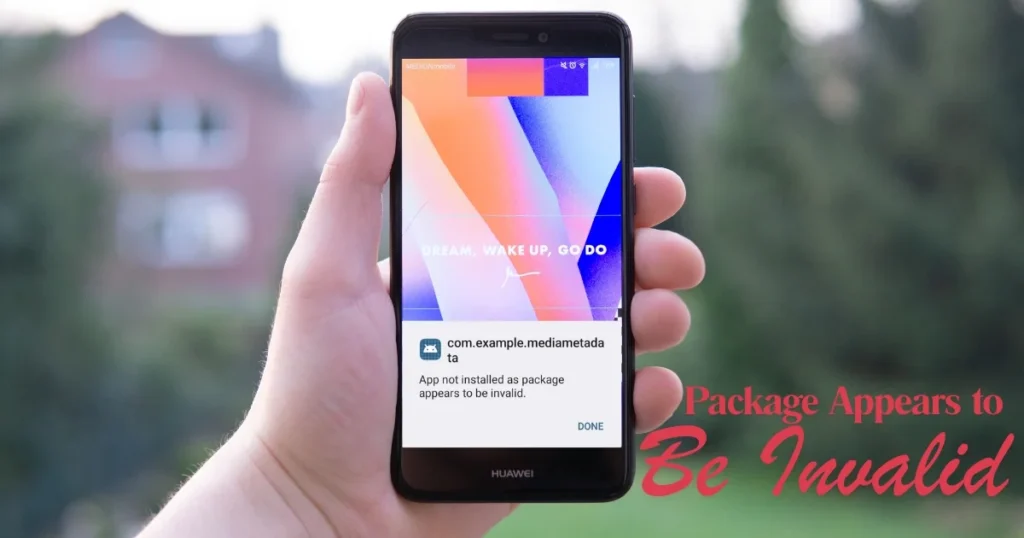
“Package Appears to Be Invalid” – What does this error actually mean?
When Android attempts to install an APK, it first verifies the package. Several things are checked during this verification process:
- Whether the APK file has been downloaded completely
- Whether the file’s digital signature is valid
- Whether the package is compatible with the device’s Android version
- Whether the file has become corrupted in any way
If any of these elements do not match, Android refuses to install the app and displays the message: “Package Appears to Be Invalid.”
This error differs slightly from “App Not Installed.” The “App Not Installed” error can arise from storage issues, signature mismatches, or permissions. In contrast, “Package Appears to Be Invalid” is usually linked to the APK file’s quality, completeness, or compatibility.
The main reasons behind this error
Understanding this helps in finding the right fix quickly.
1. The APK file was downloaded incompletely.
This is the most common reason. The internet was slow, the connection dropped, or the server provided an incomplete file. In such cases, the APK will not install.
2. The file got corrupted during the download.
Sometimes the download completes, but the file is internally broken. This can happen due to a browser glitch, a storage issue, or an SD card problem.
3. The APK is not compatible with your Android version.
Some apps are designed for Android 10 or higher. If your phone is running Android 8 or 9, it will not install.
4. The APK is for a specific device architecture.
Some APKs are designed only for arm64-v8a. If your phone runs on a 32-bit processor, you will encounter a “Package Appears to Be Invalid” error.
5. The file is on the SD card, and there is an issue with the SD card.
If the APK is on the SD card and a card read error occurs, the installation will fail.
6. The APK has been downloaded from an unreliable source.
Some websites provide modified or incomplete APKs that fail to install.
7. Google Play Protect is blocking it.
Play Protect sometimes flags even safe APKs from unknown sources.
Ways to fix “Package Appears to Be Invalid”
Fix 1 – Download the APK again (First step)
In many cases, downloading the APK again resolves the problem.
What to do:
- Delete the old APK file.
- Download it again over Wi-Fi – mobile data is more prone to interruptions.
- Check the file size once the download is complete – ensure it matches the original size.
- Then, install it.
Tip: Check the download manager to see if the download is 100% complete. In Chrome, the percentage is visible in the downloads section.
This step may seem minor, but it often automatically resolves the “Package Appears to Be Invalid” error.
Fix 2 – Download from a reliable source.
If you downloaded the APK from a random website, that is where the problem lies.
Trusted APK sources:
- APKMirror (apkmirror.com) – Most trusted, verified APKs
- APKPure (apkpure.com) – A good source for popular apps
- F-Droid (f-droid.org) – For open-source apps
- The app’s official website – e.g., Telegram’s official site, telegram.org
Avoid these:
- Random tech blogs offering “latest mod APKs”
- APK files obtained from WhatsApp or Telegram groups
- Links from unknown file hosting sites
If the source itself wasn’t reliable, downloading from it again won’t work either. Find a reliable source.
Fix 3 – Move the APK to Internal Storage
If the APK is on the SD card, move it to internal storage before installing it.
What to do:
- Open the File Manager.
- Locate the APK file (usually in Downloads or SD card > Downloads).
- Cut it and paste it into Internal Storage > Downloads.
- Now, install it from there.
Why does it work?
SD cards can suffer from read errors, slow access speeds, or mounting issues. Internal storage does not have this problem, ensuring a smooth installation.
Fix 4 – Check Android Version and App Compatibility
First, confirm that the app is compatible with your Android version.
Check your Android version:
- Settings > About Phone > Android Version
Check the app’s minimum requirements:
- Open the app’s page on APKMirror.
- Check the “Minimum Android version.”
- If the app requires Android 11+ and your phone is running Android 9, it will not install.
Solution:
- Find an older version of the app that is compatible with your Android device.
- APKMirror has a version history – download the compatible version from there.
Fix 5 – Check the device architecture.
This is a bit technical, but important.
Check your CPU architecture:
- Install Droid Hardware Info app (free, $0) from the Play Store
- See architecture in CPU section: arm64-v8a, armeabi-v7a, x86_64, x86
While downloading the APK:
- Go to APKMirror
- Open the app’s listing
- Choose the APK that matches your architecture
- The “universal” APK is the safest option – it works on all devices
If you have downloaded the arm64 APK but your phone is 32-bit, you are guaranteed to encounter the “Package Appears to Be Invalid” error.
Fix 6 – Grant permission for ‘Unknown Sources’ correctly.
To install a third-party APK on Android, you need to grant permission to the app you are using to perform the installation.
For Android 8 and above:
- Settings > Apps > Special App Access > Install Unknown Apps
- Grant permission to the app you are using to install (Chrome, File Manager, Telegram).
Android 7 and earlier:
- Settings > Security > Unknown Sources – On
Common mistake:
Many users grant permission to Chrome but not to the File Manager. If you are installing via the File Manager, the File Manager must be granted permission.
Fix 7 – Clear the Package Installer Cache
Android’s Package Installer is the system component responsible for installing APKs. A corrupted cache for it can also trigger the “Package Appears to Be Invalid” error.
Steps:
- Open Settings > Apps
- Tap the three dots (⋮) > Show System Apps
- Search for “Package Installer”
- Tap on Storage
- Clear Cache
- Clear Data as well
After this, try installing the APK again.
Fix 8 – Temporarily disable Google Play Protect
If Play Protect is blocking the APK:
Steps:
- Open the Google Play Store
- Profile picture > Play Protect
- Settings (gear icon)
- Turn off “Scan apps with Play Protect”
- Install the APK
- Turn it back on later
Important: Play Protect is a security feature. Make sure to turn it on after installation.
Fix 9 – Free Up Phone Storage
If internal storage is very low, APK installation may fail – sometimes this causes the “Package Appears to Be Invalid” error.
Ways to quickly free up space:
- Files by Google (free, $0) – automatically detects junk files and duplicates
- Clean up WhatsApp media
- Check the Downloads folder – delete old APKs and files
- Back up photos to Google Photos and delete local copies
Keep at least 1.5–2 GB of space free for the installation.
Fix 10 – Download using a different browser
Sometimes, a glitch in the browser’s download manager causes the file to become corrupted during the download.
If you downloaded it using Chrome:
- Try using Firefox (free, $0)
- Or Opera
- Or your phone’s built-in browser
You can also use the Download Manager app (free), which supports both resuming and verification.
Fix 11 – Install via ADB (For Advanced Users)
If all other methods have failed, you can install it using ADB (Android Debug Bridge) with the help of a computer.
Requirements:
- Computer
- USB cable
- ADB tool (free – developer.android.com)
Steps:
- Enable Developer Options on the phone (tap ‘Build Number’ under ‘About Phone’ 7 times)
- Enable USB Debugging
- Connect the phone to the computer
- In Command Prompt:
adb install path/to/yourfile.apkADB installs by directly bypassing the package manager, which allows certain errors to be overcome.
Official tool: developer.android.com/tools/adb
Fix 12 – Restart your phone and try again.
It might seem obvious, but this error can also occur due to a temporary system glitch.
- Turn off the phone
- Wait 30 seconds
- Turn it on
- Install the APK
Restarting frees up RAM and brings system processes to a fresh state.
Useful Free Tools
| Tool | Work | Price |
|---|---|---|
| Files by Google | Cleaning storage and managing APKs | $0 |
| Droid Hardware Info | CPU architecture and device specs check | $0 |
| APKMirror | Downloading Verified APKs | $0 |
| ADB (Android Debug Bridge) | Install APK from the computer | $0 |
| ML Manager | Extract and manage installed APKs | $0 |
Visit fixtech.in for more Android troubleshooting guides and device-specific fixes.
What can be done to prevent this error from occurring in the future?
Keep the following points in mind:
- Always download APKs over Wi-Fi
- Verify the file size after the download is complete
- Download only from APKMirror or official sources
- Choose the APK based on your Android version and architecture
- Always store the APK in internal storage, not on the SD card
- Keep at least 2 GB of storage space free on your phone
- Stay away from random “mod APK” sites
FAQs – About Package Appears to Be Invalid
1. Are “Package Appears to Be Invalid” and “App Not Installed” the same error?
No, they are different. “App Not Installed” usually stems from issues with storage, signatures, or conflicts with an existing version. “Package Appears to Be Invalid” relates to the validity of the APK file itself – specifically, its completeness and compatibility.
2. Does this error occur on the Play Store as well?
Very rarely. The Play Store serves verified APKs; this error primarily occurs during third-party APK installations.
3. How can I verify the APK size?
Visit APKMirror or the official website and compare the file size with the one listed there. You can view the size by tapping the file in your File Manager and checking “Details” or “Properties.”
4. Is it safe to store APKs on an SD card?
You can store them there, but always install them from internal storage. SD cards can suffer from mounting issues and slow read speeds.
5. Is installing via ADB risky?
No, provided the APK comes from a reliable source. ADB is an official Google developer tool.
6. What if every fix fails?
* Try an even older version of the app
* Test it on another device
* Visit the app’s official website and contact support
* Check the device-specific guide on fixtech.in
Final Thoughts
“Package Appears to Be Invalid” – This error usually stems from issues with the APK file’s quality or compatibility, rather than a major fault with your phone. Among the fixes mentioned earlier, simply re-downloading the APK, verifying the source, moving the file to internal storage, and checking for architecture compatibility resolve the issue in 80–90% of cases. The other fixes are for more advanced scenarios. Follow the steps in order, and you will quickly resolve the “Package Appears to Be Invalid” error.