
You opened Windows Update, clicked “Check for updates,” and – just like that – an error code appeared. Seeing error 0x8024402c might make it seem like something has gone seriously wrong. However, the truth is that this error is usually linked to network or internet settings rather than a major Windows malfunction. In India, this error frequently affects users on office networks, proxies, or VPNs, or those whose ISP’s DNS is acting up.
In this tutorial, we will examine error 0x8024402c from every angle, understand its causes, and walk through a step-by-step fix.
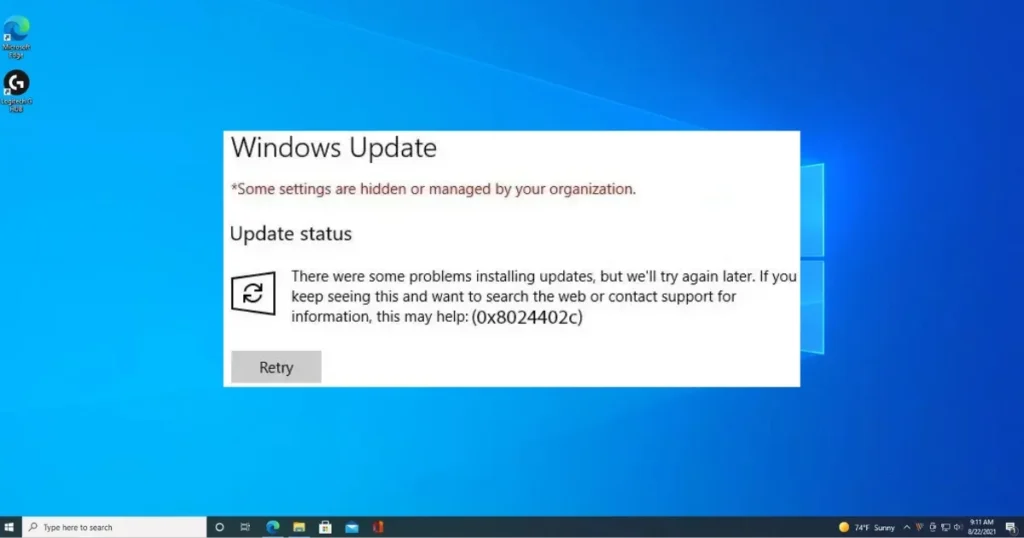
What does the error 0x8024402 mean?
This error code is specific to the Windows Update Agent. It means: “There was a problem connecting to the Windows Update server.”
In simple terms, your Windows system is unable to connect to Microsoft’s update servers.
This happens when:
- The internet connection is not working properly
- Proxy settings are incorrect or configured in a way that blocks the update
- DNS is not resolving correctly
- There is an internal issue with the Windows Update service
- Antivirus or firewall is blocking the update connection
- Windows Update components have become corrupted
- The Windows date and time are incorrect
This error 0x8024402 can appear in both Windows 10 and Windows 11.
In which situations does this error occur?
- After clicking on Settings > Windows Update > Check for updates
- While automatic updates are downloading in the background
- During the installation of Windows Security updates
- Sometimes, even during Office or Microsoft Store updates
All methods to fix error 0x8024402c
The fixes listed below are arranged from simple to advanced. Try them one by one.
Fix 1 – Check your internet connection and restart the router
This is the most basic step, but surprisingly, the problem often lies right here.
What to do:
- Open browser and open google.com
- If internet is not working, fix that first
- If internet is working, then restart the router/modem:
- Power off the router
- Wait 30 seconds
- turn back on
after this:
- Restart the PC.
- Try Windows Update again.
Fix 2 – Run the Windows Update Troubleshooter
Microsoft’s built-in troubleshooter often automatically detects and fixes the error 0x8024402c.
In Windows 11:
- Settings > System > Troubleshoot
- Other troubleshooters
- Click ‘Run’ next to Windows Update.
In Windows 10:
- Settings > Update & Security > Troubleshoot
- Additional troubleshooters
- Windows Update > Run the troubleshooter
Let the troubleshooter run – it will find the problem itself and apply a fix.
Official Microsoft link:
Windows Update Troubleshooter
If the troubleshooter applies a fix, restart the PC and try the update again.
Fix 3 – Remove or Reset Proxy Settings
This is the primary cause of the error 0x8024402c, especially for users on office or college networks.
If a proxy is set manually or by software, Windows Update attempts to connect through it and fails.
How to reset the proxy:
Open the Command Prompt as an administrator and run this command:
netsh winhttp reset proxyThen:
netsh winhttp show proxyIf “Direct access (no proxy server)” appears in the output, the proxy has been removed.
Check via Windows Settings as well:
- Settings > Network & Internet > Proxy
- If “Use a proxy server” is On, turn it Off.
- Keep “Automatically detect settings” On.
Restart your PC and try the update.
Fix 4 – Change DNS – Install Google or Cloudflare DNS
This error occurs if the ISP’s DNS is not resolving Microsoft update servers correctly.
Steps to change DNS:
- Win + R > ncpa.cpl > Enter
- Right-click on WiFi or Ethernet adapter > Properties
- Internet Protocol Version 4 (TCP/IPv4) > Properties
- Select “Use the following DNS server addresses”
Google DNS (recommended):
- Preferred: 8.8.8.8
- Alternate: 8.8.4.4
Or Cloudflare DNS:
- Preferred: 1.1.1.1
- Alternate: 1.0.0.1
Press OK and restart your PC.
This is a free fix ($0) and is often very effective.
Fix 5 – Restart Windows Update Services
Certain specific services must run in the background for Windows Update. If these are stopped or stuck, the error 0x8024402c occurs.
Run these commands in an Admin Command Prompt:
First, stop the services:
net stop wuauserv
net stop cryptSvc
net stop bits
net stop msiserver
Then start again:
net start wuauserv
net start cryptSvc
net start bits
net start msiserver
Restart the PC and check for Windows Updates.
Fix 6 – Reset the SoftwareDistribution folder
Windows Update files are temporarily stored in the SoftwareDistribution folder. If this folder becomes corrupt, the update fails.
Steps:
First, stop the services in an Administrator Command Prompt:
net stop wuauserv
net stop cryptSvc
net stop bits
net stop msiserver
Then rename the folder:
ren C:\Windows\SoftwareDistribution SoftwareDistribution.old
ren C:\Windows\System32\catroot2 catroot2.old
Restart the services:
net start wuauserv
net start cryptSvc
net start bits
net start msiserver
Restart your PC. Windows will create a fresh SoftwareDistribution folder the next time it starts.
Why does this work?
Corrupt or incomplete update files are removed, allowing Windows Update to start fresh.
Fix 7 – Reset Winsock and TCP/IP
An error in the network stack can also cause error 0x8024402c.
In the Admin Command Prompt:
netsh winsock reset
netsh int ip reset
ipconfig /release
ipconfig /renew
ipconfig /flushdns
Press Enter after each command.
Restart the PC after running all the commands.
Fix 8 – Correct the Date and Time
It may seem simple, but if the PC’s date and time are incorrect, a secure connection to Microsoft servers cannot be established, causing the update to fail.
Steps:
- Right-click on the taskbar clock
- Click on “Adjust date/time”
- Turn on “Set time automatically”
- Click “Sync now”
Check the time zone as well:
- For India – select Indian Standard Time (UTC+5:30).
Fix 9 – Temporarily disable antivirus and firewall
Sometimes, third-party security software blocks the Windows Update connection.
What to do:
- Temporarily pause third-party antivirus software (Quick Heal, Kaspersky, Avast, Norton).
- Try running Windows Update.
- If the update completes successfully, turn the antivirus back on.
For Windows Firewall:
- Control Panel > Windows Defender Firewall
- “Turn Windows Defender Firewall on or off”
- Turn it off temporarily
- Check for updates
- Turn it back on
Remember: Do not keep security software turned off for an extended period – only for testing purposes.
Fix 10 – Repair System Files using SFC and DISM
Corrupt Windows files can also cause update failures.
In the Admin Command Prompt:
sfc /scannowUpon completion:
DISM /Online /Cleanup-Image /RestoreHealthRestart your PC after running both commands.
An internet connection is required for the DISM command. If your broadband connection is slow, use a mobile hotspot.
Official Microsoft guide:
System File Checker
Fix 11 – Reset Windows Update Registry Settings
This is an advanced fix. Proceed with it only if all other methods fail.
First, back up the Registry:
- Win + R > regedit > Enter
- File > Export > Save to a safe location
Go to this Registry path:
HKEY_LOCAL_MACHINE\SOFTWARE\Policies\Microsoft\Windows\WindowsUpdateIf there are any WUServer or WUStatusServer entries here pointing to a custom server, delete them.
Why?
In some office environments or IT-managed systems, Windows Update is configured to point to an internal WSUS server. If that server is unavailable, the error 0x8024402c occurs.
Fix 12 – Check by turning off the VPN
If you are using a VPN:
- Disconnect the VPN.
- Try Windows Update.
A VPN sometimes causes issues when accessing Microsoft servers, especially if the VPN server is located in a restricted region.
Fix 13 – Manually install the Windows Update from the Microsoft Catalog
If the update check isn’t working, but you need to install a specific update:
- Visit Microsoft Update Catalog: catalog.update.microsoft.com
- Search for the KB number (the one that was failing in Windows Update).
- Download it directly and install it manually.
This is a workaround that comes in handy when automatic updates fail, but installing the updates is necessary.
Useful Free Tools
| Tool | Work | Price |
|---|---|---|
| Windows Update Troubleshooter | Automatic error detection and fix | $0 |
| SFC (System File Checker) | Corrupt files repair | $0 |
| DISM | Windows image restore | $0 |
| Windows Update MiniTool | Manually managing updates | $0 |
| DNS Jumper | Quickly change DNS | $0 |
Visit fixtech.in for more detailed guides on Windows Update and network troubleshooting.
In the future, these measures will reduce update errors.
- Always set your DNS to Google or Cloudflare.
- Keep checking your proxy settings – especially after switching office networks.
- Keep date and time settings on automatic.
- Keep the C: drive free – maintain at least 10–15 GB of free space.
- Keep your antivirus updated – an outdated antivirus can cause conflicts.
FAQs – Windows Update error 0x8024402c
1. What is the difference between 0x8024402c and 0x80244022?
Both are Windows Update connection errors, but 0x8024402c stems from proxy or network configuration issues, whereas 0x80244022 could be a server-side issue or a temporary problem with Microsoft servers.
2. Does this error corrupt Windows?
No. It only causes the update connection to fail; your Windows system, files, and data remain safe.
3. What if this error occurs on an office network?
Check with your IT administrator regarding WSUS or proxy settings. Alternatively, try updating the PC using a home internet connection.
4. Is it safe to delete the SoftwareDistribution folder?
Do not delete it directly – rename it (e.g., to .old). Windows will automatically create a new folder. You can manually delete the renamed folder after a few days.
5. Can I perform Windows Updates using a mobile hotspot?
Yes, but keep data consumption in mind. Major updates can range from 500MB to 2GB. There is no issue if you have an unlimited data plan.
6. The office internet stopped working after resetting the proxy.
Resetting the proxy can cause a loss of internet access in some office environments. Obtain the correct proxy settings from your IT administrator and reconfigure them. Apply bypass settings specifically for Windows Update.
7. Does this error occur in Windows 7 as well?
Yes, it does, but support for Windows 7 has ended (as of January 2020). Upgrading to Windows 10 or 11 is recommended.
Final Thoughts
The error 0x8024402c might sound intimidating, but in most cases, it stems from minor issues with proxy settings, DNS, or Windows Update services. Resetting the proxy (Fix 3), changing the DNS (Fix 4), and resetting the SoftwareDistribution folder (Fix 6) – these three fixes alone resolve the error 0x8024402c in over 80% of cases. The remaining fixes are intended for situations where the underlying problem is more complex. Follow the steps above in the given order, and Windows Update should return to normal quickly.