
Imagine downloading and installing a crucial piece of software, only to find – upon trying to open it – that the screen displays the message: “This app can’t run on your PC.” There are no further details or clear explanations; it simply states, “To find a version for your PC, check with the software publisher.” In India, this error particularly frustrates users who download free software or older programs online, as well as those whose laptops came with Windows 11 S Mode enabled – often without them even realizing it. If your software fails to launch and this error keeps appearing, this guide is for you; it covers every solution step-by-step.
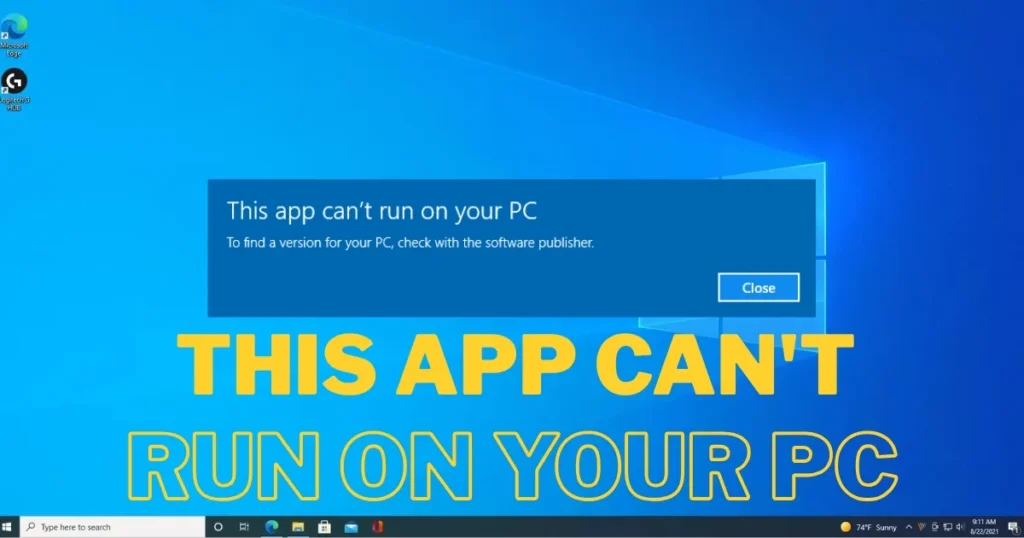
Why does the “This App Can’t Run on Your PC” error occur?
Before we fix it, it is important to understand why this “This app can’t run on your PC” message appears in the first place. It is frustrating when Windows displays this message, especially when the reason isn’t clear. The good news is that, in most cases, it is a compatibility or permission issue.
The most common reasons are listed below:
- Architecture Mismatch (32-bit vs. 64-bit vs. ARM): The app is incompatible with your PC – such as running an ARM app on x64 architecture or a 64-bit app on 32-bit Windows. For instance, a 64-bit application will not run on 32-bit Windows. Since many people in India still use older 32-bit laptops, this is a very common cause.
- Windows S Mode Restrictions: S Mode (on Windows 10/11) allows only Microsoft Store apps to run, effectively blocking traditional .exe files. Many budget PCs come with S Mode enabled by default.
- Blocked by SmartScreen or Windows Defender: Windows may prevent unsigned, unrecognized, or untrusted apps from running.
- Corrupted or Incomplete File: A damaged download can prevent Windows from executing the app. This is particularly common in India due to slow internet speeds or interrupted downloads.
- Insufficient User Permissions: The app may require administrator rights or specific system access.
- Corrupted System Files: Corrupted system files are another potential cause of this error.
- Issues After Windows Update: This error often occurs following a system reset or update due to incompatible app versions or corrupted system files.
- Browser Extension Issues: This error frequently appears when clicking a link on the Widgets Board from Microsoft Edge. Extensions like McAfee are often the cause; removing them usually resolves the problem.
“This app can’t run on your PC” – Check this first
Before trying any fixes, be sure to check these two basic things.
Check 1: Determine your system’s architecture (32-bit, 64-bit, or ARM)
Not all apps are compatible with every system type. Always ensure the app’s architecture matches your system.
How to check:
Press the Windows Key + I to open Settings. Go to System > About. Look for “System type” under Device specifications.
If your system is 32-bit and you download a 64-bit program, it will not run. Visit the software’s website and download the correct version (x86 = 32-bit, x64 = 64-bit).
This error can also occur due to incompatible hardware, often involving the CPU. Some CPUs are based on x86-64 architecture, while others use ARM. Programs designed for x86-64 are not directly compatible with ARM, and vice versa.
Check 2: Is Windows S Mode enabled?
Windows 11 S Mode is designed only for apps installed from the Microsoft Store. If you want to install an app that is not available on the Microsoft Store, you will need to switch out of S Mode.
How to turn off S Mode:
Go to Settings > System > Activation. Select “Go to Store” under the “Switch to Windows 11 Pro” section. Click the “Get” button on the Microsoft Store page, and after seeing the confirmation notification, you can install programs from outside the Store.
Important note: Switching out of S Mode is a one-way process. There is no charge for this, but once you switch, you cannot return to S Mode.
“This app can’t run on your PC” – Ways to fix it (step-by-step)
Method 1: Run the app as an administrator
If an app lacks the necessary permissions to operate on the computer, it may fail to launch and display the “This App Can’t Run on Your PC” error. In such cases, running the app as an administrator can help.
Steps:
- Right-click on the app’s .exe file.
- Select ‘Run as administrator’.
To always run in Admin Mode:
Right-click on the app file and select Properties. Go to the Compatibility tab. In the Settings section, enable the “Run this program as an administrator” box. Click Apply and then OK.
Method 2: Run in Compatibility Mode
This error can occur when you try to run older games and software on your computer. To fix this, go to the app’s properties and enable Compatibility Mode.
Steps:
Right-click on the app’s executable file and select Properties. Open the Compatibility tab, check the box for “Run this program in compatibility mode for,” and select an older version of Windows from the drop-down menu. Click Apply and then OK to save the new settings and run the app.
Alternatively, you can use Windows’ built-in App Compatibility Troubleshooter. Right-click on the app’s desktop shortcut and select Properties. In the Compatibility tab, select “Run Compatibility Troubleshooter.” Allow the tool to perform the necessary checks and follow the recommendations.
Method 3: Turn off SmartScreen / Smart App Control (temporarily)
Open Windows Security. Go to Reputation-based protection settings. Locate “Check apps and files” and change the setting from “Block” to “Warn” (if available) or turn it off temporarily.
If this works, it means SmartScreen was blocking the process. Disable this feature only temporarily and re-enable it after the app is installed.
Method 4: Re-download and Reinstall the App
If this error occurs only when launching a specific program, try reinstalling it. This can resolve issues caused by an improper installation. Uninstall the problematic app and reinstall it.
Some important points:
- Always download software from the official website.
- Maintain a stable internet connection during the download.
- Download the correct architecture version (32-bit/64-bit).
Method 5: Run SFC and DISM Scans
System File Checker (SFC) is a built-in utility that analyzes all system files on your computer for corruption and damage. If the SFC scan detects any corrupted system files, the tool repairs them or replaces them with cached copies. It verifies the integrity of all protected system files and can help fix the “This App Can’t Run on Your PC” error.
Steps:
Open Command Prompt as an administrator and run these commands:
sfc /scannow
After the SFC process is complete, run the DISM commands:
Run DISM /Online /Cleanup-Image /CheckHealth, DISM /Online /Cleanup-Image /ScanHealth, and DISM /Online /Cleanup-Image /RestoreHealth.
Once the DISM scan is complete, restart your PC and try opening the apps again.
Method 6: Temporarily disable your antivirus
Sometimes, your antivirus can be overly cautious and prevent an app from running. The solution is quite simple: add the problematic app to your antivirus’s exception list. Alternatively, you can try temporarily disabling your antivirus software.
Many people in India use third-party antivirus programs like McAfee, Norton, or Kaspersky, which can sometimes block safe apps due to false positives. Extensions such as McAfee Anti-Tracker, Web Boost, and Web Advisor can also cause this issue; disabling them might resolve the problem.
Method 7: Run a Virus Scan
A virus or malware can cause your PC to display the “This App Can’t Run on Your PC” error, even if the app itself is perfectly fine. In such cases, use Windows’ built-in virus scanner.
Open the Start menu, search for and select “Windows Security.” Click on “Virus & threat protection.” Select “Scan options.” Choose the “Full scan” option and click on “Scan now.”
Method 8: Enable Developer Mode (for UWP apps)
Developer Mode in Windows 11 allows you to run unsigned Universal Windows Platform (UWP) apps. This enables you to install UWP apps from outside the Microsoft Store. If you are experiencing issues with such an app, turn on Developer Mode.
Steps:
Launch Settings by pressing Windows + I. Select System from the left sidebar. Choose For Developers in the right pane, and toggle Developer Mode to On.
Method 9: Run Disk Cleanup
Your computer constantly accumulates junk files, especially if you browse the internet frequently. If these files take up too much space on your hard drive, errors may occur when running applications. Disk Cleanup is the easiest way to remove these unnecessary files.
Steps:
Search for “Disk Cleanup” in the Start Menu search bar and select “Run as Administrator.” Select the files you want to clean. Disk Cleanup will indicate how much space will be freed up. Click OK.
Method 10: Create a New User Account
A new user profile can bypass issues caused by corrupted settings or incorrect permissions that might be preventing apps from running correctly.
Steps:
Press Windows + I to open Settings. Go to Accounts > Family & Other Users > Add Account (or “Add someone else to this PC”). Click on “I don’t have this person’s sign-in information.” Then, select “Add a user without a Microsoft account.” Enter a username and password, then click Next.
Log in to the new account and try running the same app.
Method 11: Perform a Clean Boot
When you run Windows in a Clean Boot state, it loads only the essential services and programs. This helps determine whether a third-party program or service is interfering with the launch of apps in Windows.
Steps:
Type msconfig in the search box, go to the Services tab, check the Hide all Microsoft services box, and then click Disable all. Restart your PC and check if the problem persists.
Method 12: Update Windows
An outdated system can cause compatibility issues, so keep your OS up to date.
Press Windows + I to open Settings. Click on Windows Update > Check for updates.
Method 13: In-Place Repair Install (Last Resort)
If none of the above methods work, perform an In-Place Repair Install to fix the issue. A Windows 11 repair installation can be carried out using installation media. This process fixes the operating system while preserving your files and applications.
To do this, download the Media Creation Tool (free) from Microsoft’s official website, create bootable USB media, and run the repair installation.
How to identify which app is causing an error?
Often, an error pops up unexpectedly, making it difficult to determine which app is responsible.
If the error appears randomly and you cannot identify the culprit, press Win + X and open Event Viewer. Look for an error entry marked with a red “Error” icon that matches the issue’s timestamp. Click on the event and check the .exe file name in the details.
If the error appears upon PC startup – without you manually launching any applications – review your startup app list to ensure no unwanted apps are loading at startup.
Some free tools that might come in handy
- Autoruns (Microsoft Sysinternals) – A free tool from Microsoft that displays all startup programs and services in one place. It helps identify startup entries that trigger the “This App Can’t Run” error. ($0)
- Process Monitor (Microsoft Sysinternals) – Shows in real-time which process is accessing a specific file. Very useful for troubleshooting. ($0)
- Windows Event Viewer – Built into Windows. Use it to track application crashes and errors. ($0)
- Disk Cleanup (Built-in) – For removing junk files. ($0)
Visit fixtech.in for more Windows troubleshooting guides.
Some additional important points
- Always download software from official sources – Downloading .exe files from random websites is the biggest cause of malware infections in India.
- If older software won’t work on Windows 11 at all, you’ll need to find a different version of the app or an alternative that meets your needs.
- Try one fix at a time and test after each change.
- If the error keeps popping up and no app is identified, check Event Viewer first.
FAQs – About “This App Can’t Run on Your PC” error in Windows
Q1: What does the “This app can’t run on your PC” error mean?
It means the software you’re trying to run isn’t compatible with your Windows version, system architecture, or security settings. This error is usually not caused by Defender, but rather a compatibility issue.
Q2: What’s the difference between 32-bit and 64-bit Windows?
32-bit Windows can only run 32-bit (x86) programs, while 64-bit Windows can run both 32-bit and 64-bit programs. First, verify that the app matches your Windows 11 architecture (32-bit vs 64-bit).
Q3: What is Windows S Mode and how do I know if it’s on my PC?
Windows 11 S Mode is a version of Windows 11 that’s streamlined for security and performance. For better security, it allows users to install apps only from the Microsoft Store and use Microsoft Edge for safe browsing. You can check if S Mode is on by going to Settings > System > Activation.
Q4: Is it safe to turn off SmartScreen?
Only temporarily disable this feature and enable it back after installing the app. It’s not safe to leave it off forever.
Q5: The SFC scan found no errors, but the app still won’t run?
In this case, run a DISM scan, check the antivirus exception list, test in Clean Boot State, and if nothing works, install an in-place repair. Sometimes the app itself may be incompatible – in this case, contact the developer or find alternative software.
Q6: Can this error also be caused by malware?
Yes, a virus or malware can cause your PC to display this error, even if the app is perfectly fine. Be sure to run a full system scan.
Conclusion
The “This app can’t run on your PC” error might sound alarming, but in most cases, it stems from fixable issues like architecture mismatches, S Mode restrictions, or permission problems. Downloading the correct version, running the app as an administrator, using the Compatibility Troubleshooter, or performing SFC/DISM scans – one of these methods is bound to work. Just remember not to panic if your software won’t launch; simply follow the steps outlined above one by one. And if the “This app can’t run on your PC” message continues to trouble you, be sure to save this guide.