
Imagine you want to download an app – perhaps a game, an office tool, or editing software – and you click on the Microsoft Store, but it simply won’t open in Windows 11. There is no error message – just a brief flicker of activity on the taskbar, and then nothing happens. Sometimes, a progress bar might appear and complete, yet the Store still fails to launch. In India, where people rely heavily on the Microsoft Store for apps and games, this issue can be a real headache.
The good news is that, in most cases, this is a software-related problem that can be fixed with a few simple steps. So, let’s get straight to the point without any beating around the bush.
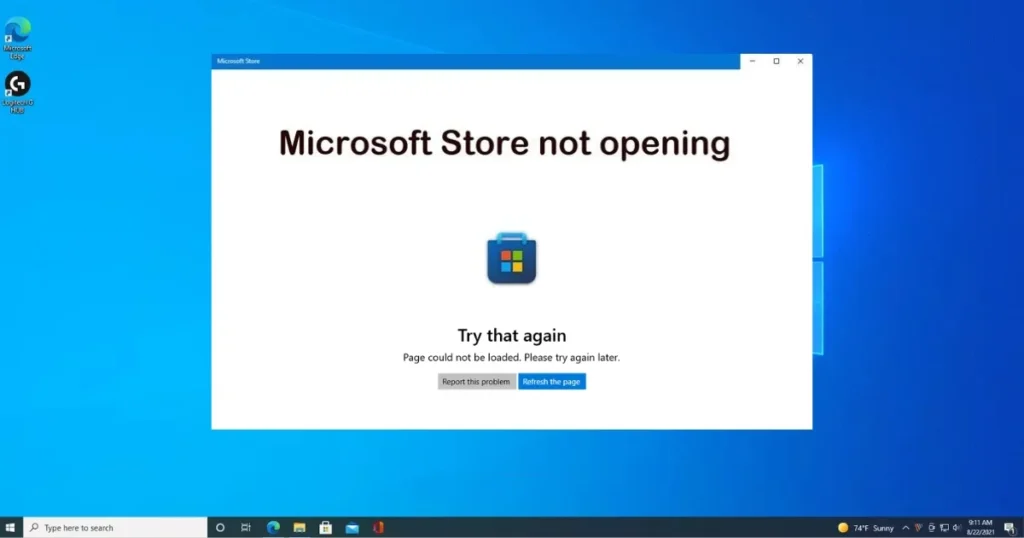
Why Won’t the Microsoft Store Open? Understand the Reasons First
Before moving on to the fixes, it is important to understand what might be causing the Microsoft Store not to open in Windows 11. Issues such as incorrect date and time settings, internet connectivity problems, app corruption, or accumulated cache can all lead to this problem.
Here are some of the most common reasons:
1. Cache Corruption
The Microsoft Store maintains its own cache data. Over time, this cache can become corrupted, causing issues when trying to open the Store. Often, clicking the Store icon results in a momentary flicker before it closes – this is usually due to a cache-related problem.
2. Internet Connection Issues
A weak or unstable internet connection can prevent the Store from opening. This is a common issue in India, where Wi-Fi connections can sometimes be unstable. The Store requires an active internet connection to load its content.
3. Corrupt System Files
Corrupt system files can block access to the Store. This often happens after a failed Windows update or a sudden shutdown.
4. Older Windows Version
Running an older version of Windows 11 can lead to compatibility issues. Microsoft periodically fixes bugs in the Store, and if you do not update, existing problems will persist.
5. Interference from VPN or Antivirus
If you have installed a third-party VPN or antivirus, try uninstalling it temporarily to see if the issue persists. Often, this software blocks the Store’s network connection.
6. Incorrect Date, Time, or Region Settings
Incorrect region or time settings can prevent the Store from functioning correctly. It may seem like a minor issue, but the Microsoft Store verifies the correct time zone to establish a connection with its servers.
7. The Microsoft Store Install Service is disabled
If the status of the Microsoft Store Install Service is “Disabled,” change it to “Automatic,” click “Start,” and press “OK.” If this service is disabled, the Store may stop working completely.
Microsoft Store Not Opening in Windows 11 – 10 Easy Solutions
Now, let’s get down to business. The fixes are arranged in order, starting from the easiest and moving to the more advanced ones. Try them out one by one.
Solution 1: Restart your PC and perform basic checks
Yes, it is the oldest trick in the book, but still the most effective. Start by closing other apps running on your system – especially third-party security apps – to ensure they don’t interfere with the Microsoft Store app. If that doesn’t resolve the issue, restart your Windows PC to clear up any temporary operating system glitches.
One more thing:
If the problem persists, try launching the app using a different method. For instance, if you usually open it via a pinned shortcut on the taskbar, try opening the app by typing “Microsoft Store” into Windows Search instead.
Method 2: Clear the Microsoft Store cache using WSReset
This is the fastest and most popular fix. Microsoft itself created the WSReset tool to clear the Store’s cache.
How to do it:
- Press Windows Key + R (the Run dialog will open).
- Type
wsreset.exeand click OK. A blank Command Prompt window will open; it will close after about 10 seconds, and the Microsoft Store should open automatically.
If the store opens, congratulations – your problem was related to the cache! If it doesn’t open, try the next step.
Method 3: Repair and Reset the Microsoft Store app
Windows 11 has a built-in option that allows you to repair or reset any app.
Step-by-step:
- Go to Settings > Apps > Installed Apps, open the app’s settings, and use the “Repair” or “Reset” option.
In detail:
- Open Settings (press Win + I)
- Go to Apps > Installed Apps
- Find Microsoft Store (or look under System Components)
- Click the three dots > Advanced Options
- Click Repair first – this won’t delete your data
- If Repair doesn’t work, click Reset – this will delete all local Store settings and refresh the app
Note: Resetting will remove your login details from the store; you will need to sign in again.
Method 4: Check date, time, and region settings
It may seem like a minor detail, but an incorrect time zone or date can prevent the Microsoft Store from connecting.
How to fix it:
- Open Settings and go to Time & Language. Ensure that the Date & Time and Region are correct, or enable automatic time and time zone settings.
For India:
- Time Zone: (UTC +5:30) Chennai, Kolkata, Mumbai, New Delhi
- Region: India
- Turn on both “Set time automatically” and “Set time zone automatically”.
Method 5: Run the Windows Store Apps Troubleshooter
Windows 11 has a built-in troubleshooter specifically designed to fix issues with Microsoft Store apps.
How to run it:
- Open Settings by pressing Windows + I. Go to System > Troubleshoot > Other Troubleshooters. Find Windows Store Apps and click Run. Follow the on-screen instructions.
The troubleshooter will automatically detect the problem and apply a fix if one is available. Simply let it complete the process and then restart your PC.
Method 6: Run Windows Update
Microsoft recommends installing the latest Windows updates to fix issues with Microsoft Store apps.
How to do it:
- Go to Windows Update (Windows 11), click on “Check for updates,” and install all available updates. Restart your PC and then try opening the Microsoft Store.
Many people in India keep updates turned off or postponed – if you have done the same, check now. Often, a single cumulative update is all it takes to fix Store-related issues.
Method 7: Check the Microsoft Store Install Service
This is a service that runs in the background and is essential for the Store to function.
How to check:
- Press the Windows Key + S and type
services.msc. - Locate and double-click the “Microsoft Store Install Service.” If the status is “Running,” right-click it and select “Restart.” If it is “Disabled,” change the setting to “Automatic,” click “Start,” and then click “OK.”
Also, check out these services:
- Windows Update – This should be set to Automatic and be running.
- Background Intelligent Transfer Service (BITS) – This should also be running.
- Windows Push Notifications System Service – Required for Store notifications.
Method 8: Run SFC and DISM commands (System File Repair)
If the methods above didn’t work, your Windows system files might be corrupted. These Windows command-line tools repair Windows 11 system files and fix component corruption. Always run DISM first, then SFC.
DISM command (run first):
- Open Command Prompt as Administrator
- Type this command and press Enter:
DISM /Online /Cleanup-Image /RestoreHealth- This may take 10–30 minutes. It may stop at 20%, 40%, or 62% – this is normal.
SFC command (run after DISM):
SFC /scannow- Once DISM is complete, run this command in the same Administrator Command Prompt. It takes 5–15 minutes. It will verify system files and automatically fix any issues it can.
After running both commands, restart your PC and open the Store to check.
Method 9: Reinstall Microsoft Store using PowerShell
If the Store isn’t working properly or won’t open at all, completely removing and reinstalling it is a good option. Since this process involves removing core packages using PowerShell commands, you should only reinstall the Microsoft Store if all other fixes have failed. It is also recommended to create a System Restore Point before removing the Store.
Step 1: Uninstall the Store:
- Right-click the Start button and select “Windows Terminal (Admin)”.
- Type this command in PowerShell and press Enter:
Get-AppxPackage -allusers *WindowsStore* | Remove-AppxPackage- After executing the command, close the PowerShell terminal and restart your PC.
Step 2: Reinstall the Store:
- Open PowerShell (Admin) again after restarting.
- Type this command and press Enter:
Get-AppxPackage -AllUsers *WindowsStore* | Foreach {Add-AppxPackage -DisableDevelopmentMode -Register "$($_.InstallLocation)\AppXManifest.xml"}- This is a single-line PowerShell command. As soon as you run it, Windows 11 will reinstall the Store app for all users.
Restart your PC – the Microsoft Store should now work as a fresh installation.
Solution 10: Disable VPN/Proxy and reset network settings
Ensure that your network connection is stable and that a firewall or proxy does not block the endpoints required for the Microsoft Store.
What to do:
- If the VPN is on, turn it off and then open the Store.
- If a proxy is set, go to Settings > Network & Internet > Proxy and turn it off.
- To reset the network, run these commands in Command Prompt (Admin):
netsh winsock resetnetsh int ip resetipconfig /flushdnsRestart your PC and check the Store.
Many people in India use free VPN apps, which often interfere with the Microsoft Store’s connection. If the Store opens after turning off the VPN, either switch to a different VPN or keep it turned off while using the Store.
Bonus Tip: Create a new local account
If the 10 methods above don’t work, try one more thing. Create a new local account and see if the Store opens in it. Your current local account may have become corrupted.
Create a new account via Settings > Accounts > Other Users > Add Account, log in to it, and check the Store.
Some useful free tools
| Tool/Command | Feature | Price |
|---|---|---|
| WSReset.exe | Clearing the Microsoft Store cache | $0 (Windows Built-in) |
| SFC /scannow | Fixing corrupted system files | $0 (Windows Built-in) |
| DISM RestoreHealth | Repairing the Windows image | $0 (Windows Built-in) |
| Windows Store Apps Troubleshooter | Auto-detect and fix Store problems | $0 (Windows Built-in) |
| PC Manager (Microsoft) | System Cleanup and Optimization | $0 (Free) |
Visit fixtech.in for more Windows 11 troubleshooting guides and repair tips – you will find detailed step-by-step guides in Hindi there.
What points should be given special attention?
- Always run Windows Update – Microsoft Store bug fixes are included in these updates.
- Avoid free VPNs – they often block the connection to the Store.
- Check third-party antivirus software – sometimes it flags the Store as malicious and blocks it.
- The Winsock Reset command is effective for resolving various network-related issues.
- Create a System Restore Point so you can revert to a previous state if something goes wrong.
- Make sure to back up your files before making any major changes.
FAQs – Microsoft Store Not Opening
Q1: The Microsoft Store isn’t opening in Windows 11; what should I do first?
First, restart your PC. Then, run the WSReset.exe command: press the Windows Key + R, type wsreset.exe, and click OK. A blank Command Prompt window will open; it will close after about 10 seconds, and the Microsoft Store should launch automatically. In most cases, this solves the problem.
Q2: WSReset isn’t working; what should I do?
Go to Settings > Apps > Installed Apps, open the app’s settings, and use the “Repair” or “Reset” option. Try “Repair” first, then “Reset.” If that doesn’t work, reinstall the Store using PowerShell.
Q3: Can I completely remove and reinstall the Microsoft Store?
Yes, absolutely. You just need to use a few PowerShell commands. This restores the Microsoft Store to its original state and fixes common issues like missing apps or software glitches. The full process is outlined in Method 9 above.
Q4: What is the difference between SFC and DISM, and which one should I run first?
Both DISM and SFC repair Windows 11 system files. Always run DISM first, followed by SFC. Running SFC after DISM ensures that replacement files come from an uncorrupted source. If the component store is corrupted, SFC might fail; running DISM first fixes the store so SFC can function correctly.
Q5: Can a VPN cause issues with the Microsoft Store?
Yes, especially with free VPN apps. Ensure your network connection is stable and that a firewall or proxy doesn’t block the Microsoft Store’s required endpoints. Try disabling the VPN and checking the Store; if it opens, the VPN was the cause of the problem.
Q6: The Store isn’t opening after upgrading from Windows 10 to Windows 11?
This is a common issue. Try performing an in-place repair upgrade. This will fix corrupted system files, run updates, and install the latest version of Windows 11 (24H2).
Final Thoughts
The Microsoft Store not opening in Windows 11 might seem like a major issue, but in most cases, it can be resolved using WSReset, Repair/Reset, or Windows Update. If these don’t work, powerful tools like SFC and DISM are available, with reinstallation via PowerShell serving as a last resort. Just remember one thing: always create a System Restore Point and a backup before making any major changes. If anyone else is facing this issue with the Microsoft Store in Windows 11, please share this guide with them. And keep visiting fixtech.in for more helpful guides like this!