
We’ve all been there – you need to send an important PDF, back up an office presentation, or export a WhatsApp chat, only to find the Google Drive upload stuck. The progress bar stalls, the screen displays “Waiting to upload,” and you’re left just staring at it. In India, where millions of students, freelancers, and professionals rely on Google Drive daily – for everything from submitting assignments to sharing client files – this kind of upload stall can often become a major hassle. But don’t worry; in most cases, the issue can be resolved with a few simple steps.
So, let’s first understand why this happens, and then go through each solution one by one.
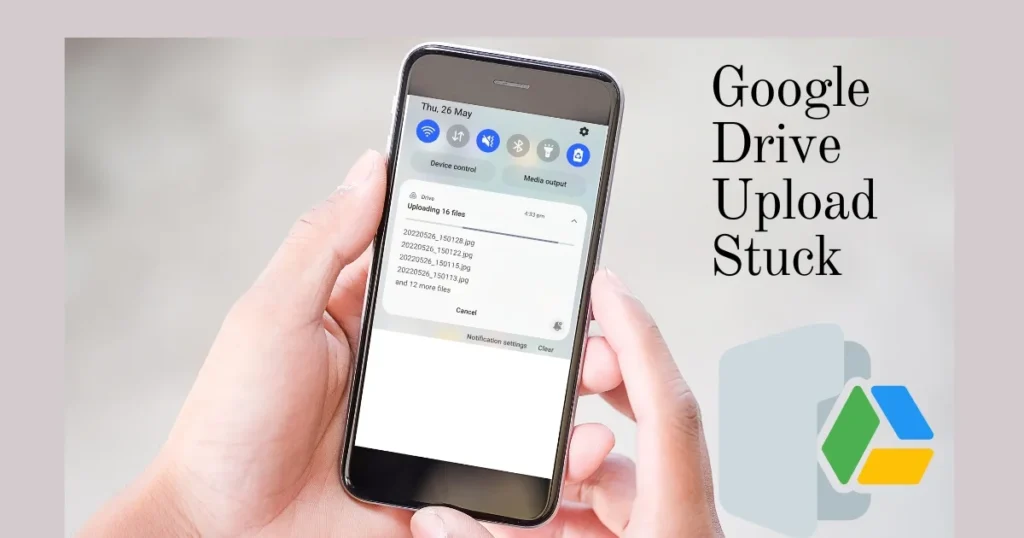
Why Google Drive upload stuck – the real reasons
Before applying a fix, it is important to understand what might be causing the upload to get stuck on Google Drive. Some of the most common reasons include an unstable internet connection, excessively large file sizes, and special characters in the file name. All the reasons are detailed below:
1. The internet connection is weak or unstable
A slow, unstable, or intermittent internet connection can significantly affect the upload process, potentially causing it to pause or stop completely. Fluctuations in speed – whether on Wi-Fi or mobile data – are common in India, especially during the evening when network load is high.
2.Your Google Drive storage is full
If your cloud storage is full, new files will not upload or sync until you free up space. Google Drive offers free users 15GB of storage. This 15GB is shared across Gmail, Google Photos, and Drive, so it fills up quickly.
3. File size is too large or the daily limit has been exceeded
The maximum size for a single file is 5 TB, but most users exhaust their storage quota before reaching this limit. The daily upload limit is 750 GB, which applies to both My Drive and Shared Drives.
4. Browser cache or app cache corrupted
The browser’s corrupt cache may block the upload. The drive accumulates cached data over time which can sometimes become corrupt. This happens on both mobile and desktop.
5. Interference from VPN or Antivirus
If you are connected to a VPN, try turning it off temporarily – some VPN configurations block Google’s sync servers. Temporarily disable security software, such as antivirus or VPN, and then try uploading.
6. Google servers are down
Before attempting any fixes, check if there is an outage affecting Google Drive servers. Visit the Google Workspace Status Dashboard to view the real-time status of all Google services. If Google Drive shows “Service Disruption” or “Outage,” the issue is on Google’s end – wait for it to be resolved.
7. The app or browser is outdated
The issue with your desktop Google Drive not syncing could be due to using an outdated version. If you are not using the latest version, update the Google Drive app. Alternatively, completely uninstall the app and install the updated version from the Google Play Store.
8. File Permission Issues
Files will not sync if they contain unsupported characters, are too large, or are restricted by admin policies. Sometimes, the presence of characters like #, %, or & in the file name can also cause the upload to fail.
Google Drive Upload Stuck? Fix It with 10 Easy Methods
Now, let’s get to the main point. Each fix is detailed below – starting with the easiest one.
Method 1: Check and switch your internet connection
This is the first and most important step.
What to do:
- Open your browser and load a website you haven’t visited before to confirm connectivity. If the page loads slowly or not at all, restart your router or modem (unplug it for 30 seconds, then plug it back in).
- Switch from Wi-Fi to a wired Ethernet connection if available – unstable Wi-Fi can cause partial sync failures that are difficult to diagnose.
- On mobile: Switch between Wi-Fi and mobile data.
- Toggle Airplane mode on and off, waiting 10 seconds between the two actions.
Method 2: Cancel the stuck upload and start fresh
First, stop the upload that is stuck, and then start a fresh upload to see if the issue is resolved.
How to do it on mobile:
- Go to the upload section in the Google Drive app, tap the ‘x’ icon, and exit the app. Then, long-press the Google Drive app icon, tap the ‘i’ icon, tap ‘Force Stop’, and confirm.
On the computer:
- Open Drive in your browser and cancel the upload.
- Close and reopen the browser, then try uploading again.
Method 3: Clear the Google Drive app cache (Android)
App cache helps speed up processes, but it can sometimes cause issues with the app. If your Google Drive uploads have been failing or getting stuck for a while, clear the Google Drive app cache on your Android device.
Step-by-step:
- Go to Android Settings > Apps & notifications > Drive > Storage & cache > Clear cache.
- You can also clear the cache from within the app:
- Open Google Drive and tap the menu icon in the top-left corner. Go to Settings, tap Clear cache, and then press OK.
- Clearing the cache will not delete any of your Google Drive files; it will only restore the app settings to their defaults.
On computer (browser cache):
- Chrome: Settings > Privacy & Security > Clear Browsing Data
- Select “Cached images and files” and clear them.
- Upload files in an Incognito/private browser window to avoid extension conflicts.
Method 4: Check Google Drive storage and free up space
Once your storage is full, you cannot upload new files, send emails with attachments, or back up photos.
How to check:
- drive.google.com/settings Go there – you will see your storage usage.
- Or, on mobile, go to the Google Drive app > Menu > Storage.
How to free up space:
- Delete emails with large attachments in Gmail
- Remove old and duplicate photos from Google Photos
- Empty the Trash folder in Drive – files in the Trash also count towards storage usage
- Use the Google One Storage Manager (a free tool) – it shows where space is being wasted
Google Drive plans (available in India):
| Plan | Storage | Price (approx.) |
|---|---|---|
| Free | 15 GB | $0 |
| Google One Basic | 100 GB | $1.99/month |
| Google One Standard | 200 GB | $2.99/month |
| Google One Premium | 2 TB | $9.99/month |
Method 5: Check the file name and format
Ensure that your file does not exceed Google Drive’s size limits and is in a supported format.
Note:
- Avoid using these characters in file names: / \ ? * : ” < > |
- Keep file names short (under 200 characters).
- The maximum file size in Google Drive is 5 TB. You can upload up to 750 GB of files per day. Once the daily limit is reached, no further files can be uploaded until the limit resets after 24 hours.
- Upload large video files by zipping or compressing them.
Method 6: Check Google server status
Sometimes, the issue isn’t on your end. Google serves billions of users. While Google’s servers generally function smoothly, there is always a possibility of sudden downtime due to maintenance. It might sound alarming, but it can happen.
How to check:
- Check the real-time status of all Google services by visiting the Google Workspace Status Dashboard.
- workspace.google.com/status – This is the official link.
- If there is a green tick next to Drive, the server is fine – the problem is on your end.
- If you see orange or red, wait for a while.
Method 7: Turn off VPN and Proxy
Many people in India use free VPNs – this can interfere with communication with Google Drive servers.
What to do:
- Close the VPN app (on both mobile and computer).
- Check and disable proxy settings.
- Turn off any proxy or VPN, then try uploading.
- If the upload succeeds after turning off the VPN, switch to a different VPN or keep the VPN turned off during the upload.
Method 8: Log out of and log back into your Google account
Disconnect from your Google Drive account and then log in again; this can resolve the “Google Drive upload stuck” issue.
On mobile:
- Open the Google Drive app, tap your profile picture in the top right corner, select “Manage accounts on this device,” and remove the Google account linked to Drive (this will not delete any data stored in Drive).
- Restart your phone and sign in again.
On the computer (Drive for Desktop):
- Go to Drive settings, sign out of your account, and then sign in again. This resets the authentication token.
Method 9: Upload via the ‘Share’ option (Android trick)
This is a trick that very few people know about.
Direct uploads or the drag-and-drop method might fail. In such cases, use the ‘Share’ option on your Android phone to share the file to the Google Drive app. Doing this will automatically start the file upload.
How to do it:
- Select the file and tap Share, then tap More. Select Drive from the options and tap Save.
Method 10: Check app permissions and update/reinstall the app
Check permissions:
- Go to Settings > Apps > Drive. Tap on Permissions and ensure that Storage, Files and Media, and Network Access are allowed. If any permission is denied, enable it and try uploading again.
Update the app:
- Tap Google Play Store > Google Drive > Update.
Reinstall (last resort):
- If nothing else works, uninstall the Drive app and reinstall it. A clean install replaces corrupted files and fixes deep-seated issues.
Google Drive Sync Stuck on Desktop – Extra Tips
If you use Google Drive for Desktop on your computer and the sync is stuck, try this:
- Open the Drive app, pause syncing, wait a few seconds, and then resume. This refreshes the app’s connection.
- Use Drive for Desktop for more reliable uploading of large files – it handles interruptions better than the web interface.
- Disable browser extensions, as an extension might be blocking Drive.
- Try uploading by opening drive.google.com in Incognito mode.
Some useful free tools
| Tool | Tool | price |
|---|---|---|
| Google One Storage Manager | Analyze storage, find junk files | $0 (Free) |
| Google Workspace Status Dashboard | Check Google server status. | $0 (Free) |
| Speedtest by Ookla | Internet Speed Test (Upload + Download) | $0 (Free) |
| Files by Google | Junk cleaning on Android | $0 (Free) |
Visit fixtech.in for more detailed troubleshooting guides and tech repair tips – you’ll find everything there, step-by-step, in Simple Language.
What points should be given special attention?
- Split large files into smaller parts before uploading – files larger than 1GB are more likely to get stuck.
- If you need to upload multiple large files, do so at night to avoid hitting daily limits during work hours.
- Upload via Wi-Fi – uploading large files using mobile data can be slow and unstable.
- Keep file names simple – avoid using Hindi characters or special symbols.
- Keep the Google Drive app updated.
- Regularly empty the Trash folder.
FAQs – About Google Drive Upload Stuck
Q1: My Google Drive upload is stuck; what should I do first?
First, check your internet connection. Then, cancel the stuck upload and try again. If the upload remains stuck, clear the app cache and check your storage space. In most cases, these three steps resolve the issue.
Q2: Why am I seeing a “Waiting to upload” message?
The Google Drive app on Android smartphones may get stuck on “Waiting to upload,” while on a PC, it might pause at “Starting upload.” This usually happens due to a weak internet connection, full storage, or a corrupted cache. Try the fixes mentioned above.
Q3: How large a file can I upload to Google Drive?
You can upload and synchronize files up to 5TB in size. However, each user is limited to uploading and copying up to 750GB to Drive within a 24-hour period. Once this 750GB limit is reached, you cannot upload or copy additional files until the limit refreshes. The limit resets within 24 hours.
Q4: How much free storage does Google Drive offer?
Google Drive provides 15GB of free storage to users. This space is shared across Gmail, Google Photos, and Drive. If you need more, you can purchase a Google One plan, which starts at $1.99/month.
Q5: My Google Drive upload keeps failing on mobile; what should I do?
Go to Settings > Apps > Drive, tap on Permissions, and ensure that Storage, Files and Media, and Network Access are allowed. If any are set to “Denied,” enable them and try uploading again. Additionally, clear the app cache and update the app.
Q6: Is it better to upload using Incognito mode?
Yes, browser extensions can sometimes interfere with Google Drive uploads. Uploading files in an Incognito or private browser window helps avoid conflicts caused by extensions. If the upload works in Incognito mode, then an extension is causing the problem – check by disabling the extensions one by one.
Final Thoughts
Google Drive uploads getting stuck is an issue almost every user has faced at some point. The good news is that simply switching your internet connection, clearing the cache, or freeing up storage space usually resolves the problem. If these methods don’t work, you can try advanced steps like logging out and back in, reinstalling the app, or checking permissions. Just remember to keep file names simple, keep the app updated, and empty the Trash regularly. If you know someone else facing this issue, be sure to share this guide with them. And for more helpful guides like this, keep visiting fixtech.in!