
Has it ever happened that you were waiting for an important email – like a bank OTP, a client’s reply, a college admission letter, or a job application confirmation – but the email didn’t show up in your Gmail? You keep refreshing your inbox and pulling down to update it, yet nothing arrives. The sender insists they’ve sent it, but your inbox remains empty. In India, where Gmail is the top choice for students, freelancers, and working professionals alike – handling everything from office communication to Aadhaar-PAN linking updates – this issue can be truly frustrating. However, in most cases, it isn’t a major technical glitch; it’s usually just a matter of checking a few settings.
So, let’s first understand why this happens, and then go through each solution one by one to fix the issue of not receiving emails on Gmail.
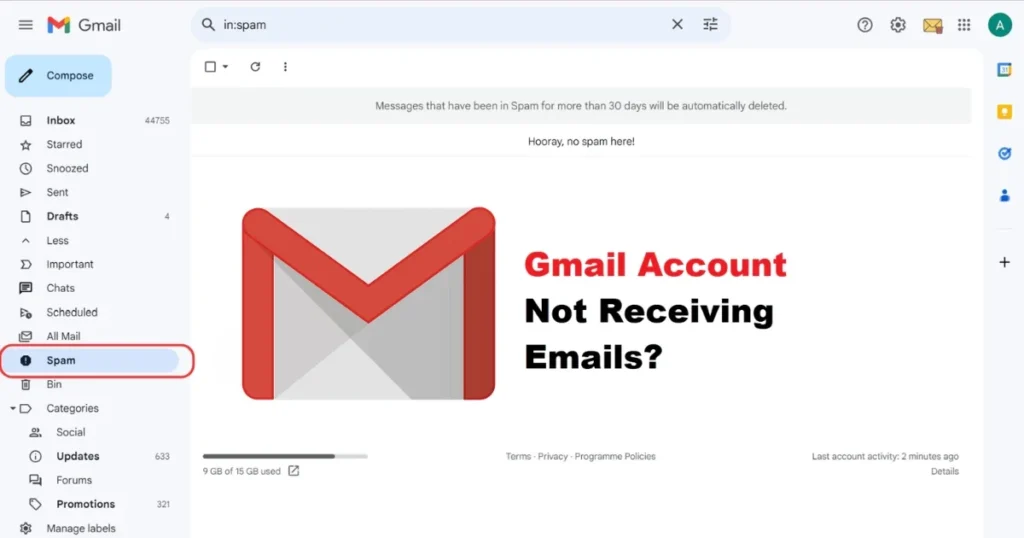
Why aren’t emails arriving in Gmail? – The real reasons
Before applying fixes, understand that there could be several reasons why you aren’t receiving emails in Gmail. The most common causes are listed below:
1. Your Google storage is full
One of the most common reasons you may not receive emails in Gmail is that your storage is full. Gmail storage is shared with Google Drive and Google Photos. If your storage limit has been reached, new emails will not arrive. The free storage limit is 15 GB; if this fills up, new emails cannot be received. When Gmail storage is full, you can neither send nor receive emails. If someone sends you an email, they will receive a notification stating that your inbox is full.
2. The email has gone to the Spam folder
Sometimes, Gmail’s spam filters mistakenly identify legitimate emails as junk. You can fix this by marking them as “not spam.” If Gmail’s algorithms classify an email as spam based on its content or attachments, it automatically moves to the Spam folder. If you do not check the Spam folder for 30 days, those emails are automatically deleted.
3. The email is in the Social or Promotions tab
If the missing email isn’t in your Spam folder, it might be in the Social or Promotions tab. Gmail’s new interface automatically categorizes incoming emails and places them into the Primary, Social, or Promotions tabs. Many people only look at the Primary tab and forget to check the other tabs.
4. Filters are archiving or deleting emails
Filters can silently move, archive, or delete emails before they reach the Inbox. Gmail filters or Inbox settings can cause emails to disappear. If filters automatically archive, delete, or skip the Inbox, your messages vanish from the main view.
5. Email Forwarding is on
If forwarding is on, your emails will be going somewhere else. If your Gmail emails are being forwarded without your consent, immediately go to Gmail Settings > Forwarding and POP/IMAP tab, select “Disable forwarding” and save.
6. The internet connection is weak or unstable
This might seem basic, but it matters. If your connection is unstable, Gmail cannot sync properly. This often happens to Gmail users on mobile data in India – especially in areas with poor network coverage.
7. Google servers are down
Sometimes, the problem isn’t on your end. Gmail servers can be temporarily down. When this happens, you might stop receiving emails.
8. Someone has blocked the sender
Check to see if any important emails are being redirected or deleted. Also, verify that no important sender has been blocked; sometimes, people are blocked by mistake, causing their emails to stop arriving.
Not receiving emails on Gmail? Here are 10 ways to fix it.
Now, let’s get down to business. We’ll start with the easiest method.
Method 1: Check the Spam and Trash folders
The first step – check if your email is in the Spam or Trash folder.
On a computer:
- On the Gmail website, click on the ‘More’ option in the left sidebar. Then, select ‘Spam’. You might find the missing email there; open it and click ‘Report not spam’ so that it doesn’t end up in the Spam folder again.
On mobile:
- Open the Gmail app, tap the three lines (hamburger menu) in the top-left corner, tap Spam, and find the missing email.
You might have accidentally archived the email. Gmail moves archived emails to the ‘All Mail’ folder. To find the missing email, go to the ‘All Mail’ folder in the sidebar. Then, check the box next to the archived email and click the ‘Move to Inbox’ option.
Method 2: Check the Social, Promotions, and Updates tabs
Gmail automatically categorizes emails. Your email might have landed in a tab other than the Primary tab.
What to do:
- You will see the Primary, Social, Promotions, and Updates tabs at the top of your Gmail inbox.
- Check each tab by clicking on it.
- If an important email is in another tab, drag it to the Primary tab.
- Gmail will ask, “Do this for future messages from this sender?” – click Yes.
Method 3: Check Google storage and free up space
When your Gmail storage is full, you stop receiving new emails and might miss important messages. Additionally, you are unable to send or receive any emails.
How to check:
- one.google.com/storage Go there – you will see the full storage breakdown.
- Or scroll to the bottom of Gmail – you will see the storage usage.
How to free up space:
- Type
larger:10mbin the Gmail search bar to quickly find large emails. Then, download and save any important attachments to your computer and delete the original emails from Gmail. - Select and delete all old emails from the ‘Promotions’ and ‘Social’ tabs.
- Whenever you delete emails or empty the Trash folder, make sure to clear the Bin as well. Emails remain in the Bin even after deletion and continue to take up space, keeping your Gmail storage full.
- Also, delete unnecessary files from Google Drive and Google Photos; these three services share a combined 15GB storage limit.
Google One plans (for more storage):
| Plan | Storage | Price |
|---|---|---|
| Free | 15 GB | $0 |
| Basic | 100 GB | $1.99/month |
| Standard | 200 GB | $2.99/month |
| Premium | 2 TB | $9.99/month |
Method 4: Check and fix Gmail filters
This is the most overlooked reason for not receiving emails on Gmail.
How to check:
- Go to Settings in Gmail and click on “See all settings.” Navigate to the “Filters and Blocked Addresses” tab and ensure that no filter like “delete it” is enabled.
Pay attention to these points:
- Check if any filter is set to “Skip the Inbox” or “Delete it.”
- Check if any filter is archiving emails from a specific sender.
- If you find any suspicious or unwanted filter, delete it.
- To manage these filters, go to “Filters and Blocked Addresses” in Gmail Settings to review, edit, or delete them.
Method 5: Disable Email Forwarding
If emails seem to be disappearing across different devices, forwarding and POP/IMAP settings are often the culprits. Review your settings by going to Gmail Settings > Forwarding and POP/IMAP.
How to check:
- Go to Gmail > Settings > See all settings > Forwarding and POP/IMAP tab.
- If “Forward a copy of incoming mail to…” is enabled and you did not set this up, select “Disable forwarding” immediately.
- Review your forwarding settings and check whether a copy is being kept in the Gmail Inbox.
- Click “Save Changes”.
⚠️ Also, check and remove forwarding filters in the ‘Filters and Blocked Addresses’ tab. To enhance security, change your password and enable 2-step verification.
Method 6: Check Blocked Senders
If you are not receiving emails from a specific sender, you might have accidentally blocked them.
How to check:
- Go to Gmail > Settings > See all settings > Filters and Blocked Addresses
- View the list of all blocked email addresses
- Click “Unblock” next to the address you want to unblock
Or else:
- Open an old email from that sender
- Click on the three dots at the top
- Select ‘Unblock [sender name]’
Method 7: Check your internet connection and Gmail sync
If emails appear in the web browser but not in the app, the issue lies with your connection or device.
What to do:
- Switch between Wi-Fi and mobile data.
- Open the Gmail app on your phone > Settings > Select your account > Check if Gmail sync is enabled.
- Open mail.google.com in a browser; if emails appear there but not in the app, there is an issue with app synchronization.
- If Gmail emails have disappeared from your Inbox, the mailbox might not be loading correctly in the browser. To fix this, use a different browser or clear your browser’s cache and cookies. This also resolves temporary errors associated with your Gmail account.
Method 8: Check Google Server Status
Although rare, Google servers can go down due to maintenance or unplanned issues. You can check the Google Workspace Status Dashboard to see if Gmail is currently down or has recently experienced an outage.
How to check:
- Go to workspace.google.com/status
- If Gmail is down, all you can do is wait. Service is usually restored quickly.
- If Google servers were temporarily down, your email might not have been processed correctly. In that case, ask the sender to resend the email. Another simple troubleshooting test is to send an email to yourself.
Method 9: Clear the Gmail app cache and update the app (Android)
If you are not receiving emails on the Gmail mobile app, clearing the app cache is very effective.
Steps to clear the cache:
- Tap Android Settings > Apps > Gmail > Storage & Cache > Clear Cache
- ⚠️ Do not tap Clear Data – this will reset account settings
Update the app:
- Google Play Store > Gmail > Update (if available)
- If no update is visible, uninstall the app and reinstall it.
On iPhone:
- Delete the Gmail app and reinstall it from the App Store – there is no direct option to clear the cache on iOS.
Method 10: Check IMAP/POP settings and third-party apps
If you use Outlook, Apple Mail, or any other email client, check the following:
- IMAP is enabled by default in Gmail as of January 2025, and there is no option to disable it. However, please double-check the IMAP expunge and delete settings in both Gmail and your email client. If you make any changes to the settings, send yourself a test email to verify that it is being received and that the settings are correct.
- Also, review the delete or archive settings of your POP/IMAP client. If you are using a desktop client like Apple Mail or Outlook, confirm that it is not set to auto-delete emails.
- Connected tools can modify emails independently of filters. Google’s troubleshooting guidelines recommend removing access for unused apps connected to your Google account.
Bonus Tip: Send yourself a test email
This is the easiest way to confirm whether Gmail is working or not. Send an email to your own Gmail address. If it arrives, your Gmail is working correctly – the problem lies with the sender. If the test email doesn’t arrive either, one of the fixes mentioned above will certainly work.
Useful free tools
| Tool | Feature | Price |
|---|---|---|
| Google One Storage Manager | Analyzing storage, finding junk files | $0 (Free) |
| Google Workspace Status Dashboard | Gmail/Checking Gmail/Google server status | $0 (Free) |
| Gmail Search Operators | Finding large emails (larger:10mb, has: attachment) | $0 (Built-in) |
| Google Takeout | Backing up email data | $0 (Free) |
Visit fixtech.in for more Gmail troubleshooting guides and tech repair tips – you will find detailed, step-by-step instructions in easy steps there.
What points should be given special attention?
- Check your spam folder at least once a week – Spam filters learn from what you mark as spam and what you mark as “not spam.” Marking an email as “not spam” helps prevent future emails from that sender from being flagged as spam.
- Items in Trash are auto-deleted after 30 days – Deleted emails usually go to the Trash folder, where they remain for 30 days before being permanently removed.
- Use Gmail search operators – Quickly find emails by typing commands like
in:spam,in:trash,in:all, orfrom:sender@email.com. - Keep 2-Step Verification enabled – This enhances security and protects against unauthorized access.
- Keep the Gmail app updated – Older versions can experience synchronization issues.
FAQs – Not receiving emails on Gmail
Q1: I’m not receiving emails on Gmail; what should I do first?
Gmail users often face delays in email delivery and synchronization issues. If you aren’t receiving emails, start by checking your Spam and Trash folders. Next, check your storage space and review your filters. In most cases, these three steps resolve the problem.
Q2: My Gmail storage is full; how can I receive new emails?
Google provides 15 GB of free cloud storage with your account. This space is shared across Google Photos backups, files, documents, attachments, and emails. When storage reaches maximum capacity, new emails stop arriving because there is no space to store them. Free up space by deleting large emails, old promotional messages, and items in the Trash.
Q3: I’m not receiving emails from a specific sender, but everything else is fine – why?
If Gmail consistently fails to receive emails from a specific sender, there is likely a specific underlying issue. The sender’s email might be failing Gmail’s authentication checks (SPF, DKIM, or DMARC), originating from a problematic IP address, or containing blocked file types. The sender will need to check their email settings.
Q4: Emails are going to Spam; how can I stop this?
Go to the Spam folder, open the email, and click “Not Spam.” Additionally, add the sender to your Contacts; this reduces the likelihood of their emails being marked as spam. You can also create a filter setting the option to “Never send to Spam.”
Q5: Can I back up old emails using Google Takeout?
Yes, Google Takeout is a feature that allows you to export all your Google data, including Gmail emails. However, the process can take several hours or even days, so it isn’t the fastest solution. Nevertheless, it is an excellent option for freeing up storage – you can create a backup and then delete the old emails.
Q6: I deleted emails, but the storage still shows as full – why?
Whenever you delete emails or clear the Trash folder, make sure to empty the Bin as well. After deletion, emails remain in the Bin and continue to occupy space, causing Gmail storage to appear full. Go to the Trash folder and click on “Empty Trash now.” It may take up to 24 hours for the storage to update.
Final Thoughts
Not receiving emails on Gmail might seem like a major issue, but in most cases, the problem boils down to something simple – like full storage, the Spam folder, or an incorrect filter. One of the 10 methods mentioned above is sure to resolve your issue. Just remember: check your Spam folder regularly, keep your storage space clear, and keep an eye on your filter and forwarding settings. If you know anyone else facing this problem, feel free to share this guide with them. And for more helpful guides like this, keep visiting fixtech.in!