
Imagine you are logging into an app, making a UPI payment, or accessing your bank’s net banking – and five minutes pass while you wait for an OTP, but the message never arrives. Failing to receive OTPs on Android is an issue that millions of people in India face every day. Whether it is a UPI payment or Aadhaar verification, more than half of all digital transactions come to a halt without an OTP. The worst part is that most people do not even know whether the fault lies with their phone settings, the network, or the app itself. In this guide, we will explore every cause and solution one by one – using simple language, free from technical jargon.
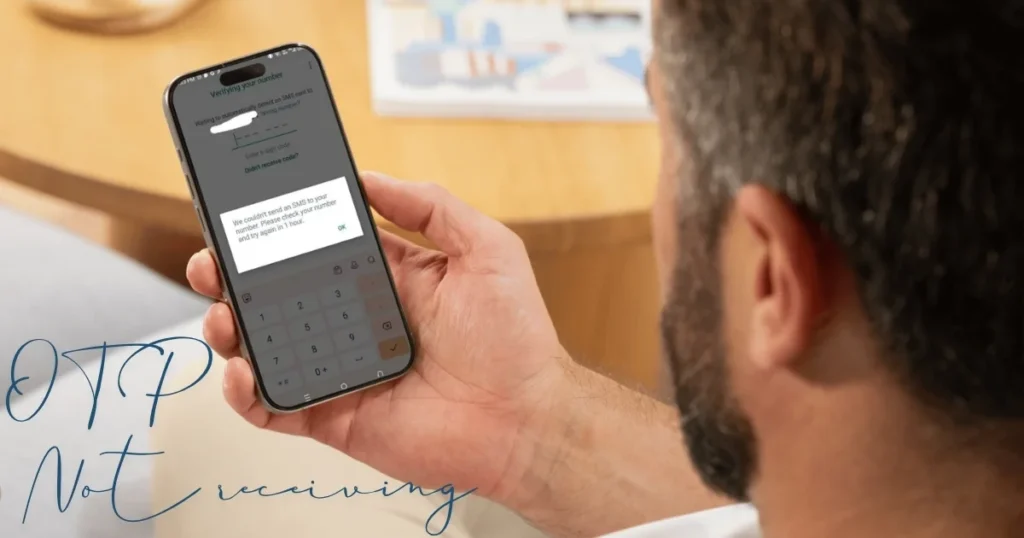
How exactly does an OTP arrive? – Let’s understand this first.
Before troubleshooting OTP issues, it is important to understand what happens in the background when you press the “Send OTP” button.
When you request an OTP, there are five distinct stages involved – and a failure at any one of these stages prevents the OTP from being delivered.
- Shopping platforms (such as Amazon, Flipkart, etc.) generate a unique 6-digit OTP, save a hashed copy linked to your session, and send the message to an SMS gateway provider via an API.
- The SMS gateway delivers this message to your telecom operator’s network (Jio, Airtel, Vi, BSNL).
- The telecom operator delivers the message to your phone after DLT filtering.
- OTP SMS messages are delivered via mobile networks, not Wi-Fi. While Wi-Fi is excellent for data, a strong cellular signal is required to receive OTP messages.
If any link in this chain breaks – be it the network, the DLT filter, or any setting of the phone – OTP will not come.
Main reasons for not receiving OTPs on Android
Let us now understand the various reasons behind SMS delivery issues, such as not receiving OTPs on Android:
Reason #1: Weak Network Signal
A weak mobile signal is one of the most common reasons for OTP SMS delivery failure. If you are in an area with poor reception or experiencing a mobile network outage, the delivery of the OTP message may be delayed or fail.
How to fix this:
- Check the signal bars on your phone. If the signal is very weak or shows “No Service,” try a different location – move near a window or step outside to see if the signal improves.
- Turn on Airplane Mode, wait 10–15 seconds, and then turn it off; this refreshes the network connection.
- If you have a dual-SIM phone, try switching the SIM card to the other slot.
Reason #2: SMS Inbox or phone storage is full
Phones with full storage may reject new incoming messages (including OTPs). If your SMS inbox or device storage is nearly full, free up some space and try again.
This issue is particularly common with budget Android phones that have 32GB or 64GB of storage, where space fills up quickly due to WhatsApp media, photos, and videos.
Fix:
- Check the remaining storage space under Settings > Storage
- Delete old and unwanted messages
- Clear media files from WhatsApp and Telegram
- Use the Google Files app (free) – it clears junk files with a single click
Reason #3: SMS Blocking and Spam Filters
India’s most popular Android devices – Xiaomi, Samsung, Realme, and OPPO – all feature built-in SMS filtering that automatically categorizes messages. OTP messages are sometimes miscategorized as spam, especially if you haven’t received a message from that sender ID before.
Some devices automatically block messages from unknown numbers or suspected spam. Since OTP codes often originate from unknown numbers, ensure that no blocking feature is preventing them from reaching your inbox.
Fix:
- Open the messaging app and check the “Spam & Blocked” folder (the location may vary depending on your phone).
- Once you mark the sender as “Not Spam,” that sender ID is permanently whitelisted on your device, and future OTPs will arrive directly in the main inbox.
- Try temporarily disabling Truecaller or any third-party SMS blocker app to check.
Reason #4: Do Not Disturb (DND) setting is enabled
Users may have the Do Not Disturb (DND) setting enabled, which can filter incoming SMS messages, including OTPs.
In India, there are two types of DND: phone-level DND (Android settings) and telecom-level DND (TRAI DND, activated by sending an SMS to 1909).
Phone-level DND fix:
- Go to Settings > Sound > Do Not Disturb and turn off DND.
- Check that DND is inactive, or configure it to allow messages from unknown senders. Turning off DND temporarily may allow OTPs to come through.
Telecom-level DND fix:
- Opt for ‘Partial DND’ instead of ‘Full DND’. This allows you to block specific commercial categories (such as telemarketing or real estate) while still receiving ‘Transactional SMS’ or ‘Banking/Financial Services’ alerts.
- Log in to your mobile operator’s official app or website, navigate to the DND management section, and enable the “Banking/Financial Services” category.
Reason #5: The messaging app’s cache is corrupted
Over time, cache files accumulate in the messaging app, which can cause glitches. Clearing the cache often resolves SMS reception issues.
Fix:
- Go to Settings > Apps > Messages > Storage > Clear Cache. Restart your device and request the OTP again.
- Ensure that your preferred Messages app is set as the default SMS app.
- If you are using Google Messages, update it to the latest version from the Play Store.
Reason #6: SIM card issue
A SIM card that is inactive, blocked, or damaged will not be able to receive any SMS, including OTPs. Check that your SIM is working correctly and is connected to the network.
Fix:
- Remove the SIM card, clean it, and reinsert it.
- Test the SIM in another phone; if messages still aren’t coming through, the SIM is faulty.
- If you are using a dual-SIM setup, ensure that the correct SIM is active for receiving SMS.
- Visit a nearby Jio, Airtel, or Vi store to get a SIM replacement (this is usually free or available for a nominal charge).
Reason #7: TRAI DLT Filtering (India-Specific)
Many people are unaware of this, but it is a major reason why OTPs fail to arrive on Android devices in India.
In certain regions, regulatory registration is mandatory for sending business SMS messages. In India, DLT (Distributed Ledger Technology) registration is required. If a service provider is not properly registered under this framework, SMS messages – including OTPs – are silently blocked by telecom operators at the network level.
The most common cause is a discrepancy between the actual message text and the DLT-approved template. Telecom scrubbing engines perform a character-by-character comparison; even minor differences in dynamic variables or extra punctuation can trigger filtering.
What you can do:
This issue originates with the service provider, not the user. Here is what you can do:
- Request the OTP again after 30–60 seconds.
- If you are not receiving the SMS OTP, try the Voice Call OTP option (if available).
- Contact the customer support of the app or website from which the OTP is not being received.
Reason #8: Requesting OTPs too frequently (Rate Limiting)
If you have tried to resend the OTP too many times, some platforms delay or block further attempts for several hours. Wait at least 10–15 minutes before trying again.
If you request a second code, many platforms consider the first code “invalid” or expired – so even if it arrives late, it may no longer work.
Fix:
- If possible, request the code via a call instead of SMS, or use an alternative verification method (email or QR code).
- Always use only the latest OTP; older codes automatically become invalid.
- Do not press ‘Resend’ before the app’s timer runs out.
Reason #9: The app or phone software is outdated
Using an older version of the app can sometimes lead to OTP verification failures. Older app versions may contain bugs or be incompatible with the latest security protocols. Developers regularly release updates to improve performance and security. Keeping apps updated makes the verification process more reliable.
Fix:
- Open Google Play Store > My apps & games > Update all apps
- Also, check the Android version by going to Settings > System > System update
- If you are not receiving the OTP for a specific app only, uninstall and reinstall it
Reason #10: Interference from third-party apps
Certain security applications, spam blockers, or messaging apps can sometimes interfere with incoming SMS messages. They might mistakenly identify a valid OTP as spam and block it, preventing it from reaching your main inbox. Review the settings of any security or message-filtering apps you have installed.
- If you are unsure, temporarily disable such apps and request the OTP again.
- Turn off Truecaller, SMS Organizer, or any SMS manager app for a few minutes.
- Don’t forget to re-enable them later for your phone’s security.
Reset Network Settings (Last Resort)
Sometimes, resetting network settings can restore proper connectivity and SMS functions.
Steps:
- Go to Settings > System > Reset > Network Settings > Reset Settings. After resetting, request the OTP again.
Keep in mind – this will also delete your saved Wi-Fi passwords and Bluetooth pairing, so note down your Wi-Fi password first.
Free tools that will help diagnose the issue of not receiving OTPs on Android.
- OpenSignal – This app displays network signal strength and coverage maps for your area. If you suspect that an OTP isn’t arriving due to network issues, this app will show you the signal quality of various operators at your location.
- Google Files – The best free app for cleaning up phone storage. Clear out junk files, duplicate photos, and large files with a single tap to ensure there is enough space to receive SMS messages.
- TRAI DND 3.0 App – With TRAI DND, you can completely block all telemarketing calls and SMS messages, or allow them for specific categories. This app is essential for checking and managing your DND status.
- Down Detector India – This site provides real-time information on whether there is an outage affecting operators like Jio, Airtel, and Vi, or specific apps and services. If many users are reporting issues with receiving OTPs, the problem might be on the server side rather than with your device.
For more detailed troubleshooting guides, visit fixtech.in – there, you will find step-by-step solutions for every issue related to Android, SMS, and networks.
Some extra tips that might come in handy.
- Did you enter the correct phone number? – This may seem basic, but it is a surprisingly common mistake. When entering a mobile number, a single digit might be incorrect or missing. A small error could result in the OTP being sent to the wrong number.
- Check the country code – Ensure that +91 (India) is entered correctly.
- Keep OTP expiry in mind – On Indian platforms, the OTP validity window is intentionally kept short for security reasons: usually 10 minutes for account logins and 5 minutes for payment confirmations.
- Enable Android OTP Auto-Fill: Go to Settings → System → Language & Input → Advanced → Autofill service and enable the auto-fill feature.
- Wait at least 30 to 60 seconds after requesting an OTP. Pressing the “Resend OTP” button too quickly can confuse the system.
FAQs – About Not receiving OTP
Q1: Regular SMS messages are arriving, but OTPs aren’t – why?
It often surprises people that while you can receive standard text messages, you might still miss OTPs; this happens because OTPs usually arrive via short codes or specific routes that are subject to more aggressive filtering. Check your SMS app’s Spam/Blocked folder and disable any third-party SMS blocking apps.
Q2: Does having DND enabled block OTPs?
DND settings are primarily designed to block promotional communications. Under TRAI guidelines, transactional SMS messages – such as bank OTPs or account alerts – are generally exempt from DND restrictions. However, technical glitches or incorrect sender categorization can sometimes lead to them being blocked.
Q3: OTPs arrive for one app but not another – why?
If OTPs work for some apps but fail for a specific one, the issue is usually app-related – such as rate limits, “unusual activity” flags, or number-type filtering. Try updating the app, clearing its cache, or contacting the app’s support team.
Q4: OTPs aren’t arriving after porting my number – what should I do?
If you have recently ported your number, short-code routing can be unstable for a while. It may take 24–48 hours for the number to fully settle into the new operator’s system. In the meantime, use the voice call option to receive the OTP.
Q5: I entered the OTP, but it shows “Invalid OTP” – why?
These three scenarios seem similar but are distinct: “OTP not received” indicates a delivery issue (it never arrived). “Invalid OTP” indicates a mismatch (wrong code, outdated code, or incorrect session/device). “OTP expired” means the time limit ran out, or the old code was replaced by a newly generated one.
Q6: Not receiving the Aadhaar OTP – is there a specific reason?
The Aadhaar OTP is generated by the UIDAI server. Sometimes, high server load causes a delay in receiving the OTP. Always double-check your mobile number and verify every digit carefully; simply re-entering the number slowly and attentively can often resolve the issue.
Q7: Is there a way to ensure the OTP is always received?
SMS-based OTPs fail 5 to 8 percent of the time due to network issues, carrier filtering, or device settings. A multi-channel architecture (using SMS combined with WhatsApp OTP or Voice OTP as a fallback) boosts the authentication completion rate from 92–95% to over 99%. Therefore, whenever the option is available, choose WhatsApp OTP or Voice Call OTP.
Final Thoughts
Not receiving OTPs on Android is a common issue, but it is usually easy to resolve. Start by checking the basics: network signal, storage, and DND settings. Next, check your SMS app’s spam folder and cache. If the problem is specific to a particular app, try updating the app or clearing its cache. In India, DLT filtering and telecom-level DND are also major causes of SMS delivery issues; the best solutions here are to enable ‘Partial DND’ or use the ‘Voice OTP’ option. Try the fixes mentioned above one by one, use free tools to check the status, and visit fixtech.in for further assistance. Remember – most of the time, the failure to receive an OTP on Android isn’t due to a major malfunction but rather a minor setting that, once adjusted, resolves the problem.