
Experiencing issues with Bluetooth pairing has become incredibly common these days – whether you’re trying to connect new earbuds, pair your phone with your car, or link speakers to your laptop. You press the button, switch Bluetooth on, and then… nothing happens. The device either doesn’t show up at all, or if it does appear, it simply won’t connect. Sometimes a “Pairing Failed” message pops up, leaving you thinking, “Ugh, what a hassle!”
So, if you find yourself facing this very frustration, you’ve come to exactly the right place. In this guide, we’ll walk you through – step by step – why Bluetooth pairing problems occur and how to fix them, regardless of whether you’re using an Android device, an iPhone, a Windows laptop, or a Mac.
What exactly is Bluetooth pairing? Let’s understand that first.
Bluetooth pairing is a process in which two devices establish a secure connection with each other. Simply put, it is like two strangers meeting for the first time: they recognize one another, and then, the next time they meet, they automatically recognize each other again.
When two devices pair for the first time, they save each other’s Bluetooth address and security key. Subsequently, whenever these devices are in proximity, they connect automatically.
However, sometimes this process encounters interruptions. There could be several reasons for this – a software bug, a compatibility issue, signal interference, or simply a minor setting that is configured incorrectly.
Now, let’s get straight to the solutions.
The Most Common Causes of Bluetooth Pairing Problems
Before we fix the issue, let’s understand where the problem stems from:
- Device not in pairing mode – Many people turn on Bluetooth but fail to put the other device into pairing mode.
- Outdated paired data – If both devices were previously paired and the pairing data has become corrupted, issues may arise.
- Range issues – The effective range of Bluetooth is typically 10 meters (30 feet). Moving beyond this distance weakens the signal.
- Low battery level – Many devices prevent Bluetooth from functioning correctly when the battery level drops below 20%.
- Outdated software or firmware – An outdated operating system (OS) or firmware is the cause of 30% of all Bluetooth-related problems.
- Signal interference – Wi-Fi routers, microwaves, and USB 3.0 ports all utilize the 2.4GHz frequency band – the same frequency used by Bluetooth – which leads to signal interference.
- Connected to multiple devices simultaneously – If your earbuds are already connected to another phone, they will not connect to a new phone.
- Driver or permission issues – On Windows, an outdated Bluetooth driver can cause problems, while on Android, app permissions can also be a source of issues.
Fix #1 – Do this first: Toggle Bluetooth OFF/ON
This sounds very basic, but it actually works. Turn off Bluetooth, wait 15–20 seconds, and then turn it back ON. This resets the Bluetooth stack – without having to restart the entire phone.
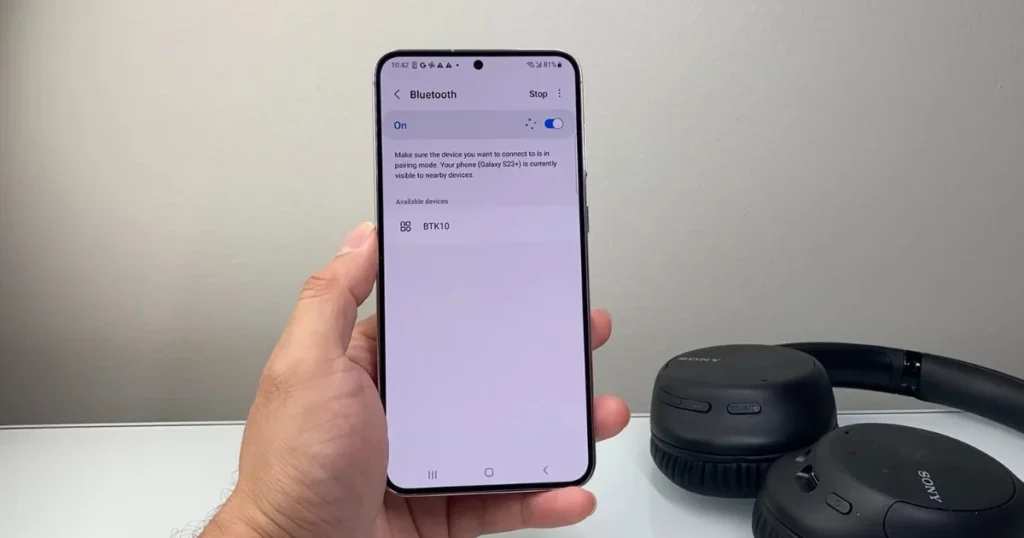
On Android:
- Settings > Connected Devices > Connection Preferences > Bluetooth
- Toggle OFF, wait 15 seconds, then toggle ON.
On iPhone:
- Settings > Bluetooth
- Toggle off, wait a moment, then toggle on.
On Windows:
- Settings > Bluetooth & Devices
- Toggle Off/On
On Mac:
- System Settings > Bluetooth
- Turn off, then Turn On after a few seconds.
💡 Tip: Don’t just turn off Bluetooth from the Control Centre (especially on an iPhone) – it doesn’t turn off completely. Turn it off only by going into Settings.
Fix #2 – Restart Both Devices
If toggling Bluetooth didn’t work, completely shut down both devices and restart them.
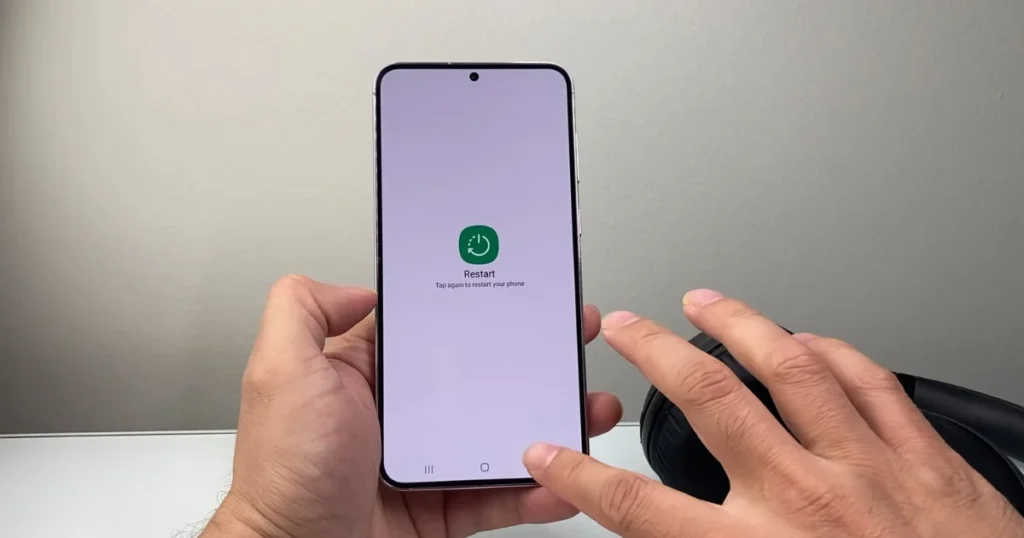
- Turn your phone/laptop completely OFF.
- Turn OFF the device you want to connect (such as headphones or a speaker) as well.
- Wait for 30 seconds.
- Turn both devices back ON.
- Now, try pairing them.
Why does it work? Restarting clears the RAM, fixes temporary software bugs, and gives the Bluetooth service a fresh start.
Fix #3 – “Forget” the Device and Pair It from Scratch
This is one of the most reliable fixes. Clear the old, corrupt pairing data to make a fresh start.
On Android:
- Settings > Connected Devices (or Bluetooth)
- Tap the Settings icon (⚙️) or “i” next to the device name
- Tap “Forget” or “Unpair”
- Put the headphones/speaker into pairing mode (usually by pressing the power button for 5–10 seconds until the LED blinks)
- Scan again and pair
On iPhone/iPad:
- Settings > Bluetooth
- Tap the (i) icon next to the device name.
- Tap “Forget This Device”.
- Confirm.
- Put the device into pairing mode and reconnect.
On Windows:
- Settings > Bluetooth & Devices > Devices
- Click on the device > More Options (…)
- “Remove Device” > Yes
- Put the device in pairing mode and add it.
On Mac:
- System Settings > Bluetooth
- Hover over the device name > Click (X)
- Confirm “Remove”
- Put the device into pairing mode
⚠️ Note: After selecting “Forget,” it is necessary to manually put the device into pairing mode – this will not happen automatically.
Fix #4 – How to Put the Device in Pairing Mode
This is a very important step that people often skip.
For most Bluetooth devices:
- Earbuds/Headphones: Hold the Power button for 5–10 seconds until the LED blinks rapidly or a sound is heard.
- Bluetooth Speaker: Long-press the Power button, or press the dedicated Bluetooth button if available.
- Smartwatch: Go to the watch’s Settings > Bluetooth/Pairing option.
- Keyboard/Mouse: Typically, there is a small pairing button – press it.
- Car: Car’s Infotainment System > Bluetooth Settings > Select “Add New Device” or “Pair New Phone.”
For Samsung Galaxy Buds: Place both earbuds in the case, open the case, and press the button on the case for 5 seconds.
For AirPods: Open the case lid, and press the small button on the back until the LED blinks white.
For JBL Speakers: Power on the device, then press the Bluetooth button until you hear a sound.
Fix #5 – Check Range and Obstacles
When pairing via Bluetooth, keep both devices close to each other – ideally within 1–2 meters (5 feet).
Some important points regarding range:
- Standard Bluetooth range: 10 meters (30 feet) in open space.
- Walls, furniture, and metal objects weaken the signal.
- Concrete walls significantly reduce the Bluetooth signal.
- Metal surfaces (such as steel almirahs) can block the signal.
View Comparison:
| Obstacle | Impact on Signal |
|---|---|
| Wooden wall | A slight effect |
| Glass | Very little effect |
| Concrete wall | Greater Impact |
| Metal surface | The Greatest Impact |
Once paired, keep this range in mind; otherwise, the connection may drop.
Fix #6 – Clear Bluetooth Cache (For Android)
If the Bluetooth cache data on an Android phone becomes corrupted, it leads to pairing issues. Clearing it is a powerful fix.
Steps:
- Settings > Apps (or Application Manager)
- Tap the three dots (⋮) in the top right corner > Enable “Show System Apps.”
- Scroll down and find the “Bluetooth” app
- Storage & Cache > Tap “Clear Cache.”
- Then tap “Clear Storage/Data.”
- Go back, find the “Bluetooth Share” app, and do the same there
- Restart your phone and try pairing again
💡 This fix is specifically for Android users whose phones sometimes display old names in the device list, or fail to show new devices.
Fix #7 – Check the Battery Level
This is a cause that very few people are aware of. When a Bluetooth device’s battery drops below 20%, it may refuse to pair or drop the connection.
What to do:
- Keep your phone/laptop charged to at least 50%.
- Fully charge your Bluetooth device (headphones, speaker, etc.).
- If the device uses replaceable batteries (such as a keyboard or mouse), insert new batteries.
Fix #8 – Update Software and Firmware
30% of Bluetooth pairing issues are caused by outdated software. This is a crucial step.
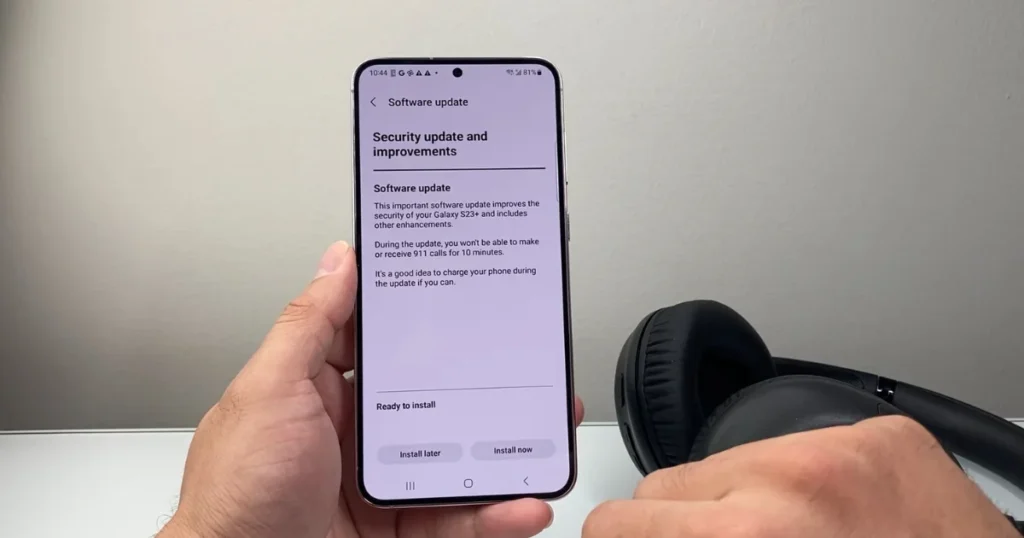
Update Your Phone’s OS:
Android: Settings > System > Software Update > Check for Updates
iPhone: Settings > General > Software Update
Update Your Bluetooth Device’s Firmware:
Many premium devices have companion apps:
| Device | App |
|---|---|
| Sony Headphones | Sony Headphones Connect (Free) |
| Bose Headphones | Bose Connect (Free) |
| Samsung Galaxy Buds | Galaxy Wearable (Free) |
| Jabra | Jabra Sound+ (Free) |
| JBL | JBL Portable (Free) |
With these free apps, you can update the firmware, which improves compatibility and fixes bugs.
Fix #9 – Update the Bluetooth Driver (for Windows)
On Windows, Bluetooth pairing fails if the driver becomes outdated – especially after a Windows update.
Steps:
- Press Windows + X > Open “Device Manager.”
- Expand the Bluetooth section
- Right-click on the name of the Bluetooth adapter (e.g., “Intel Wireless Bluetooth”)
- Click “Update Driver” > “Search automatically for drivers.”
- Restart once the update is installed
If the driver appears corrupt:
- In the same steps, select “Uninstall Device.”
- Check the box labeled “Delete the driver software for this device.”
- Restart your computer – Windows will automatically reinstall the driver.
Also run Bluetooth Troubleshooter: Settings > System > Troubleshoot > Other Troubleshooters > Bluetooth > Run
Fix #10 – Reset Network Settings
This is a “nuclear option” – meaning you should do this only when everything else fails. This will delete all saved Bluetooth pairings and Wi-Fi passwords.
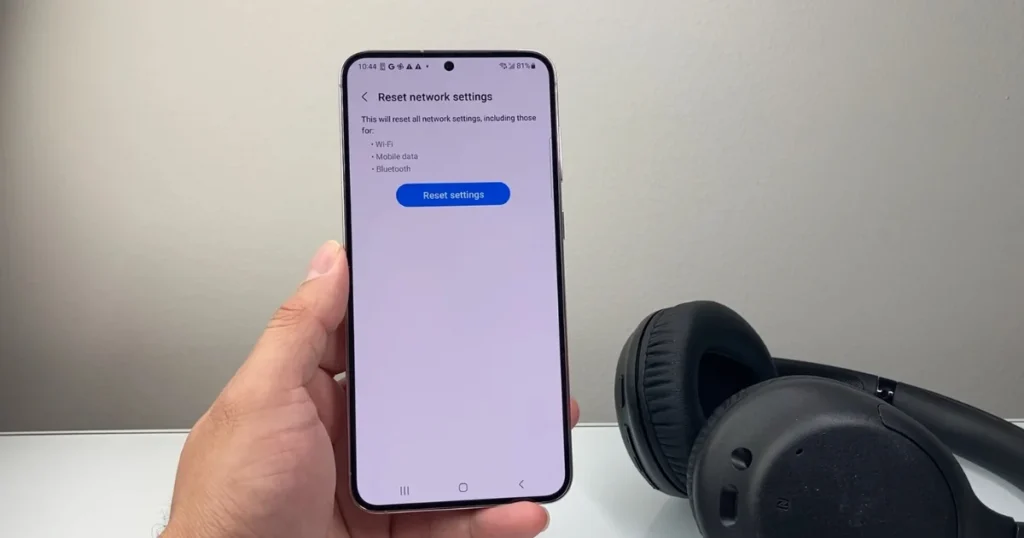
On Android:
Settings > System > Reset Options > “Reset Wi-Fi, Mobile & Bluetooth”
On iPhone:
Settings > General > Transfer or Reset iPhone > Reset > “Reset Network Settings”
⚠️ Warning: Doing this will delete the passwords for all saved Wi-Fi networks. Make sure to note them down first.
This fix works when old, corrupt Bluetooth data is blocking operations in the background.
Android Bluetooth Pairing Problems – Platform-Specific Guide
On Android, some extra steps do not exist on iPhone or Windows.
Check App Permissions:
Some apps (such as fitness tracker apps) require permission to access Bluetooth.
- Settings > Apps > Name of the app
- Permissions > “Nearby Devices” or “Bluetooth.”
- This permission must be set to “Allow”.
Test in Safe Mode:
- Long-press the Power button > Long-press “Power Off.”
- The “Reboot to Safe Mode” option will appear – Tap OK
- Try pairing Bluetooth in Safe Mode
If it works in Safe Mode, a third-party app is blocking Bluetooth. Uninstall that app.
Bluetooth reset in Developer Options:
- Tap Settings > About Phone > Build Number 7 times (to unlock Developer Options).
- Set Settings > Developer Options > Bluetooth Audio Codec to Default.
iPhone/iPad Bluetooth Pairing Problems – Platform-Specific Guide
Grant Bluetooth Permission to the App:
- Settings > Privacy & Security > Bluetooth
- Check which apps require permission – then toggle them ON.
Airplane Mode trick:
- Turn on Airplane Mode.
- Wait for 30 seconds.
- Turn off Airplane Mode.
- Manually turn on Bluetooth.
- Attempt to pair.
iPhone Reset (Last Resort):
If all else fails and the iPhone’s Bluetooth toggle becomes grayed out: Settings > General > Transfer or Reset iPhone > “Erase All Content and Settings.”
This is an extreme step; be sure to back up your data first.
Windows Bluetooth Pairing Problems – Platform-Specific Guide
Check the Bluetooth Support Service:
- Press Windows + R > Type
services.msc> Press Enter - Find “Bluetooth Support Service”
- Right-click > Properties > Startup Type: Automatic
- If the service is stopped, click Start.
USB 3.0 Interference:
On Windows computers, USB 3.0 ports emit a 2.4 GHz frequency that interferes with Bluetooth signals.
Fix:
- Keep USB 3.0 devices (external hard drives, USB hubs) away from the Bluetooth adapter.
- Plug the USB device into a different port.
External Bluetooth Adapter:
If your laptop’s built-in Bluetooth is not functioning properly, you can use an external USB Bluetooth adapter. These cost between $10 and $15 and are very useful. Options such as the Hideez USB Bluetooth Adapter work across macOS, Windows, and Linux.
Mac Bluetooth Pairing Problems – Platform-Specific Guide
Reset the Bluetooth Module (Monterey and Earlier):
- Hold Option + Shift and click the Bluetooth icon in the Menu Bar.
- Click “Debug” > “Reset the Bluetooth module”.
- Confirm, your Mac will restart.
On macOS Ventura/Sonoma:
- Open the Terminal.
- Type this command: sudo pkill bluetoothd
- Enter your password; the Bluetooth service will restart.
Delete Bluetooth Preference File:
- Finder > Go > Go to Folder > /Library/Preferences/
- Find “com.apple.Bluetooth.plist”
- Delete it (move to Trash)
- Restart your Mac
How to Fix Car Bluetooth Pairing Problems
Pairing a phone in a car is a unique process. Here are the key points:
Step 1: Clear the car’s Bluetooth memory.
- Open the car’s infotainment system.
- Go to ‘Phone List’ or ‘Paired Devices’.
- Delete all old devices.
Step 2: Put the car into pairing mode.
- Select “Add New Device” or “Search for Phone” in the Bluetooth settings.
- In some cars, this happens automatically when the list is empty.
Step 3: Pair with your phone
- Turn on Bluetooth on your phone.
- The car’s name will appear under “Available devices” – tap on it.
- Match the PIN code (usually 0000 or 1234).
Common Issue: If the car was previously paired with another phone, first ‘forget’ it. The car actively connects to only one phone at a time.
Comparison:
| Feature | Old Car Systems | New Car Systems |
|---|---|---|
| Max paired phones | 5-6 | 10-12 |
| Auto-connect | No | Yes |
| Audio profiles | Basic | Both HFP + A2DP |
| Firmware update | Difficult | OTA update |
Minimize Signal Interference
Interference has a significant impact on Bluetooth pairing and connection quality.
These devices use the 2.4GHz frequency and cause interference:
- Wi-Fi router (खासकर 2.4GHz band)
- Microwave oven
- Baby monitors
- Cordless phones
- USB 3.0 devices
- अन्य Bluetooth devices
Measures to Reduce Interference:
- Switch your Wi-Fi to the 5GHz band – most modern routers are dual-band, and the 5GHz band does not interfere with Bluetooth.
- Do not pair devices near a microwave.
- Keep USB 3.0 devices away from the Bluetooth adapter (at least 1 foot).
- Avoid keeping too many Bluetooth devices in proximity – interference increases if 3–4 devices are switched on simultaneously.
Bluetooth Version Compatibility – It’s Important to Know
All Bluetooth versions are backward compatible with one another, but some features are available only in newer versions.
| Bluetooth Version | Specialty | Year |
|---|---|---|
| Bluetooth 4.0 | Low Energy (BLE) started. | 2010 |
| Bluetooth 4.2 | Better security | 2014 |
| Bluetooth 5.0 | Double range, faster speed | 2016 |
| Bluetooth 5.1 | Direction finding | 2019 |
| Bluetooth 5.3 | In the latest flagships | 2021 |
Note: If your phone supports Bluetooth 5.0 and the device supports 4.2, they will connect – but you will not have access to all the features of 5.0. This is not a compatibility issue; it is normal.
How to Fix Bluetooth Audio Quality Problems
Sometimes pairing works, but the audio sounds strange – distorted, laggy, or in mono.
Check Audio Codec:
On Android (from Developer Options):
- Settings > Developer Options
- Search for “Bluetooth Audio Codec”
- If your device supports it, choose aptX or LDAC – these are high-quality codecs.
- The default AAC is also a good choice for iPhone users.
| Codec | Quality | Latency | For whom |
|---|---|---|---|
| SBC | Basic | More | All devices |
| AAC | Good | Less | iPhone users |
| aptX | Better | Less | Android + aptX devices |
| LDAC | The Best | A little more | Sony devices |
Check Audio Profile:
Sometimes, the phone connects only via the “HFP” (phone call) profile, but not the “A2DP” (music) profile.
Fix: Forget the device and pair it again – this time, pair it specifically in the music playback mode.
Bluetooth Headphones vs. Earbuds – What is the Difference in Connection?
Over-Ear Headphones (e.g., Sony WH-1000XM5, $279):
- Larger battery, more stable connection
- Multi-device pairing support (connected to 2 devices simultaneously)
- If you encounter any issues, there is a pairing button located on the ear cup.
True Wireless Earbuds (like Samsung Galaxy Buds3, $149):
- The charging case is required for pairing.
- Place both earbuds inside the case to reset them.
- One earbud connecting while the other does not is a common issue.
Wired Neckband (e.g., JBL Tune 130NC, $49):
- Simple pairing, fewer issues
- Resets via a button combination
- Budget-friendly option, basic features
Comparison:
| Type | Price Range | Stability | Battery Life | Reset Method |
|---|---|---|---|---|
| Over-Ear | $150-$350 | very good | 20–30 hours | Power button hold |
| TWS Earbuds | $30-$250 | Good | 6–8 hours (24–36 hours with the case) | Case button |
| Neckband | $20-$80 | very good | 15-20 hours | Button combo |
| Bluetooth Speaker | $30-$400 | very good | 10-24 hours | Power button hold |
Pairing Issues with Smartwatches and Wearables
The pairing process for smartwatches and fitness bands is slightly different, as they require a companion app.
For Samsung Galaxy Watch:
- Install the Galaxy Wearable app (Free)
- Factory reset the watch (Settings > General > Reset)
- Open the app and tap “Start” – the app will pair automatically
For Apple Watch:
- Keep the iPhone nearby.
- Turn on the watch face.
- The setup screen will automatically appear on the iPhone.
For Boat Watch, Noise, and Fire-Boltt (Budget Indian Brands):
- Download the brand’s official app (Da Fit, HiWear, etc.).
- Check the app’s permissions (Location, Bluetooth, Notifications).
- Factory reset the watch, then pair it with the app.
Bluetooth Keyboard and Mouse Pairing Issues
Pairing a Keyboard/Mouse on Windows:
- Put the keyboard/mouse into pairing mode.
- Settings > Bluetooth & Devices > Add Device
- Select it and enter the PIN (if prompted).
Common Issue – Typed PIN Not Visible: Sometimes, when pairing a keyboard, a PIN appears on the screen that must be typed using the keyboard; however, users often feel as though nothing is happening. You simply need to type the PIN (which is displayed on the screen) using the keyboard and then press Enter.
Multi-device Bluetooth Keyboard (e.g., Logitech MX Keys, $110): These pair with up to three devices simultaneously. Switch between them using the Easy-Switch button. If you encounter an issue with a specific slot:
- Hold the button on that slot for 3 seconds (re-pairing mode).
- Then, pair it with that device.
Free Tools That Help with Bluetooth Problems
Free Tools for Windows:
- Bluetooth Troubleshooter (Built-in)
- Settings > System > Troubleshoot > Bluetooth
- Completely free – Microsoft’s official tool.
- BluetoothView (NirSoft)
- Download for free from nirsoft.net.
- Displays all nearby Bluetooth devices.
- Useful for checking whether a device is visible or not.
- Device Manager (Built-in)
- To diagnose driver issues:
- In Windows, open it for free via
devmgmt.msc.
Free Tools for Android:
- Bluetooth Scanner apps (free on Play Store)
- Search for “BT Inspector” or “Bluetooth Scanner”.
- It scans for nearby devices.
For iOS:
- LightBlue (Free on App Store)
- For debugging Bluetooth Low Energy devices.
- Useful for technical users.
Step-by-Step Troubleshooting Checklist
If you are unsure where to start, follow this checklist:
✅ Basic Checks (Do this first):
- [ ] Is Bluetooth turned ON on both devices?
- [ ] Are both devices within 2 meters of each other?
- [ ] Is the Bluetooth device (earbuds, speaker) fully charged (>20%)?
- [ ] Is the device in pairing mode (is the LED blinking)?
- [ ] Is the device already connected to another phone?
✅ Intermediate Fixes:
- [ ] Did you toggle Bluetooth OFF/ON?
- [ ] Did you restart both devices?
- [ ] Did you try “forgetting” the device and pairing it again?
- [ ] Is the phone’s OS up to date?
- [ ] Is the Bluetooth device’s firmware up to date?
✅ Advanced Fixes:
- [ ] Cleared the Bluetooth cache (Android)?
- [ ] Updated the Bluetooth driver (Windows)?
- [ ] Reset network settings?
- [ ] Moved away from sources of interference (Wi-Fi, microwave, USB 3.0)?
- [ ] Tested by pairing with another phone/laptop (this indicates whether the problem lies with the device or the phone)?
When Nothing Works – Hardware Problem?
If you have tried all the steps above and Bluetooth is still not working, it could be:
Hardware Issue in Phone:
- Bluetooth chip is defective
- The antenna became loose after a repair
- Circuit issue following water damage
Test: Try pairing the same device with another phone or laptop.
- If it pairs with another device → Your phone has a hardware issue.
- If it does not pair with another device, either → The Bluetooth accessory is defective.
What to do:
- If it is under warranty, go to a service center.
- If it is not under warranty, go to a certified repair shop.
- For a phone, visit an Apple Service Center (repair cost: $50–$100) or a Samsung Service Center (₹500–₹2,000).
- If a Bluetooth accessory is defective, file a warranty claim with the brand.
FAQs – About Bluetooth Pairing Problems
Q1. My Bluetooth device appears in the list but won’t connect – why?
Answer: This usually happens for three reasons:
1. The device is already connected to another phone – disconnect it from there.
2. The pairing data is corrupt – select “Forget” on both devices and pair them anew.
3. There is a software bug – restart both devices.
Q2. The Bluetooth toggle on my iPhone is grayed out – what should I do?
Answer: 1. Force restart your iPhone: iPhone 8 and newer: Press Volume Up → Press Volume Down → Hold the Side button until the Apple logo appears.
2. However, if it is still grayed out, try Settings > General > Reset > Reset Network Settings.
3. If this doesn’t work either, contact Apple Support – it could be a hardware issue.
Q3. Bluetooth is connected, but there is no audio.
Answer: 1. Check the phone’s audio output – sometimes it remains set to the internal speaker.
2. On Android: Tap the audio output icon in the notification bar and select the Bluetooth device.
3. On iPhone: Go to Control Center > Long-press on the Audio card > Select the output device.
4. Forget the device and pair it again.
Q4. Why does the Bluetooth range decrease?
Answer: Range depends on several factors:
1. Walls and obstacles: Concrete walls block signals the most.
2. Interference: Wi-Fi, microwaves, and USB 3.0 devices.
3. Battery level: Transmit power decreases when the battery is low.
4. Bluetooth version: The range of Bluetooth 5.0 is superior to that of version 5.0.
Q5. How many phones can a Bluetooth device be paired with?
Answer: Most basic Bluetooth devices can store up to 8 paired devices, but they connect to only one device at a time. Premium devices, such as the Sony WH-1000XM5 ($279), can remain connected to two devices simultaneously (Multipoint feature).
Q6. Why does the “Authentication Failed” error occur during Bluetooth pairing?
Answer: This error occurs when:
1. The pairing code/PIN did not match.
2. The device is already connected to another device.
3. The security keys have become corrupted.
Fix: Forget the device, reset network settings, update the firmware, and pair it afresh.
Q7. I bought a new phone, but my old headphones aren’t pairing – what should I do?
Answer: 1. Factory reset the headphones (refer to the manual).
2. Perform a fresh pairing on the new phone.
3. If the headphones are currently connected to another device, disconnect them from there first.
Q8. Does turning on Bluetooth and Wi-Fi simultaneously cause any problems?
Answer: If the Wi-Fi is operating on the 2.4GHz band, interference may sometimes occur. The solution is to switch the Wi-Fi to the 5GHz band. Modern routers typically offer this option.
Q9. Bluetooth automatically disconnects after pairing – Why?
Answer: The reasons for this are:
1. Battery Saver Mode: Disconnects Bluetooth to conserve phone battery – Exempt Bluetooth in Battery Optimization settings.
2. Range: The connection may drop whenever the device moves beyond a range of 10 meters.
3. Interference: The signal is being disrupted.
4. Firmware Bug: Update the device.
Q10. Can I keep both headphones and a smartwatch connected simultaneously?
Answer: Yes! Modern smartphones can remain connected to 7–8 Bluetooth devices simultaneously. However, audio will be transmitted to only one device. A smartwatch and headphones can be connected at the same time – the smartwatch for notifications, and the headphones for music.
Prevention Tips – How to Avoid Problems in the Future
Now that your Bluetooth pairing has been resolved, follow these tips to avoid future problems:
- Regular Updates: Keep your phone’s OS and device firmware regularly updated.
- Delete Old Pairings: Regularly “forget” devices you no longer use – this keeps the list clean and prevents confusion.
- Monitor Battery Life: Keep your Bluetooth devices regularly charged.
- Stay Within Range: Try to remain within a range of 10 meters.
- Avoid 2.4GHz Interference: Set your Wi-Fi to 5GHz and keep away from microwave ovens.
- Ensure Proper Pairing Mode: The pairing mode varies for each device – consult the manual.
Conclusion: Bluetooth Pairing Is No Longer a Hassle
So, that was the complete guide on how to fix Bluetooth pairing issues. In most cases, basic steps – toggling Bluetooth, restarting the device, and unpairing/re-pairing – are sufficient. However, if the problem runs deeper, platform-specific fixes, driver updates, clearing the cache, and resetting network settings can come in handy.
Remember: If you have tried every software-related solution and the issue persists, test the connection with a different device. This will help you determine whether the problem lies with the phone or the accessory. If hardware repair is required, seek assistance from a professional.
Bluetooth pairing is no longer a mystery to you – the next time this issue arises, you can fix it yourself. for more guids visit: fixtech.in.