
Screenshots not saving, Are you also facing the issue on your Android phone? You press the buttons and the screen flashes, but when you open the gallery – there’s nothing there? Man, that problem is incredibly frustrating – especially when you need to save an important chat, a bill, or a meme, and your phone decides to go on strike. In India, users of almost every brand – Samsung, Xiaomi, Realme, Oppo, Vivo – encounter this issue at some point. If your screenshots aren’t saving on Android, you aren’t alone; this happens across Samsung, Xiaomi, Realme, Oppo, Huawei, and many other brands.
So, in this guide, we’ll walk you through the causes and provide concrete solutions for each one. No technical jargon – just straight talk.
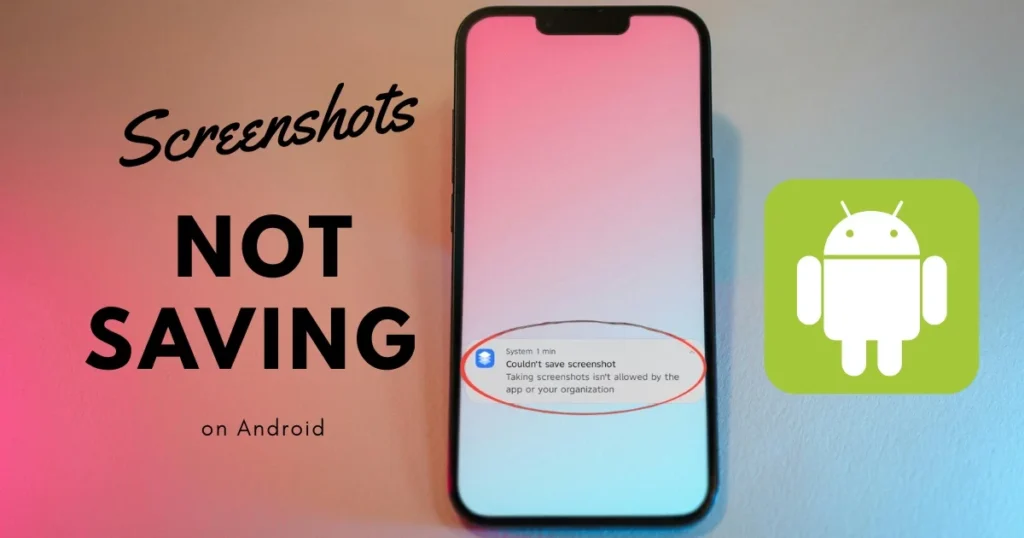
Why Screenshots not saving? – Main reasons
First, let’s understand why this issue occurs. Unless you know the cause, it will be difficult to apply the right fix. Some of the most common reasons are listed below:
1. Storage space is full
This is the most common reason. Your phone needs free storage space to save screenshots. If the storage is full or nearly full, the screenshot will fail silently – there will be no error message and no notification; nothing will simply get saved. Many people in India use phones with 32GB or 64GB of storage, which fill up quickly with WhatsApp videos, TikTok cache, and photos.
2. Storage permission is disabled.
Many Android phones require storage permission to save screenshots. If this permission was accidentally disabled following an update, your screenshots will not be saved anywhere. This issue is particularly common on Android 12, 13, and later versions, as Google has significantly altered the permission system.
3. Problem with cache files
One of the reasons why your screenshots and camera photos are not saved in the gallery can also be the error in the cache files of the camera app. Just have to clear the cache. Apart from this, cache of Gallery app and Media Storage app also becomes a problem at times.
4. The app has blocked screenshots (Security Policy)
Many apps actively block screenshots for security or copyright reasons. These include streaming apps like Netflix, Disney+, and Amazon Prime Video. If you try to take a screenshot within one of these apps, the phone will either capture a black screen or save nothing at all; this is intentional – the app is blocking the action, and there is no fault with the phone.
When you open a banking app or use an incognito browser, Android prevents screen capture to ensure that sensitive information – such as passwords, financial data, or messages – is not saved or shared.
5. Bugs After Software Update
Often, after an update, taking a screenshot causes the screen to flash, but nothing gets saved, and there is no indication that the screenshot was actually captured. In some cases, trying again causes the entire touchscreen to stop responding. This is an absurd issue that arises after updating the phone.
6. SD Card Issues
If you use an SD card, ensure that it is not full and has enough space to store photos. Sometimes, an SD card becomes corrupted or the connection becomes loose, causing issues with saving screenshots.
7. Phone in Safe Mode
How to check: Look at the bottom of your screen. If you see “Safe Mode” written there, that is the issue. After returning to normal mode, try taking a screenshot.
Screenshots Not Saving on Android – 10 Ways to Fix It
Now, let’s get down to business. Try these fixes one by one, starting with the easiest.
Fix 1: Restart the phone
It sounds incredibly simple, but it works. It may seem basic, but it is effective more often than you might think. A frozen background process could be preventing the screenshot from saving without displaying any error message.
How to do it:
- Press and hold the power button
- Tap on Restart
- Take a screenshot after the phone turns on
Fix 2: Check and free up storage space
Go to Settings > Storage to see how much space is left. If there is less than 500MB of free space, delete some photos, videos, or apps to make room.
What to do:
- Delete large video files and duplicate photos
- Clean the WhatsApp Media folder – it consumes the most space
- Clear junk files and cache using the Google Files app (free)
- Uninstall old apps that are not in use
Fix 3: Clear Cache (Gallery + Media Storage + Samsung Capture)
This is the most overlooked fix, yet it is highly effective.
Cache for the Gallery/Photos app:
- Go to Settings > Apps > Gallery (or Google Photos)
- Tap on Storage & Cache
- Select Clear Cache and then Clear Storage
Media Storage cache:
- Go to Settings > Apps (tap the three dots at the top and enable ‘Show system apps’)
- Find Media Storage
- Clear cache
For Samsung users:
- Search for “Samsung Capture” and enable it if access is not allowed. If access is already enabled, toggle it off and then on again, and try taking a screenshot.
Fix 4: Check and enable storage permissions
Some Android phones require storage permission to save screenshots. If this permission has been accidentally disabled, the screenshot won’t be saved anywhere.
How to fix it:
- Go to Settings > Apps > [Screenshot/Gallery App]
- Tap on Permissions
- Enable the Storage (or Photos and Videos – Android 13+) permission
- On Android 13 and later versions, look for the Photos and Videos permission instead of Storage
On Samsung phones:
- Go to Settings > Apps > Special Access > All Files Access and check the permission for Samsung Capture.
Fix 5: Check for software updates
Updating your software often permanently resolves the issue of screenshots not saving on Android.
How to do it:
- Go to Settings > Software Update (or System > System Update)
- If an update is available, download and install it
- Restart the phone after the update
This is important because older versions sometimes contain bugs that the company has fixed in a new update. Samsung, Xiaomi, and Realme – they all regularly fix such bugs through their OTA updates.
Fix 6: Re-mount or format the SD card
If your phone has an SD card and is set to save screenshots to it, check the following:
- If you use an SD card in your phone, try re-mounting it. Open the Settings app and tap on Storage. Select “Unmount SD Card” and wait a few seconds. Then, tap on “Mount SD Card.”
- If the camera or screenshots still fail to save, the SD card might be corrupted; a corrupted SD card cannot save photos. To fix this, format the SD card.
Note: Formatting will delete all data on the SD card; back it up first.
Fix 7: Check for app restrictions (DRM / Security Policy)
If you are unable to take a screenshot within a specific app, such as:
- Banking apps (PhonePe, Google Pay, Paytm)
- Streaming apps (Netflix, Hotstar, Prime Video)
- Chrome Incognito Mode
- Snapchat, Instagram (in certain sections)
So, be aware that there is no workaround for DRM-protected apps; these apps intentionally block screenshots. To confirm that your phone is working correctly, take a screenshot of your home screen or another app – if it saves properly, then there is no issue with the phone.
How to enable screenshots in Chrome Incognito:
- Type
chrome://flagsin Chrome, enable the “Incognito Screenshot” setting, and relaunch the browser.
Fix 8: Use the correct screenshot button combination
Sometimes, the issue isn’t technical but lies in the way the buttons are pressed.
- The correct buttons to press simultaneously are Volume Down and Power.
- Check the physical condition of the phone’s buttons – if a button isn’t working properly, is obstructed, or if both buttons cannot be pressed down together evenly, the screenshot function won’t work. A phone case might be blocking the buttons, so try removing the cover and attempting it again.
Fix 9: Wipe Cache Partition (Samsung)
This is an advanced step for Samsung users. Power off the phone, press and hold the Volume Up and Power buttons until the Samsung logo appears, then use the Volume button to highlight “Wipe Cache Partition” and the Power button to select it.
This does not delete any of your personal data; it simply clears the system cache.
Fix 10: Use a third-party screenshot app (free)
If none of the above fixes work, try a free third-party screenshot app from the Play Store.
Some great free apps:
- Screen Master – A free, easy-to-use screenshot and photo markup tool that does not require root access. You can take screenshots by tapping a floating button or shaking the device. (Free on Play Store, $0)
- Screenshot Touch – Beyond basic triggers, this app offers tools for more complex tasks. It includes an in-app browser for capturing full-length webpages and a feature to stitch multiple screenshots into a single long image. (Free, ad-supported, $0)
- AZ Screen Recorder – Rated 4.4 stars by over 1.58 million users on the Google Play Store, this app supports screen recording in addition to taking screenshots. (Free, in-app purchases starting at $2.99)
Bonus tip: Factory reset (last resort)
If nothing else works, the final option is a factory reset.
- If nothing else works, reset the phone to factory settings. Keep in mind that resetting will delete all your data. Go to Settings > System > Reset Options and tap on Erase All Data (Factory Reset).
Make sure to back up your photos, contacts, and important data before resetting! Save the backup to Google Drive or a computer.
Some useful free tools
| Tools | Features | Price |
|---|---|---|
| Google Files | Cleaning junk, freeing up storage | $0 (Free) |
| Screen Master | screenshot + markup | $0 (Free) |
| Screenshot Touch | Advanced Screenshot + Webpage Capture | $0 (Free) |
| SD Maid | Deep Cache Cleaning | $0 (Free Basic) |
Visit fixtech.in for more Android troubleshooting guides and repair tips – you’ll find everything there, step-by-step, in Simple Language.
What points should be given special attention?
- Regularly clear out WhatsApp media – it is the app that consumes the most storage in India.
- Always keep your phone updated; updates include security patches and bug fixes.
- Replace your SD card if it is old; a corrupted SD card frequently causes issues.
- Check the screenshot folder location; screenshots are usually stored in a specific “Screenshots” folder, which may be separate from the standard “Pictures” or “Camera” folders. Sometimes, screenshots are being saved but are simply going to a different location.
- Manually check using the File Manager app: Internal Storage > Pictures > Screenshots or DCIM > Screenshots.
FAQs – About Screenshot not saving
Q1: Screenshots aren’t saving on my Android phone; what should I do first?
First, restart your phone. Then, check your storage – if it has less than 500MB of free space, clear some room. The most common causes are full storage, a corrupted app cache, disabled storage permissions, or a software bug. Checking storage and clearing the cache resolves the issue in most cases.
Q2: I hear the screenshot sound, but the photo isn’t saving – why?
If your phone is capturing the screenshot (you hear the sound or see a flash) but nothing is being saved, the problem is almost always related to storage space or a corrupted cache.
Q3: Why can’t I take screenshots in Netflix or banking apps?
Android apps block screenshots using security features to protect user data. This is implemented via system-level permissions to prevent screen capture in sensitive situations. A black screenshot indicates that the app you are trying to capture has screenshot protection enabled – this is common in Netflix, banking apps, Snapchat, and payment apps.
Q4: How do I take screenshots in Chrome Incognito mode?
Type chrome://flags into the Chrome address bar, search for “Incognito Screenshot,” enable it, and relaunch Chrome.
Q5: Is there a free app for taking screenshots on Android?
Yes, both Screen Master and Screenshot Touch are available for free on the Play Store and work without rooting your device. They are excellent alternatives to the built-in screenshot feature.
Q6: The screenshot is saving, but it doesn’t appear in the gallery?
This could be a gallery cache issue. It can be easily fixed by deleting all the gallery’s cache files. Afterward, manually check the Pictures > Screenshots folder using your File Manager.
Final Thoughts
Screenshots not saving on Android – it might seem like a minor issue, but it becomes a real hassle when you can’t find a screenshot exactly when you need it. One of the 10 fixes listed above is sure to solve your problem. In most cases, freeing up storage, clearing the cache, or enabling permissions is all it takes. If the issue persists, visit fixtech.in for more detailed guides. We hope you found this guide helpful. If a friend is also facing trouble saving screenshots on Android, be sure to share this article with them!